Optimize 4K Textures for WebGL and Realtime Preview
Optimize 4K PBR textures for WebGL previews and realtime scenes with sensible map sizes, compression and channel packing.
What this guide helps you optimize
Use this page when texture quality is acceptable but file size, GPU memory, loading time or WebGL responsiveness needs tighter control.
4K textures can look excellent, but realtime previews and WebGL scenes need careful budgets. The visible benefit depends on camera distance, UV scale and how important the asset is.
Use large maps for hero surfaces and reduce supporting maps where detail will not be seen. Roughness and AO often tolerate smaller sizes better than base color or normal maps.
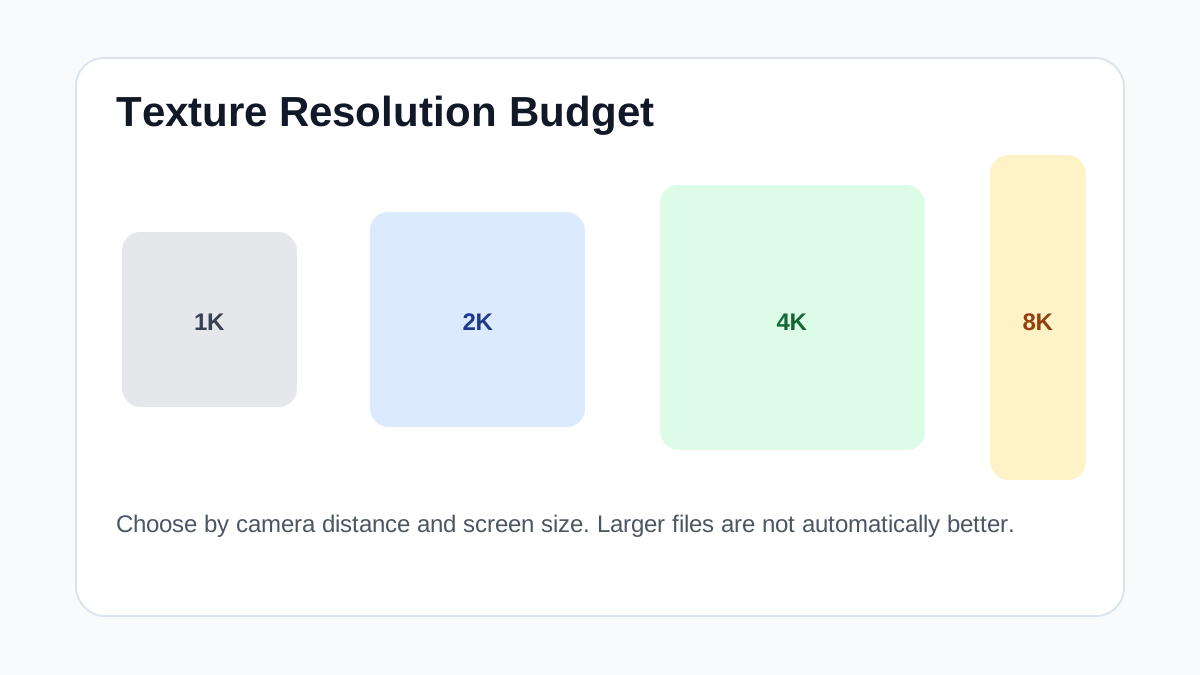
Realtime Texture Budget
| Asset type | Recommended max texture size | Compression notes | Performance risk |
|---|---|---|---|
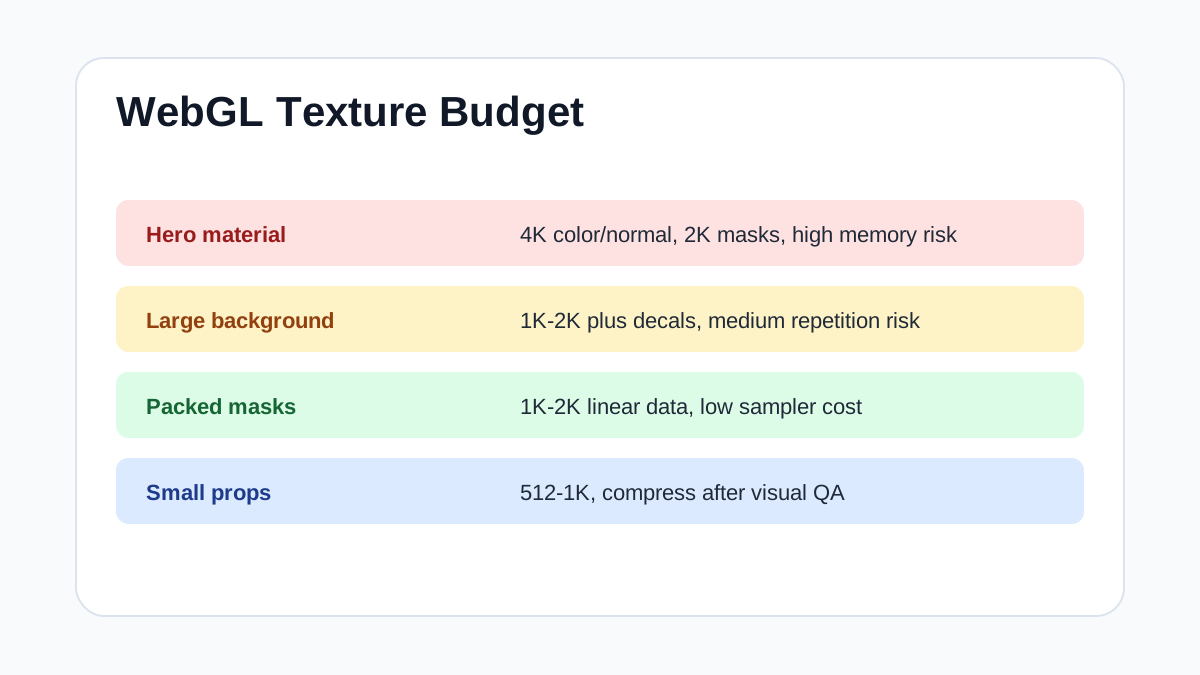
| Hero material close to camera | 4K base color/normal, 2K masks | Use platform texture compression; keep normals in a normal-friendly format | High if several hero materials are visible together |
| Large background wall or floor | 1K-2K | Prefer tiling quality plus decals over a single oversized map | Medium; repetition and memory can both become issues |
| Packed ORM / mask maps | 1K-2K | Pack grayscale channels and import as linear data | Low to medium; wrong sRGB setting is the biggest visual risk |
| Water ripple normal layers | 1K per normal layer | Loopable normal maps with mipmaps; avoid noisy high-frequency compression | Medium; multiple animated layers add sampler cost |
| Small props and distant set dressing | 512-1K | Compress aggressively after checking silhouettes and normal detail | Low unless many unique materials are loaded at once |
Step-by-Step Workflow
- Identify which material is visible close to the camera.
- Keep base color and normal at higher resolution for hero assets.
- Downsize roughness, AO or masks when the difference is invisible.
- Pack grayscale maps into channels where the engine supports it.
- Test load time, GPU memory and visual quality together.
Quality Checklist
- The preview loads quickly on target devices.
- Mipmap generation is enabled.
- Packed maps are imported as linear data.
- Texture size matches actual screen-space importance.
Common Mistakes
- Using 4K for every map because the source file exists.
- Compressing normal maps with settings meant for color maps.
- Ignoring mobile or integrated GPU memory limits.
Useful Next Steps
- Browse PBR texture library for source materials that match this workflow.
- Use Image converter to preview, pack or prepare maps before importing them into your scene.
- Return to the workflow guide library for related Blender, Unreal Engine, Unity and optimization workflows.
FAQ
Which texture maps do I need for Optimize 4K Textures for WebGL and Realtime Preview?
Start with base color, normal and roughness. Add AO, height, metallic or packed engine maps when the material and target renderer support them.
Should I always use 4K or 8K textures for this workflow?
No. Use 4K or 8K only for close camera views or hero assets. For background surfaces, 1K or 2K textures with good tiling and mipmaps are often more efficient.
How does this guide fit into a Optimization pipeline?
Use the guide as a setup checklist before final material tuning. Check scale, color space, map routing, tiling and performance in the target scene rather than judging the texture from the thumbnail alone.