Preview PBR Textures Online Before Downloading
Use an online PBR preview to check tiling, roughness, normal strength, material scale and lighting before downloading texture maps.
Before you download a texture
Use this guide before downloading a full map set so you can catch scale, tiling, roughness and normal-map issues while the material is still easy to swap.
A preview step saves time because many texture issues are visible before import. Tiling seams, overstrong normals and wrong roughness response show up quickly on a sphere, plane or box.
Use online preview for screening assets, then download only the sizes and formats that fit the final scene.
Step-by-Step Workflow
- Open the texture page and inspect the flat preview first.
- Switch to 3D preview and rotate the model under light.
- Look for seams, repeated marks and noisy roughness.
- Compare 1K, 2K, 4K or 8K needs based on camera distance.
- Download the map set only after the material passes the preview check.
Quality Checklist
- The texture tiles cleanly on a plane.
- Normal maps do not create fake swelling.
- Roughness variation is visible without baked highlights.
- The chosen resolution is justified by the asset importance.
Common Mistakes
- Downloading the largest version before checking scale.
- Judging a material only from the base color thumbnail.
- Ignoring how a material behaves under angled light.
Useful Next Steps
- Browse Free PBR textures for source materials that match this workflow.
- Use Online PBR preview to preview, pack or prepare maps before importing them into your scene.
- Return to the workflow guide library for related Blender, Unreal Engine, Unity and optimization workflows.
FAQ
Which texture maps do I need for Preview PBR Textures Online Before Downloading?
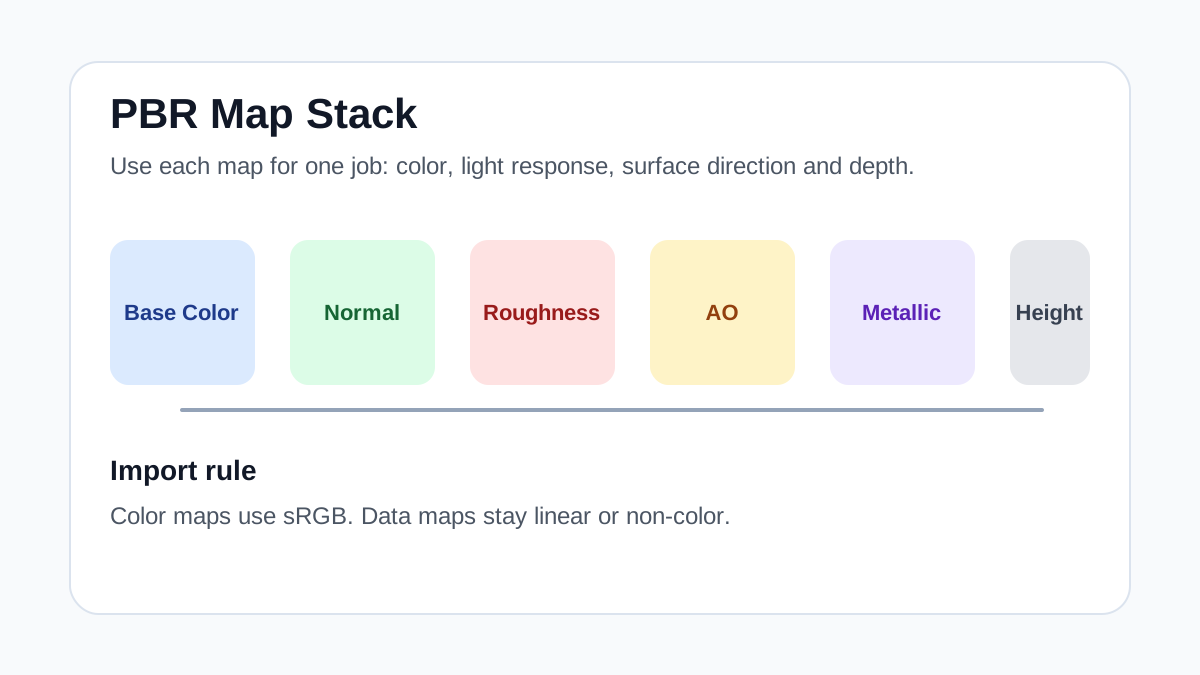
Start with base color, normal and roughness. Add AO, height, metallic or packed engine maps when the material and target renderer support them.
Should I always use 4K or 8K textures for this workflow?
No. Use 4K or 8K only for close camera views or hero assets. For background surfaces, 1K or 2K textures with good tiling and mipmaps are often more efficient.
How does this guide fit into a Tools pipeline?
Use the guide as a setup checklist before final material tuning. Check scale, color space, map routing, tiling and performance in the target scene rather than judging the texture from the thumbnail alone.