Unity URP PBR Texture Import Settings
Set up PBR texture imports for Unity URP, including albedo, normal maps, metallic-smoothness, AO and texture compression.
When to use this workflow
Use this workflow when the material imports into Unity but the surface still looks flat, glossy in the wrong places, incorrectly scaled or miswired.
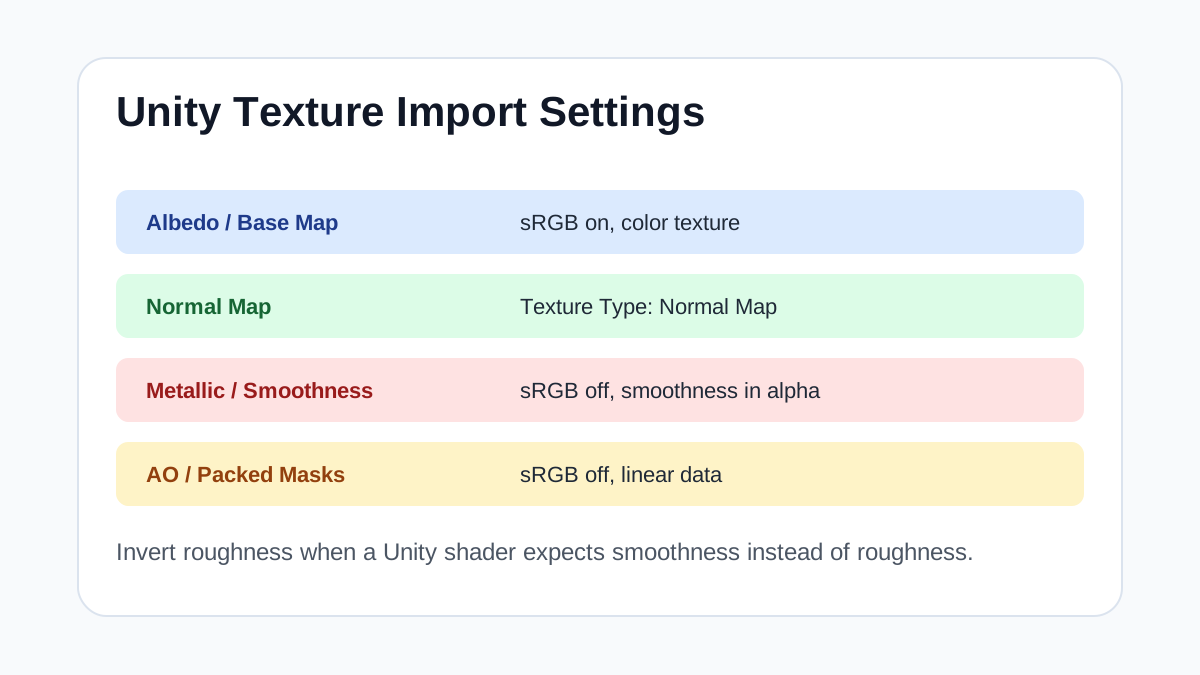
Unity URP materials are straightforward once import settings are consistent. Albedo uses sRGB; normals are marked as Normal Map; packed or grayscale data should stay linear.
The main confusion is roughness versus smoothness. Unity often expects smoothness, so roughness must be inverted when packed into the alpha channel of a metallic-smoothness map.
Texture Import Settings
| Texture map | Import setting | Color space / sRGB | Usage notes |
|---|---|---|---|
| Albedo / Base Map | URP Lit material Base Map | sRGB on | Use alpha only when the shader needs transparency or cutout. |
| Normal | Texture Type: Normal Map | Unity handles as normal data | Fix import warnings and reduce bump scale if the material looks embossed. |
| Metallic-Smoothness | Metallic in R, Smoothness usually in A | sRGB off | Invert roughness into smoothness; do not plug roughness directly into smoothness. |
| AO / mask data | Occlusion input or packed mask depending on shader | sRGB off | Keep AO subtle so lighting still does the main shading work. |
Step-by-Step Workflow
- Import albedo/base color with sRGB enabled.
- Set normal textures to Texture Type: Normal Map.
- Create or import a metallic-smoothness map with smoothness in alpha.
- Disable sRGB for AO, masks and packed data maps.
- Choose compression based on platform and visual importance.
Quality Checklist
- Normal maps display without color artifacts.
- Smoothness is the inverse of roughness when required.
- AO is connected separately if the shader supports it.
- Compression does not damage fine normal detail.
Common Mistakes
- Using a roughness map directly as smoothness.
- Forgetting to mark normal maps as Normal Map type.
- Using desktop compression settings for mobile targets.
Useful Next Steps
- Browse Free PBR textures for source materials that match this workflow.
- Use Unity Unreal Blender Mapper to preview, pack or prepare maps before importing them into your scene.
- Return to the workflow guide library for related Blender, Unreal Engine, Unity and optimization workflows.
FAQ
Which texture maps do I need for Unity URP PBR Texture Import Settings?
Start with base color, normal and roughness. Add AO, height, metallic or packed engine maps when the material and target renderer support them.
Should I always use 4K or 8K textures for this workflow?
No. Use 4K or 8K only for close camera views or hero assets. For background surfaces, 1K or 2K textures with good tiling and mipmaps are often more efficient.
How does this guide fit into a Unity pipeline?
Use the guide as a setup checklist before final material tuning. Check scale, color space, map routing, tiling and performance in the target scene rather than judging the texture from the thumbnail alone.