Unreal Engine Concrete Wall Material with ORM Maps
Build a concrete wall material in Unreal Engine using base color, normal and packed ORM texture maps without losing roughness or AO detail.
When to use this workflow
Use this workflow when the material imports into Unreal Engine but the surface still looks flat, glossy in the wrong places, incorrectly scaled or miswired.
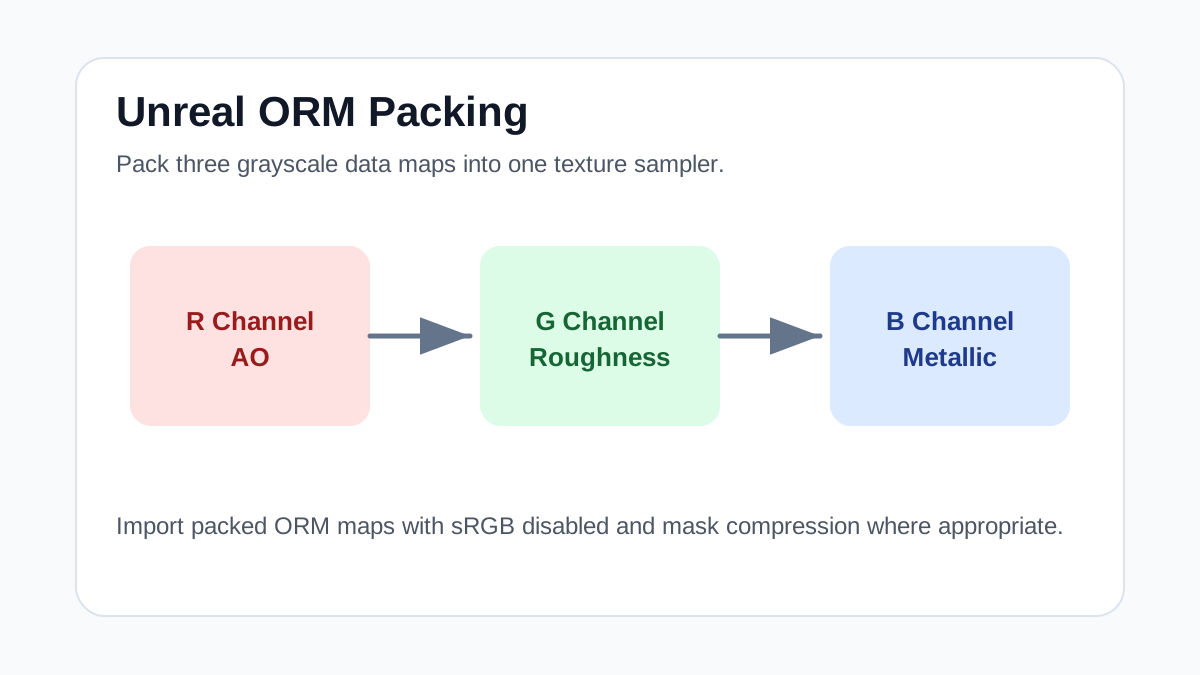
Concrete walls need restrained color and strong roughness variation. In Unreal Engine, a packed ORM map keeps AO, roughness and metallic data in one texture sampler, which is useful for modular walls and large environments.
For most concrete, metallic should stay black. The roughness channel carries the important detail: polished patches, dusty areas, trowel marks and worn edges.
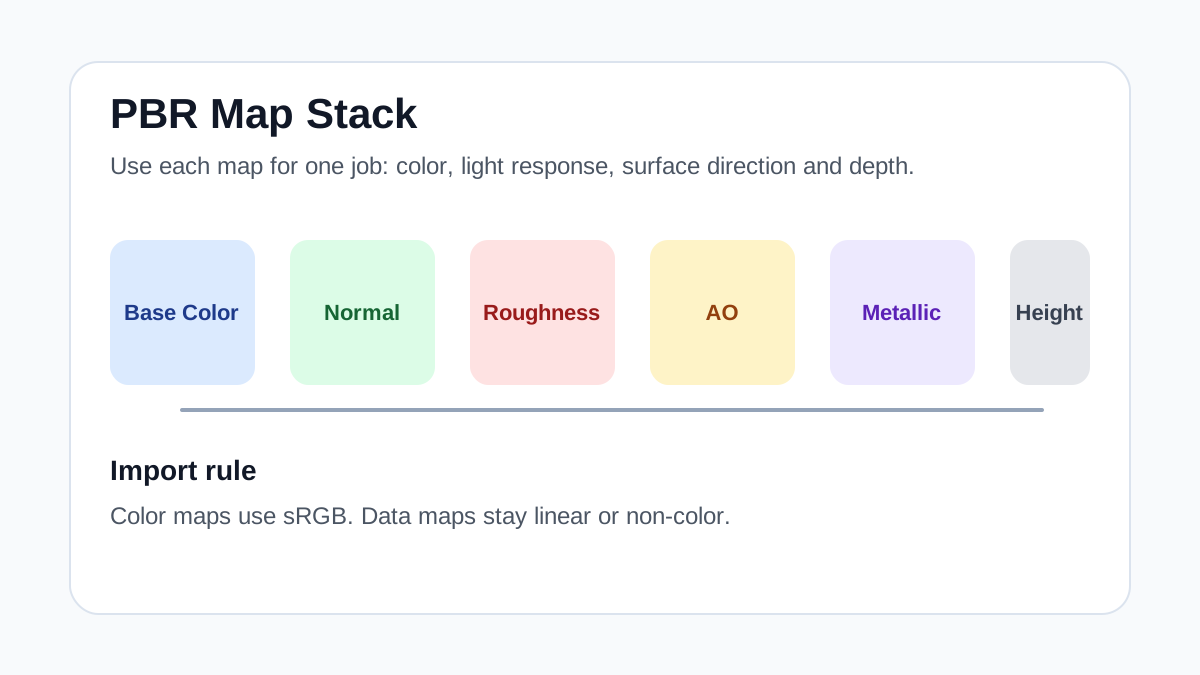
Texture Import Settings
| Texture map | Import setting | Color space / sRGB | Usage notes |
|---|---|---|---|
| Base Color | Texture Sample -> Base Color | sRGB on | Use color only; avoid baked shadows or highlights in the albedo map. |
| Normal | Texture Sample with Normal Map compression -> Normal | sRGB off | If green-channel direction looks inverted, flip it before final material approval. |
| ORM packed map | R -> AO, G -> Roughness, B -> Metallic | sRGB off / Masks | Use for concrete, metal and modular assets to reduce samplers and keep channels predictable. |
| Height / displacement | Parallax, bump offset or virtual heightfield workflow when appropriate | sRGB off | Reserve for close-up surfaces; avoid expensive height effects on distant background walls. |
Practical Material Parameters
| Material focus | Recommended UV scale | Roughness range | Normal strength range | Best use cases | Common visual issues |
|---|---|---|---|---|---|
| Concrete walls and slabs | 2-5 m per tile for walls, 1-3 m for floors | 0.55-0.9 | 0.15-0.55 | Walls, floors, sidewalks, industrial props | Baked stains repeating in a grid, AO too dark, inflated cracks |
Step-by-Step Workflow
- Import base color as sRGB and normal/ORM textures as linear data.
- Connect ORM red to Ambient Occlusion, green to Roughness and blue to Metallic.
- Connect the normal map to the Normal input and lower strength if the wall looks inflated.
- Use texture coordinate scale to match slab or block size.
- Add decals for leaks, cracks and stains instead of baking every mark into the repeat tile.
Quality Checklist
- The metallic channel is black unless the surface includes exposed metal.
- Roughness changes are visible under side lighting.
- The wall does not show obvious square repeats at player distance.
- Texture memory fits the platform target.
Common Mistakes
- Importing ORM maps with sRGB enabled.
- Using height as a direct displacement source on flat modular walls without testing silhouettes.
- Overdarkening AO so corners look dirty before lighting is added.
Useful Next Steps
- Browse Concrete PBR textures for source materials that match this workflow.
- Use Unity Unreal Blender Mapper to preview, pack or prepare maps before importing them into your scene.
- Return to the workflow guide library for related Blender, Unreal Engine, Unity and optimization workflows.
Recommended Textures for This Workflow
FAQ
Which texture maps do I need for Unreal Engine Concrete Wall Material with ORM Maps?
Start with base color, normal and roughness. Add AO, height, metallic or packed engine maps when the material and target renderer support them.
Should I always use 4K or 8K textures for this workflow?
No. Use 4K or 8K only for close camera views or hero assets. For background surfaces, 1K or 2K textures with good tiling and mipmaps are often more efficient.
How does this guide fit into a Unreal Engine pipeline?
Use the guide as a setup checklist before final material tuning. Check scale, color space, map routing, tiling and performance in the target scene rather than judging the texture from the thumbnail alone.