Unreal ORM Packed Textures for Metal Materials
Use packed ORM textures for metal materials in Unreal Engine, including channel layout, import settings and common PBR mistakes.
When to use this workflow
Use this workflow when the material imports into Unreal Engine but the surface still looks flat, glossy in the wrong places, incorrectly scaled or miswired.
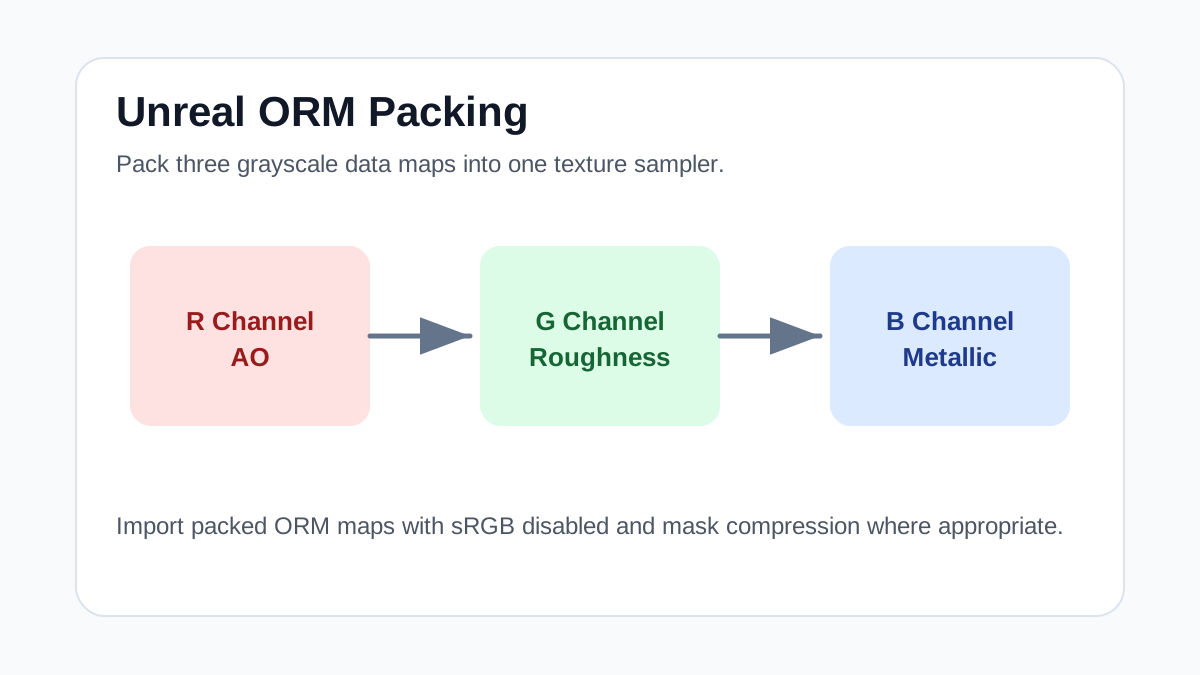
Unreal Engine commonly uses ORM packing: red for ambient occlusion, green for roughness and blue for metallic. This saves memory and keeps material graphs clean.
Metal materials are unforgiving because wrong roughness or metallic data changes the entire surface type. Painted metal, exposed steel and rust should not share one flat value.
Texture Import Settings
| Texture map | Import setting | Color space / sRGB | Usage notes |
|---|---|---|---|
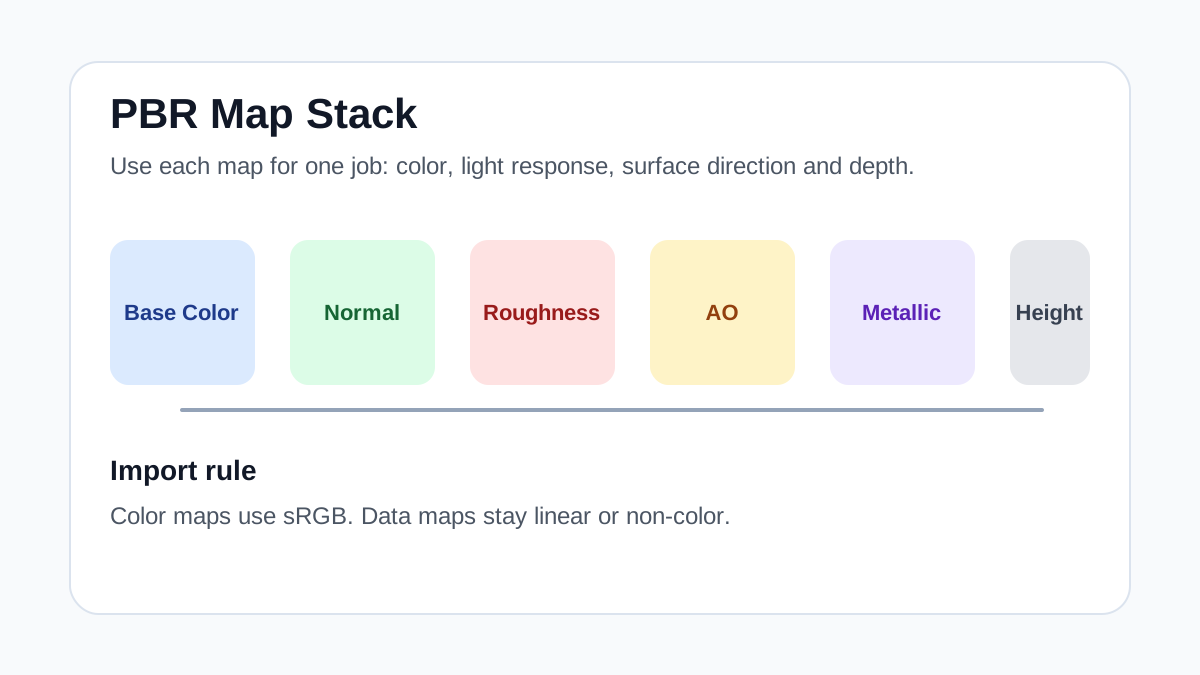
| Base Color | Texture Sample -> Base Color | sRGB on | Use color only; avoid baked shadows or highlights in the albedo map. |
| Normal | Texture Sample with Normal Map compression -> Normal | sRGB off | If green-channel direction looks inverted, flip it before final material approval. |
| ORM packed map | R -> AO, G -> Roughness, B -> Metallic | sRGB off / Masks | Use for concrete, metal and modular assets to reduce samplers and keep channels predictable. |
| Height / displacement | Parallax, bump offset or virtual heightfield workflow when appropriate | sRGB off | Reserve for close-up surfaces; avoid expensive height effects on distant background walls. |
Practical Material Parameters
| Material focus | Recommended UV scale | Roughness range | Normal strength range | Best use cases | Common visual issues |
|---|---|---|---|---|---|
| Painted, brushed or oxidized metal | 0.5-2 m for panels, asset-specific for trims | 0.18-0.75 depending on polish and rust | 0.15-0.6 | Panels, machinery, trims, sci-fi props | Wrong metallic mask, rust treated as metal, flat roughness |
Step-by-Step Workflow
- Import the ORM texture with sRGB disabled.
- Connect red to AO, green to Roughness and blue to Metallic.
- Use masks so painted areas are non-metal and exposed areas are metal.
- Tune roughness under a strong reflection test light.
- Use decals or masks for scratches and oxidation.
Quality Checklist
- The blue channel is not white on painted or dusty areas.
- Roughness variation follows scratches and wear.
- AO is subtle and does not replace lighting.
- The material remains readable in both bright and dark scenes.
Common Mistakes
- Enabling sRGB on packed data maps.
- Treating rust as metallic even though oxidized areas are usually dielectric.
- Using one roughness value for every part of a complex metal texture.
Useful Next Steps
- Browse Metal PBR textures for source materials that match this workflow.
- Use Unity Unreal Blender Mapper to preview, pack or prepare maps before importing them into your scene.
- Return to the workflow guide library for related Blender, Unreal Engine, Unity and optimization workflows.
Recommended Textures for This Workflow
FAQ
Which texture maps do I need for Unreal ORM Packed Textures for Metal Materials?
Start with base color, normal and roughness. Add AO, height, metallic or packed engine maps when the material and target renderer support them.
Should I always use 4K or 8K textures for this workflow?
No. Use 4K or 8K only for close camera views or hero assets. For background surfaces, 1K or 2K textures with good tiling and mipmaps are often more efficient.
How does this guide fit into a Unreal Engine pipeline?
Use the guide as a setup checklist before final material tuning. Check scale, color space, map routing, tiling and performance in the target scene rather than judging the texture from the thumbnail alone.