Leather Texture Roughness and Normal Map Workflow
A PBR workflow for leather materials, covering grain scale, normal strength, roughness variation, upholstery and product-render use cases.
What this material workflow helps you fix
Use this guide when Leather Texture Roughness and Normal Map Workflow needs practical scale, roughness, normal strength and visual QA settings rather than only a preview thumbnail.
Leather surfaces need grain and specular response to agree. A smooth leather base with a noisy normal map feels wrong, while worn leather needs roughness variation around scratches and creases.
Use texture scale based on the object: upholstery can show broad grain, while bags, straps and shoes often need finer pores and more directional wear.
Practical Material Parameters
| Material focus | Recommended UV scale | Roughness range | Normal strength range | Best use cases | Common visual issues |
|---|---|---|---|---|---|
| Leather grain and wrinkles | 20-80 cm per tile depending on object size | 0.32-0.72 | 0.2-0.65 | Seats, bags, straps, product renders | Plastic-looking highlights, grain too large, repeated wrinkles |
Step-by-Step Workflow
- Connect base color, roughness and normal maps with correct color space settings.
- Tune normal strength until pores are visible but not raised like fabric.
- Use roughness to separate polished, pebbled and worn zones.
- Add masks or decals for seams, scratches and edge wear.
- Preview under side lighting to judge grain and reflection.
Quality Checklist
- The leather does not look like plastic.
- Grain scale matches the object size.
- Scratches affect roughness as well as color.
- Close-up renders hold enough detail without overusing 8K maps.
Common Mistakes
- Using a single roughness value for the whole leather surface.
- Letting repeated wrinkles reveal the texture tile.
- Forgetting that dark leather still needs readable reflection.
Useful Next Steps
- Browse Leather PBR textures for source materials that match this workflow.
- Use Online PBR preview to preview, pack or prepare maps before importing them into your scene.
- Return to the workflow guide library for related Blender, Unreal Engine, Unity and optimization workflows.
Recommended Textures for This Workflow
FAQ
Which texture maps do I need for Leather Texture Roughness and Normal Map Workflow?
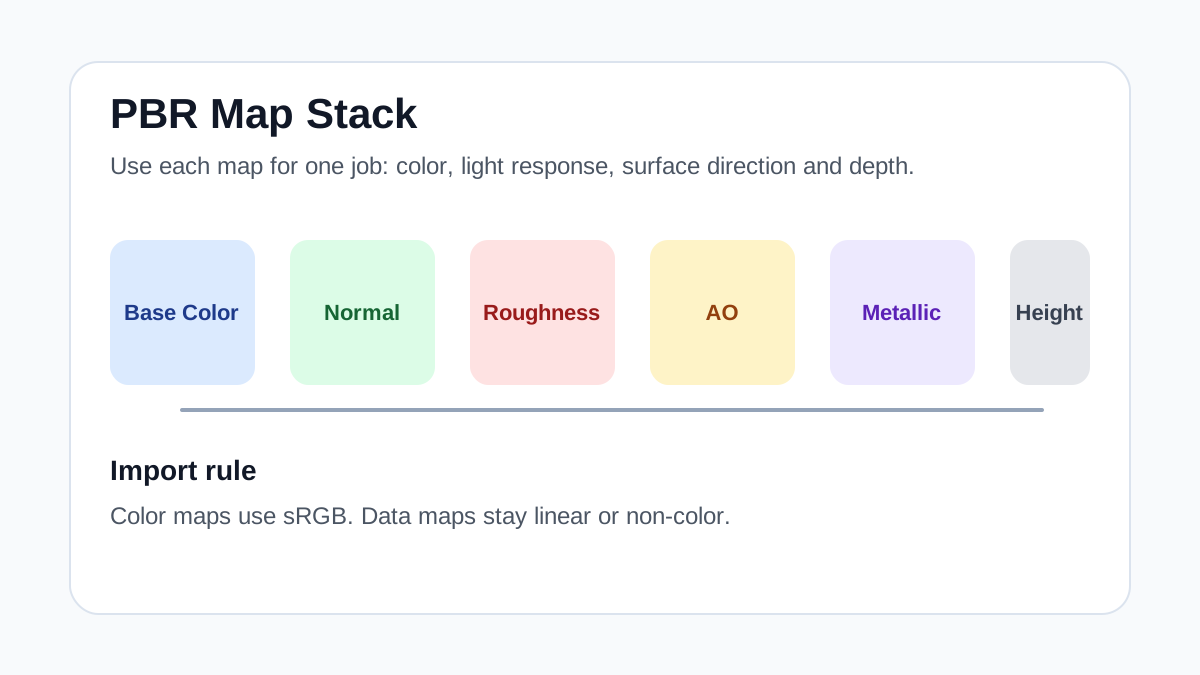
Start with base color, normal and roughness. Add AO, height, metallic or packed engine maps when the material and target renderer support them.
Should I always use 4K or 8K textures for this workflow?
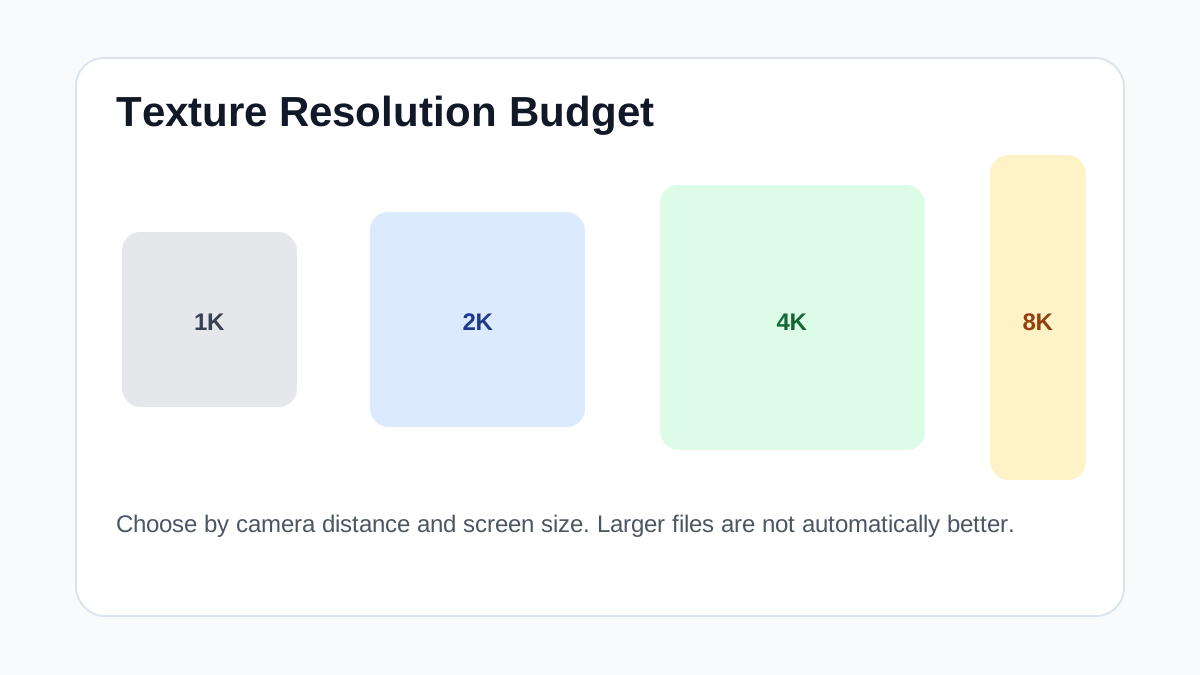
No. Use 4K or 8K only for close camera views or hero assets. For background surfaces, 1K or 2K textures with good tiling and mipmaps are often more efficient.
How does this guide fit into a Materials pipeline?
Use the guide as a setup checklist before final material tuning. Check scale, color space, map routing, tiling and performance in the target scene rather than judging the texture from the thumbnail alone.