Free PBR Texture Generator
Create Normal, Roughness, AO, Height, Metallic and optional ORM maps from a real PNG, JPG or WEBP image.


Demo provenance: AI-generated source created for this tool on 2026-08-28; the Normal preview was produced by the same server pipeline used by the form. This demo is not a catalog license record.
Continue with this texture
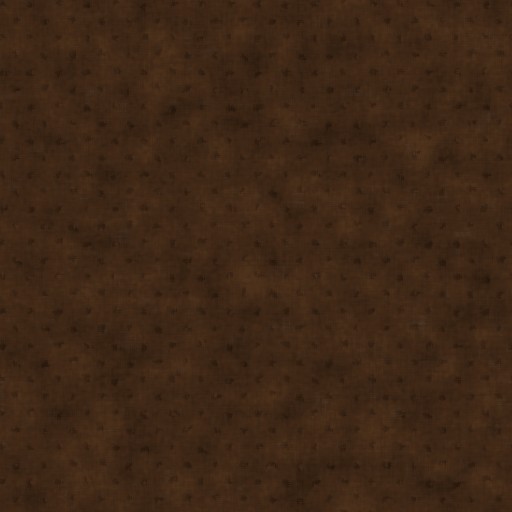
Procedural Damp Mud Ground PBR Texture · 512 × 512 working image
Loading the catalog image. Generation starts only when you press Generate.
Derived maps estimate surface detail. Check the original asset license before use.
Input and limits
- PNG, JPG/JPEG, or WEBP
- Up to 8 files per run
- 20 MB maximum per file
Processing and storage
Processing runs on the AITextured server. Uploaded working files are removed when the request ends. The signed ZIP link expires after 30 minutes; temporary ZIP cleanup runs on later requests for files older than 24 hours.
ZIP contents
The archive contains Albedo, Normal, Roughness, AO and Metallic PNG maps, optional Height and ORM maps, plus a machine-readable manifest. File size is shown by the browser when the finished ZIP is downloaded.
How the maps are derived
Height comes from normalized image brightness; Normal uses its gradients. Roughness uses local contrast and AO approximates darker recesses. These are starting points for editing, not measured surface properties. Painted shadows or highlights can become false depth.
Albedo preserves the source image, including any baked lighting. Metallic is a uniform value set by the control, not an automatic metal mask. Output maps keep the input pixel dimensions; this tool does not upscale images or repair non-matching tile edges.
DirectX vs OpenGL normals
The conventions differ in the green (Y) channel. This generator's current normal orientation is Not verified; invert the green channel if lighting appears recessed instead of raised. Use the engine mapper for target-specific packaging.
Start with a sharply focused, evenly lit PNG, JPG or WEBP image. If you need a tileable material, check that the source edges already match. Use Normal, Roughness, Height and Ambient Occlusion as editable approximations, then compare the material under neutral and grazing light before using it in a project.
Upload your seamless texture, adjust parameters like Normal strength, Roughness contrast and AO intensity, then download the result as a ZIP archive. The separate maps can be imported into Blender and other PBR tools; use the dedicated engine mapper when you need Unreal ORM or Unity-specific channel packing.
Import the maps into your renderer
- Blender: use Albedo as Base Color. Set the normal image to Non-Color, connect it through a Normal Map node, and check the green-channel orientation. Use roughness and metallic images as data rather than color.
- Unreal Engine: for this generator's ORM output, connect R to Ambient Occlusion, G to Roughness and B to Metallic. Disable sRGB on the packed mask texture and import the normal image with normal-map settings.
- Unity: choose your render pipeline before packing maps. Standard, URP and HDRP shaders can expect different mask layouts and smoothness inputs. Use the engine mapper for the selected target instead of assigning ORM directly.
For more detail, read PBR texture maps explained and how to choose texture resolution. Use the online preview to check tiling and shading.
Choose materials for a project
Explore Blender, Unreal and Unity texture collections with setup notes and linked materials.