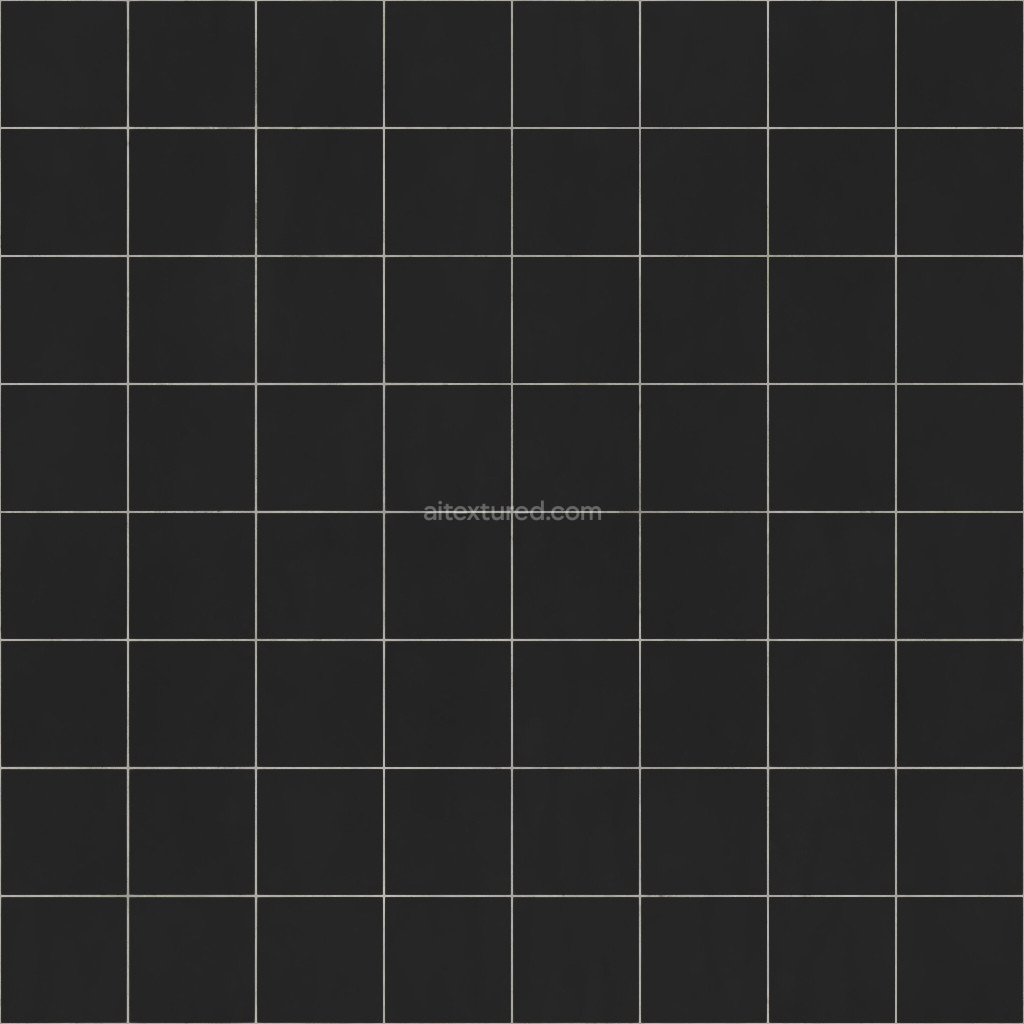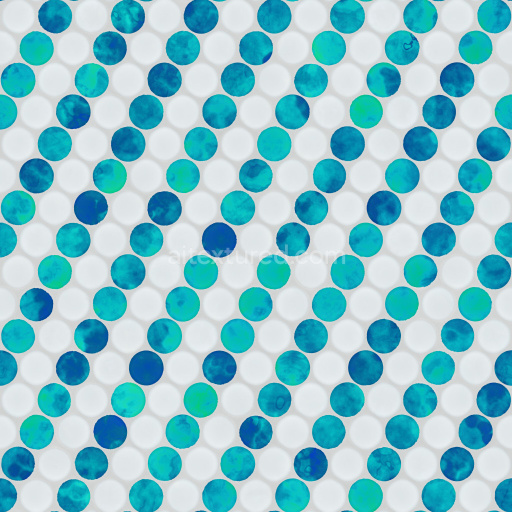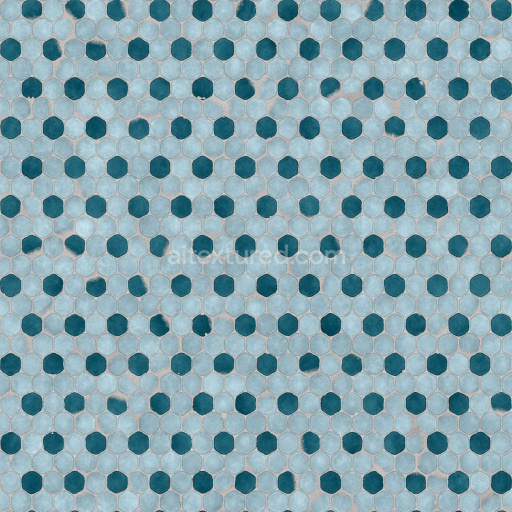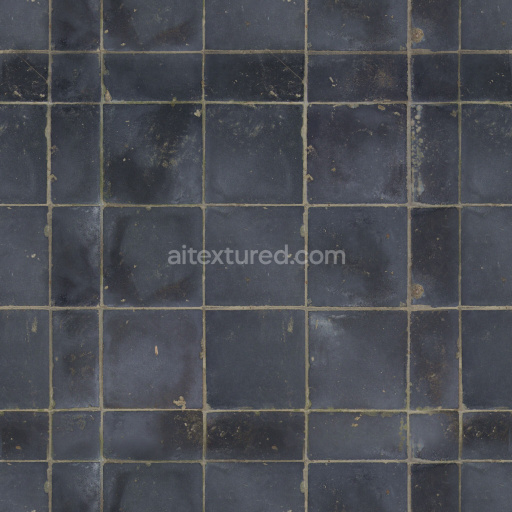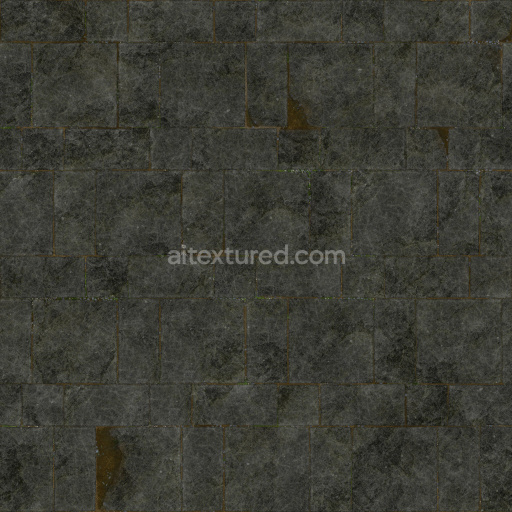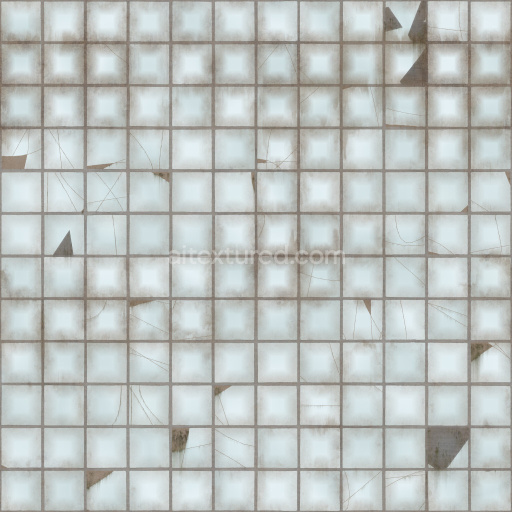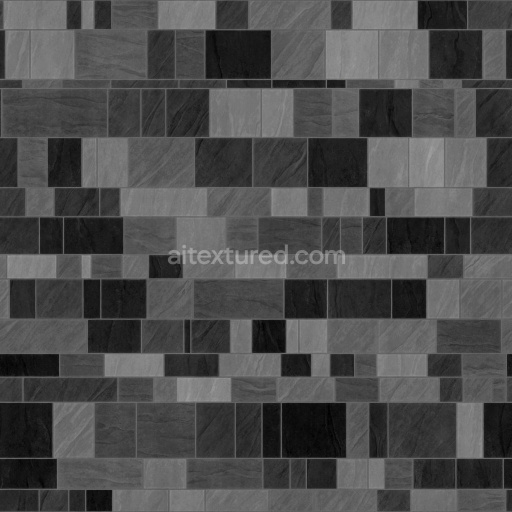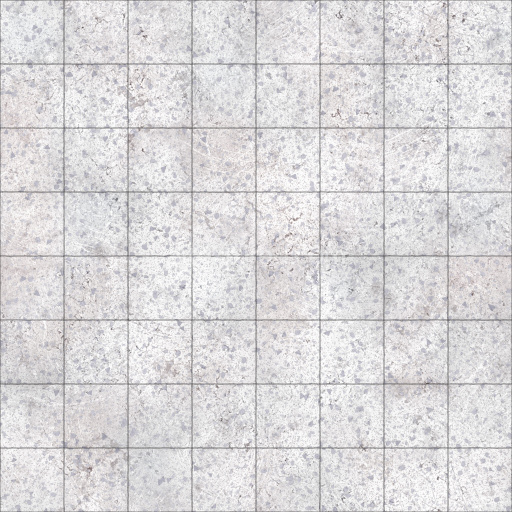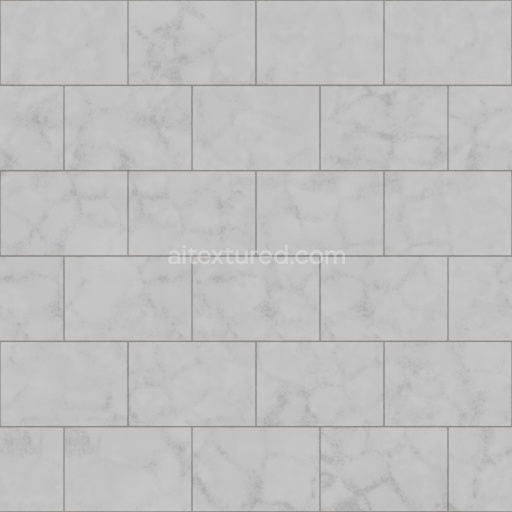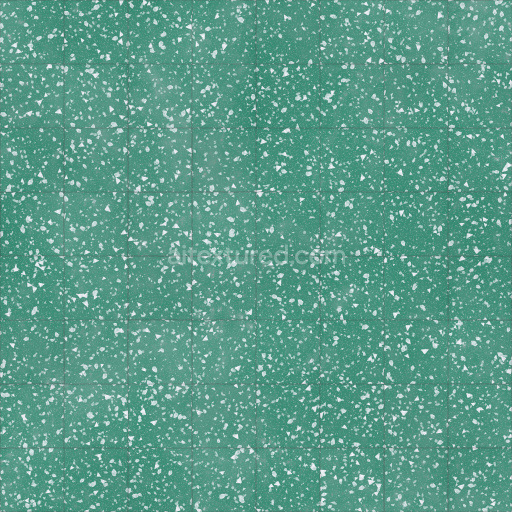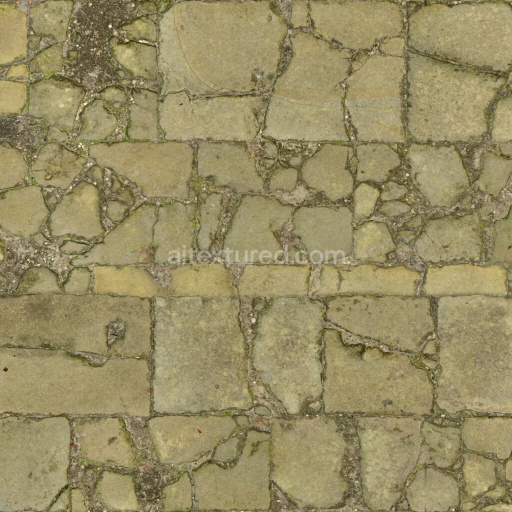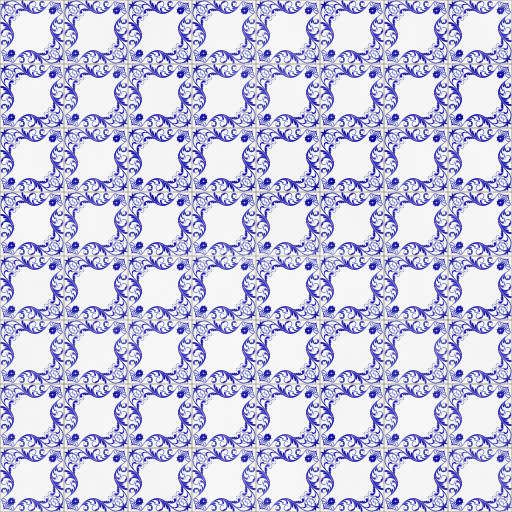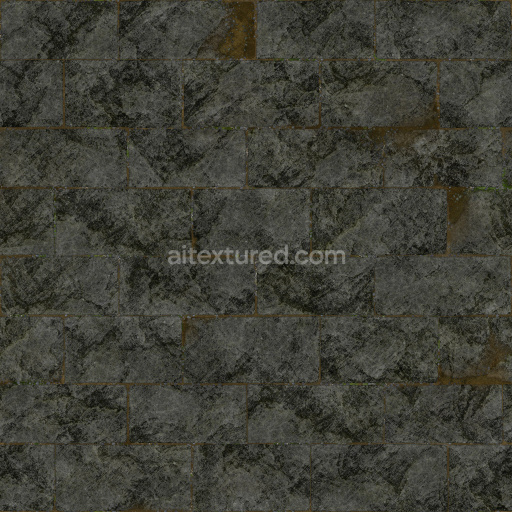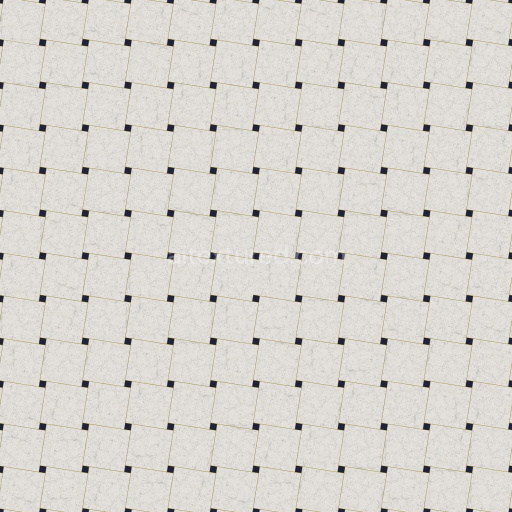
Tiles Seamless Black Smooth Glossy Modern Ceramic Matte Tileable Patterned free download

. Formats: JPG . Free for personal & commercial use.

Seamless black tiles PBR texture for 3D applications

IDtiles_seamless_black_smooth_glossy_modern_ceramic_matte_tileable_patterned
Tiles
JPG
Size1k (1024x1024px), 2k (2048x2048px), 4k (4096x4096px), 8k (8192x8192px)
Maps:BaseColor, Normal, Roughness, AO, Height/Displacement, ORM
sRGB
Enhance your 3D projects with our seamless black tiles PBR texture. This high-quality texture set includes BaseColor, Normal, Roughness, Ambient Occlusion, and Height/Displacement maps, available in resolutions ranging from 1K to 8K. The sleek and modern design of these tiles makes them ideal for a variety of applications, including architectural renderings, interior designs, and game environments. The tileable nature of this texture ensures that you can create expansive surfaces without visible seams, allowing for a smooth and cohesive look. Perfect for both professionals and hobbyists, this texture is versatile and easy to integrate into your workflow, providing a realistic finish that enhances the overall quality of your work.

How to Use These Seamless PBR Textures in Blender

This quick guide shows how to connect a seamless PBR texture set in Blender using Principled BSDF. The workflow works for tileable materials used in Blender, Unreal Engine, Unity, archviz, and game environments.

What Is Included

  • albedo or base color for the visible surface color
  • normal for fine surface relief
  • roughness for gloss and reflectivity control
  • metallic for metal or dielectric response
  • ao for ambient occlusion in cavities
  • height for bump, parallax, or displacement
  • ORM packed maps for optimized real-time workflows
Blender node setup overview for a seamless PBR texture
Example node layout for a standard PBR material in Blender.

Quick Start

  1. Open the Shader Editor and create a new material.
  2. Add an Image Texture node for each map you want to use.
  3. Set Color Space to sRGB for Albedo and to Non-Color for Normal, Roughness, Metallic, AO, Height, and ORM.
  4. Connect the maps to the matching inputs on Principled BSDF.

Recommended Connections

  • Albedo -> Base Color
  • Roughness -> Roughness
  • Metallic -> Metallic
  • Normal -> Normal Map node -> Normal
  • Height -> Bump or Displacement, depending on your render setup
Adding an image texture node in Blender
Add an Image Texture node before assigning the downloaded maps.

Using ORM Maps

If your download includes a packed ORM texture, split its RGB channels: R = AO, G = Roughness, B = Metallic. This is useful for Unreal Engine and other optimized real-time pipelines.

Tiling and UV Scale

Because these textures are seamless, you can repeat them across large surfaces without visible seams. Use a Mapping node to increase or reduce tiling density on floors, walls, terrain, props, and modular assets.

Common Mistakes

  • Using sRGB on non-color maps
  • Connecting a Normal map directly without a Normal Map node
  • Overdriving Height or Bump values so the surface looks unnatural
  • Ignoring texture scale, which makes seamless materials look repetitive
Loading a downloaded texture set into Blender
Load the downloaded texture set and wire the maps to Principled BSDF.

For more examples, browse related categories such as Wood Textures, Concrete Textures, and Metal Textures.

AITEXTURED Tools

Build, preview, and export seamless PBR materials. Generate full map sets from a single image, inspect them in a real-time WebGL viewer, and re-package maps for Unreal, Unity, and Blender—directly in your browser.