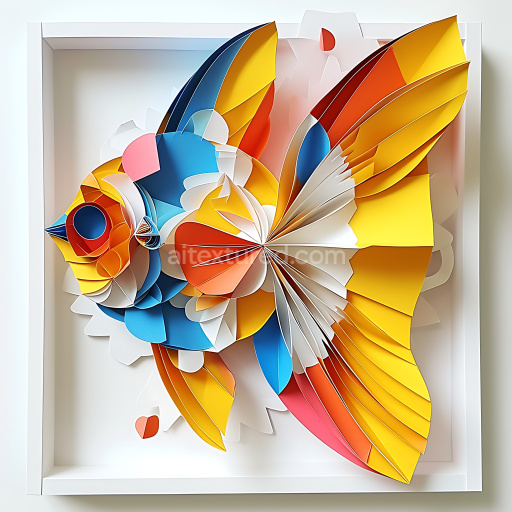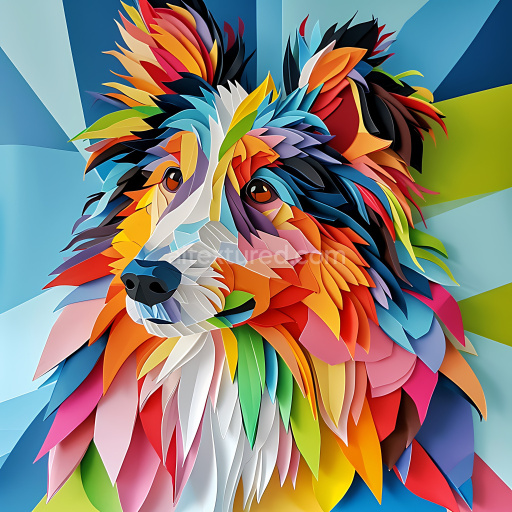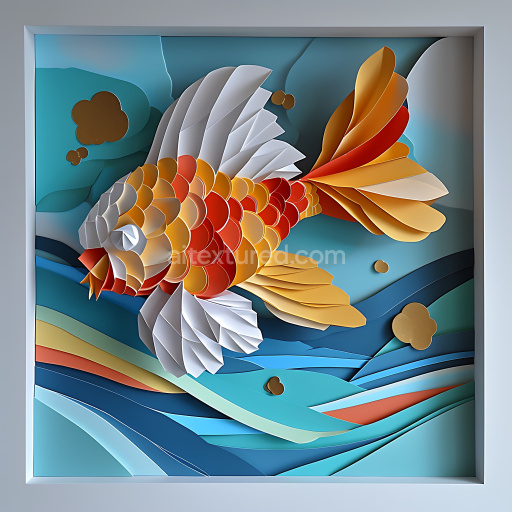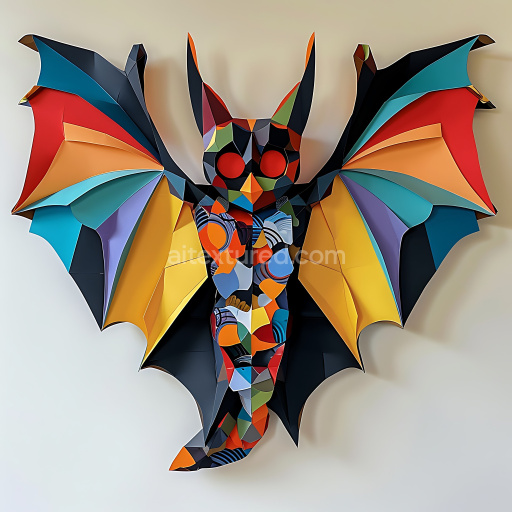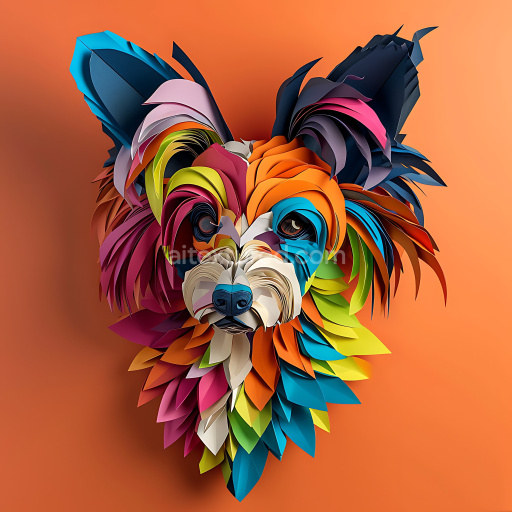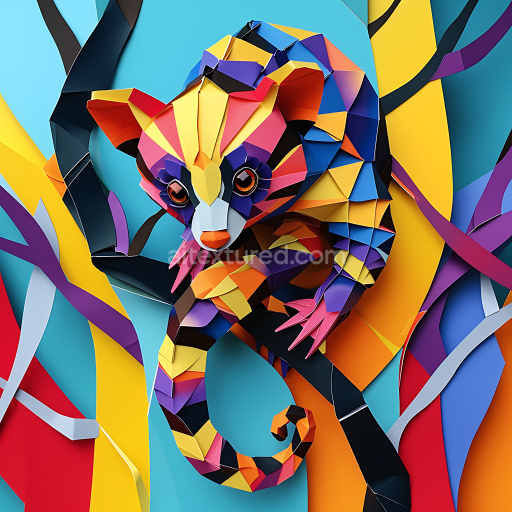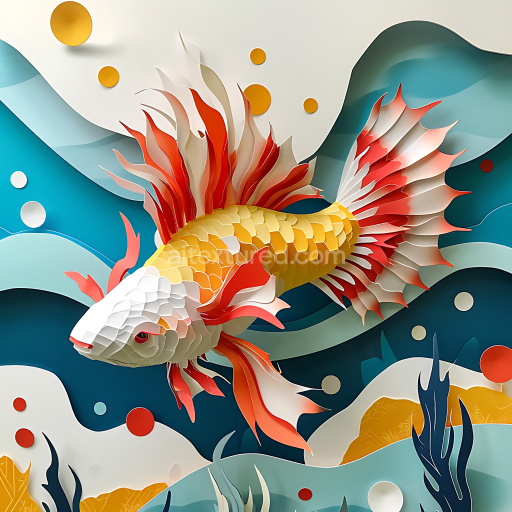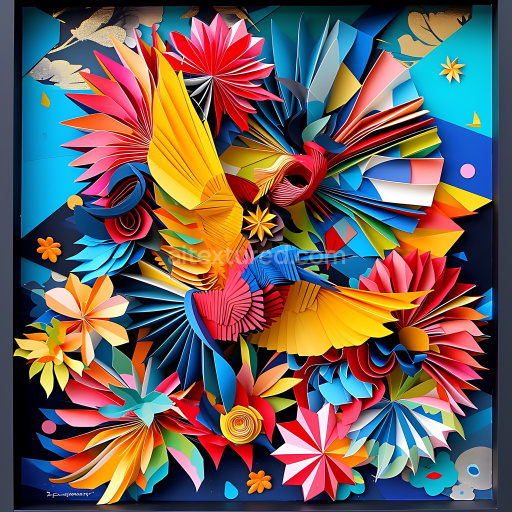
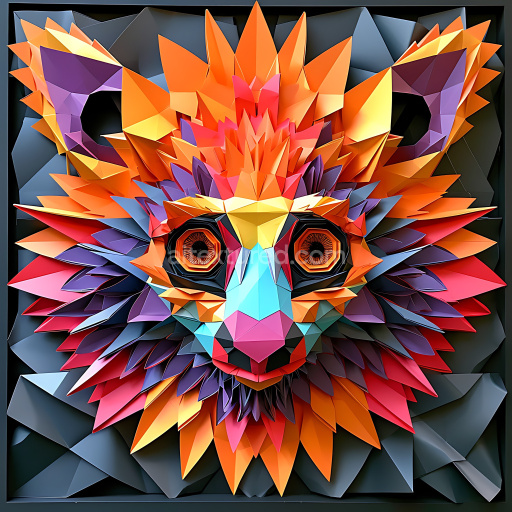
Featuring a Vibrant Low-Poly Origami Coyote Pattern

Seamless texture (tileable) · PNG, WEBP, PBR ZIP.
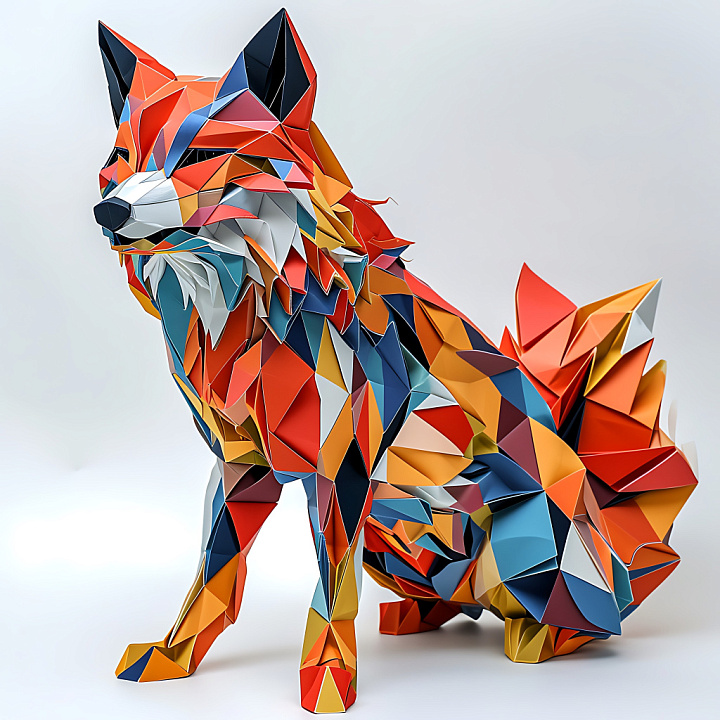
Featuring a Vibrant Low-Poly Origami Coyote Pattern seamless PBR texture preview
LMB — rotate · RMB — pan · Wheel — zoom

Texture Info

IDanimal-seamless-pbr-low-poly-origami-coyote-texture-in-vibrant-colors
CategoryAnimal
FormatsPNG, WEBP, PBR ZIP
Size1k (1024x1024px), 2k (2048x2048px), 4k (4096x4096px), 8k (8192x8192px)
TileableYes

Source and license review

Source type
Not verified
Source
Not verified
Original asset ID
Not verified
Original license
Not verified
Import method
Not verified
Review status
Not verified
Review date
Not verified
This seamless 3D PBR texture showcases a stylized origami-inspired coyote made up of sharp, angular facets and geometric shapes. The texture emphasizes a layered, folded paper aesthetic with clear edges and defined polygonal sections, creating a low-poly artistic effect. The color palette is vivid and diverse, featuring warm red, orange, and yellow tones alongside cool blues and dark contrasting accents. This combination brings a dynamic, vibrant visual impact evocative of decorative origami art rather than realistic fur or skin. The texture surface appears smooth with subtle shadows and highlights along the folds, capturing the reflective quality of folded paper rather than organic textures like fur or scales. It lacks any fine hair detail, pores, or grain, focusing instead on clean, crisp polygonal planes and sharp contrast edges. The directional flow follows the origami model's structure, with triangles and polygon clusters aligned to suggest folded layers and angular shape transitions. This tileable PBR texture is perfect for 3D artists and developers aiming to integrate stylized, abstract wildlife elements into their projects. Ideal use cases include game development with engines such as Unreal Engine, Unity, or Blender, as well as product visualization, stylized character modeling, fantasy props, and animation scenes requiring artistic, low-poly animal motifs. Its seamless nature assures smooth tiling across surfaces, suitable for both close-up character details or large environmental accents where a geometric animal pattern is desired. This unique texture stands out for its artistic interpretation of animal form through origami abstraction, offering a fresh visual approach for creative projects centered on stylized natural elements.
Advertisement

Best Uses for This Texture

  • 3D environment surfaces
  • Game art and realtime rendering
  • Archviz and product visualization
  • WebGL previews and material studies
  • Blender, Unreal Engine and Unity workflows

Using This PBR Texture in Blender

Import the texture maps into Blender with sRGB color space for albedo/base color and Non-Color for normal, roughness, metallic, AO, height, and ORM maps. Connect normal maps through a Normal Map node, then adjust UV scale with a Mapping node so the material repeats naturally on your model.

  • Albedo -> Principled BSDF Base Color
  • Roughness -> Roughness, Metallic -> Metallic
  • Normal -> Normal Map node -> Normal
  • Height -> Bump or Displacement depending on render setup

For the full step-by-step setup, see How to Use Seamless Textures in Blender. Browse related material examples in wood, concrete, and metal.

Advertisement

FAQ

Is this texture seamless and tileable?

Yes. This texture is designed as a seamless tileable PBR material, so it can repeat across large surfaces without visible borders.

Which resolutions and formats are available?

Use the download controls on this page: they expose the available PNG, WEBP or engine ZIP choices and supported resolutions for this asset.

Can I use it in Blender, Unreal Engine and Unity?

Use the engine ZIP choices to package compatible source maps for Blender, Unreal Engine or Unity, then verify the imported material in the target application.

Is commercial use allowed?

Commercial-use permission is not verified for this record. Confirm the original source and license before production use.
Advertisement

AITextured Tools

Generate maps from existing images, preview materials, convert channels, and package compatible inputs for Blender, Unity, and Unreal Engine.