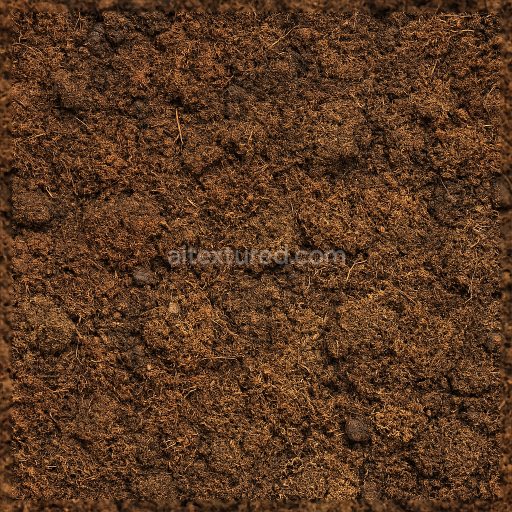
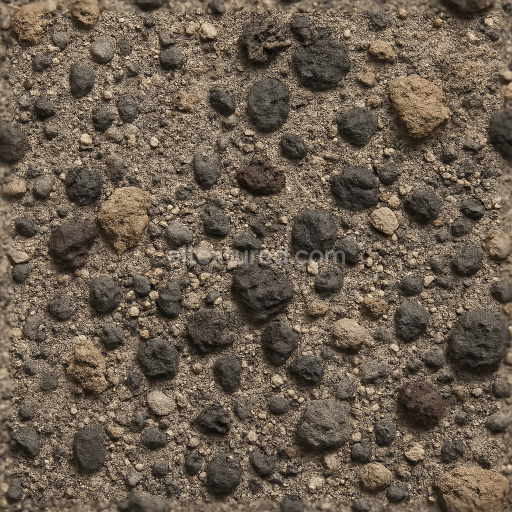
Peat Layers Ground Surface With Organic Soil And Soil Clods
Seamless texture (tileable) · PNG, WEBP, PBR ZIP. License: AITextured Free Commercial License (FCL) v1.1. Free personal and commercial use. Raw resale, standalone redistribution, mirroring/scraping, competing asset packs, and AI/ML training are not allowed without written permission. Attribution is not required, but appreciated..
| ID | park-dirt-by-texture-haven-pbr-seamless-8k |
|---|---|
| Category | Ground surface |
| Formats | PNG, WEBP, PBR ZIP |
| Size | 1k (1024x1024px), 2k (2048x2048px), 4k (4096x4096px), 8k (8192x8192px) |
| Color | sRGB |
| Tileable | Yes |
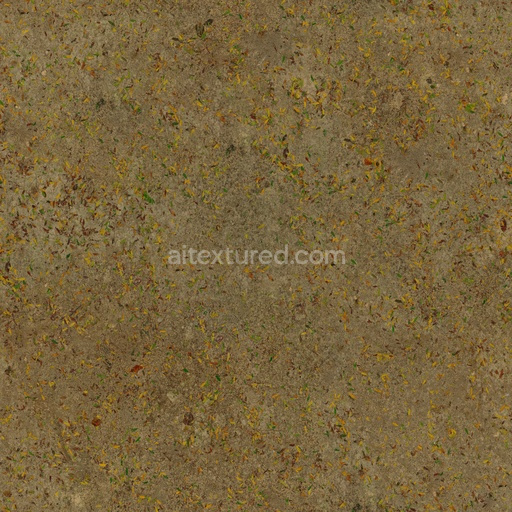
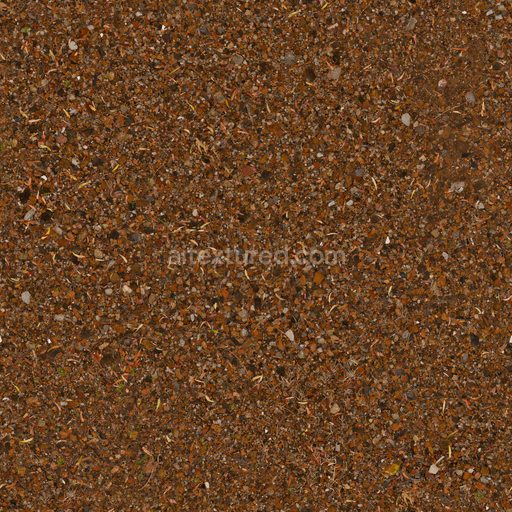
Seamless Park Dirt by Texture Haven is a high-quality PBR 3D texture crafted to realistically replicate the organic composition of natural park soil. The base substrate consists primarily of fine mineral particles and organic matter such as decomposed leaves and twigs bound together by damp earth that creates a slightly compacted but porous surface. This texture captures subtle variations in grain orientation and aggregate size reflecting weathering effects like erosion moisture retention and scattered debris typical of outdoor pathways and terrain. The surface finish is matte with a natural roughness showing areas of sand and dirt interspersed with small bits of organic detritus delivering a true-to-life representation of ground material found in nature.
In physically based rendering workflows these material qualities are translated across multiple texture channels to ensure consistent and predictable shading. The Base Color (Albedo) map conveys the earthy tones of damp dirt mixed with muted autumnal hues from leaves and twigs rendered in sRGB color space for accurate color reproduction. The Normal map encodes fine surface details such as soil granularity and small bumps from natural debris enhancing realism under dynamic lighting. Roughness defines the non-reflective matte finish typical of porous soil while the Ambient Occlusion channel adds soft shadows in crevices and indentations to emphasize depth. Height or displacement maps provide additional surface relief simulating subtle elevation changes and enhancing parallax effects for closer views. Metallic is unused as the dirt surface contains no metal content.
This seamless texture tiles cleanly at resolutions up to 8K making it ideal for large-scale environments without visible repetition or seams. It is fully compatible with Blender (using the Principled BSDF shader) Unreal Engine (where maps are fed into Base Color Roughness Normal and AO slots) and Unity’s URP/HDRP pipelines (connected to the Lit shader). To maximize realism it is recommended to maintain consistent texel density across your scene and experiment with triplanar or layered tiling techniques to further minimize texture repetition. Combining the Normal map with Height or Parallax mapping can enhance surface depth for close-up shots. Always import the base color as sRGB and all data maps as Non-Color to preserve physical accuracy.
Import the texture maps into Blender with sRGB color space for albedo/base color and Non-Color for normal, roughness, metallic, AO, height, and ORM maps. Connect normal maps through a Normal Map node, then adjust UV scale with a Mapping node so the material repeats naturally on your model.
For the full step-by-step setup, see How to Use Seamless Textures in Blender. Browse related material examples in wood, concrete, and metal.
Yes. This texture is designed as a seamless tileable PBR material, so it can repeat across large surfaces without visible borders.
You can download PNG/WEBP versions and use 1K, 2K, 4K and 8K download options when available on the page.
Yes. The download options and engine-mapped ZIP workflow are designed for Blender, Unreal Engine, Unity Standard, URP and HDRP material pipelines.
Yes. The texture is available under the AITextured free commercial license. Review the license page for redistribution and AI-training restrictions.



Build, preview, and export seamless PBR materials. Generate full map sets from a single image, inspect them in a real-time WebGL viewer, and re-package maps for Unreal, Unity, and Blender—directly in your browser.
AI text-to-texture: type a prompt and get a seamless, tileable base image ready for PBR workflows (great starting point for materials).
Create a full PBR set (Normal, Roughness, AO, Metallic, etc.) from a single image. Seamless and tiling-friendly.
Instant WebGL viewer: inspect materials on a sphere, plane, and cube. Check tiling and lighting in real time.
Re-packages maps per engine: Unreal (BaseColor + ORM), Unity (Mask/MetallicSmoothness), Blender (separate channels).
PNG ↔ JPG ↔ SVG: fast convert, SVG rasterize, embed/trace options, quality & background controls.