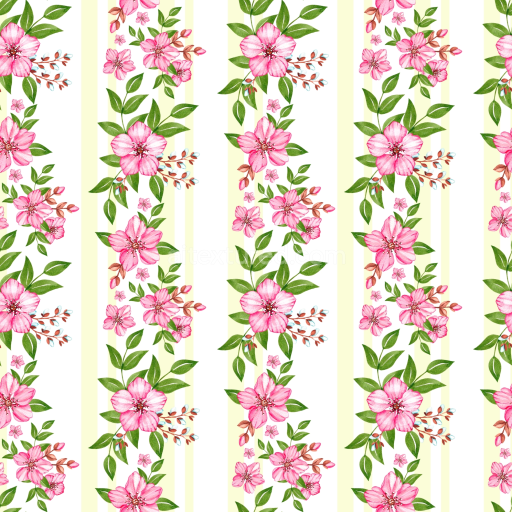
Seamless 3D PBR Texture of Soft Pink Flower Watercolor Fabric Pattern free download

. Formats: PNG . Free for personal & commercial use.

Preview — Seamless 3D PBR Texture of Soft Pink Flower Watercolor Fabric Pattern

IDpink-flower-seamless-pbr-pink-flower-watercolor-fabric-texture-4k-19
Pink Flower
PNG
Size1k (1024x1024px), 2k (2048x2048px), 4k (4096x4096px), 8k (8192x8192px)
sRGB
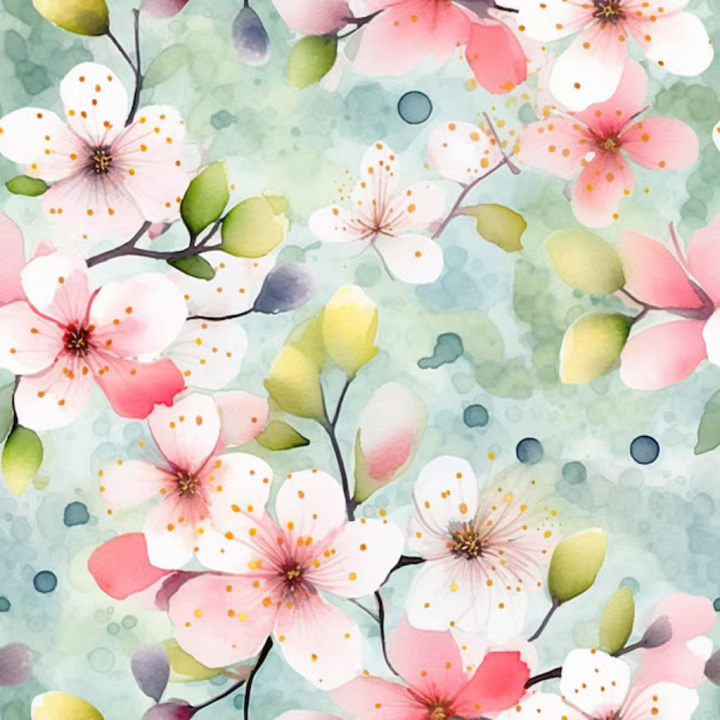
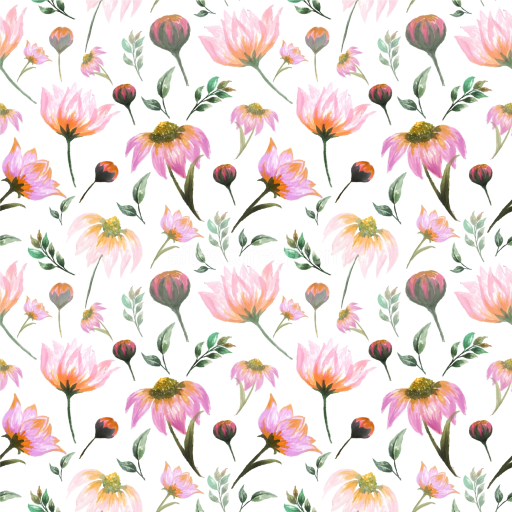
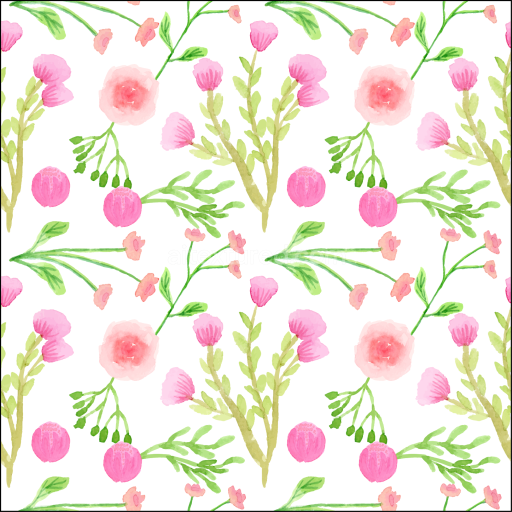
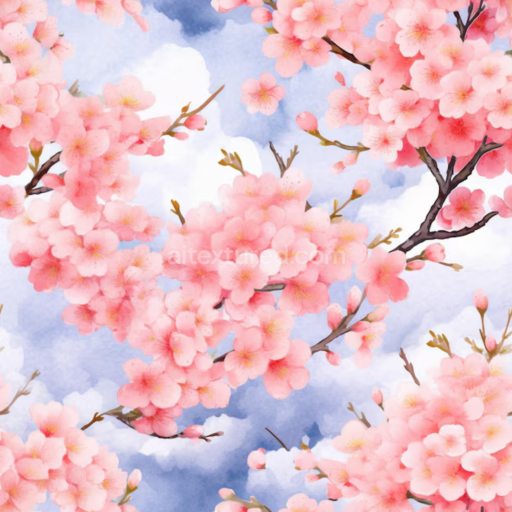
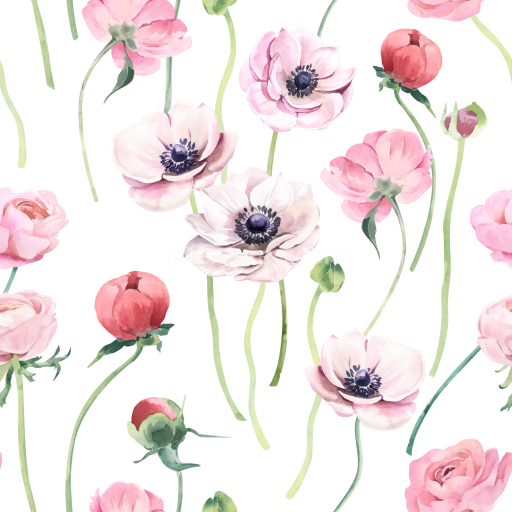
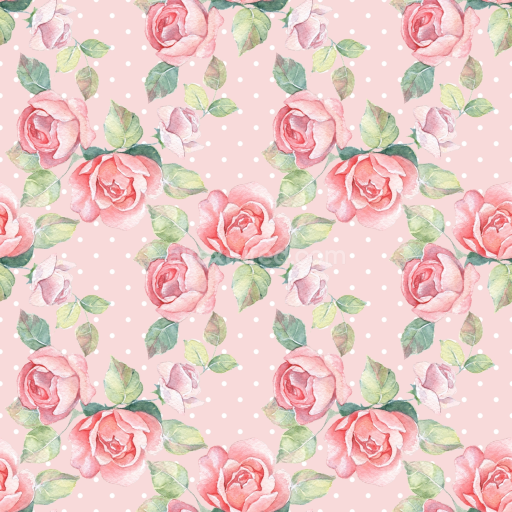
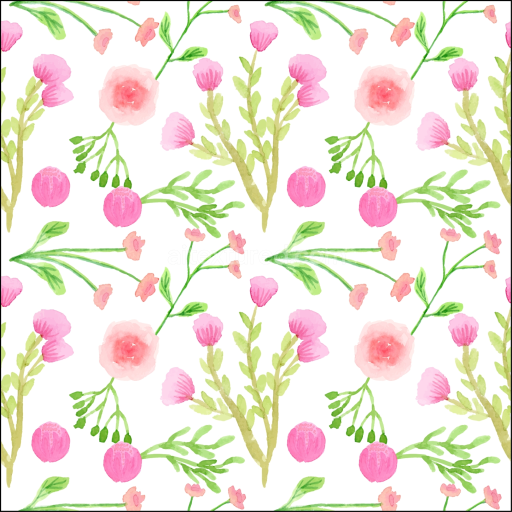
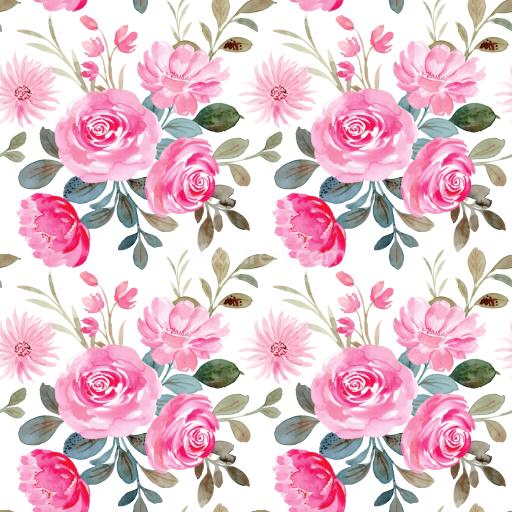
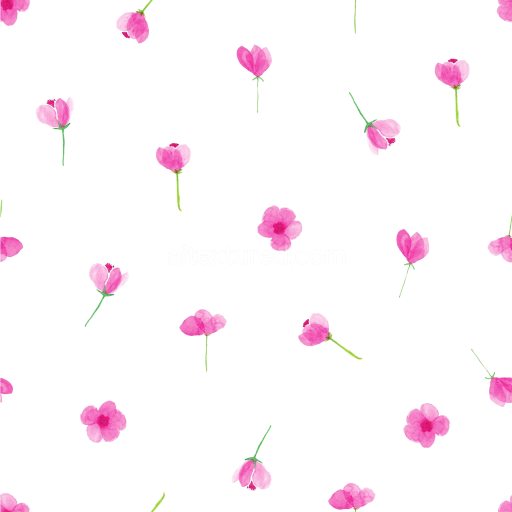
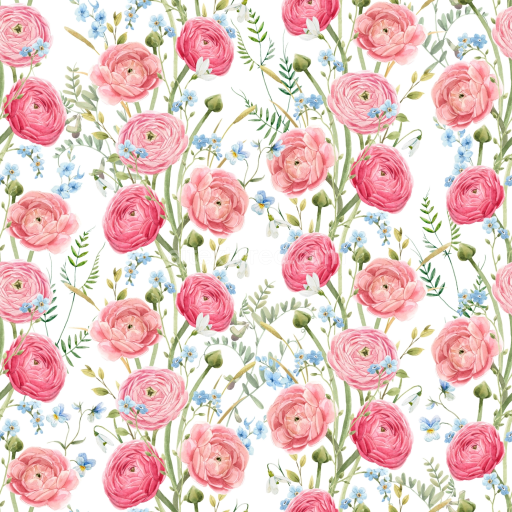
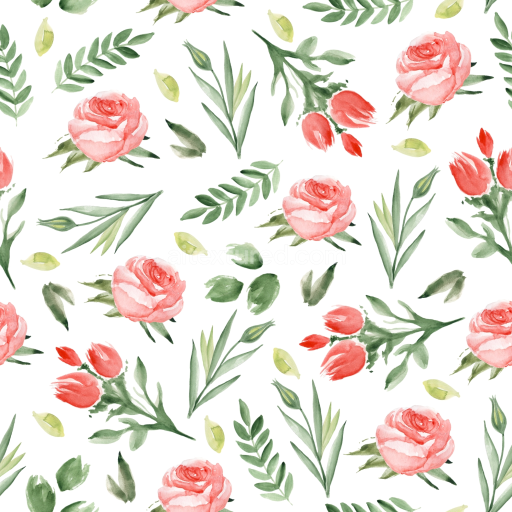
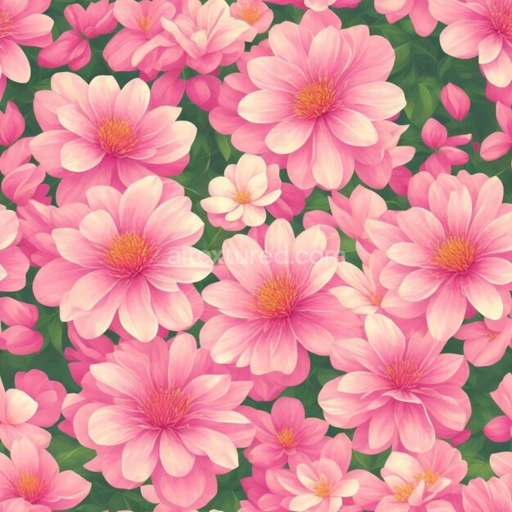
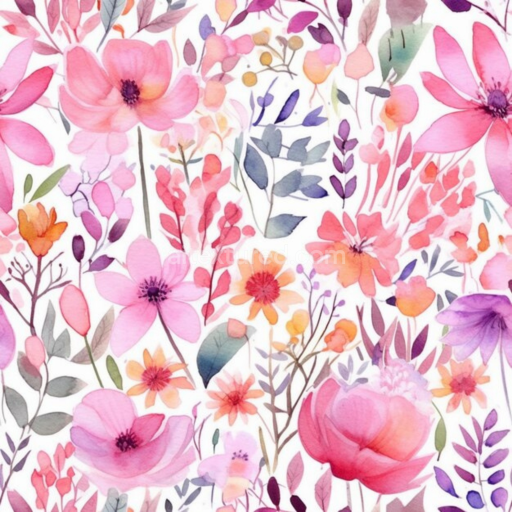
This seamless 3D PBR texture showcases a soft watercolor floral pattern in gentle shades of pink, green, and blue. The texture features stylized cherry blossom petals and tender leaves rendered in a hand-painted watercolor style, giving it a smooth and fluid appearance, with natural color gradients and subtle brushstroke effects. The pastel pink flowers are accented by scattered golden-orange dots, mimicking flower pollen, while the background blends soft blue and green hues with watercolor blotches adding organic depth. The texture surface feels matte and fabric-like, with no gloss or roughness, simulating a delicate textile or wallpaper material. Its seamless tileability ensures perfect repetition for large-scale 3D models or environments. This PBR-ready watercolor floral fabric texture fits perfectly in interior visualizations, fashion and textile designs, digital art projects, and spring or nature-themed scenes. It integrates seamlessly with software like Blender, Unreal Engine, Unity, 3ds Max, and Cinema 4D for project versatility. Use it to add a charming, tranquil floral aesthetic in product rendering, character clothing, virtual sets, or architectural decoration elements. Its artistic softness makes it ideal for scenes requiring a gentle, painterly mood rather than harsh realism.

How to Use These Seamless PBR Textures in Blender

This guide shows how to connect a full PBR texture set to Principled BSDF in Blender (Cycles or Eevee). Works with any of our seamless textures free download, including PBR PNG materials for Blender / Unreal / Unity.

What’s inside the download

  • *_albedo.png — Base Color (sRGB)
  • *_normal.png — Normal map (Non-Color)
  • *_roughness.png — Roughness (Non-Color)
  • *_metallic.png — Metallic (Non-Color)
  • *_ao.png — Ambient Occlusion (Non-Color)
  • *_height.png — Height / Displacement (Non-Color)
  • *_ORM.png — Packed map (R=AO, G=Roughness, B=Metallic, Non-Color)

Quick start (Node Wrangler, 30 seconds)

  1. Enable the addon: Edit → Preferences → Add-ons → Node Wrangler.
  2. Create a material and select the Principled BSDF node.
  3. Press Ctrl + Shift + T and select the maps albedo, normal, roughness, metallic (skip height and ORM for now) → Open. The addon wires Base Color, Normal (with a Normal Map node), Roughness, and Metallic automatically.
  4. Add AO and Height using the “Manual wiring” steps below (5 and 6).

Manual wiring (full control)

  1. Create a material (Material Properties → New) and open the Shader Editor.
  2. Add an Image Texture node for each map. Set Color Space:
    • AlbedosRGB
    • AO, Roughness, Metallic, Normal, Height, ORMNon-Color
  3. Connect to Principled BSDF:
    • albedoBase Color
    • roughnessRoughness
    • metallicMetallic (for wood this often stays near 0)
    • normalNormal Map node (Type: Tangent Space) → Normal of Principled. If details look “inverted”, enable Invert Y on the Normal Map node.
  4. Ambient Occlusion (AO):
    • Add a MixRGB (or Mix Color) node in mode Multiply.
    • Input A = albedo, Input B = ao, Factor = 1.0.
    • Output of Mix → Base Color of Principled (replaces the direct albedo connection).
  5. Height / Displacement:
    Cycles — true displacement
    1. Material Properties → SettingsDisplacement: Displacement and Bump.
    2. Add a Displacement node: connect heightHeight, set Midlevel = 0.5, Scale = 0.02–0.08 (tune to taste).
    3. Output of Displacement → Material Output → Displacement.
    4. Add geometry density (e.g., Subdivision Surface) so displacement has polygons to work with.
    Eevee (or lightweight Cycles) — bump only
    1. Add a Bump node: heightHeight.
    2. Set Strength = 0.2–0.5, Distance = 0.05–0.1, and connect Normal output to Principled’s Normal.

Using the packed ORM texture (optional)

Instead of separate AO/Roughness/Metallic maps you can use the single *_ORM.png:

  1. Add one Image Texture (Non-Color) → Separate RGB (or Separate Color).
  2. R (red) → AO (use it in the Multiply node with albedo as above).
  3. G (green) → Roughness of Principled.
  4. B (blue) → Metallic of Principled.

UVs & seamless tiling

  1. These textures are seamless. If your mesh has no UVs, go to UV EditingSmart UV Project.
  2. For scale/repeat, add Texture Coordinate (UV)Mapping and plug it into all texture nodes. Increase Mapping → Scale (e.g., 2/2/2) to tile more densely.

Recommended starter values

  • Normal Map Strength: 0.5–1.0
  • Bump Strength: ~0.3
  • Displacement Scale (Cycles): ~0.03

Common pitfalls

  • Wrong Color Space (normals/roughness/etc. must be Non-Color).
  • “Inverted” details → enable Invert Y on the Normal Map node.
  • Over-strong relief → lower Displacement Scale or Bump Strength.

Example: Download Wood Textures and instantly apply parquet or rustic planks inside Blender for architectural visualization.

To add the downloaded texture, go to Add — Texture — Image Texture.


Add a node and click the Open button.


Select the required texture on your hard drive and connect Color to Base Color.


::contentReference[oaicite:0]{index=0}

AITEXTURED Tools

Build, preview, and export seamless PBR materials. Generate full map sets from a single image, inspect them in a real-time WebGL viewer, and re-package maps for Unreal, Unity, and Blender—directly in your browser.