How to Scale PBR Textures for Archviz Floors
Set realistic PBR texture scale for wood, marble, tile, concrete and stone floors in architectural visualization projects.
What this material workflow helps you fix
Use this guide when How to Scale PBR Textures for Archviz Floors needs practical scale, roughness, normal strength and visual QA settings rather than only a preview thumbnail.
Floor materials fill a large part of archviz images, so scale errors are expensive. A beautiful 4K map can still fail if planks, tiles or stone pieces do not match real-world dimensions.
Start from measured dimensions, then tune shader response. This keeps material work grounded and prevents endless guessing under different lighting setups.
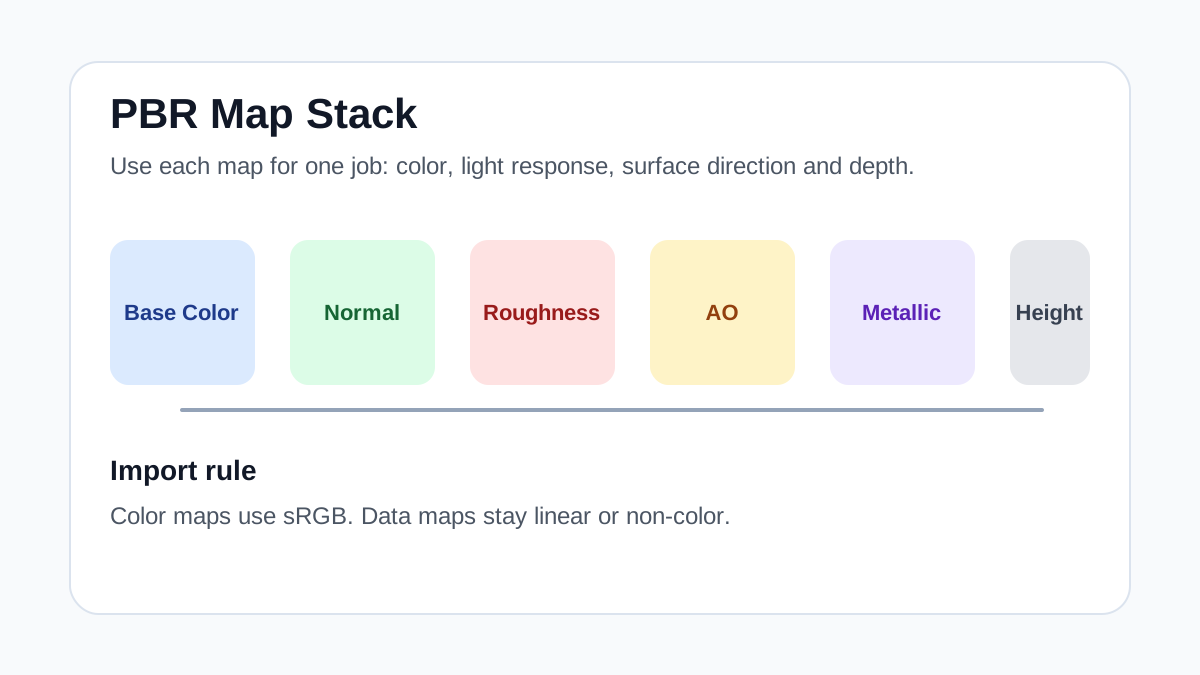
Practical Material Parameters
| Material focus | Recommended UV scale | Roughness range | Normal strength range | Best use cases | Common visual issues |
|---|---|---|---|---|---|
| Archviz floor materials | Use real unit size: board, tile or slab dimensions first | 0.25-0.85 by material finish | 0.1-0.75 | Wood, tile, marble, stone and concrete floors | Wrong physical scale, visible repeats in reflections, oversized maps for distant floors |
Step-by-Step Workflow
- Identify the real size of one board, tile or stone unit.
- Set UV scale so the unit size matches the model.
- Check the floor against furniture, doors and human-scale objects.
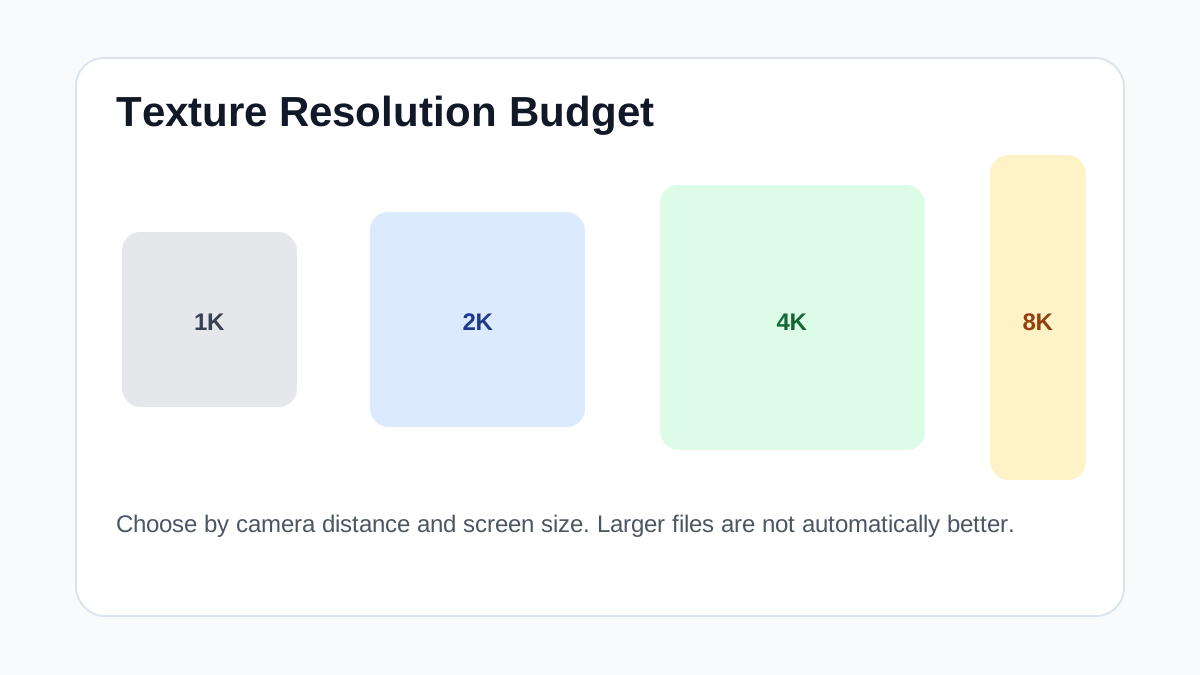
- Use 2K for mid-distance floors and reserve 4K or 8K for hero close-ups.
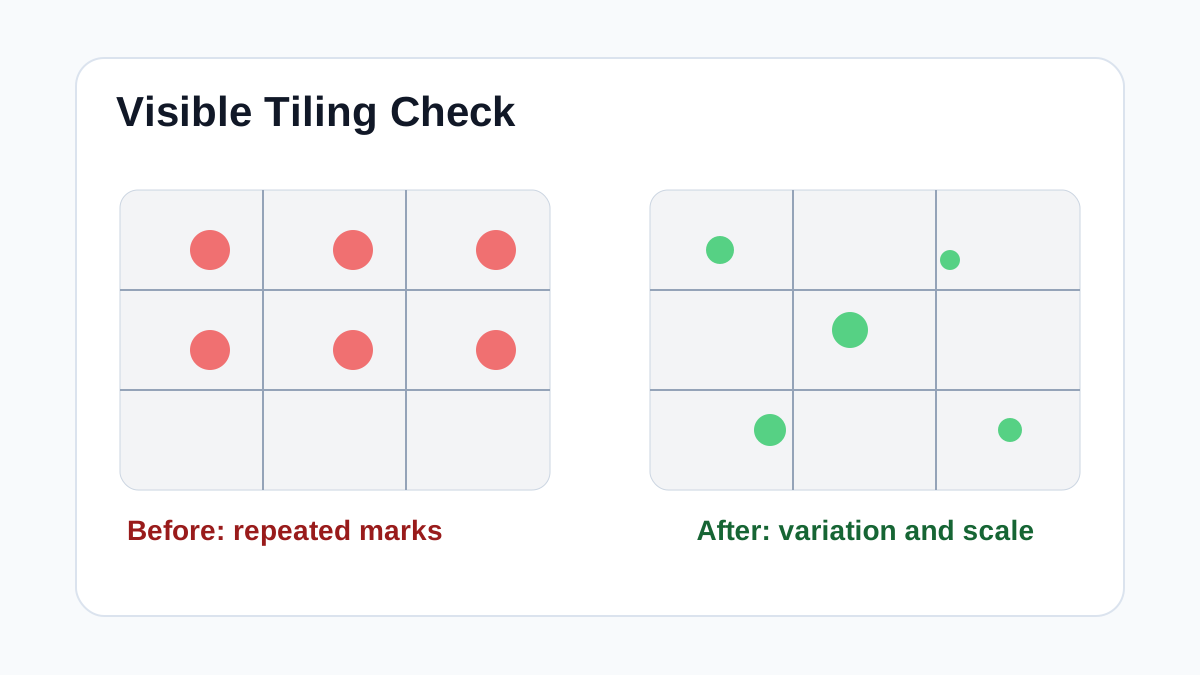
- Add variation masks or alternate tiles on large uninterrupted floors.
Quality Checklist
- Floor pattern scale matches the room size.
- Normal and height strength do not create unrealistic bumps.
- Repeated knots, veins or stains are not centered in the camera view.
- Texture resolution fits the final render size.
Common Mistakes
- Choosing texture resolution before deciding physical scale.
- Using one tile across an entire open-plan floor without variation.
- Ignoring how glossy floors reveal repetition through reflections.
Useful Next Steps
- Browse Flooring textures for source materials that match this workflow.
- Use Online PBR preview to preview, pack or prepare maps before importing them into your scene.
- Return to the workflow guide library for related Blender, Unreal Engine, Unity and optimization workflows.
Recommended Textures for This Workflow
FAQ
Which texture maps do I need for How to Scale PBR Textures for Archviz Floors?
Start with base color, normal and roughness. Add AO, height, metallic or packed engine maps when the material and target renderer support them.
Should I always use 4K or 8K textures for this workflow?
No. Use 4K or 8K only for close camera views or hero assets. For background surfaces, 1K or 2K textures with good tiling and mipmaps are often more efficient.
How does this guide fit into a Archviz pipeline?
Use the guide as a setup checklist before final material tuning. Check scale, color space, map routing, tiling and performance in the target scene rather than judging the texture from the thumbnail alone.