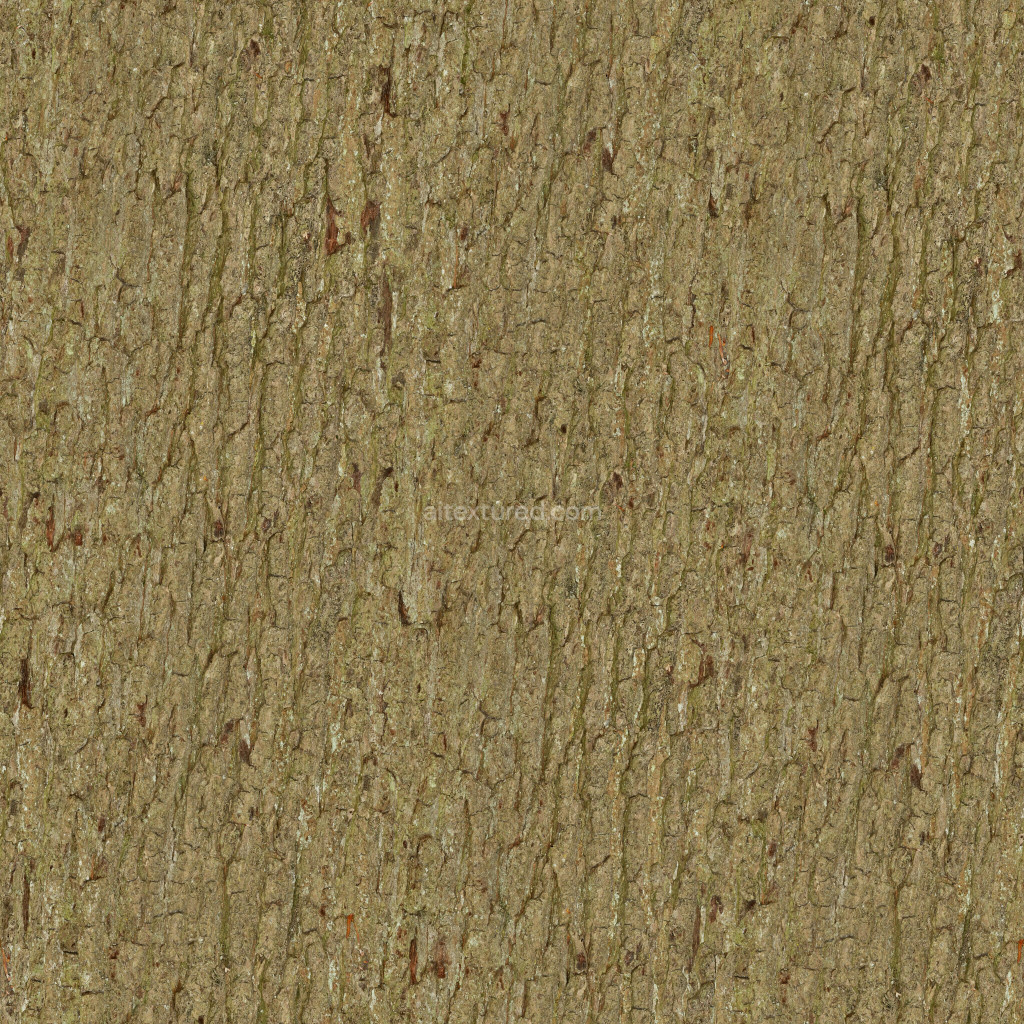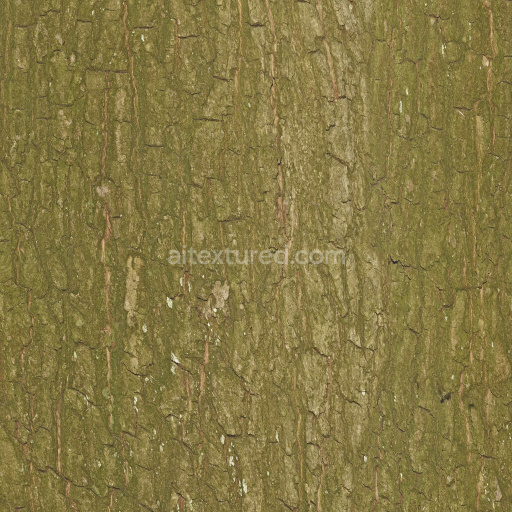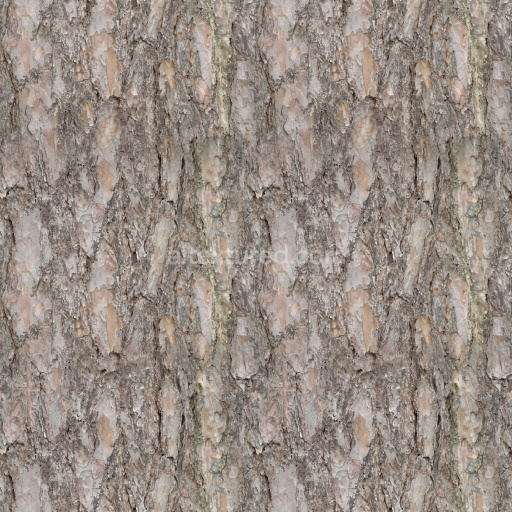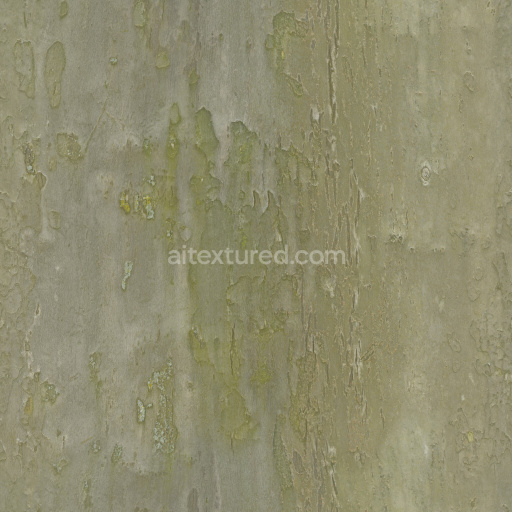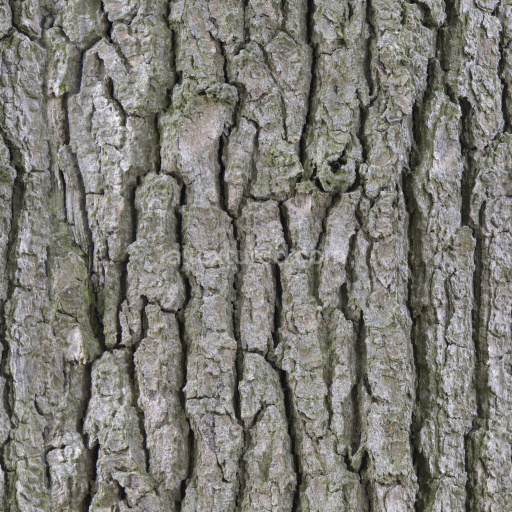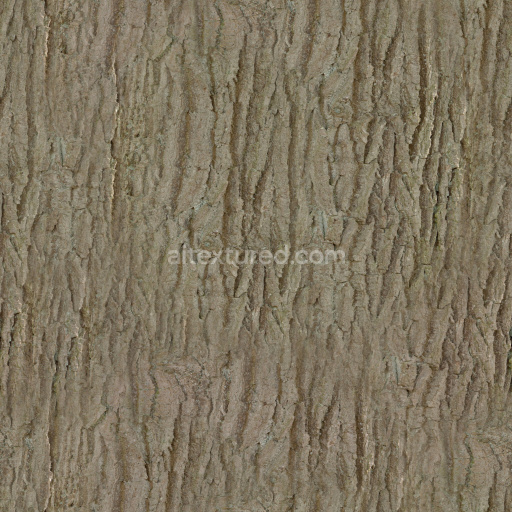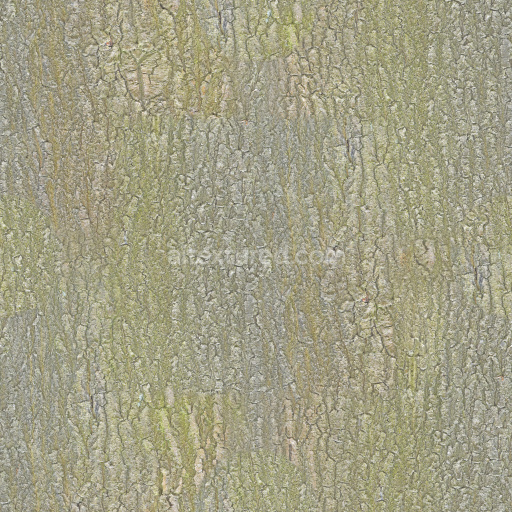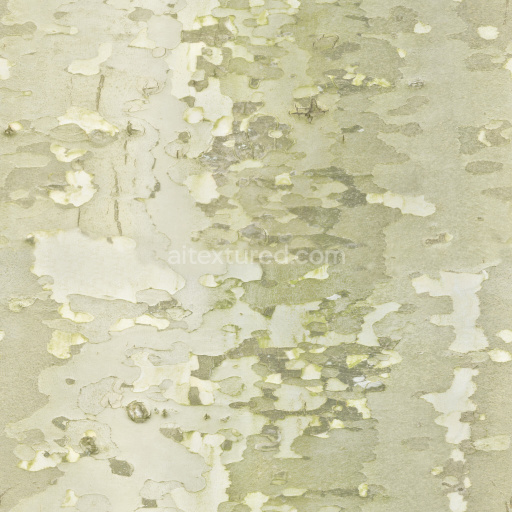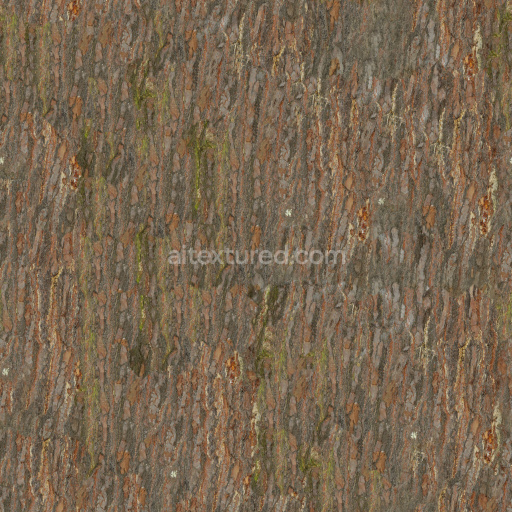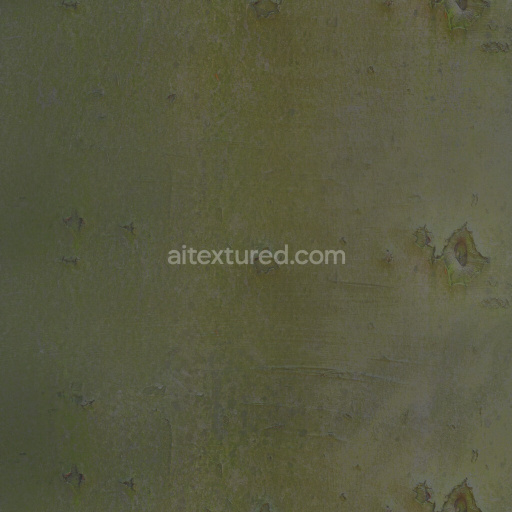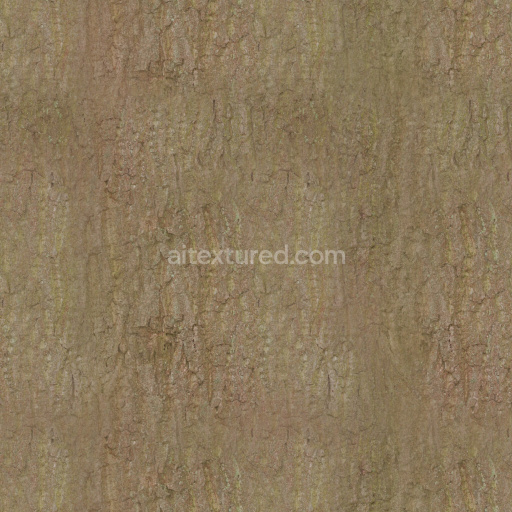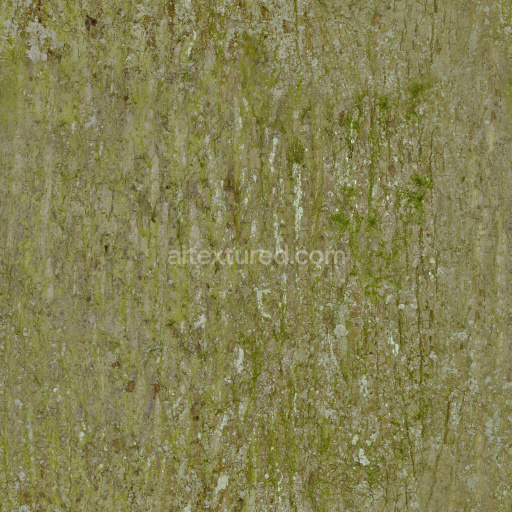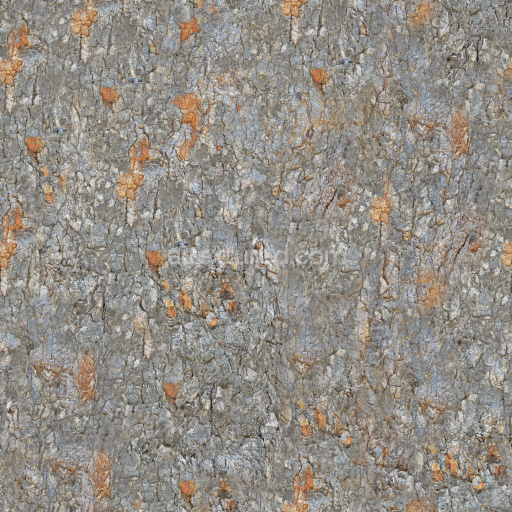
Bark Wood Natural Texture Seamless Rough Grainy Earthy Organic Pattern free download

. Formats: JPG . Free for personal & commercial use.

Seamless PBR bark texture suitable for various 3D applications

IDbark_wood_natural_texture_seamless_rough_grainy_earthy_organic_pattern
Bark
JPG
Size1k (1024x1024px), 2k (2048x2048px), 4k (4096x4096px), 8k (8192x8192px)
Maps:BaseColor, Normal, Roughness, AO, Height/Displacement, ORM
sRGB
Elevate your 3D projects with our seamless PBR bark texture, designed for versatility and realism. This high-quality texture is available in resolutions ranging from 1K to 8K, ensuring crisp details for any application. The bark texture features a natural, earthy color palette with a rough and grainy surface, perfect for simulating organic materials in environments such as forests or rustic settings. With its tileable nature, you can effortlessly repeat the texture across larger surfaces without visible seams, making it ideal for game design, architectural visualization, and more. Our comprehensive PBR set includes BaseColor, Normal, Roughness, Ambient Occlusion, and Height/Displacement maps, providing you with everything needed to create realistic materials in your projects.

How to Use These Seamless PBR Textures in Blender

This quick guide shows how to connect a seamless PBR texture set in Blender using Principled BSDF. The workflow works for tileable materials used in Blender, Unreal Engine, Unity, archviz, and game environments.

What Is Included

  • albedo or base color for the visible surface color
  • normal for fine surface relief
  • roughness for gloss and reflectivity control
  • metallic for metal or dielectric response
  • ao for ambient occlusion in cavities
  • height for bump, parallax, or displacement
  • ORM packed maps for optimized real-time workflows
Blender node setup overview for a seamless PBR texture
Example node layout for a standard PBR material in Blender.

Quick Start

  1. Open the Shader Editor and create a new material.
  2. Add an Image Texture node for each map you want to use.
  3. Set Color Space to sRGB for Albedo and to Non-Color for Normal, Roughness, Metallic, AO, Height, and ORM.
  4. Connect the maps to the matching inputs on Principled BSDF.

Recommended Connections

  • Albedo -> Base Color
  • Roughness -> Roughness
  • Metallic -> Metallic
  • Normal -> Normal Map node -> Normal
  • Height -> Bump or Displacement, depending on your render setup
Adding an image texture node in Blender
Add an Image Texture node before assigning the downloaded maps.

Using ORM Maps

If your download includes a packed ORM texture, split its RGB channels: R = AO, G = Roughness, B = Metallic. This is useful for Unreal Engine and other optimized real-time pipelines.

Tiling and UV Scale

Because these textures are seamless, you can repeat them across large surfaces without visible seams. Use a Mapping node to increase or reduce tiling density on floors, walls, terrain, props, and modular assets.

Common Mistakes

  • Using sRGB on non-color maps
  • Connecting a Normal map directly without a Normal Map node
  • Overdriving Height or Bump values so the surface looks unnatural
  • Ignoring texture scale, which makes seamless materials look repetitive
Loading a downloaded texture set into Blender
Load the downloaded texture set and wire the maps to Principled BSDF.

For more examples, browse related categories such as Wood Textures, Concrete Textures, and Metal Textures.

AITEXTURED Tools

Build, preview, and export seamless PBR materials. Generate full map sets from a single image, inspect them in a real-time WebGL viewer, and re-package maps for Unreal, Unity, and Blender—directly in your browser.