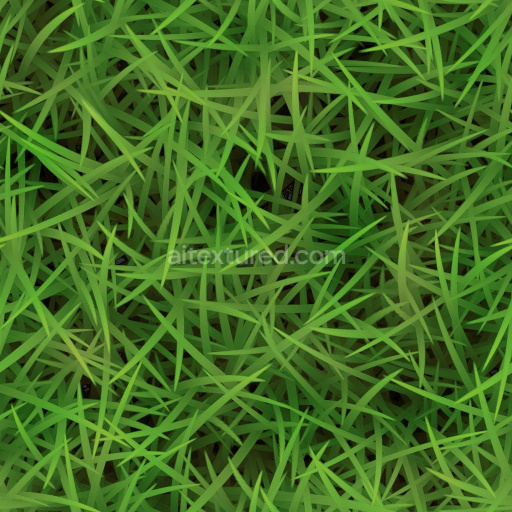
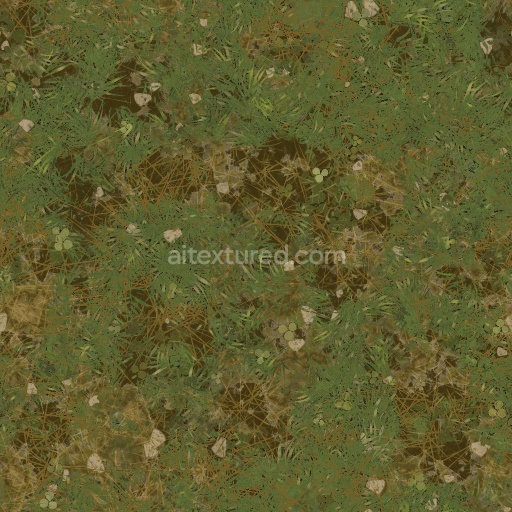
Grassland Texture | Free PBR
Seamless texture (tileable) · PNG, WEBP, PBR ZIP.
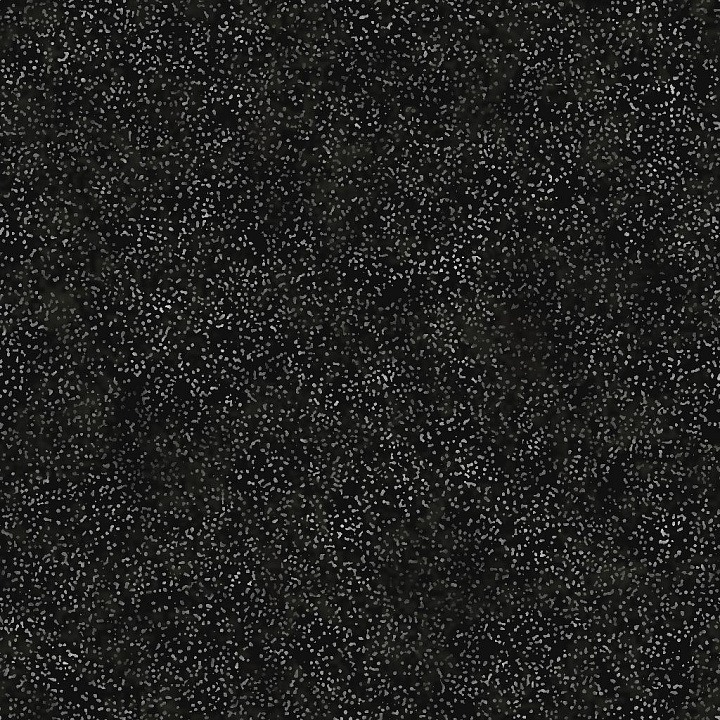
| ID | black-floor-with-white-dots-and-dirt-free-pbr |
|---|---|
| Category | Ground surface |
| Formats | PNG, WEBP, PBR ZIP |
| Size | 1k (1024x1024px), 2k (2048x2048px), 4k (4096x4096px), 8k (8192x8192px) |
| Tileable | Yes |
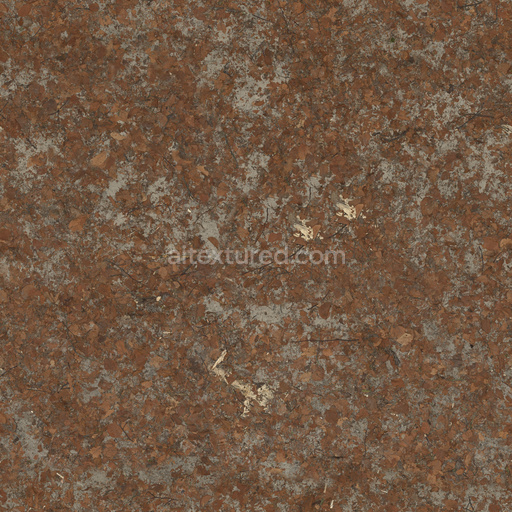
This high-quality seamless PBR texture features a black floor surface adorned with subtle white dots and scattered dirt, creating a realistic and visually interesting material suitable for various digital environments. The base substrate is a polymer composite, resembling a worn vinyl or rubber flooring often found in industrial or commercial spaces. The material combines a dense, smooth polymer matrix with fine mineral aggregates that provide slight textural variation and durability. The white dots appear as embedded pigment particles within the polymer, while the dirt elements simulate surface contamination and weathering, adding authenticity to the texture’s appearance.
The texture’s surface finish is semi-matte with a slight satin sheen, reflecting the natural wear and minor abrasion typical of high-traffic flooring. This finish is achieved by a combination of surface polishing and micro-roughness generated by dirt and grit accumulation. The PBR channels capture these qualities accurately: the BaseColor/Albedo map shows the deep black base with contrasting white pigment dots and various earthy brown and gray dirt smudges. The Normal map defines the subtle relief of dirt particles and the slight texture of the polymer substrate without exaggerated bumps. Roughness values vary across the surface to reflect the polished polymer areas versus rougher dirt patches. The Metallic channel is minimal, consistent with the non-metallic polymer base, while Ambient Occlusion enhances the depth perception around dirt clumps and dot edges. Height/Displacement maps offer fine surface detail, emphasizing the unevenness caused by dirt and small surface imperfections.
Rendered at up to 8K resolution, this texture is optimized for seamless tiling in popular 3D engines such as Blender, Unreal Engine, and Unity. Its high resolution ensures crisp detail even in close-up views, making it ideal for realistic flooring in architectural visualization, game environments, or product rendering. For best results, adjust the UV scale to balance the visibility of dots and dirt according to the scene’s context. Modifying roughness parameters can help simulate different levels of floor maintenance, from freshly cleaned to heavily worn, enhancing material realism and user immersion.
Import the texture maps into Blender with sRGB color space for albedo/base color and Non-Color for normal, roughness, metallic, AO, height, and ORM maps. Connect normal maps through a Normal Map node, then adjust UV scale with a Mapping node so the material repeats naturally on your model.
For the full step-by-step setup, see How to Use Seamless Textures in Blender. Browse related material examples in wood, concrete, and metal.
Yes. This texture is designed as a seamless tileable PBR material, so it can repeat across large surfaces without visible borders.
Use the download controls on this page: they expose the available PNG, WEBP or engine ZIP choices and supported resolutions for this asset.
Use the engine ZIP choices to package compatible source maps for Blender, Unreal Engine or Unity, then verify the imported material in the target application.
Commercial-use permission is not verified for this record. Confirm the original source and license before production use.



Generate maps from existing images, preview materials, convert channels, and package compatible inputs for Blender, Unity, and Unreal Engine.
Choose a verified workflow for generating maps, previewing tiling, converting channels, or starting from the texture catalog.
Derive Normal, Roughness, AO, Metallic, Height and optional ORM maps from one or more source images, then review the results.
Instant WebGL viewer: inspect materials on a sphere, plane, and cube. Check tiling and lighting in real time.
Re-packages maps per engine: Unreal (BaseColor + ORM), Unity (Mask/MetallicSmoothness), Blender (separate channels).
PNG ↔ JPG ↔ SVG: fast convert, SVG rasterize, embed/trace options, quality & background controls.