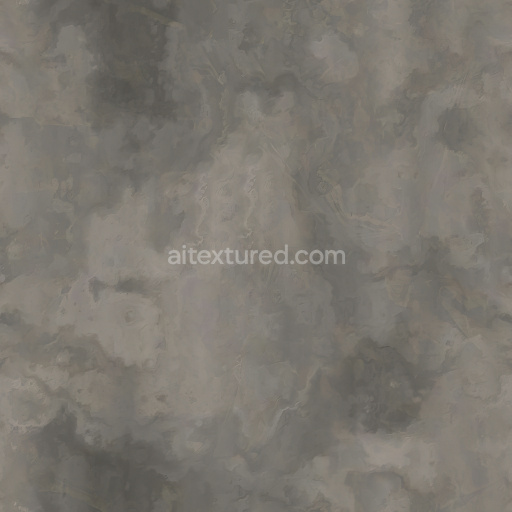
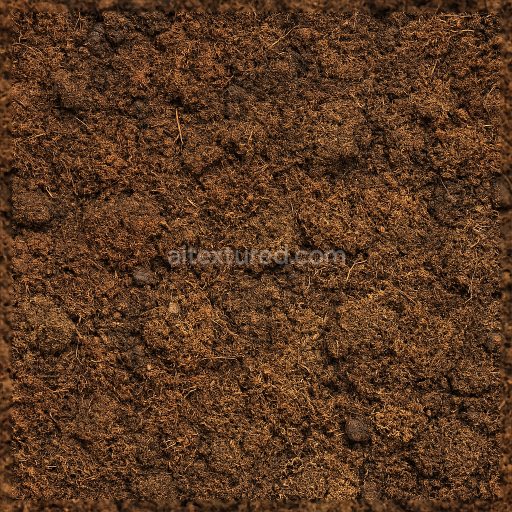
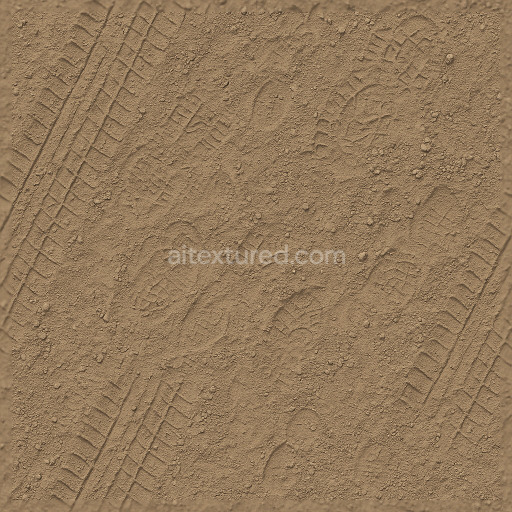
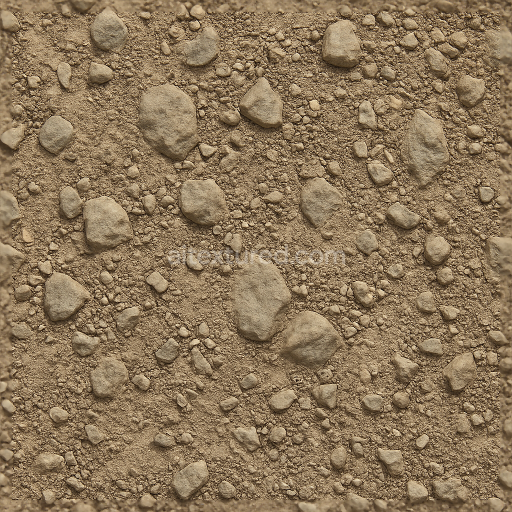
High-Quality Seamless PBR Dirt Texture
Seamless texture (tileable) · PNG, WEBP, PBR ZIP.
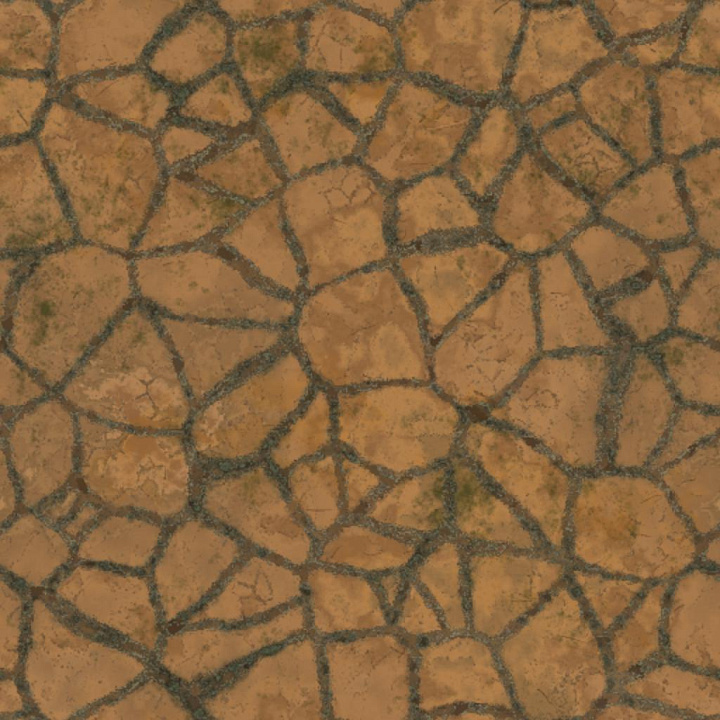
| ID | brown-stone-cladding-texture-for-walls-and-grounds-free-pbr |
|---|---|
| Category | Ground surface |
| Formats | PNG, WEBP, PBR ZIP |
| Size | 1k (1024x1024px), 2k (2048x2048px), 4k (4096x4096px), 8k (8192x8192px) |
| Tileable | Yes |
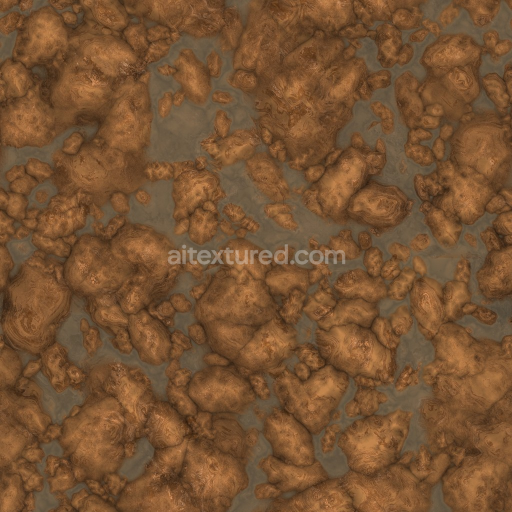
This brown stone cladding texture is crafted from natural mineral substrates, primarily composed of finely grained sedimentary rock with subtle variations in grain orientation that enhance its realistic appearance. The surface exhibits a weathered yet durable finish typical of outdoor stone, featuring a slightly rough and uneven texture due to natural porosity and minor erosion patterns. The binding within the stone is inherent to its geological formation, creating a solid, cohesive material rich in iron oxide pigments that give the warm brown hues characteristic of aged stone surfaces. This combination of mineral composition and natural coloring results in an authentic stone cladding ideal for both walls and ground surfaces.
In the PBR workflow, this texture’s BaseColor (Albedo) channel captures the nuanced brown tones and subtle color shifts caused by varying oxide layers and mineral deposits. The Normal map effectively conveys the intricate surface relief, mimicking small chips and weather-induced indentations that add depth without the need for additional geometry. Roughness values are calibrated to reflect a matte, slightly porous stone surface, diffusing light softly without sharp reflections, while the Metallic channel remains minimal, as stone is non-metallic by nature. Ambient Occlusion enhances shadowing in crevices, amplifying the material’s three-dimensional feel, and the Height map provides fine displacement data to simulate realistic surface irregularities in high detail.
Rendered in ultra-high 8K resolution, this texture is fully optimized and compatible with popular 3D engines such as Blender, Unreal Engine, and Unity, ensuring crisp detail even on large architectural elements. For optimal application, adjusting the UV scale to slightly larger values can prevent repetitive patterns on extensive wall or ground surfaces, while fine-tuning the roughness parameter allows for customization of weathering effects depending on environmental conditions. Employing the height map with parallax or displacement mapping techniques further elevates the tactile realism, making this brown stone cladding texture a versatile and high-quality material choice for both interior and exterior architectural visualization projects.
Import the texture maps into Blender with sRGB color space for albedo/base color and Non-Color for normal, roughness, metallic, AO, height, and ORM maps. Connect normal maps through a Normal Map node, then adjust UV scale with a Mapping node so the material repeats naturally on your model.
For the full step-by-step setup, see How to Use Seamless Textures in Blender. Browse related material examples in wood, concrete, and metal.
Yes. This texture is designed as a seamless tileable PBR material, so it can repeat across large surfaces without visible borders.
Use the download controls on this page: they expose the available PNG, WEBP or engine ZIP choices and supported resolutions for this asset.
Use the engine ZIP choices to package compatible source maps for Blender, Unreal Engine or Unity, then verify the imported material in the target application.
Commercial-use permission is not verified for this record. Confirm the original source and license before production use.
Generate maps from existing images, preview materials, convert channels, and package compatible inputs for Blender, Unity, and Unreal Engine.
Choose a verified workflow for generating maps, previewing tiling, converting channels, or starting from the texture catalog.
Derive Normal, Roughness, AO, Metallic, Height and optional ORM maps from one or more source images, then review the results.
Instant WebGL viewer: inspect materials on a sphere, plane, and cube. Check tiling and lighting in real time.
Re-packages maps per engine: Unreal (BaseColor + ORM), Unity (Mask/MetallicSmoothness), Blender (separate channels).
PNG ↔ JPG ↔ SVG: fast convert, SVG rasterize, embed/trace options, quality & background controls.