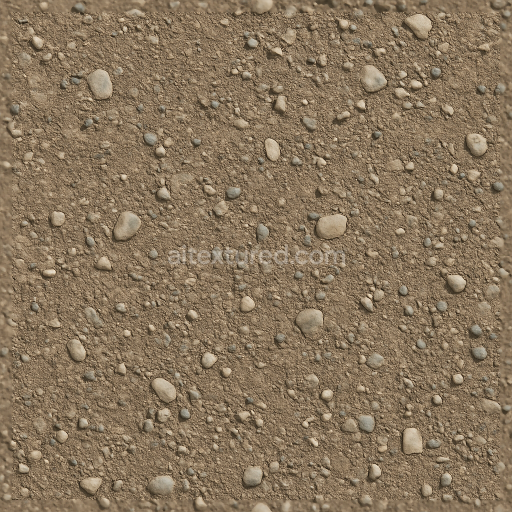
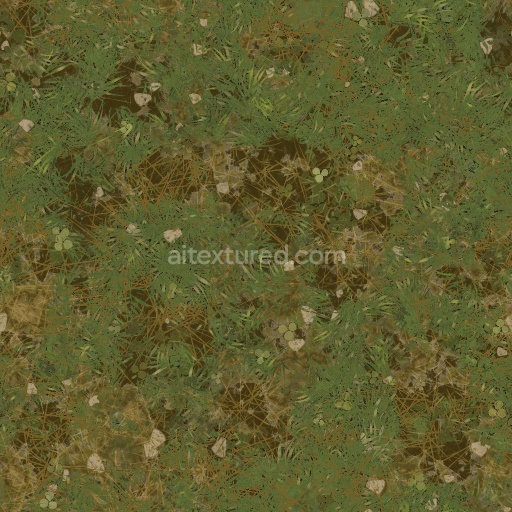
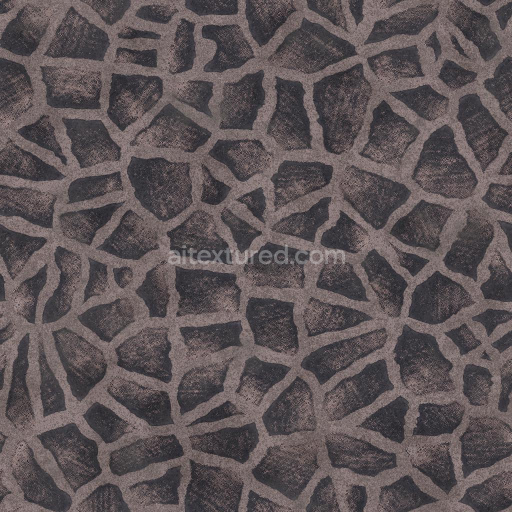
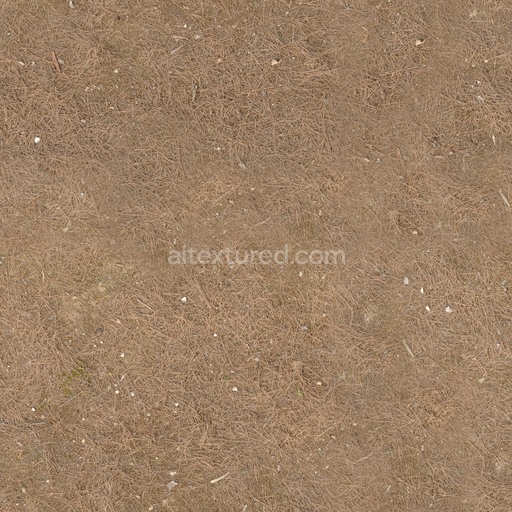
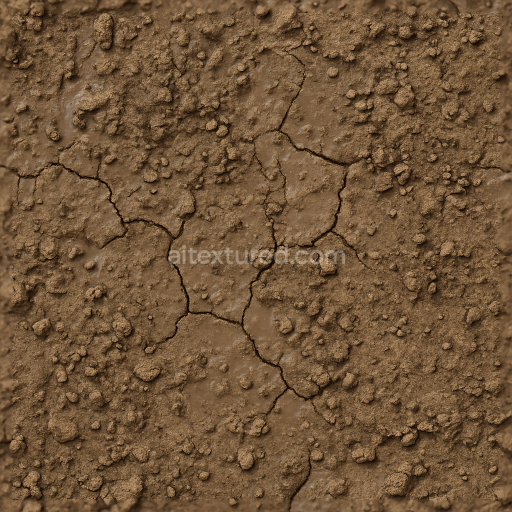
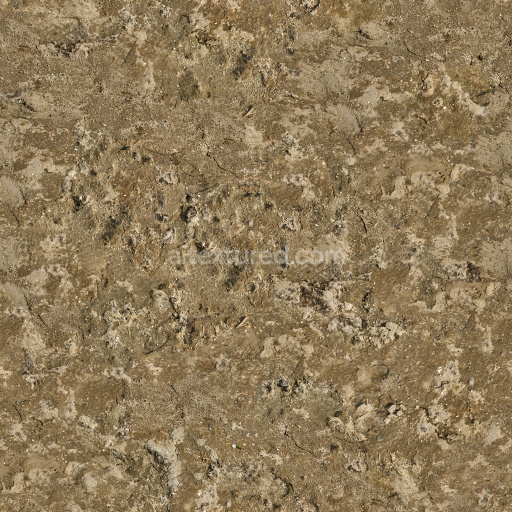
Pebble Ground Surface With Small Stones And Soil Granules
Seamless texture (tileable) · PNG, WEBP, PBR ZIP.
| ID | football-soccer-grass-field-with-alternating-bands-free-pbr |
|---|---|
| Category | Ground surface |
| Formats | PNG, WEBP, PBR ZIP |
| Size | 1k (1024x1024px), 2k (2048x2048px), 4k (4096x4096px), 8k (8192x8192px) |
| Tileable | Yes |
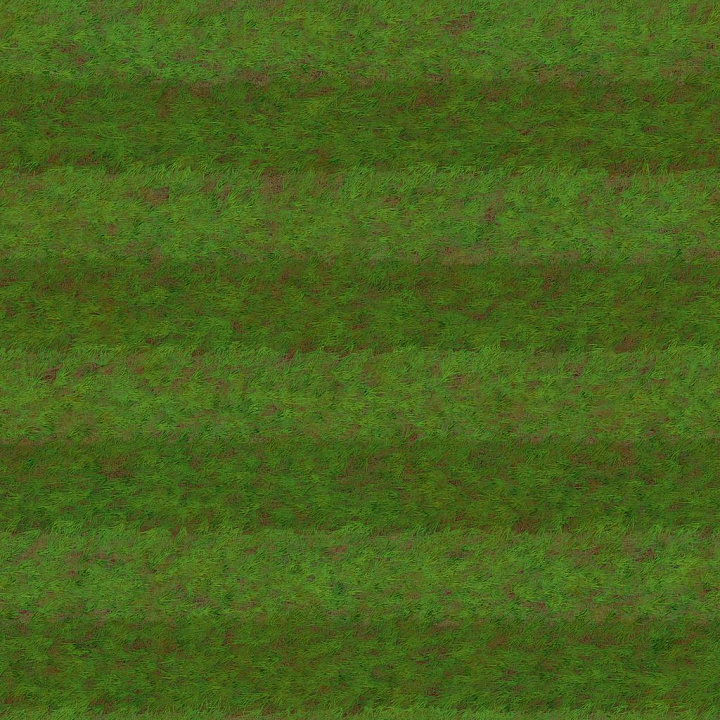
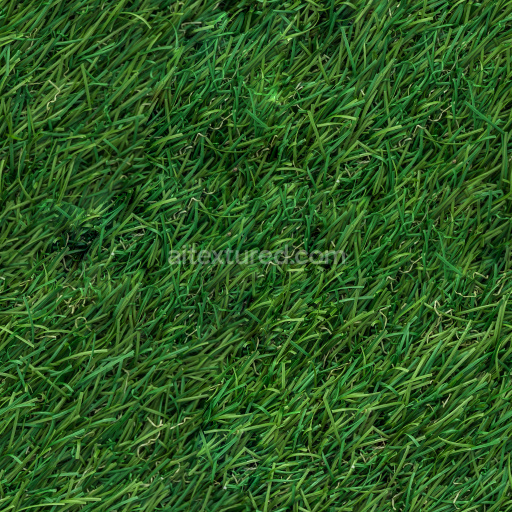
This seamless high-quality PBR texture depicts a meticulously crafted football or soccer grass field featuring distinct alternating bands of vibrant green turf. The surface is primarily composed of densely packed organic grass fibers anchored into a mineral-rich soil substrate, providing a natural and resilient foundation. The grass blades exhibit slight variations in length and orientation, enhancing realism and depth. Natural binders such as root systems and organic matter cohesively hold the layers together, while subtle traces of weathering and moisture retention contribute to the texture’s authentic appearance. Colorants stem from natural chlorophyll pigments, with nuanced tonal shifts between light and dark green bands that simulate professional sports field maintenance patterns.
In the PBR workflow, the BaseColor or Albedo channel captures the vivid greens and earthy browns without baked-in lighting, preserving material accuracy. The Normal map conveys fine grass blade curvature and soil granularity, adding tactile detail to shading. Roughness values vary subtly across the surface, reflecting how dew or wear affects shininess, while the Metallic channel remains near zero, consistent with organic materials. Ambient Occlusion enhances shadowing in dense grass clumps and soil crevices, and the Height or Displacement map supports realistic surface relief, emphasizing blade height and furrowed field lines. This texture is available in up to 8K resolution, ensuring crisp detail for close-up renders and large-scale environments. It is optimized for seamless tiling and fully compatible with popular 3D engines such as Blender, Unreal Engine, and Unity.
For practical implementation, adjusting the UV scale to match real-world field dimensions helps maintain proportional grass density and band width, preventing distortion. Additionally, fine-tuning roughness can simulate different weather conditions—from freshly mowed dry grass to damp or dewy surfaces—enhancing material versatility. This texture is ideal for sports visualizations, architectural landscaping, game environments, and any project requiring a realistic, alternating-band soccer or football grass field with natural material fidelity and high-performance PBR integration.
Import the texture maps into Blender with sRGB color space for albedo/base color and Non-Color for normal, roughness, metallic, AO, height, and ORM maps. Connect normal maps through a Normal Map node, then adjust UV scale with a Mapping node so the material repeats naturally on your model.
For the full step-by-step setup, see How to Use Seamless Textures in Blender. Browse related material examples in wood, concrete, and metal.
Yes. This texture is designed as a seamless tileable PBR material, so it can repeat across large surfaces without visible borders.
Use the download controls on this page: they expose the available PNG, WEBP or engine ZIP choices and supported resolutions for this asset.
Use the engine ZIP choices to package compatible source maps for Blender, Unreal Engine or Unity, then verify the imported material in the target application.
Commercial-use permission is not verified for this record. Confirm the original source and license before production use.
Generate maps from existing images, preview materials, convert channels, and package compatible inputs for Blender, Unity, and Unreal Engine.
Choose a verified workflow for generating maps, previewing tiling, converting channels, or starting from the texture catalog.
Derive Normal, Roughness, AO, Metallic, Height and optional ORM maps from one or more source images, then review the results.
Instant WebGL viewer: inspect materials on a sphere, plane, and cube. Check tiling and lighting in real time.
Re-packages maps per engine: Unreal (BaseColor + ORM), Unity (Mask/MetallicSmoothness), Blender (separate channels).
PNG ↔ JPG ↔ SVG: fast convert, SVG rasterize, embed/trace options, quality & background controls.