How to Set Up Seamless Wood Floor Textures in Blender
A practical Blender guide for using seamless wood floor PBR textures with correct UV scale, color space, normal maps and roughness settings.
When to use this workflow
Use this workflow when the material imports into Blender but the surface still looks flat, glossy in the wrong places, incorrectly scaled or miswired.
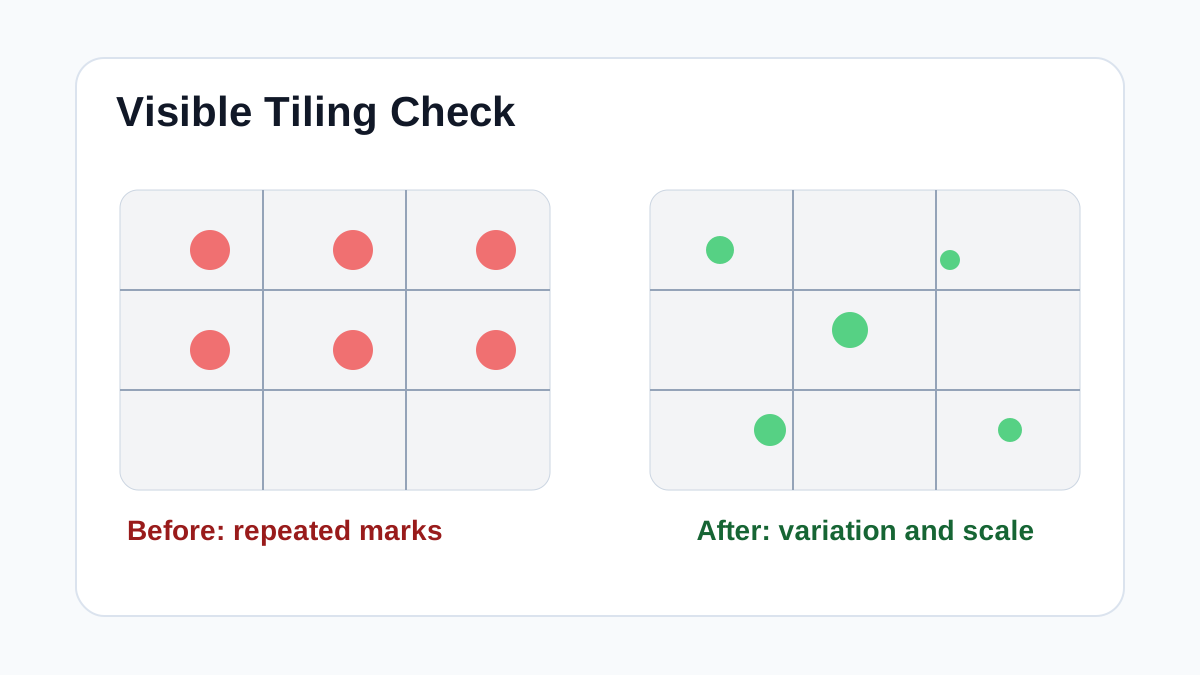
Wood floors expose tiling problems quickly because planks, knots and grain direction create strong repeated shapes. Start with scale before shader tuning: a board that is too wide will make even a high-resolution texture feel fake.
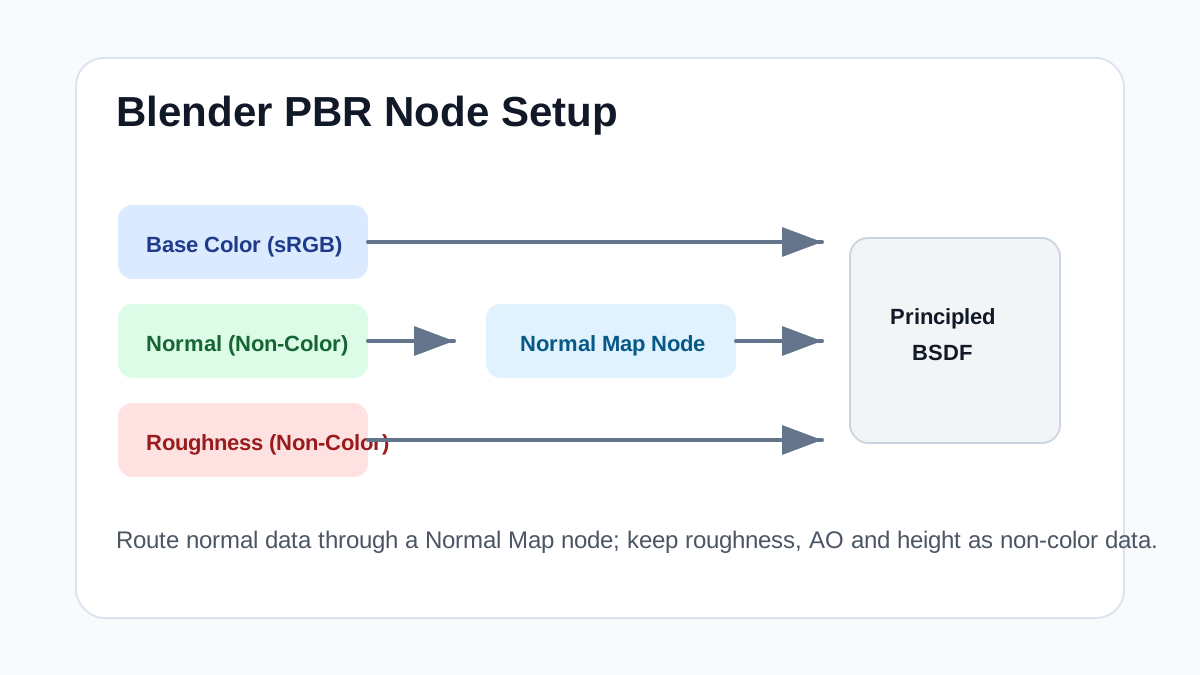
In Blender, connect base color as sRGB and keep normal, roughness, AO and height maps as non-color data. Use the texture coordinate and mapping nodes to control board direction instead of rotating image files outside the material.
Texture Import Settings
| Texture map | Import setting | Color space / sRGB | Usage notes |
|---|---|---|---|
| Base color / albedo | Image Texture node into Principled BSDF Base Color | sRGB enabled | Keep lighting out of the image; use Mapping scale for floor, fabric or wall size. |
| Normal map | Image Texture -> Normal Map node -> Principled BSDF Normal | Non-Color | Start around 0.3-0.8 strength for fabric/wood, then judge under side lighting. |
| Roughness map | Image Texture into Principled BSDF Roughness | Non-Color | Higher values make fabric, raw wood and stone more matte; lower values suit varnish or polished surfaces. |
| AO / height | AO mixed subtly with color; height through Bump or Displacement only when needed | Non-Color | Use height lightly on flat floors and upholstery so surfaces do not look inflated. |
Practical Material Parameters
| Material focus | Recommended UV scale | Roughness range | Normal strength range | Best use cases | Common visual issues |
|---|---|---|---|---|---|
| Wood floors and planks | 1.5-3.0 m per tile, board width 8-20 cm | 0.35-0.65 varnished, 0.55-0.85 raw | 0.25-0.75 | Floors, furniture, wall panels, beams | Repeating knots, wrong board scale, overly glossy raw timber |
Step-by-Step Workflow
- Add the base color map to the Principled BSDF Base Color input.
- Set roughness, AO and height textures to Non-Color in the Image Texture node.
- Route the normal map through a Normal Map node before connecting it to the shader.
- Use UV scale that matches real board dimensions, then test the floor from camera height.
- Break repetition with a second texture variant, decals or subtle color variation on large rooms.
Quality Checklist
- Knots do not repeat in obvious rows.
- Normal strength shows grain without making boards look swollen.
- Roughness separates matte raw wood from polished varnish.
- The texture still reads correctly in both close-up and wide shots.
Common Mistakes
- Using Generated coordinates for a floor mesh that already has clean UVs.
- Leaving roughness or normal maps in sRGB color space.
- Choosing 8K maps for a background floor where 2K would be enough.
Useful Next Steps
- Browse Wood PBR textures for source materials that match this workflow.
- Use Online PBR preview to preview, pack or prepare maps before importing them into your scene.
- Return to the workflow guide library for related Blender, Unreal Engine, Unity and optimization workflows.
Recommended Textures for This Workflow
FAQ
Which texture maps do I need for How to Set Up Seamless Wood Floor Textures in Blender?
Start with base color, normal and roughness. Add AO, height, metallic or packed engine maps when the material and target renderer support them.
Should I always use 4K or 8K textures for this workflow?
No. Use 4K or 8K only for close camera views or hero assets. For background surfaces, 1K or 2K textures with good tiling and mipmaps are often more efficient.
How does this guide fit into a Blender pipeline?
Use the guide as a setup checklist before final material tuning. Check scale, color space, map routing, tiling and performance in the target scene rather than judging the texture from the thumbnail alone.