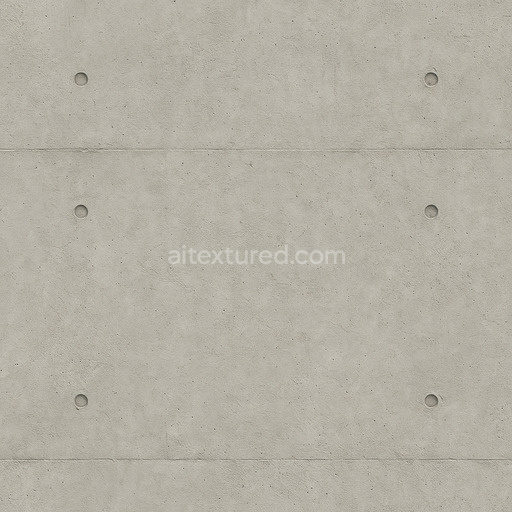
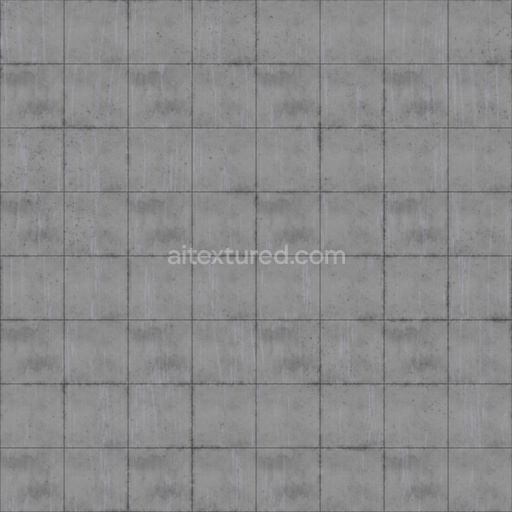
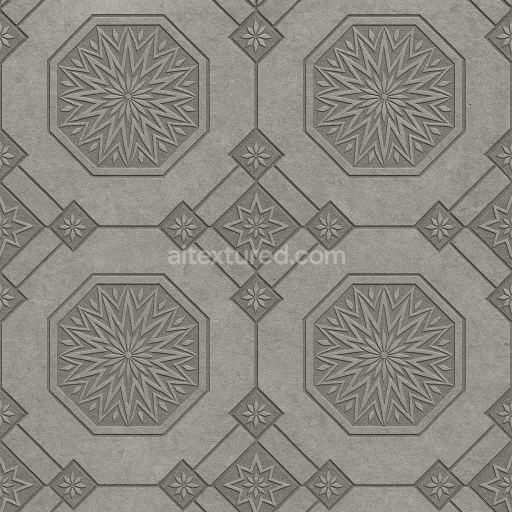
Cast In Place Concrete Subtle Form Tie Marks
Seamless texture (tileable) · PNG, WEBP, PBR ZIP.
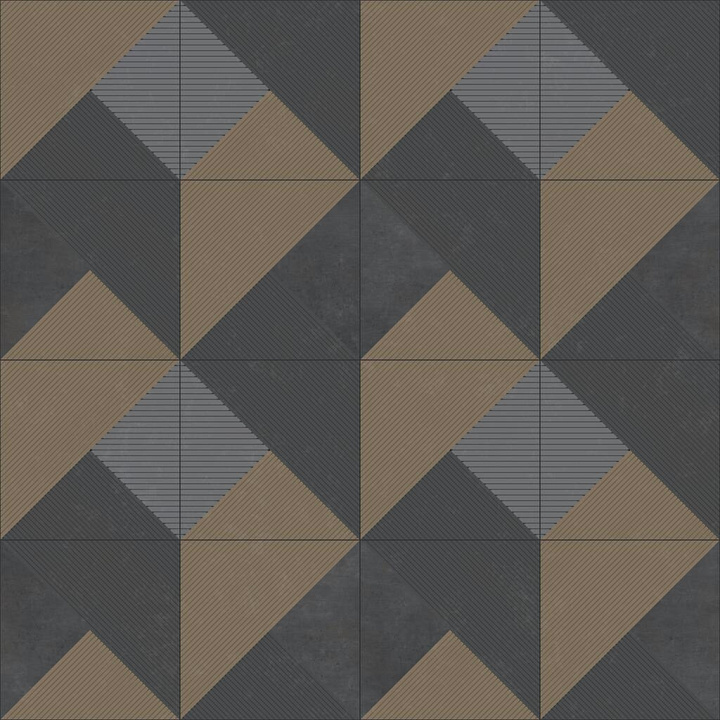
| ID | yellow-and-gray-concrete-tiles-with-triangular-and-stripy-pattern-free-pbr |
|---|---|
| Category | Concrete |
| Formats | PNG, WEBP, PBR ZIP |
| Size | 1k (1024x1024px), 2k (2048x2048px), 4k (4096x4096px), 8k (8192x8192px) |
| Tileable | Yes |
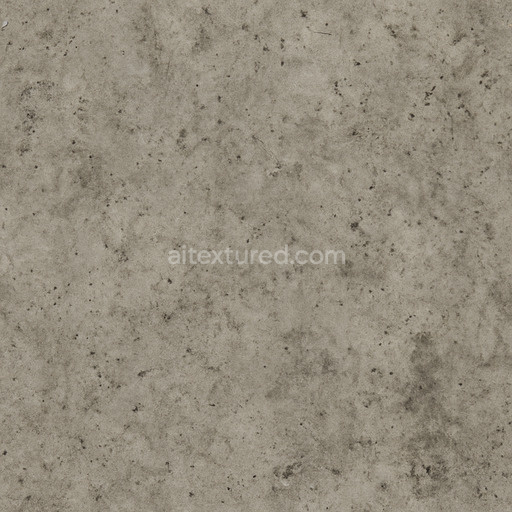
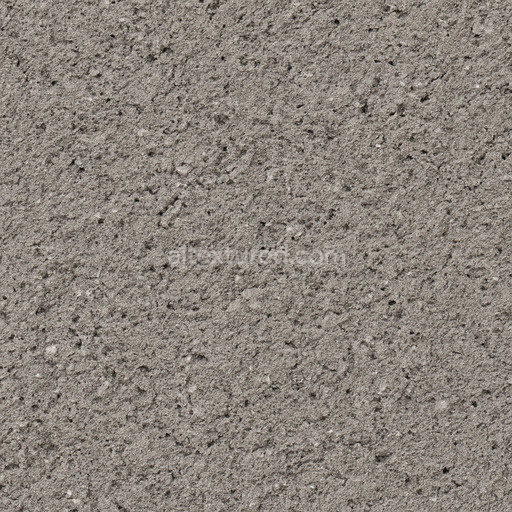
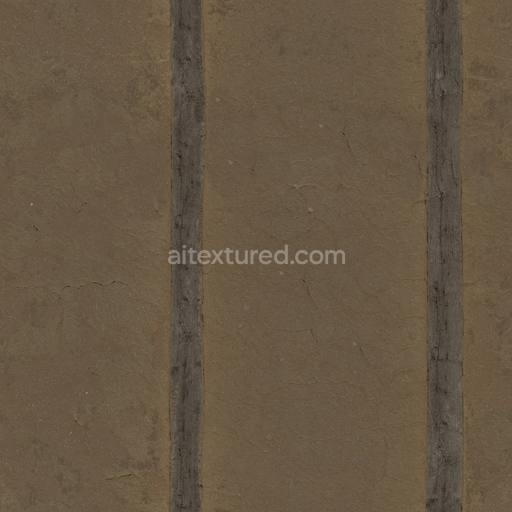
This texture features industrial-styled concrete tiles characterized by a distinctive pattern of yellow and gray hues arranged in a combination of triangular and stripy shapes. The base material is a mineral-rich concrete substrate, composed primarily of cement binders mixed with fine aggregates such as sand and small gravel particles to create a durable, solid surface. The subtle variations in porosity and surface weathering reflect authentic wear, contributing to a realistic aged appearance. The concrete’s surface finish is matte with a lightly brushed texture, enhancing tactile depth without excessive gloss, while the pigments embedded within the cement matrix provide the muted shades of gray and warm yellow-beige tones that define the pattern’s visual appeal.
In terms of physical-based rendering (PBR) channels, the BaseColor/Albedo map captures the nuanced interplay of yellow and gray pigments forming the triangular and striped motifs, ensuring accurate color representation under varied lighting. The Normal map simulates the fine surface irregularities and subtle grain orientation inherent in concrete, lending a convincing tactile dimension. Roughness values are calibrated to reflect the semi-porous concrete finish, balancing diffuse reflection and light scattering to avoid overly shiny or flat appearances. The Metallic channel remains neutral, consistent with the non-metallic nature of concrete, while Ambient Occlusion enhances shadowing within crevices and tile edges, adding depth and realism. Height or Displacement maps offer precise surface relief for enhanced parallax effects in supported renderers.
This high-resolution 8K texture pack is optimized for seamless integration into 3D workflows across Blender, Unreal Engine, and Unity, ensuring crisp detail even on close camera angles. For practical application, adjusting the UV scale to slightly reduce repetition will prevent pattern monotony on larger surfaces. Additionally, fine-tuning the roughness parameter can simulate varying degrees of surface wear or moisture, allowing dynamic adaptation to different environmental contexts. This texture is ideal for architectural visualization, game environments, and industrial design projects requiring authentic concrete tile finishes with a modern geometric aesthetic.
Import the texture maps into Blender with sRGB color space for albedo/base color and Non-Color for normal, roughness, metallic, AO, height, and ORM maps. Connect normal maps through a Normal Map node, then adjust UV scale with a Mapping node so the material repeats naturally on your model.
For the full step-by-step setup, see How to Use Seamless Textures in Blender. Browse related material examples in wood, concrete, and metal.
Yes. This texture is designed as a seamless tileable PBR material, so it can repeat across large surfaces without visible borders.
Use the download controls on this page: they expose the available PNG, WEBP or engine ZIP choices and supported resolutions for this asset.
Use the engine ZIP choices to package compatible source maps for Blender, Unreal Engine or Unity, then verify the imported material in the target application.
Commercial-use permission is not verified for this record. Confirm the original source and license before production use.



Generate maps from existing images, preview materials, convert channels, and package compatible inputs for Blender, Unity, and Unreal Engine.
Choose a verified workflow for generating maps, previewing tiling, converting channels, or starting from the texture catalog.
Derive Normal, Roughness, AO, Metallic, Height and optional ORM maps from one or more source images, then review the results.
Instant WebGL viewer: inspect materials on a sphere, plane, and cube. Check tiling and lighting in real time.
Re-packages maps per engine: Unreal (BaseColor + ORM), Unity (Mask/MetallicSmoothness), Blender (separate channels).
PNG ↔ JPG ↔ SVG: fast convert, SVG rasterize, embed/trace options, quality & background controls.