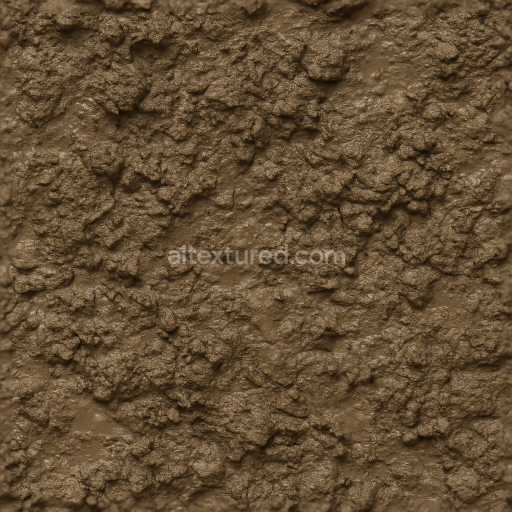
Muddy Swamp Surface With Mud Organic Matter And Moisture
Seamless texture (tileable) · PNG, WEBP, PBR ZIP.
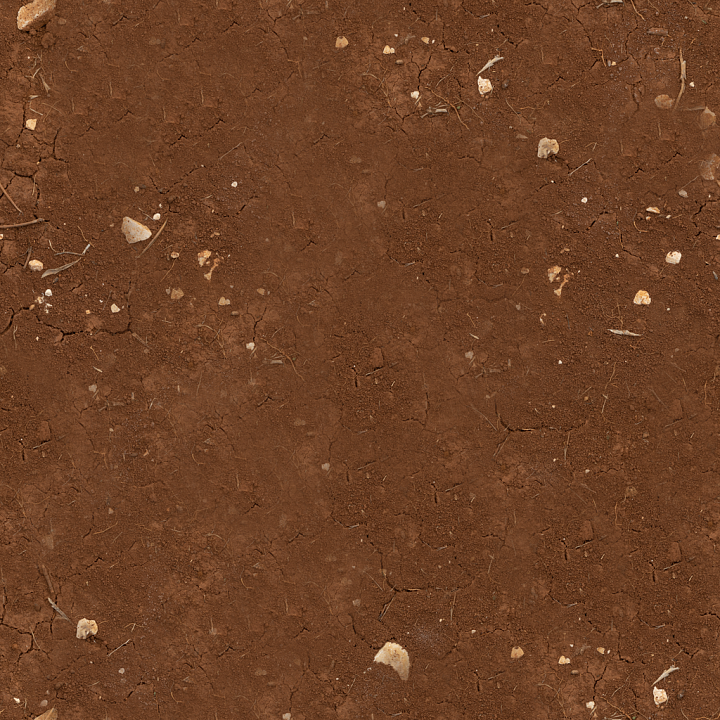
| ID | red-mud-stones-mud-dirt-flat-dry-rocks-compact-soil |
|---|---|
| Category | Mud |
| Formats | PNG, WEBP, PBR ZIP |
| Size | 1k (1024x1024px), 2k (2048x2048px), 4k (4096x4096px), 8k (8192x8192px) |
| Tileable | Yes |
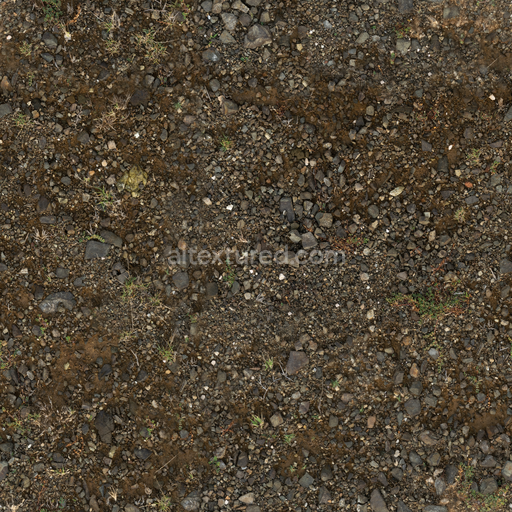
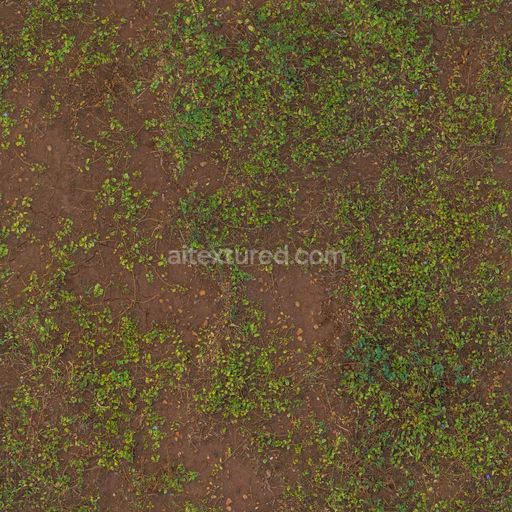
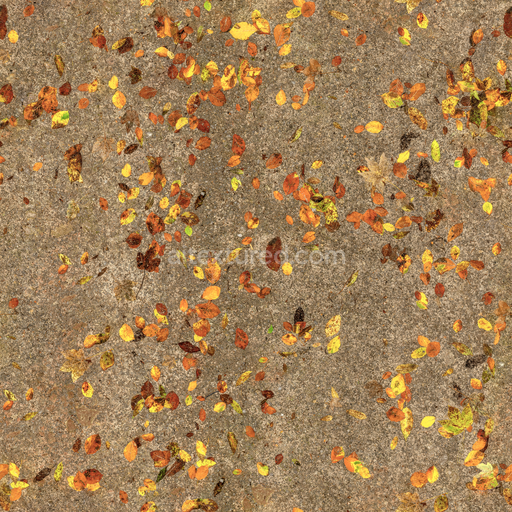
The Red Mud Stones 3D texture is a physically based seamless material designed to realistically replicate the complex composition of dry cracked and compact soil mixed with natural red mud stones and organic debris such as roots and plant remnants. At its core this texture simulates a mineral-rich earthy substrate where fine-grained clay and iron oxide pigments impart the distinctive deep red coloration characteristic of weathered mud stones. The surface demonstrates subtle porosity and natural fissures with compact soil aggregates and scattered rock fragments embedded within the matrix. Weathering effects are visible through surface roughness variations and micro-cracks enhancing the flat dry terrain appearance typical of outdoor gothic-inspired environments. This rich composition is accurately captured across the PBR channels for authentic material rendering.
The texture pack includes high-resolution 4K maps with an optional 8K upgrade providing exceptional detail for use in Blender Unreal Engine and Unity workflows. The Albedo (BaseColor) map reflects the natural earthy tones and red iron oxide hues while the Normal map conveys the subtle surface irregularities cracks and stone relief. The Roughness channel varies to simulate the mix of smooth compact soil and rough weathered rock surfaces enabling realistic light scattering and reflections. The Metallic map is minimal consistent with non-metallic natural terrain while Ambient Occlusion enhances shadowed crevices and depth in the cracked earth. The Height or Displacement map provides pronounced surface depth for parallax or tessellation effects enabling enhanced realism in real-time and offline renderers without manual tweaking.
This texture is optimized for modern pipelines using the metal/rough workflow ensuring consistent shading and balanced performance across DCC applications and game engines. It reliably delivers natural results for outdoor terrain balancing detail and efficiency for both close-up scenes and large-scale environments. For practical application adjusting the UV scale to match the scene’s terrain density will maintain the natural appearance of the cracked soil and stones while fine-tuning roughness can emphasize either wet or dry surface conditions. The inclusion of.png and.exr formats supports flexible use across different rendering setups and artistic needs.
Import the texture maps into Blender with sRGB color space for albedo/base color and Non-Color for normal, roughness, metallic, AO, height, and ORM maps. Connect normal maps through a Normal Map node, then adjust UV scale with a Mapping node so the material repeats naturally on your model.
For the full step-by-step setup, see How to Use Seamless Textures in Blender. Browse related material examples in wood, concrete, and metal.
Yes. This texture is designed as a seamless tileable PBR material, so it can repeat across large surfaces without visible borders.
Use the download controls on this page: they expose the available PNG, WEBP or engine ZIP choices and supported resolutions for this asset.
Use the engine ZIP choices to package compatible source maps for Blender, Unreal Engine or Unity, then verify the imported material in the target application.
Commercial-use permission is not verified for this record. Confirm the original source and license before production use.
Generate maps from existing images, preview materials, convert channels, and package compatible inputs for Blender, Unity, and Unreal Engine.
Choose a verified workflow for generating maps, previewing tiling, converting channels, or starting from the texture catalog.
Derive Normal, Roughness, AO, Metallic, Height and optional ORM maps from one or more source images, then review the results.
Instant WebGL viewer: inspect materials on a sphere, plane, and cube. Check tiling and lighting in real time.
Re-packages maps per engine: Unreal (BaseColor + ORM), Unity (Mask/MetallicSmoothness), Blender (separate channels).
PNG ↔ JPG ↔ SVG: fast convert, SVG rasterize, embed/trace options, quality & background controls.