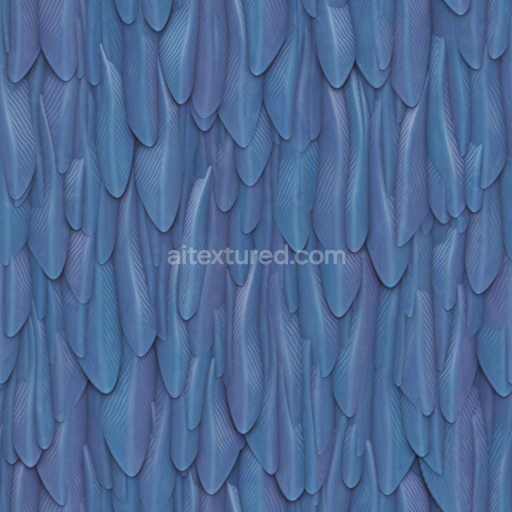
Stylized Bird Cartoon Feathers Organic - Seamless PBR Texture
Seamless texture (tileable) · PNG, WEBP, PBR ZIP.
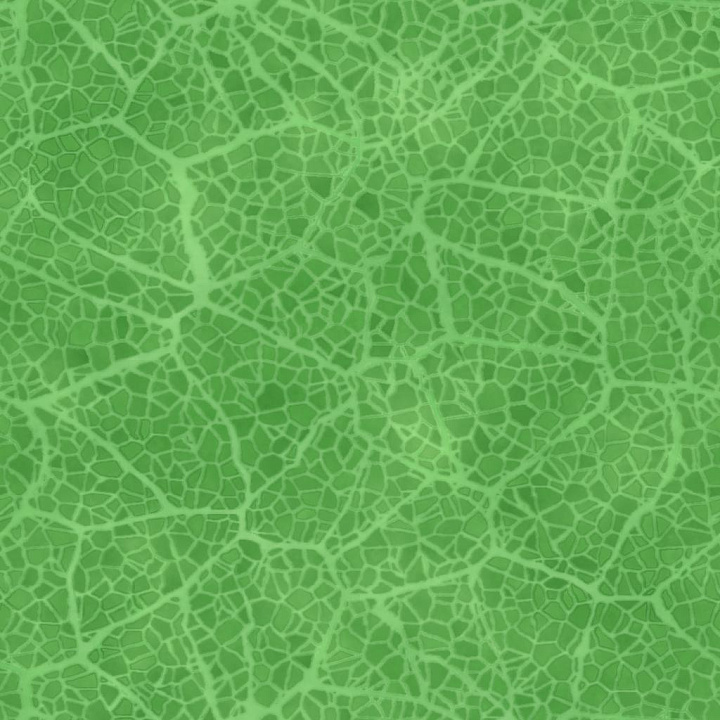
| ID | leaf-vein-texture-free-pbr |
|---|---|
| Category | Foliage |
| Formats | PNG, WEBP, PBR ZIP |
| Size | 1k (1024x1024px), 2k (2048x2048px), 4k (4096x4096px), 8k (8192x8192px) |
| Tileable | Yes |
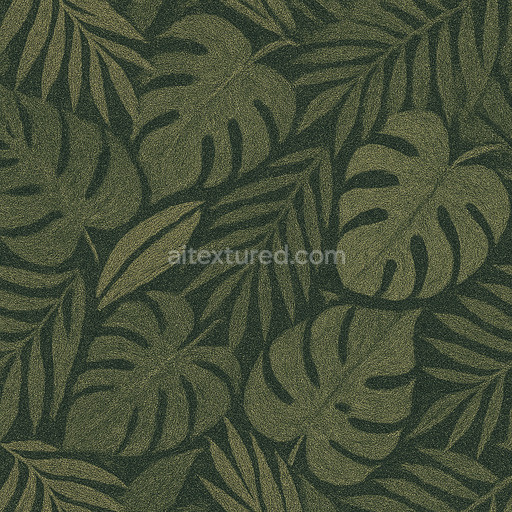
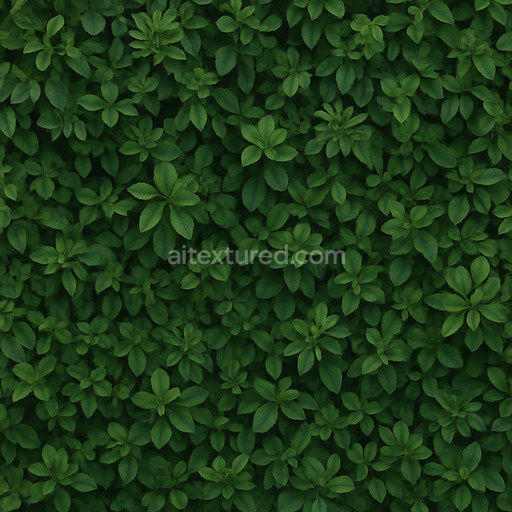
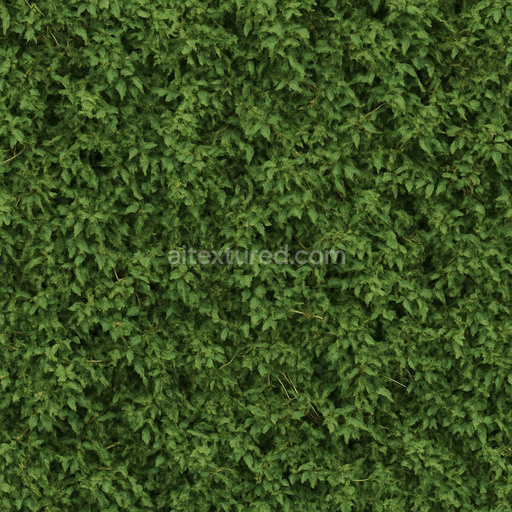
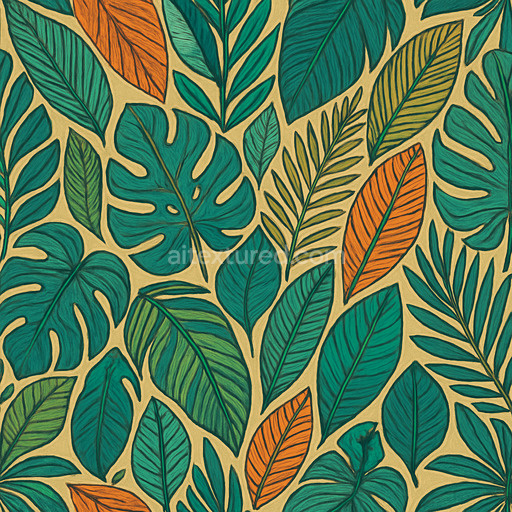
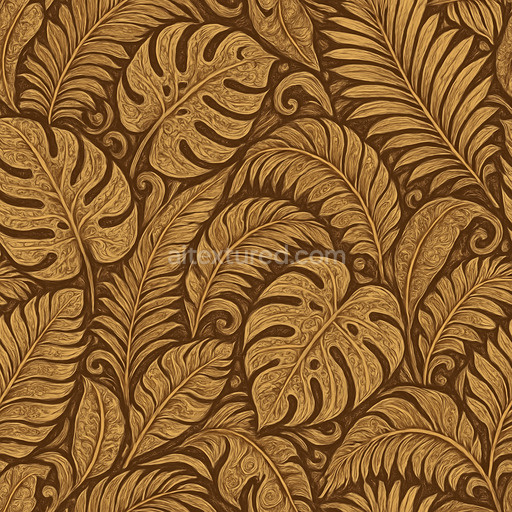
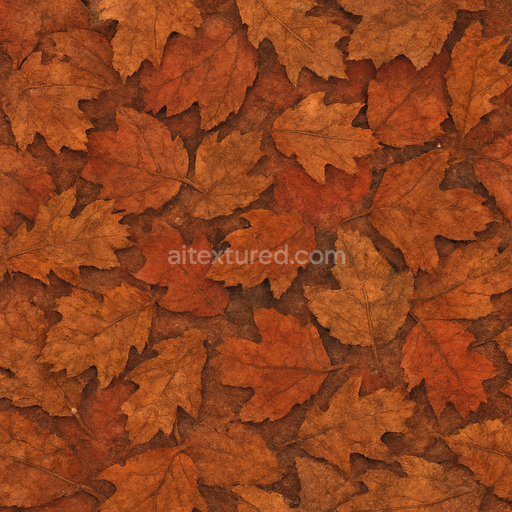
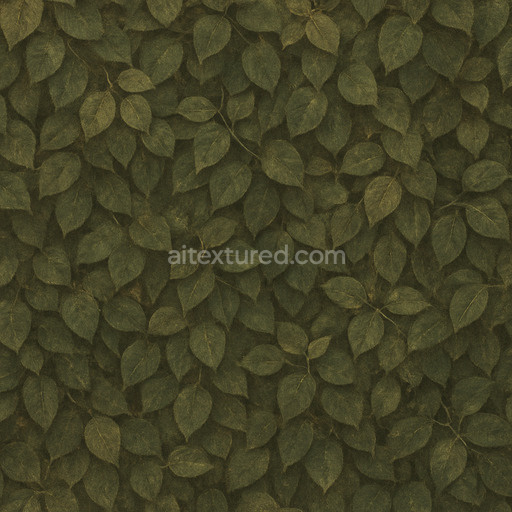
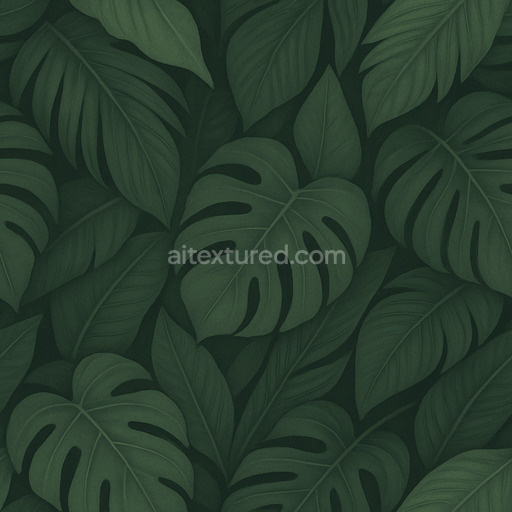
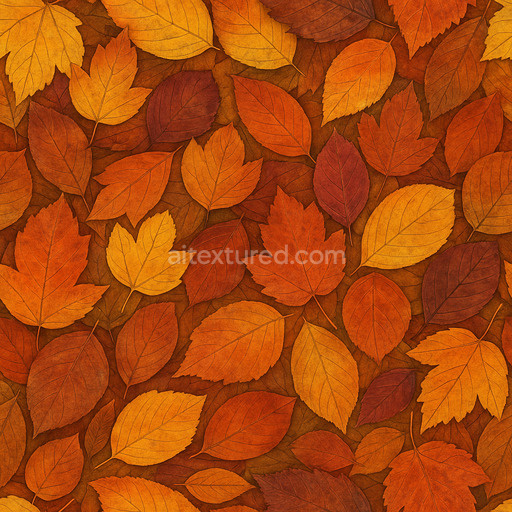
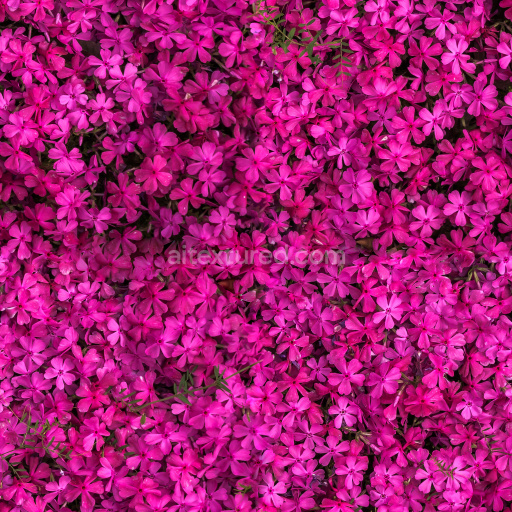
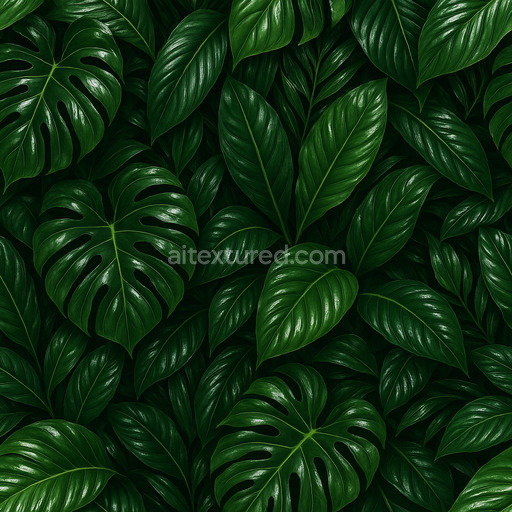
This high-quality, seamless leaf vein texture is a meticulously crafted PBR material designed to replicate the complex, organic patterns found in natural foliage. The base substrate emulates an organic polymer network, composed primarily of fibrous, slightly porous tissues that form the leaf’s intricate vein system. These veins serve as natural channels running through the leaf, with a fine grain orientation and vein distribution typical of deciduous leaves. The surface finish is matte with subtle irregularities, closely mimicking the soft, non-reflective qualities of fresh leaf surfaces. Colorants include diffuse pigments in muted greens and browns, accented by occasional highlights that create a natural variation across the texture, enhancing its realism and depth.
In terms of PBR channels, this texture excels in realistic material representation. The BaseColor (Albedo) channel captures the natural hues and vein contrasts without baked lighting, providing a true-to-life color foundation. The Normal map accentuates the delicate ridges and depressions of the veins, delivering convincing three-dimensional relief when lit dynamically. Roughness is carefully balanced to represent the semi-matte leaf surface, with slight glossiness along the veins contrasting against more diffused light scattering on the surrounding tissue. Metallic values remain minimal, reflecting the organic, non-metallic nature of leaf material, while Ambient Occlusion subtly enhances depth by deepening vein intersections and crevices. The Height or Displacement maps convey fine elevation changes along the veins and leaf surface, making it ideal for advanced rendering techniques such as parallax occlusion mapping.
Optimized at 1024x1024 resolution with scalability up to 8K, this free generated texture integrates seamlessly with popular 3D platforms including Blender, Unreal Engine, and Unity. Its seamless design allows for versatile tiling without visible seams, making it perfect for large-scale foliage environments, realistic botanical models, or stylized game assets. For practical use, adjusting the UV scale to match natural leaf dimensions in your scene combined with fine-tuning the roughness channel can significantly enhance realism, especially under varied lighting conditions. This leaf vein texture’s blend of organic detail and physically accurate shading makes it an excellent choice for designers and developers seeking a naturalistic, free PBR texture for design and games.
Download a seamless leaf vein texture featuring a high-quality, free generated PBR material in 1024x1024 resolution, ideal for realistic surface detailing in design projects.
Import the texture maps into Blender with sRGB color space for albedo/base color and Non-Color for normal, roughness, metallic, AO, height, and ORM maps. Connect normal maps through a Normal Map node, then adjust UV scale with a Mapping node so the material repeats naturally on your model.
For the full step-by-step setup, see How to Use Seamless Textures in Blender. Browse related material examples in wood, concrete, and metal.
Yes. This texture is designed as a seamless tileable PBR material, so it can repeat across large surfaces without visible borders.
Use the download controls on this page: they expose the available PNG, WEBP or engine ZIP choices and supported resolutions for this asset.
Use the engine ZIP choices to package compatible source maps for Blender, Unreal Engine or Unity, then verify the imported material in the target application.
Commercial-use permission is not verified for this record. Confirm the original source and license before production use.

Generate maps from existing images, preview materials, convert channels, and package compatible inputs for Blender, Unity, and Unreal Engine.
Choose a verified workflow for generating maps, previewing tiling, converting channels, or starting from the texture catalog.
Derive Normal, Roughness, AO, Metallic, Height and optional ORM maps from one or more source images, then review the results.
Instant WebGL viewer: inspect materials on a sphere, plane, and cube. Check tiling and lighting in real time.
Re-packages maps per engine: Unreal (BaseColor + ORM), Unity (Mask/MetallicSmoothness), Blender (separate channels).
PNG ↔ JPG ↔ SVG: fast convert, SVG rasterize, embed/trace options, quality & background controls.