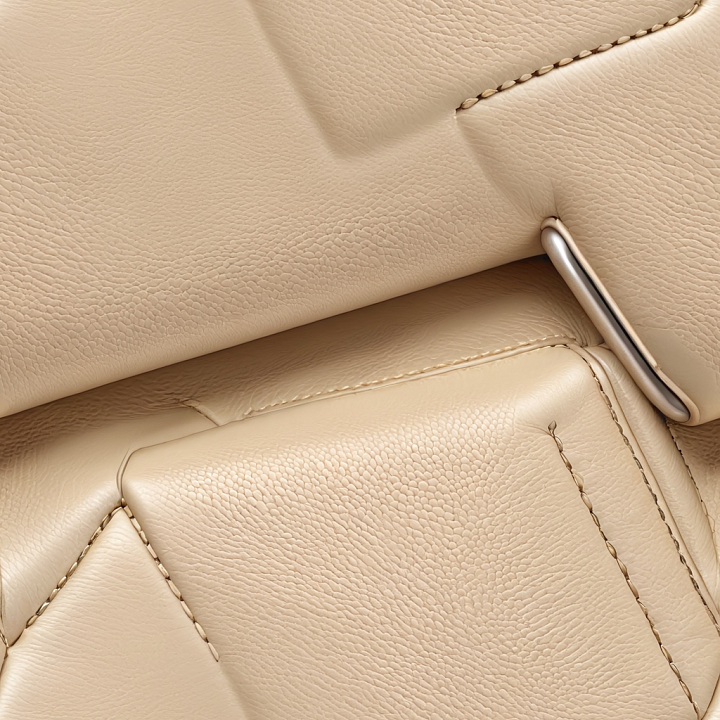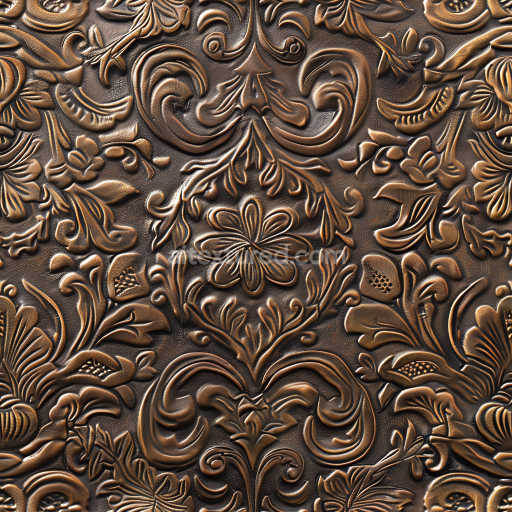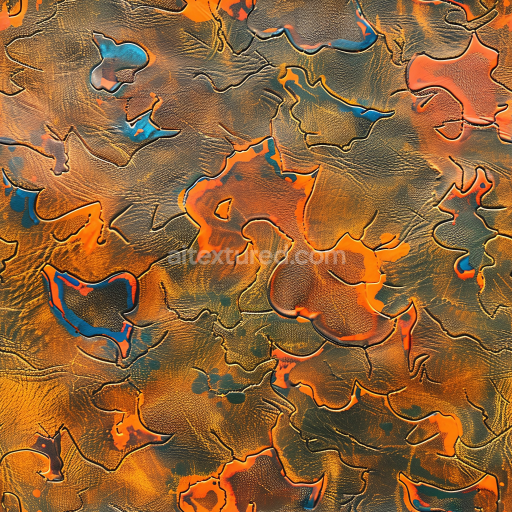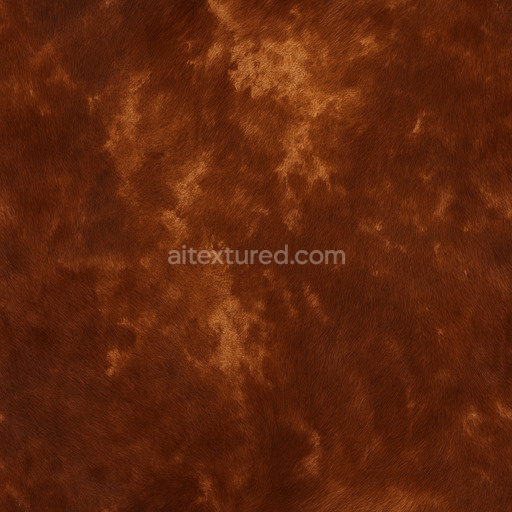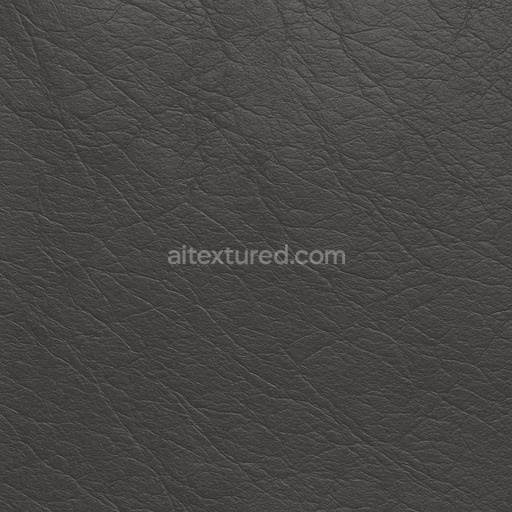
Seamless 3D Beige Pebbled Leather Upholstery PBR Texture with Fine Grain and Detailed Stitching

Seamless texture (tileable) · PNG. License: Free for personal & commercial use.

Seamless 3D Beige Pebbled Leather Upholstery PBR Texture with Fine Grain and Detailed Sti… texture preview

Texture Info

IDleather-seamless-pbr-beige-pebbled-leather-upholstery-texture-3
CategoryLeather
FormatsPNG
Size1k (1024x1024px), 2k (2048x2048px), 4k (4096x4096px), 8k (8192x8192px)
ColorsRGB
TileableYes
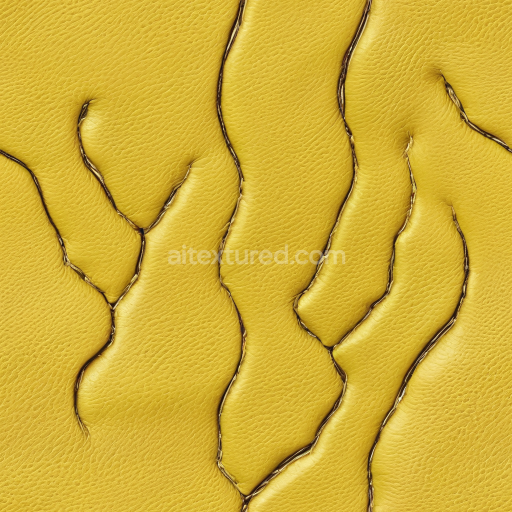
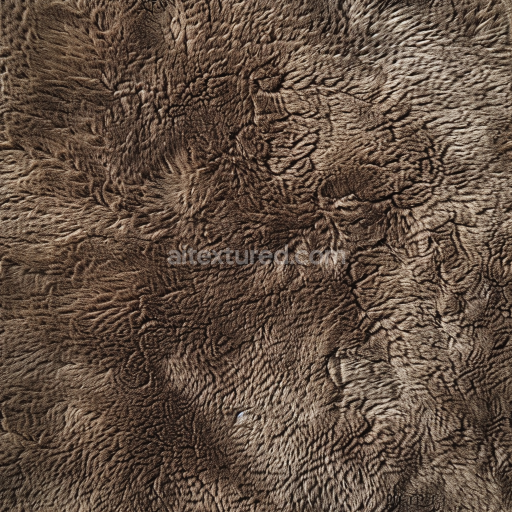
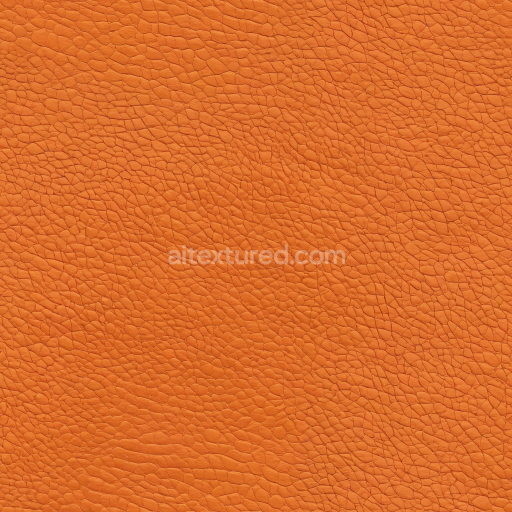
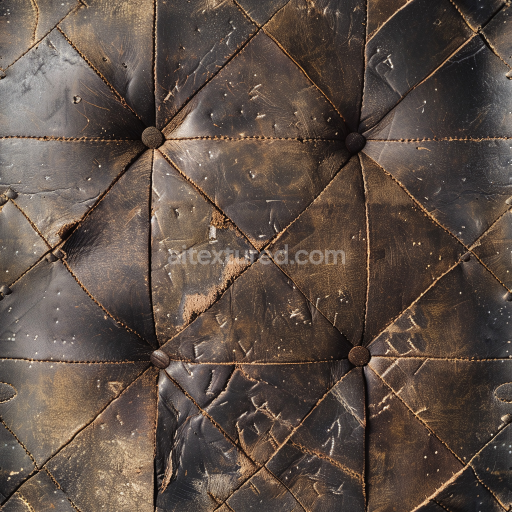
This seamless PBR texture showcases a beige pebbled leather upholstery with a smooth yet prominently detailed grain surface. The leather exhibits small, tight pebbled patterns typical of high-quality upholstery leather. Subtle wrinkles and natural creases contour the leather panels, contributing to a realistic tactile look. Prominent, precise stitching lines connect the softly padded rectangular panels, enhancing the upholstery appearance and emphasizing craftsmanship. The color palette is a uniform warm beige tone, lending a clean and elegant aesthetic suited for contemporary and classic interiors. This highly tileable texture is PBR-ready, capturing accurate roughness and subtle specular reflections that simulate natural leather sheen under varied lighting conditions. Ideal for use in 3D projects requiring realism such as car seats, luxury furniture, bags, or fashion props. Compatible with Blender, Unreal Engine, Unity, 3ds Max, and Cinema 4D workflows, this texture elevates scene quality for game development, character clothing, environment details, and product visualization. Its detailed grain structure and neat stitching make it perfect for realistic interiors and designs emphasizing sophistication and fine materials.

How to Use These Seamless PBR Textures in Blender

This quick guide shows how to connect a seamless PBR texture set in Blender using Principled BSDF. The workflow works for tileable materials used in Blender, Unreal Engine, Unity, archviz, and game environments.

What Is Included

  • albedo or base color for the visible surface color
  • normal for fine surface relief
  • roughness for gloss and reflectivity control
  • metallic for metal or dielectric response
  • ao for ambient occlusion in cavities
  • height for bump, parallax, or displacement
  • ORM packed maps for optimized real-time workflows
Blender node setup overview for a seamless PBR texture
Example node layout for a standard PBR material in Blender.

Quick Start

  1. Open the Shader Editor and create a new material.
  2. Add an Image Texture node for each map you want to use.
  3. Set Color Space to sRGB for Albedo and to Non-Color for Normal, Roughness, Metallic, AO, Height, and ORM.
  4. Connect the maps to the matching inputs on Principled BSDF.

Recommended Connections

  • Albedo -> Base Color
  • Roughness -> Roughness
  • Metallic -> Metallic
  • Normal -> Normal Map node -> Normal
  • Height -> Bump or Displacement, depending on your render setup
Adding an image texture node in Blender
Add an Image Texture node before assigning the downloaded maps.

Using ORM Maps

If your download includes a packed ORM texture, split its RGB channels: R = AO, G = Roughness, B = Metallic. This is useful for Unreal Engine and other optimized real-time pipelines.

Tiling and UV Scale

Because these textures are seamless, you can repeat them across large surfaces without visible seams. Use a Mapping node to increase or reduce tiling density on floors, walls, terrain, props, and modular assets.

Common Mistakes

  • Using sRGB on non-color maps
  • Connecting a Normal map directly without a Normal Map node
  • Overdriving Height or Bump values so the surface looks unnatural
  • Ignoring texture scale, which makes seamless materials look repetitive
Loading a downloaded texture set into Blender
Load the downloaded texture set and wire the maps to Principled BSDF.

For more examples, browse related categories such as Wood Textures, Concrete Textures, and Metal Textures.

AITEXTURED Tools

Build, preview, and export seamless PBR materials. Generate full map sets from a single image, inspect them in a real-time WebGL viewer, and re-package maps for Unreal, Unity, and Blender—directly in your browser.