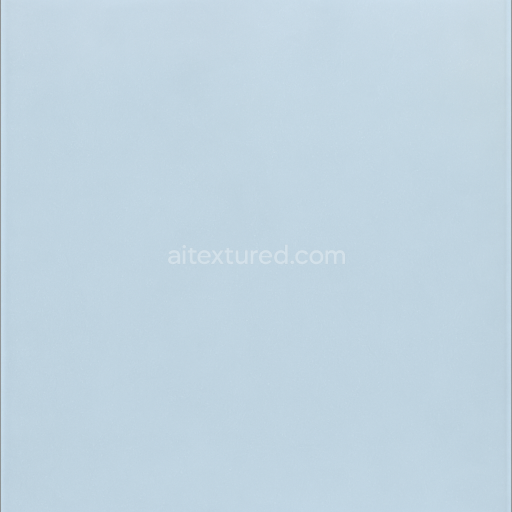
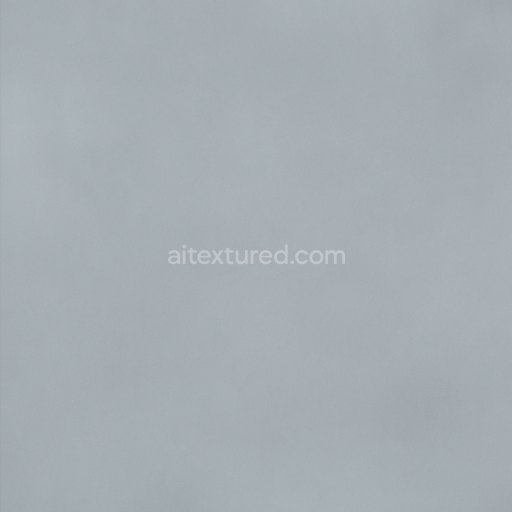
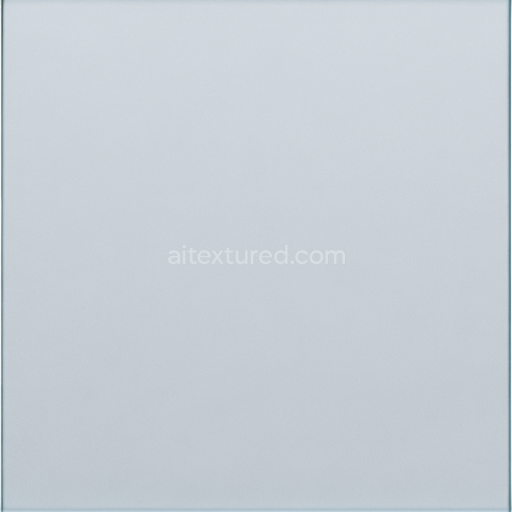
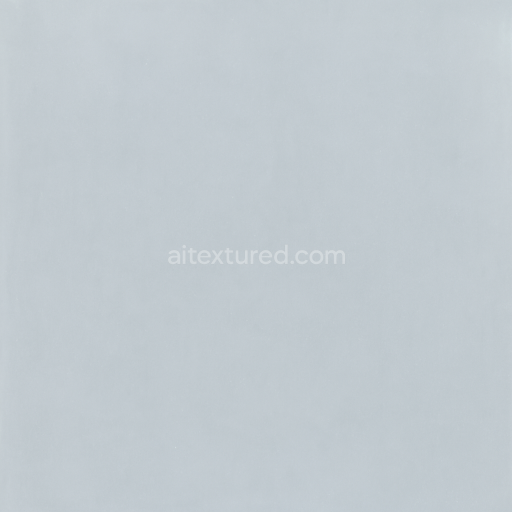
Clear Transparent Glass With Flawless Polished Surface And Bright Shine PBR 8K
Seamless texture (tileable) · PNG, WEBP, PBR ZIP. License: AITextured Free Commercial License (FCL) v1.1. Free personal and commercial use. Raw resale, standalone redistribution, mirroring/scraping, competing asset packs, and AI/ML training are not allowed without written permission. Attribution is not required, but appreciated..
| ID | seamless-3d-texture-featuring-glass-clean-surface-with-pure-transparency-and-flawless-clarity-pbr-8k |
|---|---|
| Category | Clear transparent glass |
| Formats | PNG, WEBP, PBR ZIP |
| Size | 1k (1024x1024px), 2k (2048x2048px), 4k (4096x4096px), 8k (8192x8192px) |
| Color | sRGB |
| Tileable | Yes |
This seamless 3D texture represents a pristine clear transparent glass surface characterized by pure clarity and flawless transparency. The base material is a high-quality silica substrate, carefully formulated with minimal additives to maintain maximum optical purity. Its composition excludes any particulate inclusions, pigments, or haze-causing impurities, resulting in a crystal-clear appearance. The surface is polished to a mirror-like finish, eliminating surface roughness and providing an ultra-smooth, reflective quality. This polished glass exhibits a natural shine that enhances light transmission and reflection without distortion, perfectly replicating real-world glass panels.
The geometric form of this texture is a continuous, perfectly flat plane without any structural pattern or grain, designed to tile seamlessly for large-scale applications. The absence of frost, condensation, smudges, or fingerprints ensures a clean, uninterrupted surface ideal for architectural visualizations or product design renders. Physically based rendering (PBR) channels are mapped precisely to replicate these qualities: the BaseColor (Albedo) channel remains nearly colorless and fully transparent, the Normal map is subtle due to the smoothness but supports minor micro-surface variations, Roughness is minimal to reflect the polished finish, Metallic is near zero as glass is non-metallic, Ambient Occlusion is low to maintain brightness, and Height/Displacement maps are flat to preserve the planar form.
Rendered in 8K resolution, this texture provides exceptional detail suitable for high-fidelity projects within Blender, Unreal Engine, and Unity environments. Its high resolution ensures that even close-up views maintain sharpness without pixelation, preserving the intricate optical characteristics of clean glass. The texture’s seamless tiling capability allows for versatile use across large surfaces without visible repetition or distortion, making it ideal for windows, glass facades, display cases, or any scenario requiring immaculate glass materials.
For optimal results, it is advisable to adjust the UV scale according to the model’s size to prevent over-tiling and to fine-tune roughness values slightly above zero to introduce realistic subtle reflections without compromising clarity. Additionally, blending the normal map gently with subtle height or parallax effects can add a delicate sense of depth, enhancing realism especially under dynamic lighting conditions. This approach ensures that the glass maintains its polished, bright, and naturally shiny qualities while responding accurately to environmental reflections and refractions.
Import the texture maps into Blender with sRGB color space for albedo/base color and Non-Color for normal, roughness, metallic, AO, height, and ORM maps. Connect normal maps through a Normal Map node, then adjust UV scale with a Mapping node so the material repeats naturally on your model.
For the full step-by-step setup, see How to Use Seamless Textures in Blender. Browse related material examples in wood, concrete, and metal.
Yes. This texture is designed as a seamless tileable PBR material, so it can repeat across large surfaces without visible borders.
You can download PNG/WEBP versions and use 1K, 2K, 4K and 8K download options when available on the page.
Yes. The download options and engine-mapped ZIP workflow are designed for Blender, Unreal Engine, Unity Standard, URP and HDRP material pipelines.
Yes. The texture is available under the AITextured free commercial license. Review the license page for redistribution and AI-training restrictions.


Generate, preview, and export seamless PBR materials for Blender, Unity, and Unreal Engine—directly in your browser.
AI text-to-texture: type a prompt and get a seamless, tileable base image ready for PBR workflows (great starting point for materials).
Create a full PBR set (Normal, Roughness, AO, Metallic, etc.) from a single image. Seamless and tiling-friendly.
Instant WebGL viewer: inspect materials on a sphere, plane, and cube. Check tiling and lighting in real time.
Re-packages maps per engine: Unreal (BaseColor + ORM), Unity (Mask/MetallicSmoothness), Blender (separate channels).
PNG ↔ JPG ↔ SVG: fast convert, SVG rasterize, embed/trace options, quality & background controls.