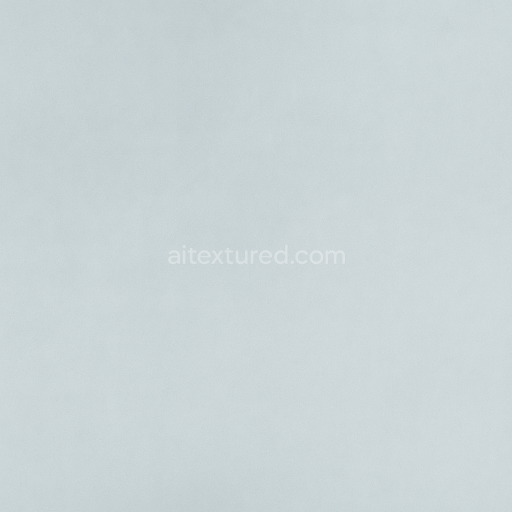
Glass Natural Shine And Flawless Pure Transparency PBR In 8K
Seamless texture (tileable) · PNG, WEBP, PBR ZIP.

| ID | seamless-3d-texture-of-glass-reflective-surface-with-pure-clarity-and-smooth-finish-pbr-8k |
|---|---|
| Category | Clear transparent glass |
| Formats | PNG, WEBP, PBR ZIP |
| Size | 1k (1024x1024px), 2k (2048x2048px), 4k (4096x4096px), 8k (8192x8192px) |
| Tileable | Yes |
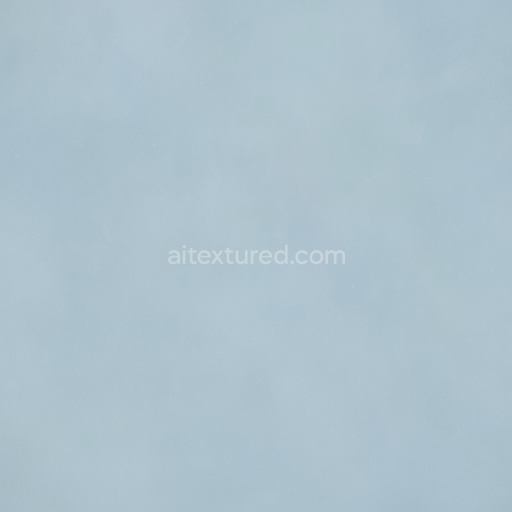
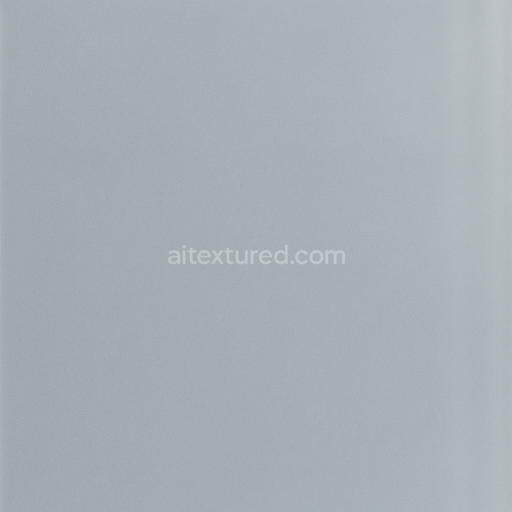
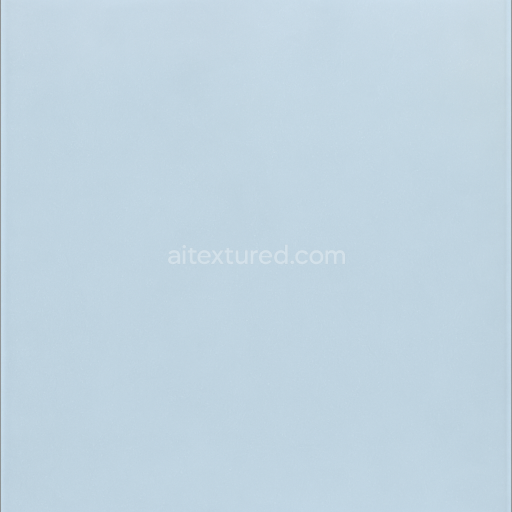
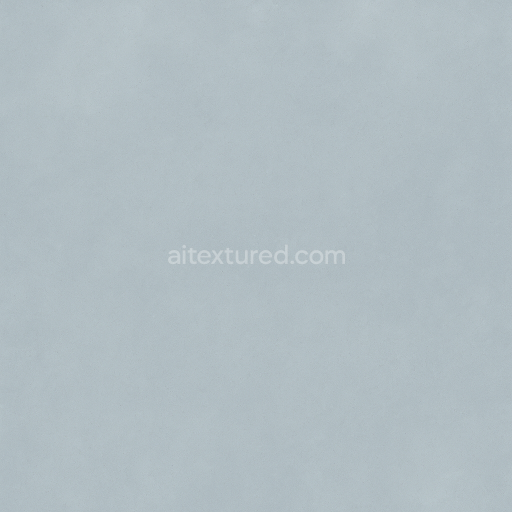
This seamless 3D texture represents a pristine glass reflective surface characterized by exceptional pure clarity and an impeccably smooth finish. The base material is high-quality soda-lime glass, widely used in architectural and decorative applications due to its excellent optical transparency and durability. The glass substrate is free from inclusions or impurities, ensuring flawless light transmission and minimal distortion. Its polished surface is achieved through precision grinding and buffing processes, resulting in a crystal-clear appearance with no visible defects such as cracks, chips, or surface blemishes. The texture captures the inherent low porosity of glass, which eliminates weathering effects like dirt accumulation, dust, or stains, maintaining a clean and bright visual quality.
The geometric form of this texture is intentionally uniform and flat, emphasizing a continuous, uninterrupted plane with consistent reflectivity. It features no additional patterning or structural variations, reflecting the smoothness and homogeneity of polished glass sheets. This texture is composed to align with physically based rendering (PBR) workflows, where the BaseColor (Albedo) channel delivers a pure, neutral tone free of coloration or tinting, allowing the natural transparency to shine through. The Normal map subtly encodes micro-surface details corresponding to the finely polished finish without introducing roughness that would diminish reflectivity. The Roughness map is calibrated to very low values, supporting a glossy, mirror-like surface that enhances specular highlights and reflections.
The Metallic channel remains near zero because glass is a dielectric material, not metallic, ensuring accurate light interaction in rendering engines. Ambient Occlusion is minimal but thoughtfully mapped to maintain subtle shading in crevices or edges where geometry might occlude light. Height or Displacement maps are gently applied to simulate slight surface undulations typical of real glass manufacturing, preventing the surface from appearing unnaturally flat while preserving seamless tiling capabilities. This texture is rendered at an 8K resolution, providing exceptional detail and precision suitable for close-up views in high-fidelity 3D scenes.
Designed for compatibility with major engines such as Blender, Unreal Engine, and Unity, this texture integrates seamlessly into diverse workflows for architectural visualization, product rendering, and digital art. For optimal use, adjusting the UV scale appropriately is recommended to avoid repetition artifacts on large surfaces. Additionally, fine-tuning the Roughness value can simulate varying degrees of polish or slight surface wear, while blending Height and Normal maps can enhance depth perception without compromising the glass’s signature clarity and reflectivity.
Import the texture maps into Blender with sRGB color space for albedo/base color and Non-Color for normal, roughness, metallic, AO, height, and ORM maps. Connect normal maps through a Normal Map node, then adjust UV scale with a Mapping node so the material repeats naturally on your model.
For the full step-by-step setup, see How to Use Seamless Textures in Blender. Browse related material examples in wood, concrete, and metal.
Yes. This texture is designed as a seamless tileable PBR material, so it can repeat across large surfaces without visible borders.
Use the download controls on this page: they expose the available PNG, WEBP or engine ZIP choices and supported resolutions for this asset.
Use the engine ZIP choices to package compatible source maps for Blender, Unreal Engine or Unity, then verify the imported material in the target application.
Commercial-use permission is not verified for this record. Confirm the original source and license before production use.

Generate maps from existing images, preview materials, convert channels, and package compatible inputs for Blender, Unity, and Unreal Engine.
Choose a verified workflow for generating maps, previewing tiling, converting channels, or starting from the texture catalog.
Derive Normal, Roughness, AO, Metallic, Height and optional ORM maps from one or more source images, then review the results.
Instant WebGL viewer: inspect materials on a sphere, plane, and cube. Check tiling and lighting in real time.
Re-packages maps per engine: Unreal (BaseColor + ORM), Unity (Mask/MetallicSmoothness), Blender (separate channels).
PNG ↔ JPG ↔ SVG: fast convert, SVG rasterize, embed/trace options, quality & background controls.