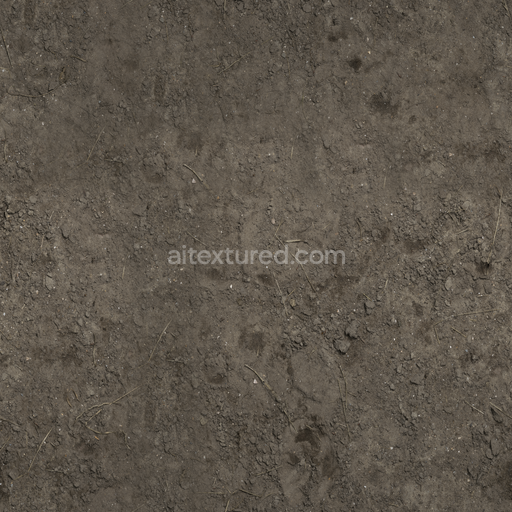
Mud Dirt Stones - Brown Mud Dirt Stones Dry
Seamless texture (tileable) · PNG, WEBP, PBR ZIP.
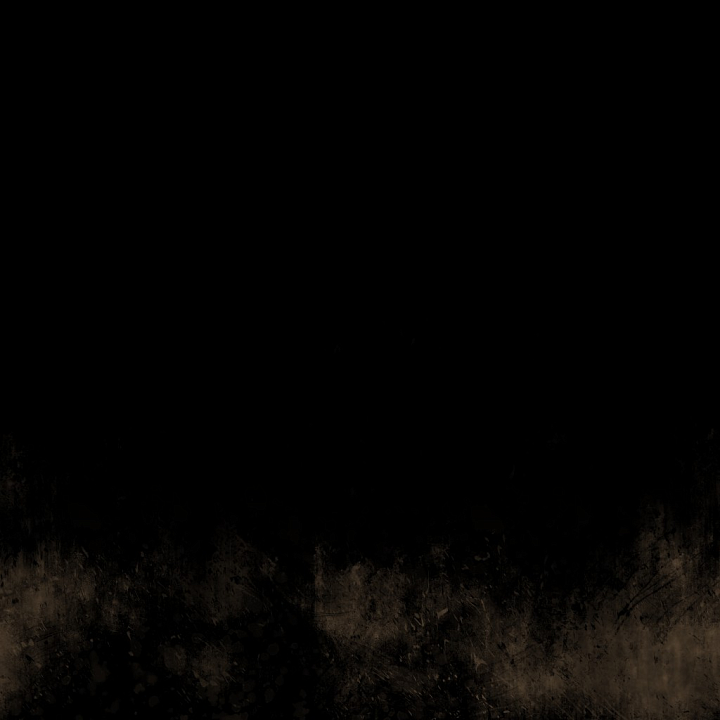
| ID | surface-imperfections-archviz-dirt-grunge-imperfe-substance |
|---|---|
| Category | Mud |
| Formats | PNG, WEBP, PBR ZIP |
| Size | 1k (1024x1024px), 2k (2048x2048px), 4k (4096x4096px), 8k (8192x8192px) |
| Tileable | Yes |
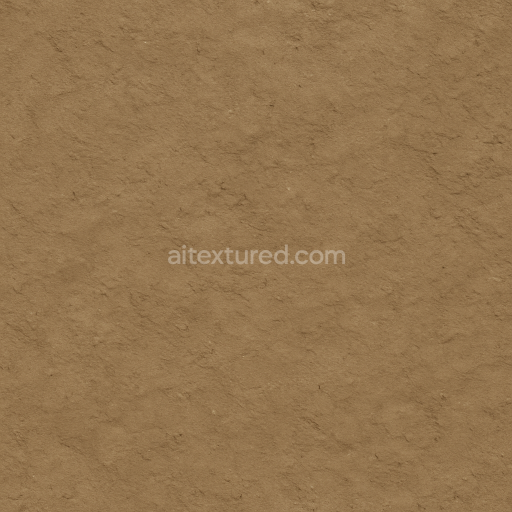
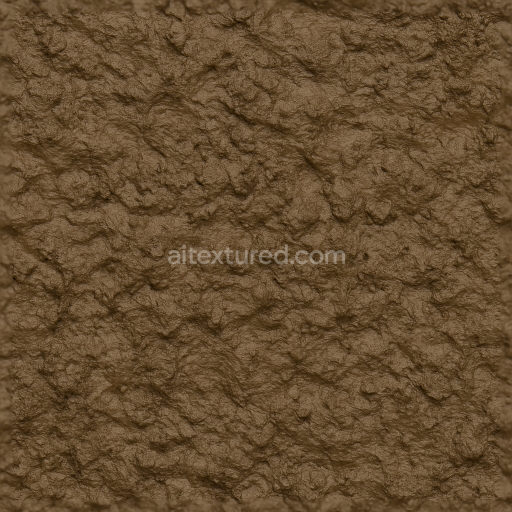
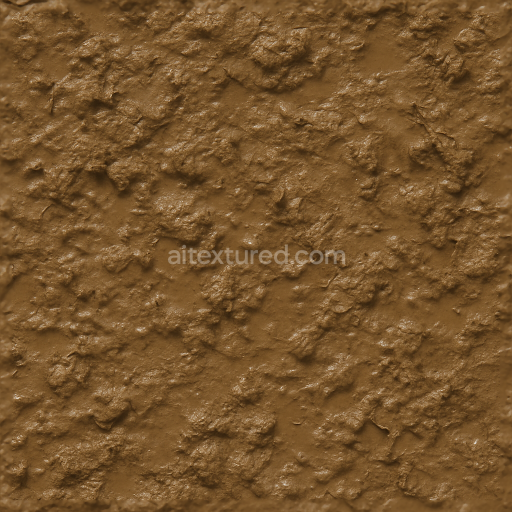
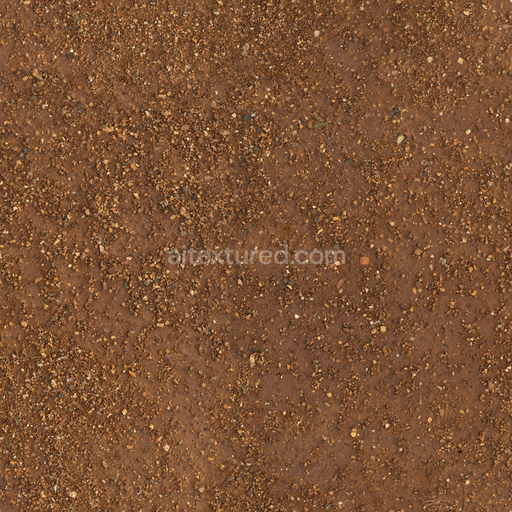
This Surface Imperfections Archviz Dirt Grunge Imperfe Substance seamless PBR texture is expertly crafted to simulate the complex characteristics of weathered and imperfect surfaces commonly found in architectural visualization projects. The material’s base substrate mimics a mineral-rich composite blending fine aggregates and subtle fibrous inclusions that create natural porosity and depth. Its surface finish is a worn slightly oxidized matte with irregularities from dirt accumulation and grunge deposits producing a realistic aged effect. Pigments and oxide layers contribute to the nuanced color variations visible in the BaseColor/Albedo map ensuring consistent and believable surface imperfections that hold true across large-scale tiling without noticeable repetition or seams.
Designed for physically based rendering workflows this texture set includes all essential maps common to modern PBR pipelines: BaseColor Normal Roughness Metallic Ambient Occlusion and Height/Displacement. The Normal map captures the micro and macro surface detail of aggregates and weathering effects while the Roughness channel defines the tactile contrast between smoother polished areas and rough dirt-encrusted patches. Metallic values remain minimal to represent the primarily non-metallic nature of the substrate with subtle variations enhancing realism. Ambient Occlusion enhances shadowing in crevices and imperfections and the Height map supports fine displacement or parallax occlusion adding extra depth to the surface geometry in real-time and offline renderers alike.
With 8K resolution this texture is optimized for high-detail archviz scenes and game engines such as Unreal Engine Unity and Blender’s Cycles or Eevee renderers. The texture’s consistent color response and gamma calibration make it easy to integrate seamlessly into diverse project setups. For best results consider adjusting the UV scale to balance tiling visibility; reducing roughness slightly can help simulate freshly cleaned or less weathered patches while subtle height map adjustments improve the perception of surface depth during close-up shots especially in real-time visualization workflows.
Curated for quality and versatility this material supports a wide range of visualization needs from architectural exteriors to industrial surfaces requiring authentic imperfections and grunge layers. Attribution is appreciated but not mandatory allowing flexible use in both commercial and personal projects under the AITextured license. Whether enhancing realism in offline renders or improving texture fidelity in game environments this substance texture delivers a reliable foundation for achieving convincing physically accurate surface imperfections.
Import the texture maps into Blender with sRGB color space for albedo/base color and Non-Color for normal, roughness, metallic, AO, height, and ORM maps. Connect normal maps through a Normal Map node, then adjust UV scale with a Mapping node so the material repeats naturally on your model.
For the full step-by-step setup, see How to Use Seamless Textures in Blender. Browse related material examples in wood, concrete, and metal.
Yes. This texture is designed as a seamless tileable PBR material, so it can repeat across large surfaces without visible borders.
Use the download controls on this page: they expose the available PNG, WEBP or engine ZIP choices and supported resolutions for this asset.
Use the engine ZIP choices to package compatible source maps for Blender, Unreal Engine or Unity, then verify the imported material in the target application.
Commercial-use permission is not verified for this record. Confirm the original source and license before production use.
Generate maps from existing images, preview materials, convert channels, and package compatible inputs for Blender, Unity, and Unreal Engine.
Choose a verified workflow for generating maps, previewing tiling, converting channels, or starting from the texture catalog.
Derive Normal, Roughness, AO, Metallic, Height and optional ORM maps from one or more source images, then review the results.
Instant WebGL viewer: inspect materials on a sphere, plane, and cube. Check tiling and lighting in real time.
Re-packages maps per engine: Unreal (BaseColor + ORM), Unity (Mask/MetallicSmoothness), Blender (separate channels).
PNG ↔ JPG ↔ SVG: fast convert, SVG rasterize, embed/trace options, quality & background controls.