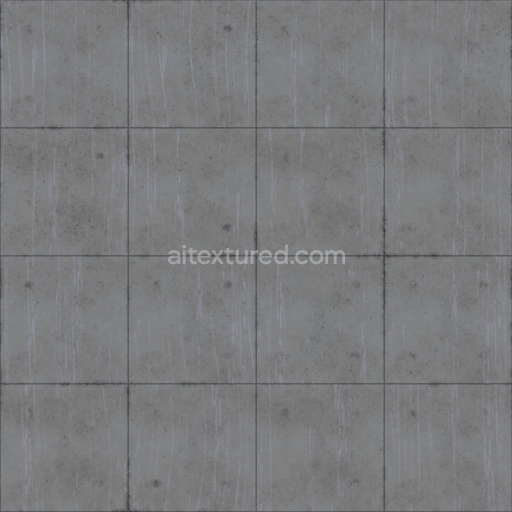
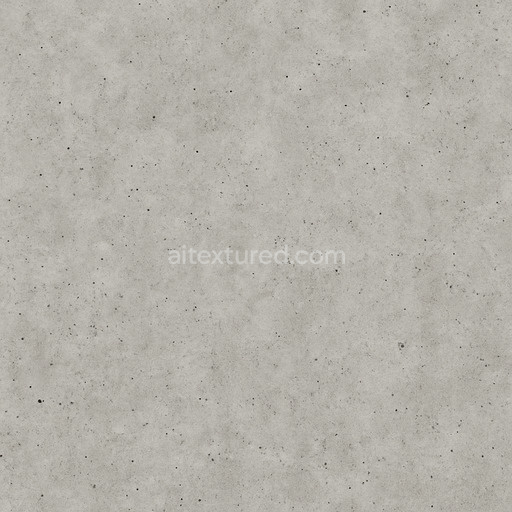
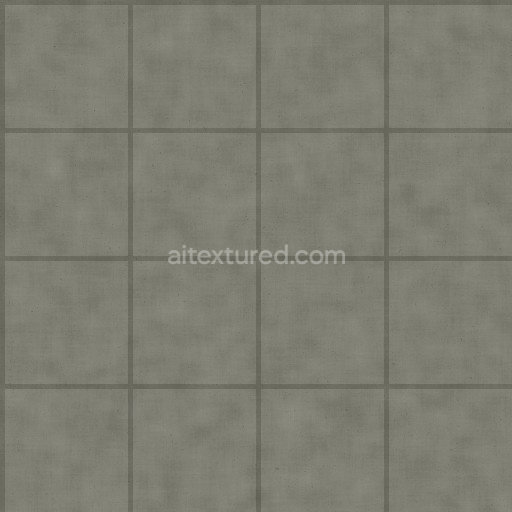
Seamless Concrete 007 by Textures - PBR 3D Texture (8K ready)
Seamless texture (tileable) · PNG, WEBP, PBR ZIP.
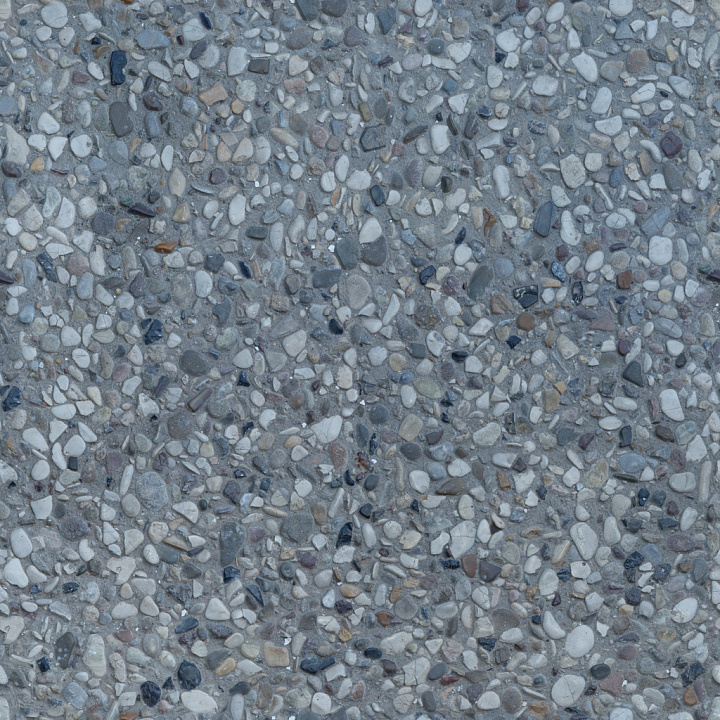
| ID | concrete-011-by-textures-pbr-seamless-8k |
|---|---|
| Category | Concrete |
| Formats | PNG, WEBP, PBR ZIP |
| Size | 1k (1024x1024px), 2k (2048x2048px), 4k (4096x4096px), 8k (8192x8192px) |
| Tileable | Yes |
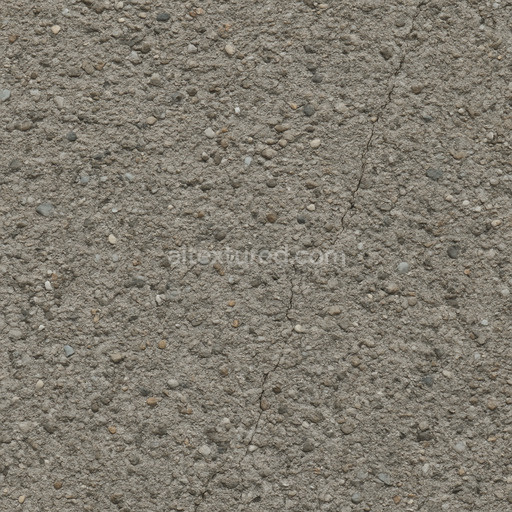
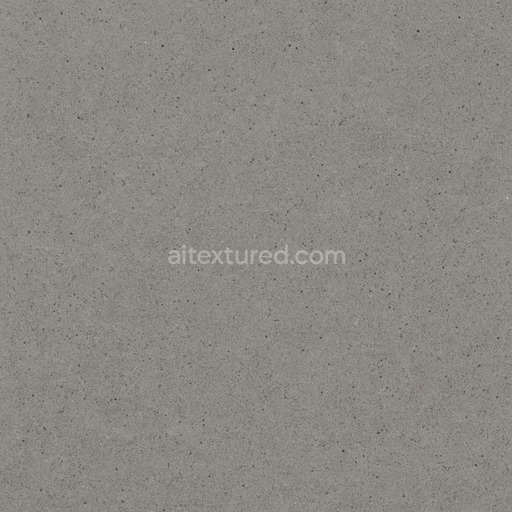
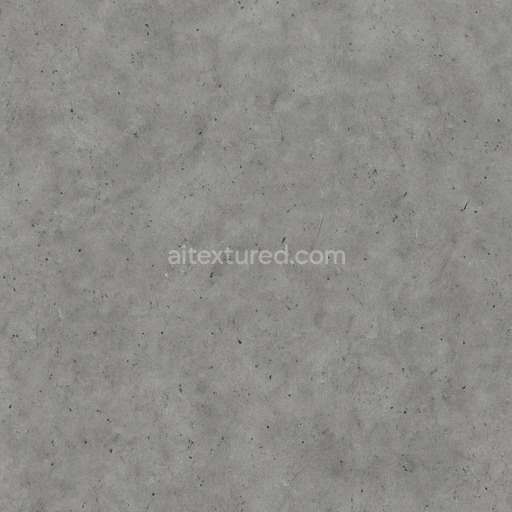
Seamless Concrete 011 by Textures is a meticulously crafted PBR 3D texture that authentically represents the essence of modern concrete surfaces with exceptional realism. This texture showcases a mineral-based composite material primarily composed of cementitious binders combined with fine aggregates such as sand and gravel which contribute to the characteristic grain and subtle roughness of the surface. The concrete exhibits a flat smooth finish with slight natural porosity and minimal weathering reflecting a clean industrial aesthetic. Its neutral gray coloration derives from a balanced mix of pigments and oxide layers creating a versatile tone that adapts well across a wide range of architectural and design projects.
In physically based rendering workflows the material’s composition translates directly into the PBR channels for accurate and consistent results. The Base Color (Albedo) map captures the muted gray shades and subtle color variations of the concrete substrate while the Normal map reveals the fine surface irregularities and grain orientation that define its micro-roughness. The Roughness channel reflects the semi-matte finish typical of polished concrete managing light diffusion and highlights without introducing glossiness. Ambient Occlusion enhances the perception of depth in pores and crevices and the Height/Displacement map simulates slight elevation changes on the surface adding tactile realism without additional geometry complexity. The Metallic channel remains unused consistent with the non-metallic nature of concrete.
Optimized for seamless tiling at resolutions up to 8K this texture pack ensures consistent shading and minimal repetition artifacts across large surfaces. It is fully compatible with major rendering engines including Blender (using the Principled BSDF shader) Unreal Engine (feeding Base Color Roughness Normal and AO inputs) and Unity’s URP and HDRP pipelines (connecting to the Lit shader). For best results maintain consistent UV scale when applying the texture and consider combining the Normal map with Height or Parallax mapping to enhance surface detail perception especially in close-up views. Import the Base Color map in sRGB color space for accurate color representation while treating Roughness Normal AO and Height maps as non-color data to preserve their integrity across different engines and workflows.
Import the texture maps into Blender with sRGB color space for albedo/base color and Non-Color for normal, roughness, metallic, AO, height, and ORM maps. Connect normal maps through a Normal Map node, then adjust UV scale with a Mapping node so the material repeats naturally on your model.
For the full step-by-step setup, see How to Use Seamless Textures in Blender. Browse related material examples in wood, concrete, and metal.
Yes. This texture is designed as a seamless tileable PBR material, so it can repeat across large surfaces without visible borders.
Use the download controls on this page: they expose the available PNG, WEBP or engine ZIP choices and supported resolutions for this asset.
Use the engine ZIP choices to package compatible source maps for Blender, Unreal Engine or Unity, then verify the imported material in the target application.
Commercial-use permission is not verified for this record. Confirm the original source and license before production use.
Generate maps from existing images, preview materials, convert channels, and package compatible inputs for Blender, Unity, and Unreal Engine.
Choose a verified workflow for generating maps, previewing tiling, converting channels, or starting from the texture catalog.
Derive Normal, Roughness, AO, Metallic, Height and optional ORM maps from one or more source images, then review the results.
Instant WebGL viewer: inspect materials on a sphere, plane, and cube. Check tiling and lighting in real time.
Re-packages maps per engine: Unreal (BaseColor + ORM), Unity (Mask/MetallicSmoothness), Blender (separate channels).
PNG ↔ JPG ↔ SVG: fast convert, SVG rasterize, embed/trace options, quality & background controls.