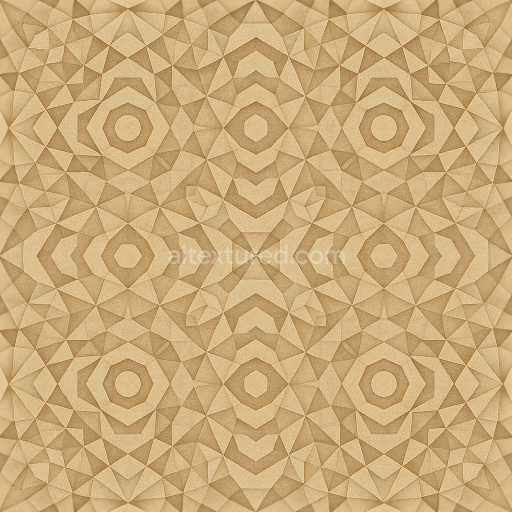
Fractal Geometry Kaleidoscope Symmetry Tiling Shapes Diamond Shapes
Seamless texture (tileable) · PNG, WEBP, PBR ZIP.
| ID | seamless-3d-texture-pbr-8k-marbled-cracked-paint-oxidation-weathered-surfaces-distressed |
|---|---|
| Category | Abstract |
| Formats | PNG, WEBP, PBR ZIP |
| Size | 1k (1024x1024px), 2k (2048x2048px), 4k (4096x4096px), 8k (8192x8192px) |
| Tileable | Yes |
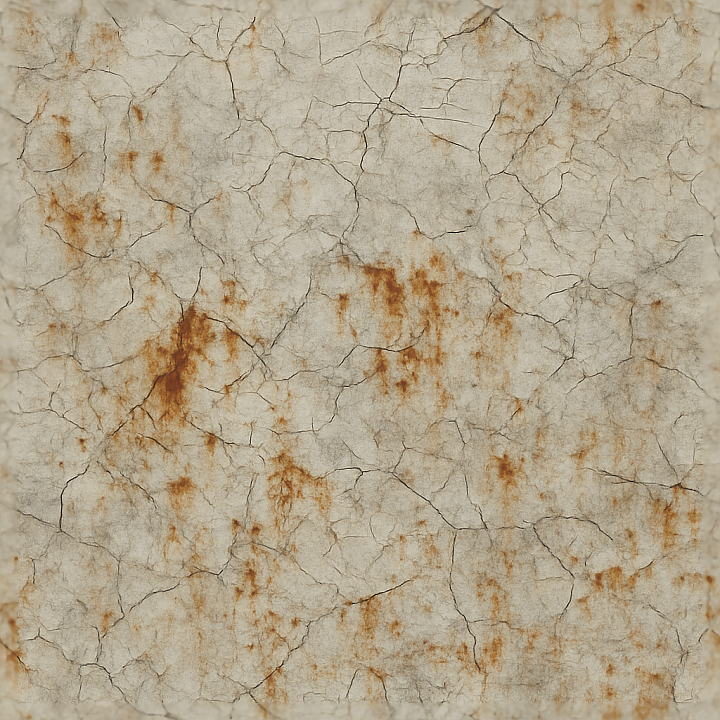
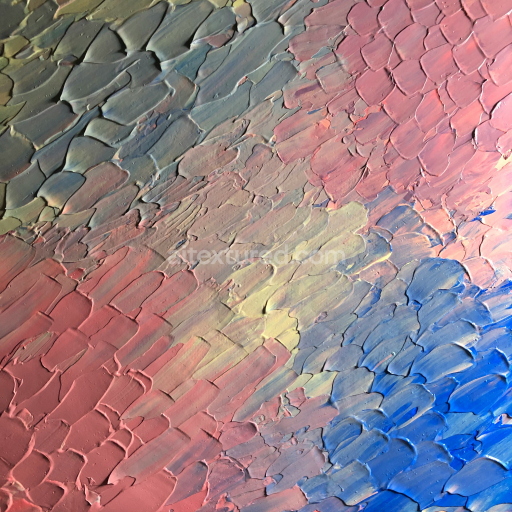
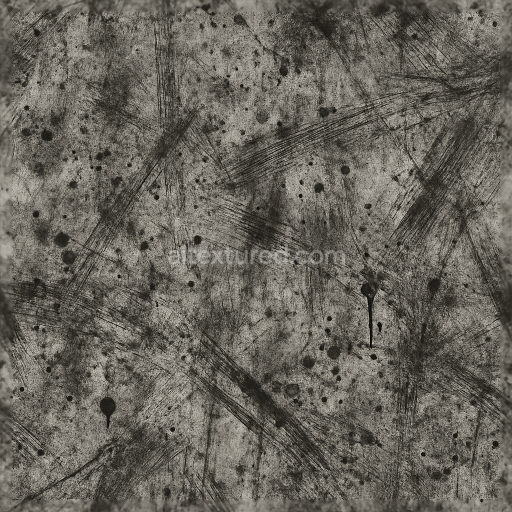
This seamless 3D texture represents a highly detailed marbled surface characterized by cracked paint overlaying a corroded metal substrate. The base material appears to be aged steel or iron, exhibiting signs of oxidation and rust formation that have altered its surface chemistry and topology over time. The paint layer, originally applied as a protective coating with pigment binders, has fractured due to thermal expansion and environmental stress, revealing the rough, pitted metal beneath. The marbled effect emerges from the intermingling of oxidation patches and remaining paint film, creating an organic, veined pattern with irregular fissures and peeling edges. This composition suggests a complex interplay between rigid metallic grains and brittle, weathered polymeric binders in the paint, contributing to the visible porosity and distressed finish.
From a geometric perspective, the texture exhibits an irregular cracked pattern without repetitive tiling artifacts, simulating natural weathering on large planar surfaces such as industrial panels or outdoor metal cladding. The surface finish combines oxidized matte metal areas with sections of flaky, semi-gloss paint remnants. The presence of rust stains and corrosion marks adds micro-variation in roughness and metallic response, enhancing realism. Fine scratches and abrasion marks overlay the texture, indicating mechanical wear and surface degradation. These details are captured across multiple PBR maps: the BaseColor (Albedo) channel conveys the nuanced color shifts from faded paint pigments and rust hues; the Normal map encodes subtle surface undulations from cracks and corrosion pits; Roughness defines the contrast between smooth paint fragments and coarse oxidized metal; Metallic specifies the underlying metal’s reflectivity; Ambient Occlusion accentuates crevices and fissures; Height or Displacement maps provide depth cues for enhanced parallax or tessellation effects.
Rendered at an 8K resolution, this texture offers exceptional clarity suitable for close-up inspection in high-fidelity 3D projects. It is optimized for real-time engines like Unreal Engine and Unity, as well as offline rendering platforms such as Blender, ensuring broad compatibility and ease of integration. The seamless tiling allows for continuous application over extensive surfaces without visible borders, preserving the natural randomness of the cracked and oxidized patterns. This makes the texture ideal for architectural visualizations, industrial asset modeling, or any scenario requiring authentic representation of aged, weather-beaten metal surfaces with layered painted finishes.
For practical implementation, it is recommended to adjust the UV scale to maintain the natural size of paint cracks relative to the model dimensions, preventing distortion of the marbled pattern. Additionally, tuning the Roughness map can help balance the interplay between reflective oxidized metal and matte paint areas, achieving desired glossiness levels. When employing displacement or parallax mapping, blending the Height map with the Normal map enhances depth perception of the cracks and rust pits, adding tactile realism without excessive performance cost.
Import the texture maps into Blender with sRGB color space for albedo/base color and Non-Color for normal, roughness, metallic, AO, height, and ORM maps. Connect normal maps through a Normal Map node, then adjust UV scale with a Mapping node so the material repeats naturally on your model.
For the full step-by-step setup, see How to Use Seamless Textures in Blender. Browse related material examples in wood, concrete, and metal.
Yes. This texture is designed as a seamless tileable PBR material, so it can repeat across large surfaces without visible borders.
Use the download controls on this page: they expose the available PNG, WEBP or engine ZIP choices and supported resolutions for this asset.
Use the engine ZIP choices to package compatible source maps for Blender, Unreal Engine or Unity, then verify the imported material in the target application.
Commercial-use permission is not verified for this record. Confirm the original source and license before production use.




Generate maps from existing images, preview materials, convert channels, and package compatible inputs for Blender, Unity, and Unreal Engine.
Choose a verified workflow for generating maps, previewing tiling, converting channels, or starting from the texture catalog.
Derive Normal, Roughness, AO, Metallic, Height and optional ORM maps from one or more source images, then review the results.
Instant WebGL viewer: inspect materials on a sphere, plane, and cube. Check tiling and lighting in real time.
Re-packages maps per engine: Unreal (BaseColor + ORM), Unity (Mask/MetallicSmoothness), Blender (separate channels).
PNG ↔ JPG ↔ SVG: fast convert, SVG rasterize, embed/trace options, quality & background controls.