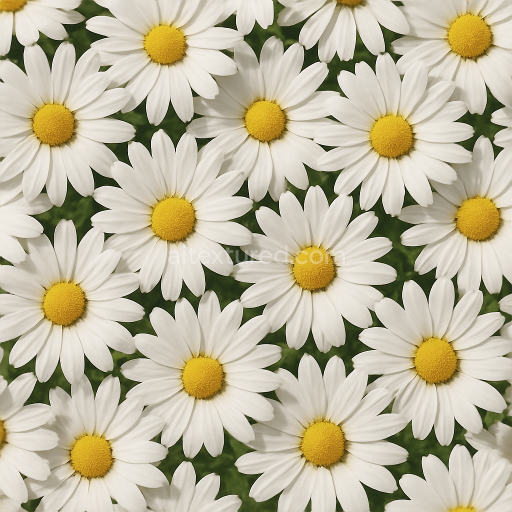
Daisy Cluster Flower Garden Flower Petals Closeup Photorealistic
Seamless texture (tileable) · PNG, WEBP, PBR ZIP.
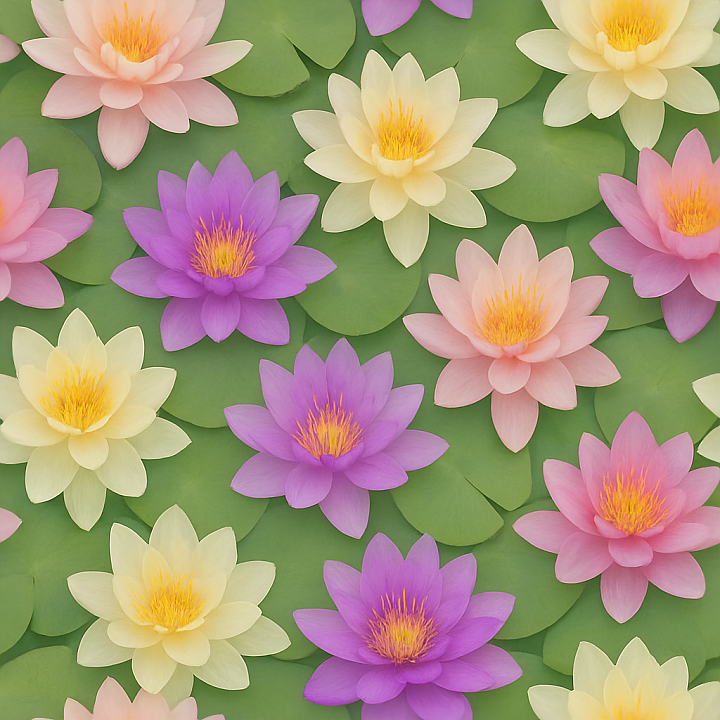
| ID | seamless-3d-texture-pbr-8k-of-serene-lily-pads-with-natural-flower-surface-and-subtle-color-variations |
|---|---|
| Category | Flowers |
| Formats | PNG, WEBP, PBR ZIP |
| Size | 1k (1024x1024px), 2k (2048x2048px), 4k (4096x4096px), 8k (8192x8192px) |
| Tileable | Yes |
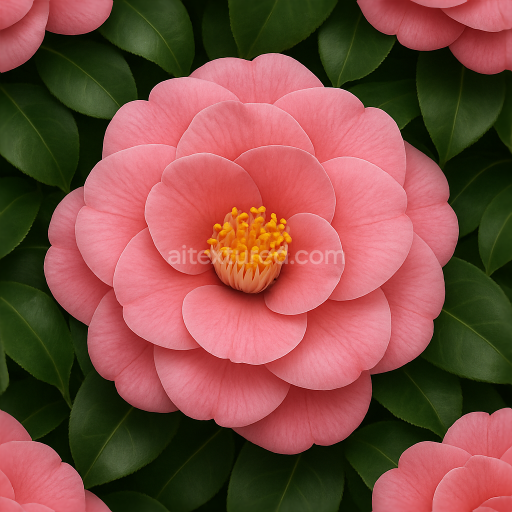
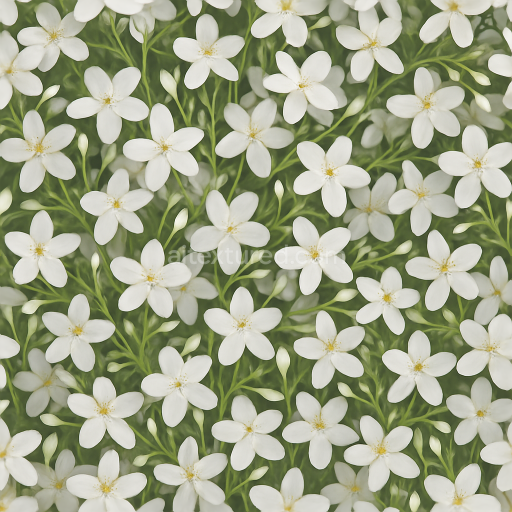
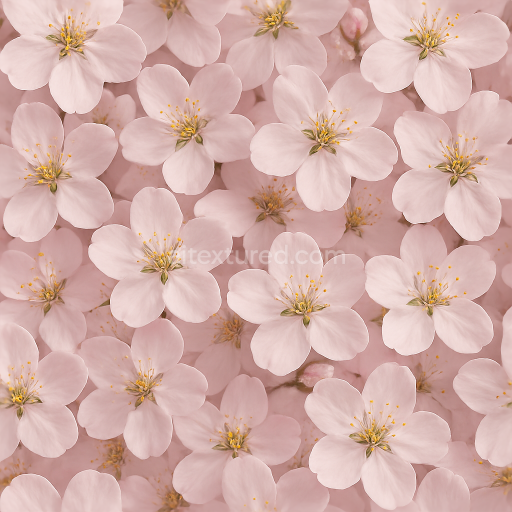
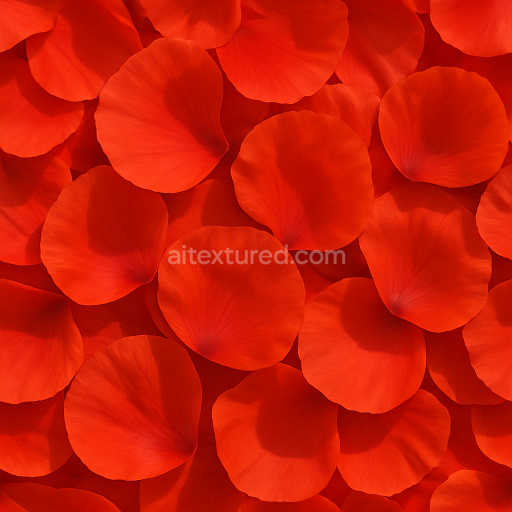
This seamless 3D texture at an impressive 8K resolution captures the delicate and serene surface of lily pads alongside their natural flower petals, presenting a highly detailed floral pattern ideal for photorealistic rendering. The base material mimics a soft, slightly waxy organic substrate typical of aquatic plant surfaces, where the lily pad leaves provide a broad, veined foundation interspersed with tender flower petals. These petals exhibit subtle translucency and gentle gradients of soft greens, pale yellows, and muted pinks, reflecting natural pigmentation variations caused by chlorophyll and floral pigments. The texture’s geometric form follows the organic layering of overlapping lily pads, with occasional flower clusters creating a visually complex yet harmonious pattern. The surface finish appears semi-matte with a delicate satin sheen, suggesting a natural moisture film that enhances the softness and translucency of the petals without excessive reflectivity or gloss.
From a material composition perspective, the texture simulates a fibrous cellulose-rich substrate typical of lily pads, with microscopic veins acting as natural grain and fiber elements. The petals’ surface incorporates fine, almost imperceptible epidermal cells that scatter light softly, contributing to the perceived translucency and subtle roughness variations. The texture’s porosity is low, consistent with the water-repellent nature of lily pads, while slight weathering effects can be observed through tiny imperfections and gentle irregularities in petal edges and leaf surfaces. The colorants are represented through carefully calibrated BaseColor (Albedo) maps that hold the nuanced flower color variations, while the Normal map encodes the fine details of veining and petal curvature, enhancing three-dimensional depth. The Roughness map balances smooth, soft petal areas with slightly rougher leaf veins, and the texture’s Metallic channel remains neutral, as organic plant materials typically lack metallic qualities. Ambient Occlusion provides subtle shadowing in overlapping regions, adding realism without harsh contrast, and the Height/Displacement maps capture the undulating surfaces of petals and leaves, enabling enhanced parallax effects in supported rendering engines.
Designed for seamless tiling, this texture allows for expansive coverage of water garden scenes or naturalistic landscaping in 3D projects. Its 8K resolution ensures that close-up views, such as flower petals closeup or flower texture detail, maintain crispness without pixelation, making it suitable for high-end visualization in Blender, Unreal Engine, and Unity. The layered pattern of lily pads and flowers can be UV-mapped with moderate scaling to preserve the natural proportions of the organic elements while avoiding repetitive artifacts. When integrating this texture, adjusting roughness values can help tailor the material’s softness and reflectivity to different lighting conditions, while blending height and normal maps can enhance surface depth without excessive geometric complexity. This flexibility makes it an excellent resource for artists seeking realistic aquatic plant textures with fine flower softness and translucency characteristics.
Import the texture maps into Blender with sRGB color space for albedo/base color and Non-Color for normal, roughness, metallic, AO, height, and ORM maps. Connect normal maps through a Normal Map node, then adjust UV scale with a Mapping node so the material repeats naturally on your model.
For the full step-by-step setup, see How to Use Seamless Textures in Blender. Browse related material examples in wood, concrete, and metal.
Yes. This texture is designed as a seamless tileable PBR material, so it can repeat across large surfaces without visible borders.
Use the download controls on this page: they expose the available PNG, WEBP or engine ZIP choices and supported resolutions for this asset.
Use the engine ZIP choices to package compatible source maps for Blender, Unreal Engine or Unity, then verify the imported material in the target application.
Commercial-use permission is not verified for this record. Confirm the original source and license before production use.


Generate maps from existing images, preview materials, convert channels, and package compatible inputs for Blender, Unity, and Unreal Engine.
Choose a verified workflow for generating maps, previewing tiling, converting channels, or starting from the texture catalog.
Derive Normal, Roughness, AO, Metallic, Height and optional ORM maps from one or more source images, then review the results.
Instant WebGL viewer: inspect materials on a sphere, plane, and cube. Check tiling and lighting in real time.
Re-packages maps per engine: Unreal (BaseColor + ORM), Unity (Mask/MetallicSmoothness), Blender (separate channels).
PNG ↔ JPG ↔ SVG: fast convert, SVG rasterize, embed/trace options, quality & background controls.