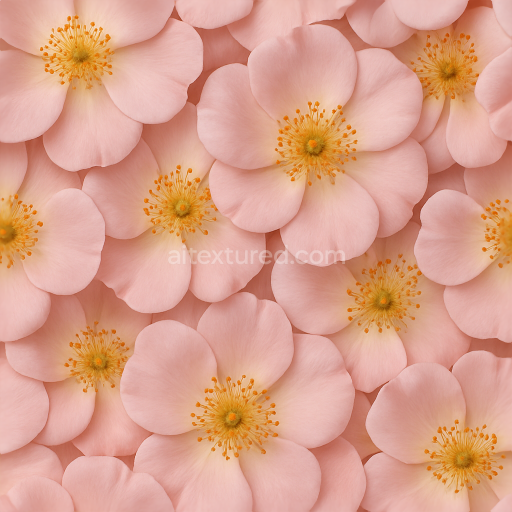
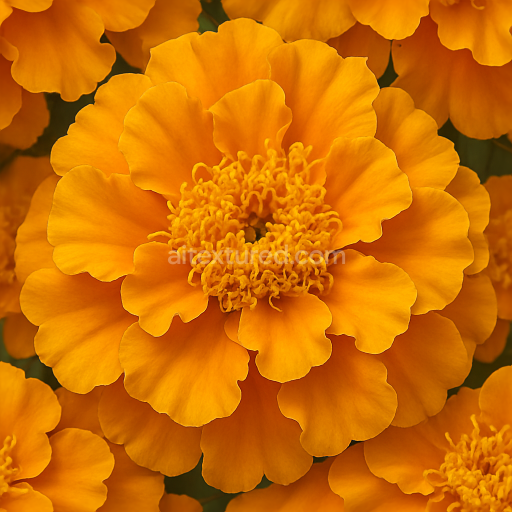
Rose Petals Floral Bouquet Flower Petals Closeup High Detail
Seamless texture (tileable) · PNG, WEBP, PBR ZIP.
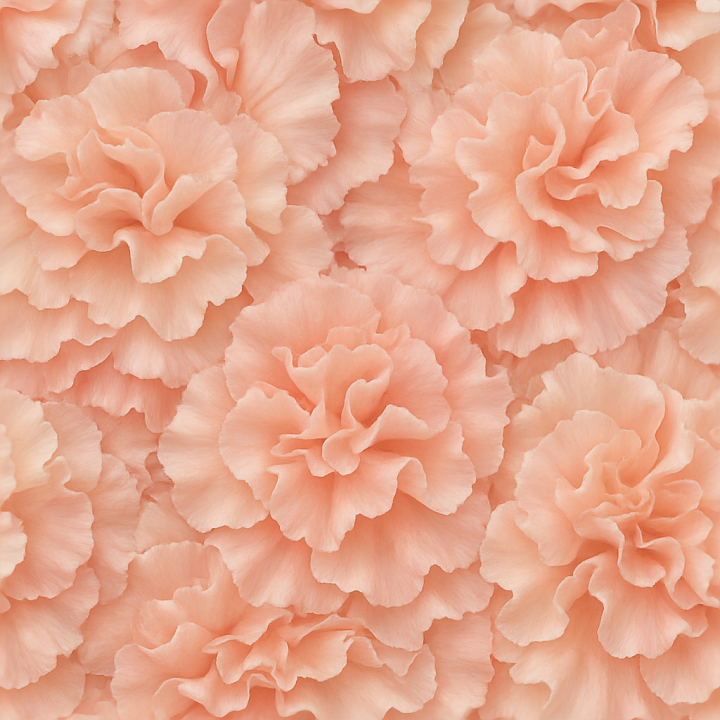
| ID | seamless-3d-texture-pbr-8k-of-ruffled-carnation-flowers-showing-flower-softness-and-detailed-petal-textures |
|---|---|
| Category | Flowers |
| Formats | PNG, WEBP, PBR ZIP |
| Size | 1k (1024x1024px), 2k (2048x2048px), 4k (4096x4096px), 8k (8192x8192px) |
| Tileable | Yes |
This seamless 8K PBR texture showcases the intricate ruffled form of carnation flowers, capturing the delicate softness and detailed structure of each petal. The underlying material is a thin, fibrous plant tissue substrate, characterized by a slightly porous surface that naturally diffuses light, contributing to the flower’s soft translucency. The petals exhibit gentle undulations and layered folds, creating a complex geometry that translates into fine height variations and subtle displacement effects. The ruffled edges and overlapping layers form a natural repetitive pattern, ideal for seamless tiling without visible breaks or distortions.
The composition of the petals includes cellulose fibers embedded within a water-rich matrix, which acts as a natural binder, providing flexibility and softness. The surface finish is matte with a mild satin sheen, reflecting minimal specular highlights, which is accurately represented in the roughness channel to maintain photorealistic softness rather than glossiness. Coloration is achieved through a blend of natural pigments such as anthocyanins and carotenoids, producing a range of soft gradients from pale pinks to deep reds. These delicate color transitions are faithfully captured in the high-resolution BaseColor (Albedo) map, while the Normal map emphasizes the fine veins and subtle surface undulations, adding depth and tactile realism.
For physically based rendering workflows, this texture includes a well-balanced Ambient Occlusion map that enhances shadowing in the petal folds without overpowering the translucency, and a Height map that provides precise displacement data for close-up renders. The Metallic channel is kept at zero, reflecting the organic, non-metallic nature of the flower material. The texture’s seamless design and ultra-high resolution make it perfectly suited for use in Blender, Unreal Engine, and Unity, enabling detailed floral environments or macro botanical visualizations with consistent quality at any scale.
When applying this carnation ruffle texture, consider adjusting the UV scale to emphasize either wide floral fields or intimate closeups. Fine-tuning the roughness map can help control the softness and light diffusion to match different lighting conditions, while blending the Height map with the Normal map can enhance the perception of petal depth and layering without excessive geometry. This approach ensures maximum versatility and photorealism in your 3D flower scenes.
Import the texture maps into Blender with sRGB color space for albedo/base color and Non-Color for normal, roughness, metallic, AO, height, and ORM maps. Connect normal maps through a Normal Map node, then adjust UV scale with a Mapping node so the material repeats naturally on your model.
For the full step-by-step setup, see How to Use Seamless Textures in Blender. Browse related material examples in wood, concrete, and metal.
Yes. This texture is designed as a seamless tileable PBR material, so it can repeat across large surfaces without visible borders.
Use the download controls on this page: they expose the available PNG, WEBP or engine ZIP choices and supported resolutions for this asset.
Use the engine ZIP choices to package compatible source maps for Blender, Unreal Engine or Unity, then verify the imported material in the target application.
Commercial-use permission is not verified for this record. Confirm the original source and license before production use.



Generate maps from existing images, preview materials, convert channels, and package compatible inputs for Blender, Unity, and Unreal Engine.
Choose a verified workflow for generating maps, previewing tiling, converting channels, or starting from the texture catalog.
Derive Normal, Roughness, AO, Metallic, Height and optional ORM maps from one or more source images, then review the results.
Instant WebGL viewer: inspect materials on a sphere, plane, and cube. Check tiling and lighting in real time.
Re-packages maps per engine: Unreal (BaseColor + ORM), Unity (Mask/MetallicSmoothness), Blender (separate channels).
PNG ↔ JPG ↔ SVG: fast convert, SVG rasterize, embed/trace options, quality & background controls.