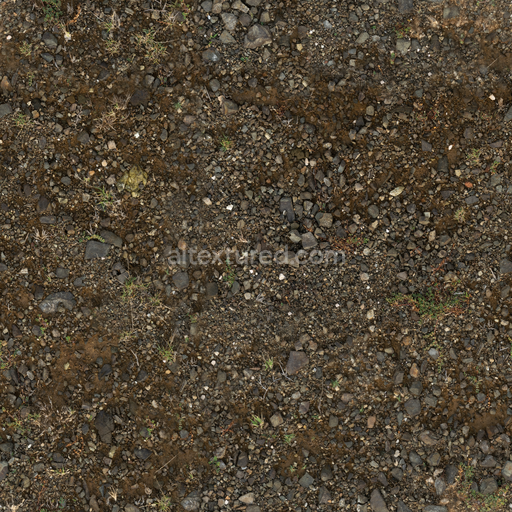
Mud Moss Stones - Stones Forest Rocks Brown Mud Rocks
Seamless texture (tileable) · PNG, WEBP, PBR ZIP. License: AITextured Free Commercial License (FCL) v1.1. Free personal and commercial use. Raw resale, standalone redistribution, mirroring/scraping, competing asset packs, and AI/ML training are not allowed without written permission. Attribution is not required, but appreciated..
| ID | surface-imperfections-archviz-dirt-imperfection-substance-designer |
|---|---|
| Category | Mud |
| Formats | PNG, WEBP, PBR ZIP |
| Size | 1k (1024x1024px), 2k (2048x2048px), 4k (4096x4096px), 8k (8192x8192px) |
| Color | sRGB |
| Tileable | Yes |
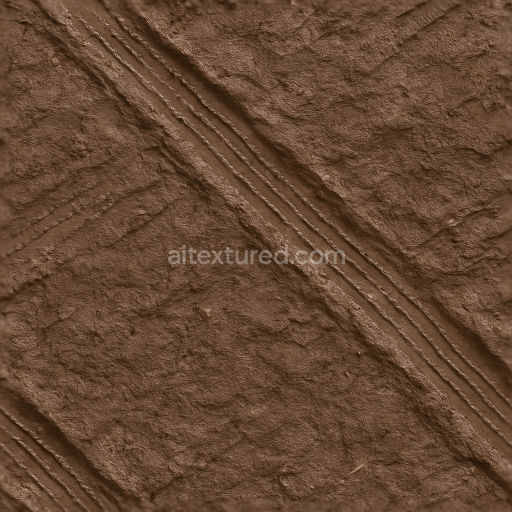
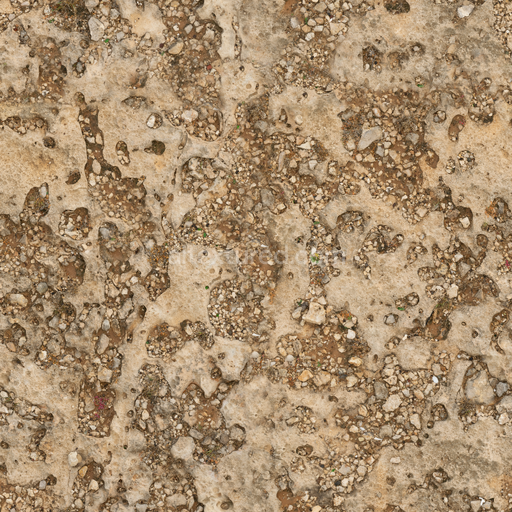
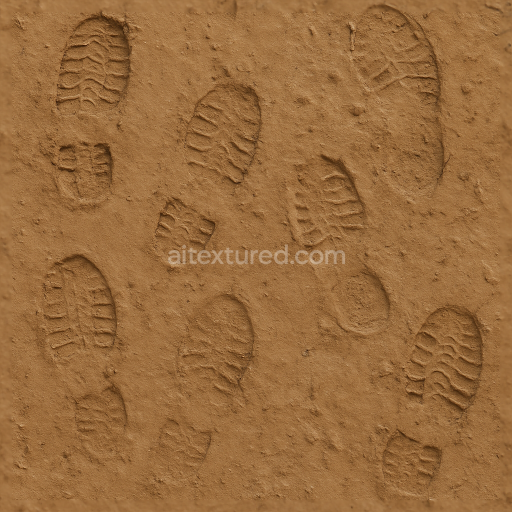
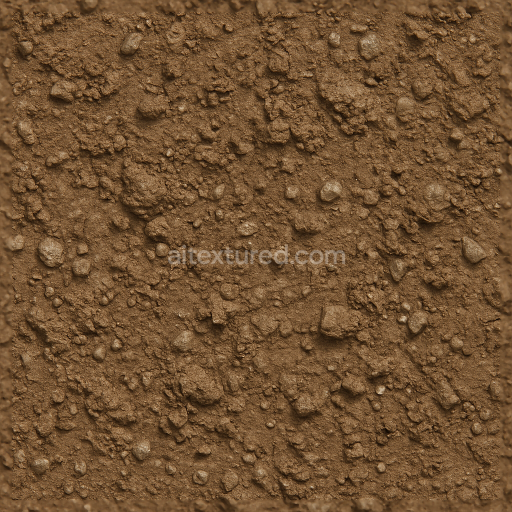
This seamless PBR texture represents a meticulously crafted surface exhibiting natural imperfections and dirt accumulation typical of aged or weathered materials commonly used in architectural visualization. The base substrate suggests a composite of mineral-rich aggregates bound within a durable polymer matrix giving rise to a subtly porous structure with fine grain orientation that captures the nuances of surface wear and environmental exposure. Faint discolorations and embedded particulate matter created through carefully layered pigments and oxide layers enhance the realism by simulating dirt and grime deposits that evolve over time. The finish appears matte with mild roughness variations reflecting a surface that is neither overly polished nor heavily oxidized but shows authentic signs of weathering and handling.
In the physically based rendering workflow this material’s composition is faithfully conveyed across multiple texture channels to ensure accurate light interaction and material response. The BaseColor (Albedo) map delivers consistent natural color tones with subtle dirt overlays avoiding any artificial or exaggerated hues. The Normal map encodes detailed micro-surface irregularities and fine scratches typical of dirt accumulation and surface wear. Roughness values vary across the texture to replicate the interplay between smoother less contaminated areas and rougher patches laden with dust and grime. The Metallic channel remains minimal or null reflecting the non-metallic nature of the substrate while Ambient Occlusion enhances depth perception by darkening crevices and imperfections. Height or Displacement maps provide realistic surface relief emphasizing pits and raised dirt particles for enhanced parallax effects in real-time or offline renderers.
Designed for high fidelity and versatility this texture is available up to 8K resolution ensuring crisp detail even on large-scale tiling surfaces without visible repetition or seams. It is fully prepared for seamless integration into physically based rendering pipelines across leading platforms such as Blender Unreal Engine and Unity. To optimize visual results it is recommended to adjust the UV scale to maintain proportional dirt distribution and subtly fine-tune roughness values to balance realism and shader performance depending on the lighting context. This material is ideal for adding authentic surface imperfections and dirt effects to architectural models enhancing realism in visualization game environments and digital content creation workflows.
The designer utilized Substance to create realistic PBR materials that enhance the archviz project's overall material composition and appearance.
Import the texture maps into Blender with sRGB color space for albedo/base color and Non-Color for normal, roughness, metallic, AO, height, and ORM maps. Connect normal maps through a Normal Map node, then adjust UV scale with a Mapping node so the material repeats naturally on your model.
For the full step-by-step setup, see How to Use Seamless Textures in Blender. Browse related material examples in wood, concrete, and metal.
Yes. This texture is designed as a seamless tileable PBR material, so it can repeat across large surfaces without visible borders.
You can download PNG/WEBP versions and use 1K, 2K, 4K and 8K download options when available on the page.
Yes. The download options and engine-mapped ZIP workflow are designed for Blender, Unreal Engine, Unity Standard, URP and HDRP material pipelines.
Yes. The texture is available under the AITextured free commercial license. Review the license page for redistribution and AI-training restrictions.
Build, preview, and export seamless PBR materials. Generate full map sets from a single image, inspect them in a real-time WebGL viewer, and re-package maps for Unreal, Unity, and Blender—directly in your browser.
AI text-to-texture: type a prompt and get a seamless, tileable base image ready for PBR workflows (great starting point for materials).
Create a full PBR set (Normal, Roughness, AO, Metallic, etc.) from a single image. Seamless and tiling-friendly.
Instant WebGL viewer: inspect materials on a sphere, plane, and cube. Check tiling and lighting in real time.
Re-packages maps per engine: Unreal (BaseColor + ORM), Unity (Mask/MetallicSmoothness), Blender (separate channels).
PNG ↔ JPG ↔ SVG: fast convert, SVG rasterize, embed/trace options, quality & background controls.