Glass Natural Shine And Flawless Pure Transparency PBR In 8K
Seamless texture (tileable) · PNG, WEBP, PBR ZIP.
| ID | seamless-3d-texture-of-clear-transparent-glass-with-flawless-polished-surface-and-bright-shine-pbr-8k |
|---|---|
| Category | Clear transparent glass |
| Formats | PNG, WEBP, PBR ZIP |
| Size | 1k (1024x1024px), 2k (2048x2048px), 4k (4096x4096px), 8k (8192x8192px) |
| Tileable | Yes |
This seamless 3D texture represents clear transparent glass characterized by a perfectly smooth and polished surface, delivering an immaculate crystal-clear appearance. The base material is pure silica-based glass, composed primarily of silicon dioxide with trace additives to enhance clarity and durability. It exhibits zero porosity and no embedded aggregates or fibers, resulting in a homogeneous and monolithic substrate. The flawless surface finish is achieved through meticulous polishing, which removes micro-abrasions and irregularities, producing a mirror-like shine with exceptional reflectivity and light transmission.
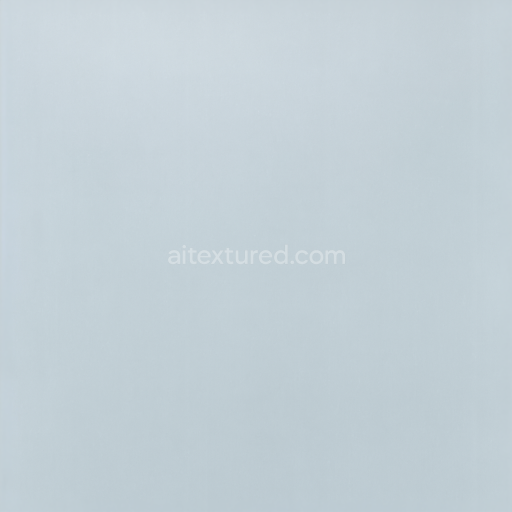
The texture’s geometric form is flat and uninterrupted, emphasizing a uniform planar surface without any visible tiling seams, scratches, or imperfections. This ensures seamless tiling when applied across large surfaces in 3D environments. The absence of dirt, dust, stains, smudges, fingerprints, cracks, chips, or defects highlights its pristine condition, making it ideal for photorealistic renderings requiring immaculate glass panels or lenses. The texture’s BaseColor (Albedo) channel reflects a nearly pure white tone with subtle blue undertones typical of ultra-clear glass, while the Normal map captures the ultra-fine polishing microstructure to enhance realistic light refraction and reflection effects.
Roughness is meticulously controlled to maintain a very low value, emphasizing the polished, bright shine and enabling sharp specular highlights. The Metallic channel remains at zero, aligning with glass’s dielectric nature, while Ambient Occlusion is minimal to preserve clarity and prevent artificial shadowing. The Height/Displacement map is subtle, supporting slight surface undulations that simulate the finest polishing nuances without disrupting transparency. This texture is rendered at a high-fidelity 8K resolution, optimized for seamless use in Blender, Unreal Engine, and Unity, ensuring maximum detail retention on close-up views and large-scale applications.
For practical implementation, it is recommended to carefully adjust the UV scale to maintain the seamless effect without stretching, particularly for large glass surfaces. Additionally, roughness values can be finely tuned to simulate different lighting environments, from ultra-glossy showroom glass to slightly diffused architectural glazing. When integrating height or normal maps, blending them gently prevents unrealistic distortions in refraction while enhancing surface realism. This texture is well-suited for architectural visualizations, product designs, and digital art projects demanding the purest, most flawless glass material representation.
Import the texture maps into Blender with sRGB color space for albedo/base color and Non-Color for normal, roughness, metallic, AO, height, and ORM maps. Connect normal maps through a Normal Map node, then adjust UV scale with a Mapping node so the material repeats naturally on your model.
For the full step-by-step setup, see How to Use Seamless Textures in Blender. Browse related material examples in wood, concrete, and metal.
Yes. This texture is designed as a seamless tileable PBR material, so it can repeat across large surfaces without visible borders.
Use the download controls on this page: they expose the available PNG, WEBP or engine ZIP choices and supported resolutions for this asset.
Use the engine ZIP choices to package compatible source maps for Blender, Unreal Engine or Unity, then verify the imported material in the target application.
Commercial-use permission is not verified for this record. Confirm the original source and license before production use.


Generate maps from existing images, preview materials, convert channels, and package compatible inputs for Blender, Unity, and Unreal Engine.
Choose a verified workflow for generating maps, previewing tiling, converting channels, or starting from the texture catalog.
Derive Normal, Roughness, AO, Metallic, Height and optional ORM maps from one or more source images, then review the results.
Instant WebGL viewer: inspect materials on a sphere, plane, and cube. Check tiling and lighting in real time.
Re-packages maps per engine: Unreal (BaseColor + ORM), Unity (Mask/MetallicSmoothness), Blender (separate channels).
PNG ↔ JPG ↔ SVG: fast convert, SVG rasterize, embed/trace options, quality & background controls.