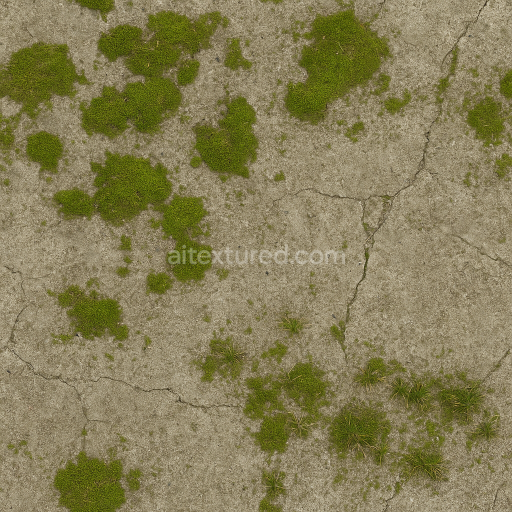
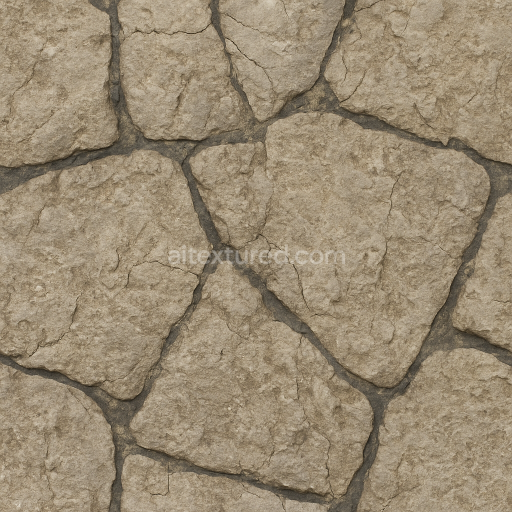
Concrete Slab With Moss Patches And Dry Surface
Seamless texture (tileable) · PNG, WEBP, PBR ZIP.
| ID | herringbone-pavement-rough-herringbone-brick-bricks-pavement-pavement-patterned |
|---|---|
| Category | Park pavement |
| Formats | PNG, WEBP, PBR ZIP |
| Size | 1k (1024x1024px), 2k (2048x2048px), 4k (4096x4096px), 8k (8192x8192px) |
| Tileable | Yes |
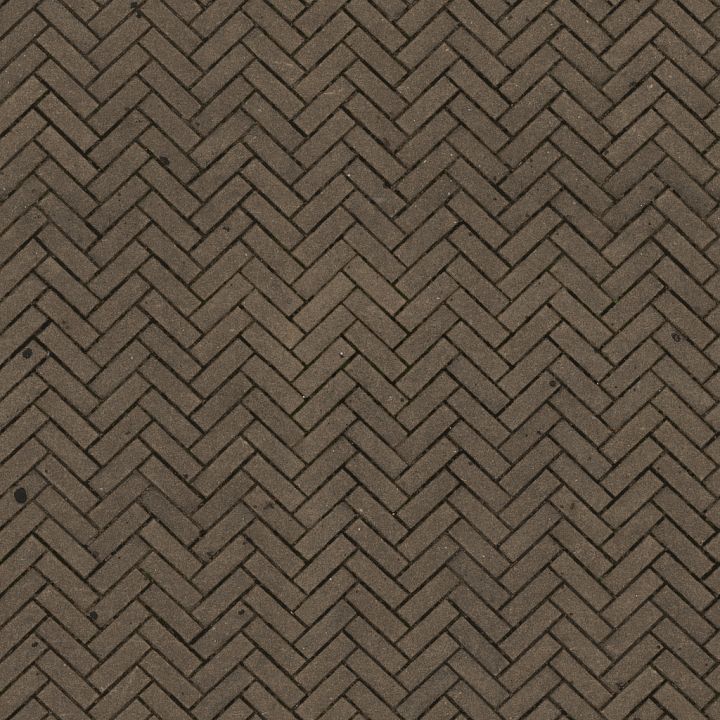
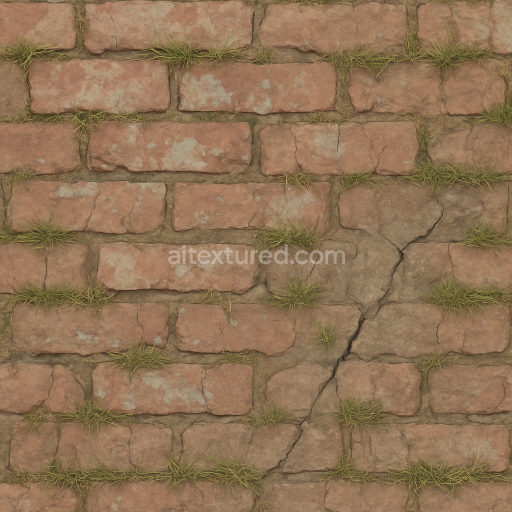
The Rough Herringbone Brick texture represents a meticulously crafted physically based material designed to replicate the authentic look and feel of urban pavement patterned with interlocking bricks. The base substrate mimics fired clay ceramic enriched with mineral aggregates that give the bricks their characteristic rough surface and durable composition. Fine sand and small gravel inclusions create subtle grain orientation while the porous surface shows signs of moderate weathering consistent with outdoor man-made sidewalks and city floors. The surface finish is naturally rough and unpolished emphasizing tactile imperfections and wear that add realism to the texture. Earth-toned pigments and iron oxide layers provide the warm reddish-brown hues typical of brickwork in urban environments seamlessly blending with the ambient occlusion and height variations to enhance depth and dimensionality.
This seamless 3D texture is offered in high-resolution 4K with an optional 8K version for demanding high-end rendering pipelines. The included PBR maps—albedo (BaseColor) normal roughness ambient occlusion and height—accurately convey the material’s complex surface details. The albedo channel captures the subtle pigment variations and oxide staining while the normal map defines the intricate brick edges and mortar joints. The roughness map reflects the uneven weathered finish ensuring realistic light scattering on both direct and ambient illumination. The ambient occlusion layer simulates shadowing in crevices between bricks and the height map provides displacement data for enhanced parallax effects in real-time engines. This texture is optimized for use in Blender Unreal Engine and Unity supporting the metal/rough workflow and calibrated for consistent shading across real-time and offline renderers.
Its tileable nature makes it ideal for large-scale urban environments outdoor sidewalks and patterned pavement floors without visible seams or repetition artifacts. When applying this texture adjusting the UV scale to match real-world brick dimensions ensures optimal detail and realism. For enhanced surface authenticity fine-tuning the roughness map can simulate varying weathering stages from freshly laid bricks to heavily trafficked city sidewalks. The height map can also be leveraged for parallax occlusion mapping to emphasize the interlocking brick pattern and depth variations making it a versatile and reliable choice for modern pipelines in digital content creation and game development.
Import the texture maps into Blender with sRGB color space for albedo/base color and Non-Color for normal, roughness, metallic, AO, height, and ORM maps. Connect normal maps through a Normal Map node, then adjust UV scale with a Mapping node so the material repeats naturally on your model.
For the full step-by-step setup, see How to Use Seamless Textures in Blender. Browse related material examples in wood, concrete, and metal.
Yes. This texture is designed as a seamless tileable PBR material, so it can repeat across large surfaces without visible borders.
Use the download controls on this page: they expose the available PNG, WEBP or engine ZIP choices and supported resolutions for this asset.
Use the engine ZIP choices to package compatible source maps for Blender, Unreal Engine or Unity, then verify the imported material in the target application.
Commercial-use permission is not verified for this record. Confirm the original source and license before production use.
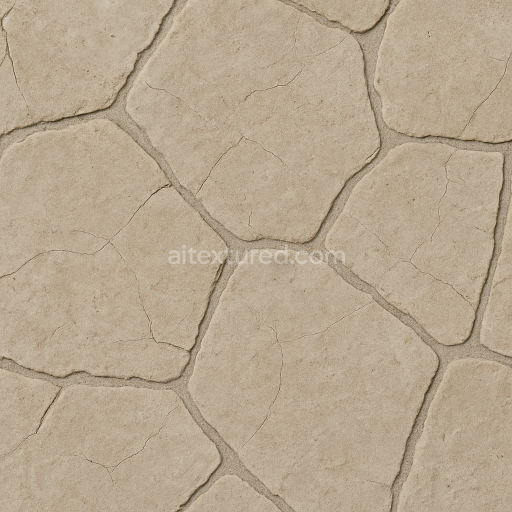
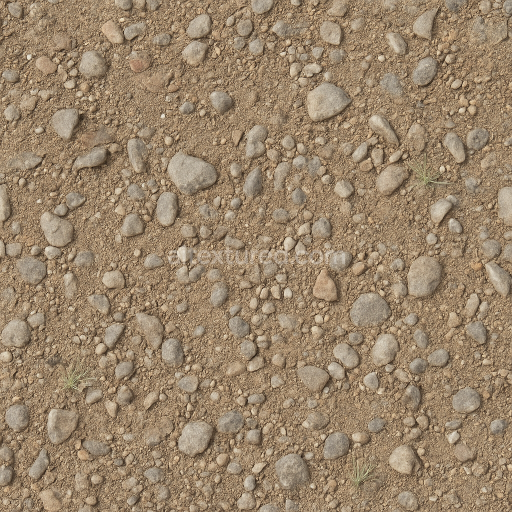
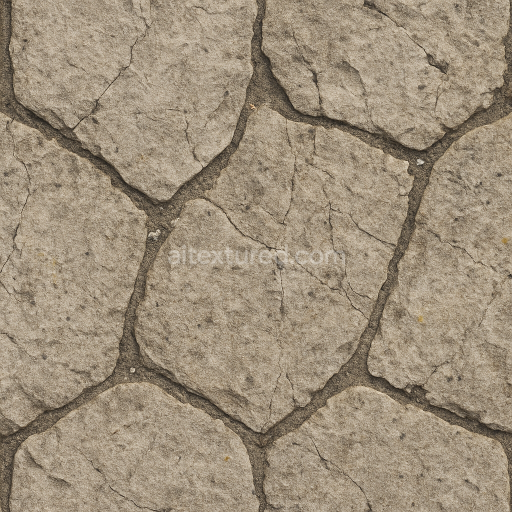
Generate maps from existing images, preview materials, convert channels, and package compatible inputs for Blender, Unity, and Unreal Engine.
Choose a verified workflow for generating maps, previewing tiling, converting channels, or starting from the texture catalog.
Derive Normal, Roughness, AO, Metallic, Height and optional ORM maps from one or more source images, then review the results.
Instant WebGL viewer: inspect materials on a sphere, plane, and cube. Check tiling and lighting in real time.
Re-packages maps per engine: Unreal (BaseColor + ORM), Unity (Mask/MetallicSmoothness), Blender (separate channels).
PNG ↔ JPG ↔ SVG: fast convert, SVG rasterize, embed/trace options, quality & background controls.