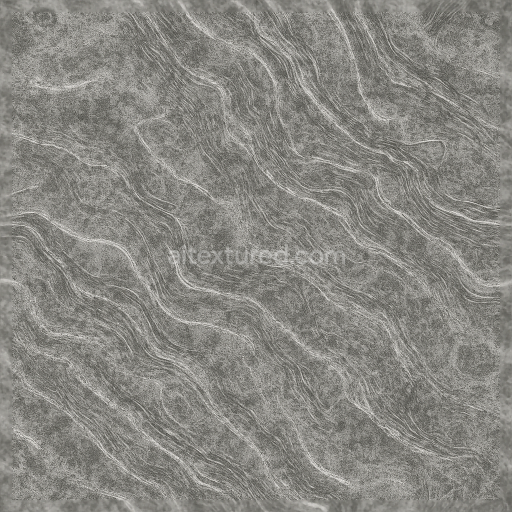
Dappled Etched Wavy Veined Pixelated Glitch Static Glossy Matte
Seamless texture (tileable) · PNG, WEBP, PBR ZIP.
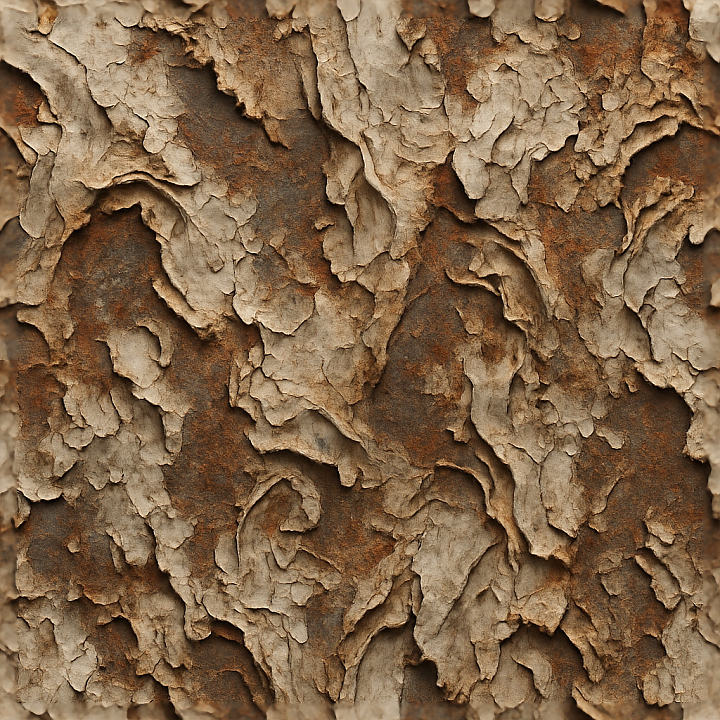
| ID | seamless-3d-texture-pbr-8k-corroded-peeling-weathered-distorted-warped-twisted-folded-crumpled-grunge-rough |
|---|---|
| Category | Abstract |
| Formats | PNG, WEBP, PBR ZIP |
| Size | 1k (1024x1024px), 2k (2048x2048px), 4k (4096x4096px), 8k (8192x8192px) |
| Tileable | Yes |
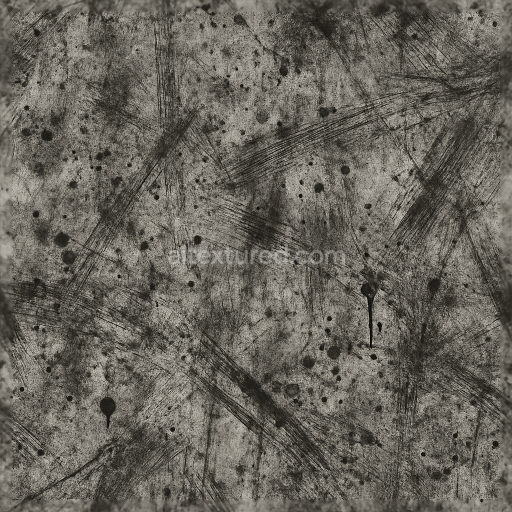
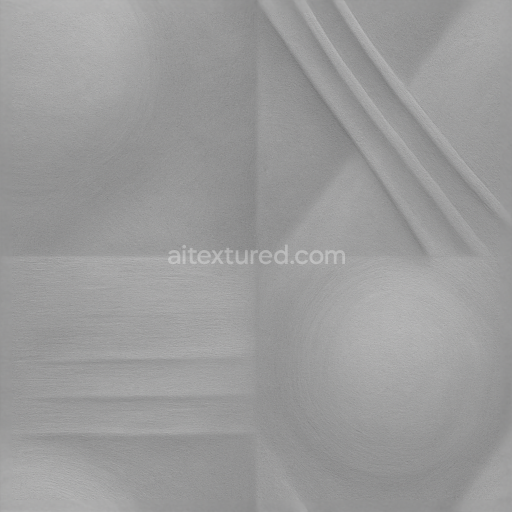
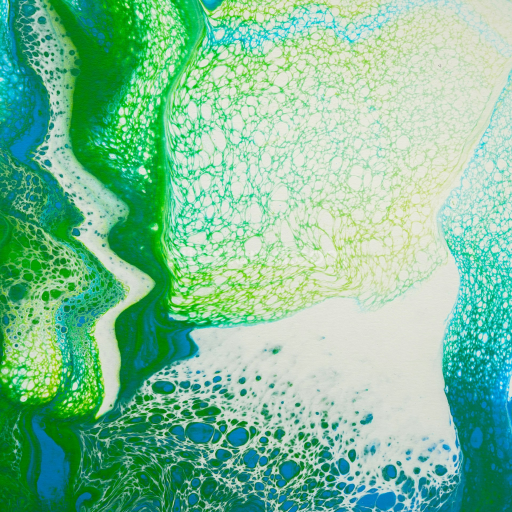
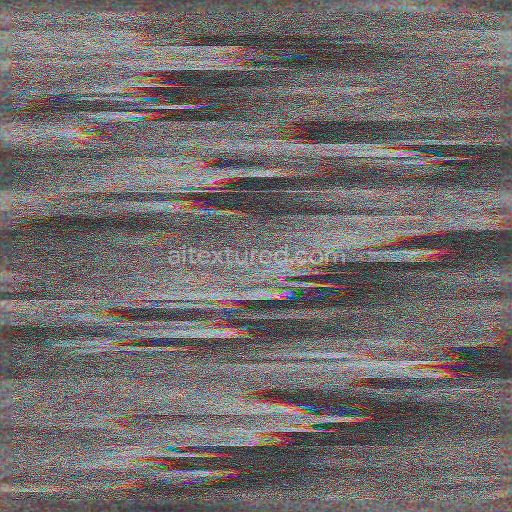
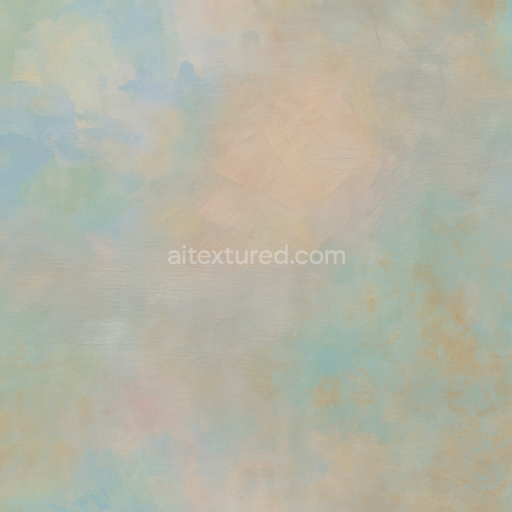
This seamless 3D texture presents a complex abstract surface that mimics a heavily corroded and peeling metal substrate layered with weathered paint and oxidized coatings. The base material appears to be an aged steel or iron sheet, exhibiting significant corrosion that has eroded and fragmented the surface layers. Beneath the corroded metal, remnants of binders and pigments suggest aged industrial paint, now flaking and peeling due to prolonged exposure to environmental elements. The texture incorporates warped, twisted, folded, and crumpled deformations, creating a tactile relief reminiscent of bent and distorted metal panels. This layered composition results in a surface rich with micro and macro details, including fissures, chipped flakes, and roughened grain structures, enhancing the realism through diverse surface porosity and weathering effects.
The geometric form is irregular and organic rather than uniform, with no repeating tile patterns visible due to the extensive wear and distortion. The texture’s finish can be described as a rough, oxidized grime overlay atop the corroded metal, where the metallic substrate retains partial reflectivity but is largely muted by rust and weathering. The color palette spans rust reds, dark browns, faded blues, and grays, reflecting the interplay of metal oxidation and peeling paint pigments. In terms of PBR channels, the BaseColor (Albedo) captures this complex coloration and paint peeling detail, while the Normal map encodes the intricate relief of warped folds, crumples, and surface irregularities. The Roughness channel defines the uneven matte and glossy areas, with rust and exposed metal exhibiting higher roughness values and smoother paint remnants showing slightly lower roughness. The Metallic map highlights the underlying steel areas with moderate metalness, contrasted by non-metallic paint and corrosion. Ambient Occlusion enhances shadowing in crevices and folds, and the Height/Displacement map emphasizes the depth of peeling layers and warped geometry, enabling realistic parallax effects.
Rendered at an ultra-high 8K resolution, this texture ensures exceptional clarity and detail for close-up applications and large-scale 3D environments. It is fully optimized for real-time engines such as Unreal Engine and Unity, as well as offline renders in Blender, providing artists with versatile integration options. The seamless nature of the texture allows for extensive tiling without visible edges, making it ideal for covering large surfaces such as distressed industrial objects, environmental props, or abstract architectural elements that require an aged and weathered aesthetic.
When using this texture, it is advisable to carefully adjust the UV scale to balance detail density with performance, especially in game engines. Fine-tuning the roughness values can help achieve the desired contrast between metallic and corroded areas, while blending height and normal maps can enhance depth perception without over-exaggerating surface distortions. This approach ensures a photorealistic representation of worn, peeling, and warped metal surfaces that respond accurately to lighting conditions within your 3D projects.
Import the texture maps into Blender with sRGB color space for albedo/base color and Non-Color for normal, roughness, metallic, AO, height, and ORM maps. Connect normal maps through a Normal Map node, then adjust UV scale with a Mapping node so the material repeats naturally on your model.
For the full step-by-step setup, see How to Use Seamless Textures in Blender. Browse related material examples in wood, concrete, and metal.
Yes. This texture is designed as a seamless tileable PBR material, so it can repeat across large surfaces without visible borders.
Use the download controls on this page: they expose the available PNG, WEBP or engine ZIP choices and supported resolutions for this asset.
Use the engine ZIP choices to package compatible source maps for Blender, Unreal Engine or Unity, then verify the imported material in the target application.
Commercial-use permission is not verified for this record. Confirm the original source and license before production use.


Generate maps from existing images, preview materials, convert channels, and package compatible inputs for Blender, Unity, and Unreal Engine.
Choose a verified workflow for generating maps, previewing tiling, converting channels, or starting from the texture catalog.
Derive Normal, Roughness, AO, Metallic, Height and optional ORM maps from one or more source images, then review the results.
Instant WebGL viewer: inspect materials on a sphere, plane, and cube. Check tiling and lighting in real time.
Re-packages maps per engine: Unreal (BaseColor + ORM), Unity (Mask/MetallicSmoothness), Blender (separate channels).
PNG ↔ JPG ↔ SVG: fast convert, SVG rasterize, embed/trace options, quality & background controls.