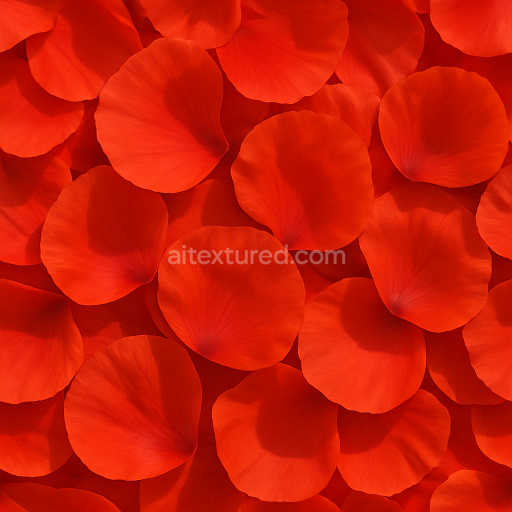
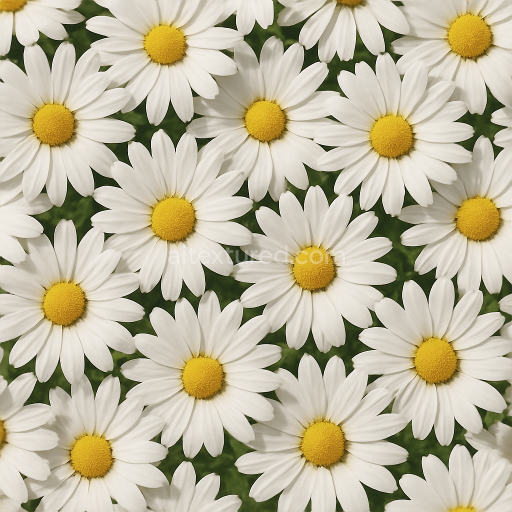
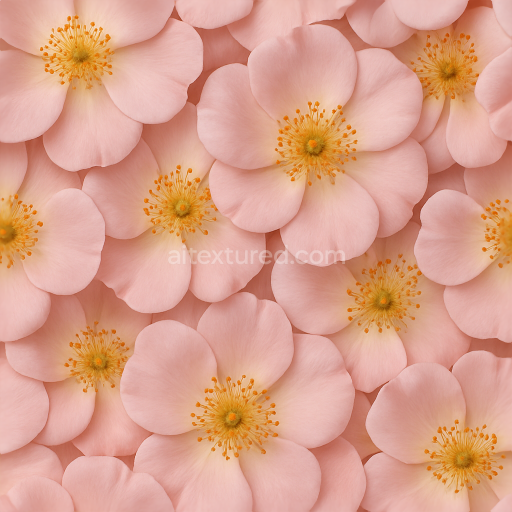
Poppy Petals Flower Meadow Flower Petals Closeup Natural Lighting
Seamless texture (tileable) · PNG, WEBP, PBR ZIP.
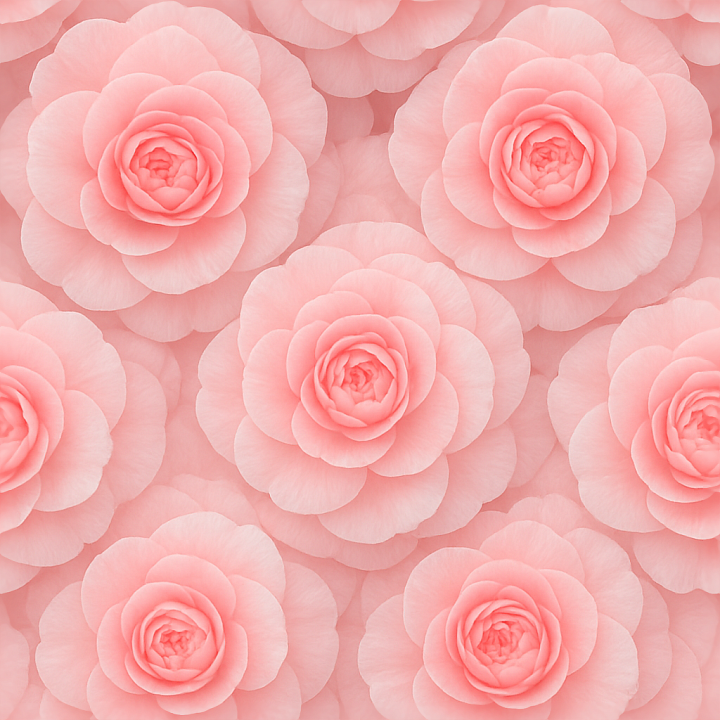
| ID | seamless-3d-texture-pbr-8k-of-lush-camellia-blooms-highlighting-flower-softness-and-surface-detail |
|---|---|
| Category | Flowers |
| Formats | PNG, WEBP, PBR ZIP |
| Size | 1k (1024x1024px), 2k (2048x2048px), 4k (4096x4096px), 8k (8192x8192px) |
| Tileable | Yes |
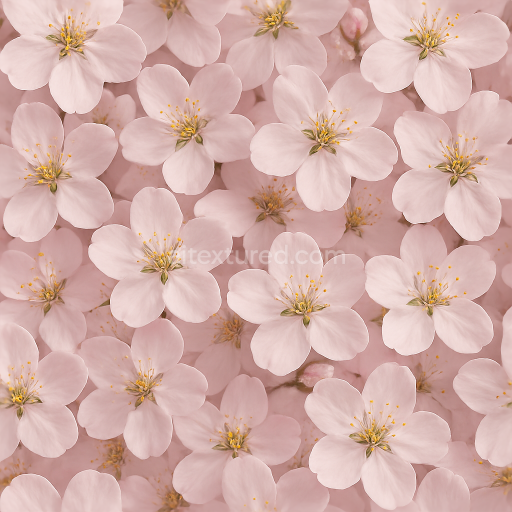
This seamless 3D texture showcases lush camellia blooms rendered at an impressive 8K resolution, emphasizing the delicate softness and intricate surface details of flower petals. The material composition reflects the natural organic substrate of fresh camellia petals, characterized by a fine, fibrous cellular structure that supports subtle translucency and gentle gradients of color. The petals’ surface presents a smooth yet slightly textured finish, capturing the micro-veined patterns and soft undulations common in flower anatomy. This texture is tileable, forming a continuous floral pattern ideal for large-scale or close-up applications without visible seams.
The base material simulates the thin, semi-translucent plant tissue composed primarily of cellulose fibers embedded in a hydrated matrix, which lends itself to light scattering and soft shadows within the petals. The texture incorporates natural color variations ranging from pale pinks and whites to deeper reds, achieved through carefully balanced pigments mapped to the BaseColor (Albedo) channel. The Normal map captures the subtle curvature and fine surface irregularities, enhancing realistic shading and light interaction. Roughness values are finely tuned to reflect the semi-matte finish of fresh petals, avoiding excessive glossiness while preserving a slight sheen indicative of natural moisture. The Metallic channel is appropriately set to near zero, reflecting the non-metallic organic nature of the material.
Additional PBR channels include Ambient Occlusion to accentuate depth in petal overlaps and creases, and Height/Displacement maps that reinforce the soft relief and layered structure typical of camellia blooms. The texture's neutral lighting setup avoids baked shadows or highlights, allowing flexible integration into diverse rendering environments across Blender, Unreal Engine, and Unity. This ensures that the natural translucency and soft gradients are preserved and can respond dynamically to scene lighting.
For optimal use, it is recommended to carefully adjust UV scaling to maintain the delicate detail of the petals when applied to larger floral models. Slight modulation of the roughness map can simulate varying hydration levels of petals, enhancing realism. When combining with height or parallax maps, subtle blending with the normal map can provide convincing depth without introducing harsh edges, maintaining the flower’s characteristic softness.
Import the texture maps into Blender with sRGB color space for albedo/base color and Non-Color for normal, roughness, metallic, AO, height, and ORM maps. Connect normal maps through a Normal Map node, then adjust UV scale with a Mapping node so the material repeats naturally on your model.
For the full step-by-step setup, see How to Use Seamless Textures in Blender. Browse related material examples in wood, concrete, and metal.
Yes. This texture is designed as a seamless tileable PBR material, so it can repeat across large surfaces without visible borders.
Use the download controls on this page: they expose the available PNG, WEBP or engine ZIP choices and supported resolutions for this asset.
Use the engine ZIP choices to package compatible source maps for Blender, Unreal Engine or Unity, then verify the imported material in the target application.
Commercial-use permission is not verified for this record. Confirm the original source and license before production use.
Generate maps from existing images, preview materials, convert channels, and package compatible inputs for Blender, Unity, and Unreal Engine.
Choose a verified workflow for generating maps, previewing tiling, converting channels, or starting from the texture catalog.
Derive Normal, Roughness, AO, Metallic, Height and optional ORM maps from one or more source images, then review the results.
Instant WebGL viewer: inspect materials on a sphere, plane, and cube. Check tiling and lighting in real time.
Re-packages maps per engine: Unreal (BaseColor + ORM), Unity (Mask/MetallicSmoothness), Blender (separate channels).
PNG ↔ JPG ↔ SVG: fast convert, SVG rasterize, embed/trace options, quality & background controls.