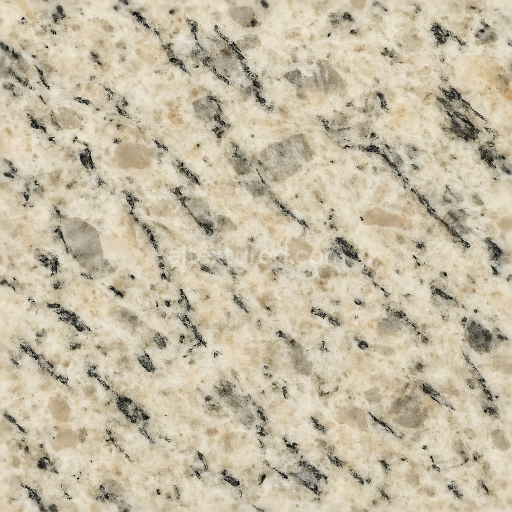
Seamless 8K Ivory Granite 3D Texture PBR With Granite Microstructure And Granite Feldspar…
Seamless texture (tileable) · PNG, WEBP, PBR ZIP.
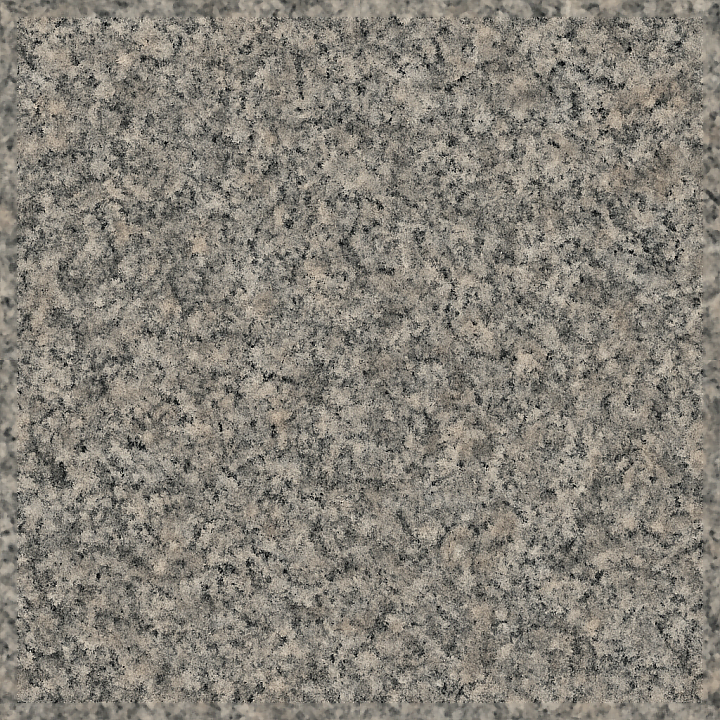
| ID | seamless-8k-granite-floor-3d-texture-pbr-with-granite-tiles-featuring-granite-matte-finish-and-granite-surface-roughness |
|---|---|
| Category | Granite |
| Formats | PNG, WEBP, PBR ZIP |
| Size | 1k (1024x1024px), 2k (2048x2048px), 4k (4096x4096px), 8k (8192x8192px) |
| Tileable | Yes |
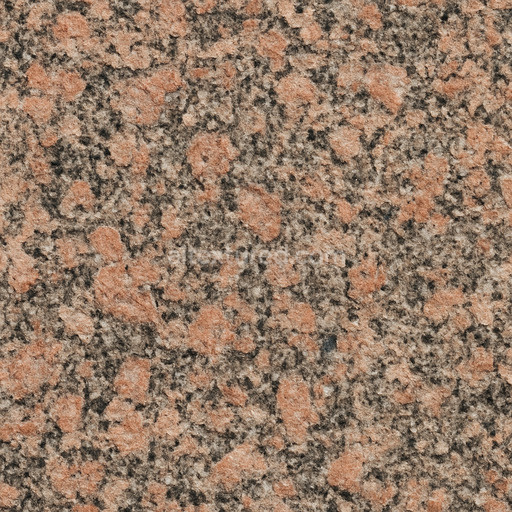
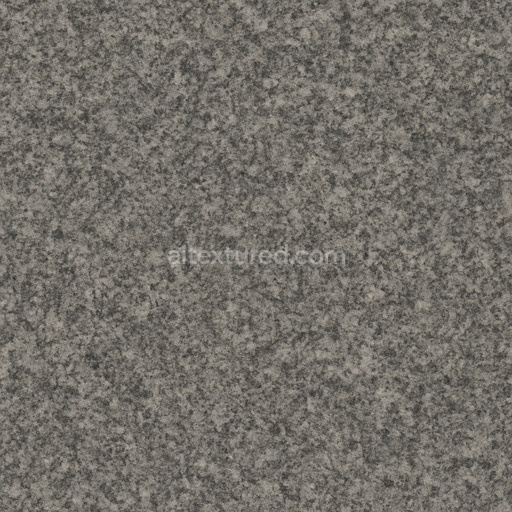
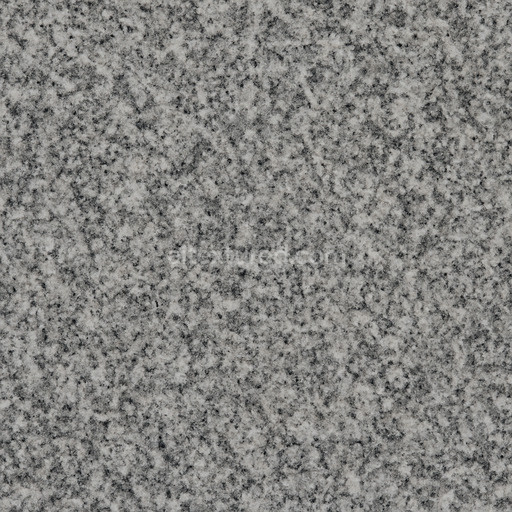
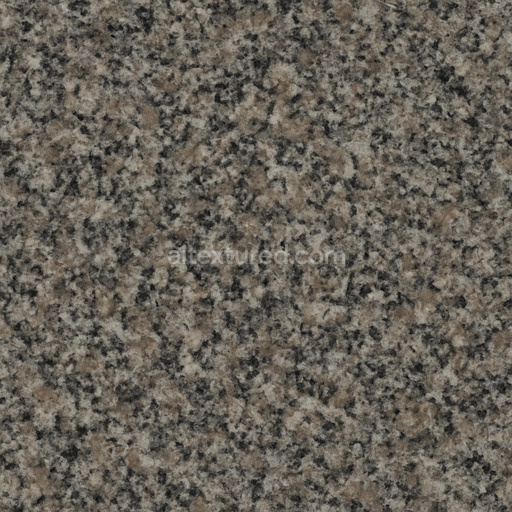
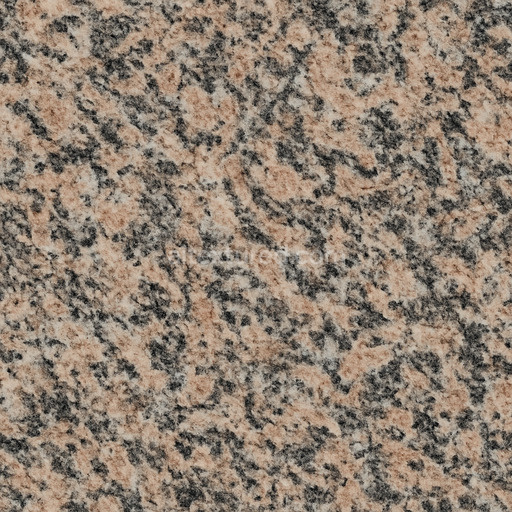
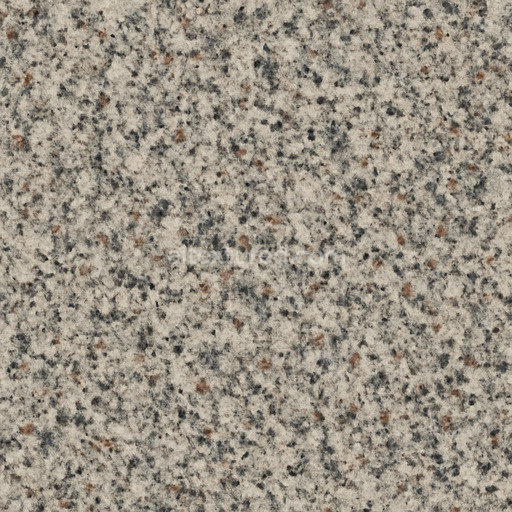
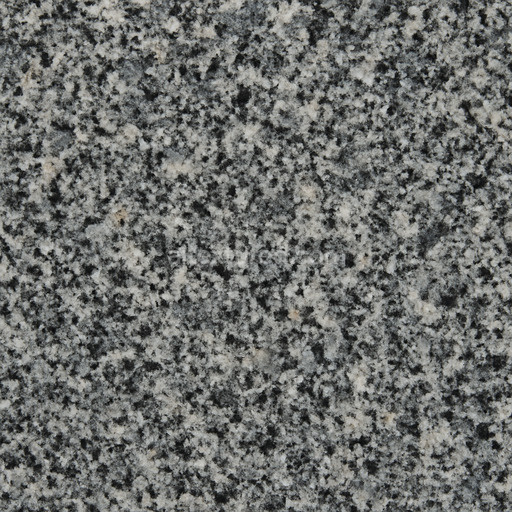
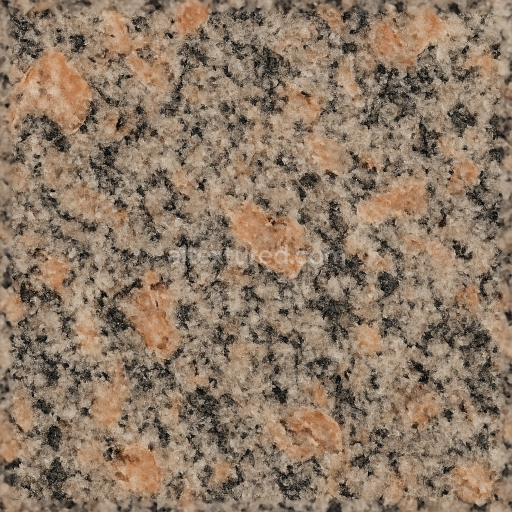
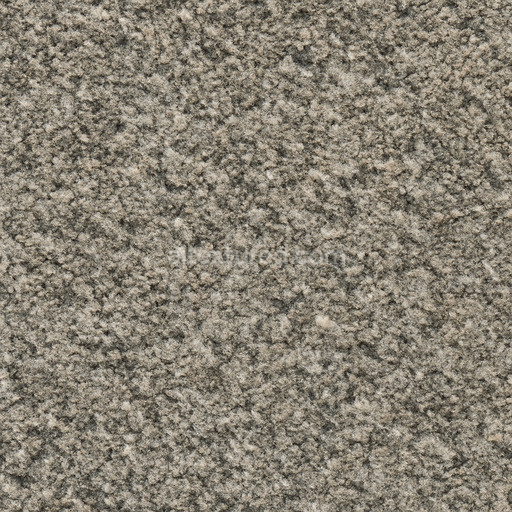
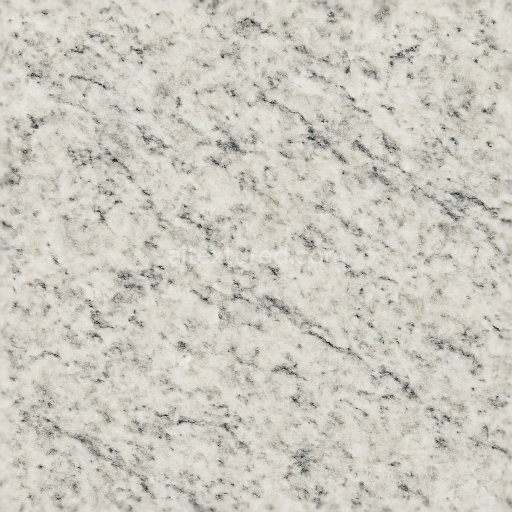
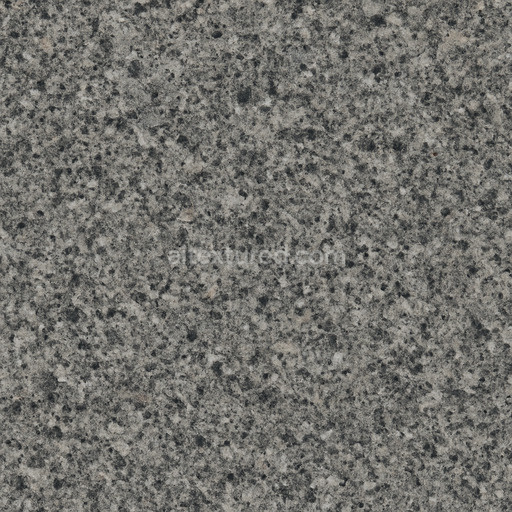
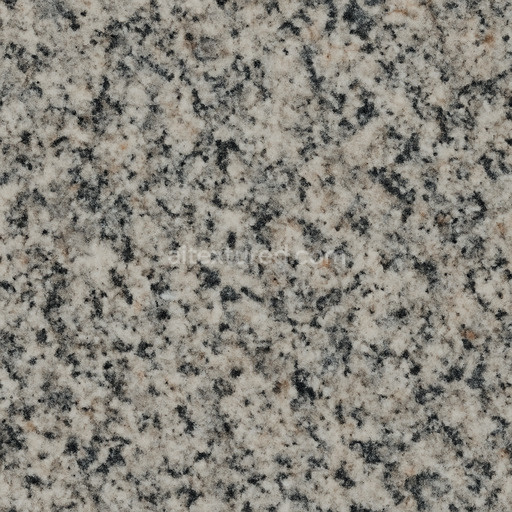
This seamless 8K granite floor 3D texture PBR is expertly designed to emulate the authentic material characteristics of natural granite tiles frequently used in architectural and interior flooring projects. The base substrate is a dense crystalline igneous rock composed mainly of quartz feldspar and mica minerals. These components create the granite's unique granular structure and speckled coloration which is evident in the texture’s subtle variations and mineral inclusions. The granite tiles are arranged in a classic square pattern with fine grout lines that reinforce the geometric uniformity of the surface. The granite matte finish is achieved through a carefully controlled honed process which reduces glossy reflections while preserving the stone’s natural depth tactile grain and surface roughness. This finish offers a balanced feel that is both visually appealing and slip-resistant making it well-suited for high-traffic flooring environments.*
In terms of PBR channels the BaseColor (Albedo) map captures the nuanced color palette of granite floor tiles showcasing gentle transitions from soft grays to warm beige tones interspersed with darker mineral flecks. The Normal map encodes the subtle surface irregularities and grain contours enhancing the tactile realism without introducing excessive bumpiness. The Roughness map governs the granite matte finish ensuring reflections remain soft and diffuse rather than glossy which faithfully replicates the honed stone surface. The Metallic channel remains near zero accurately reflecting the non-metallic nature of natural granite. Ambient Occlusion adds depth by accentuating tile edges and grain boundaries while the Height/Displacement map provides subtle relief that supports advanced parallax or tessellation effects adding convincing physical depth in 3D applications.*
Rendered at an ultra-high 8K resolution this seamless granite tile texture is optimized for use in Blender Unreal Engine and Unity making it ideal for photorealistic flooring visualizations and immersive game environments. The seamless tiling capability ensures that large surface areas can be covered without visible repetition or texture breaks maintaining the natural randomness essential for authentic granite floors. For best results it is recommended to carefully adjust the UV scale to align with real-world tile dimensions preventing distortion of the granite grain pattern and grout spacing. Additionally fine-tuning the Roughness map can simulate different granite matte finishes ranging from freshly honed to subtly weathered surfaces allowing versatile adaptation to various design requirements.*
Import the texture maps into Blender with sRGB color space for albedo/base color and Non-Color for normal, roughness, metallic, AO, height, and ORM maps. Connect normal maps through a Normal Map node, then adjust UV scale with a Mapping node so the material repeats naturally on your model.
For the full step-by-step setup, see How to Use Seamless Textures in Blender. Browse related material examples in wood, concrete, and metal.
Yes. This texture is designed as a seamless tileable PBR material, so it can repeat across large surfaces without visible borders.
Use the download controls on this page: they expose the available PNG, WEBP or engine ZIP choices and supported resolutions for this asset.
Use the engine ZIP choices to package compatible source maps for Blender, Unreal Engine or Unity, then verify the imported material in the target application.
Commercial-use permission is not verified for this record. Confirm the original source and license before production use.

Generate maps from existing images, preview materials, convert channels, and package compatible inputs for Blender, Unity, and Unreal Engine.
Choose a verified workflow for generating maps, previewing tiling, converting channels, or starting from the texture catalog.
Derive Normal, Roughness, AO, Metallic, Height and optional ORM maps from one or more source images, then review the results.
Instant WebGL viewer: inspect materials on a sphere, plane, and cube. Check tiling and lighting in real time.
Re-packages maps per engine: Unreal (BaseColor + ORM), Unity (Mask/MetallicSmoothness), Blender (separate channels).
PNG ↔ JPG ↔ SVG: fast convert, SVG rasterize, embed/trace options, quality & background controls.