Glowing Embers Firework Bursts Warm Candlelight
Seamless texture (tileable) · PNG, WEBP, PBR ZIP.
| ID | seamless-3d-texture-pbr-8k-glitter-party-hats-and-ribbons-for-new-year |
|---|---|
| Category | New Year |
| Formats | PNG, WEBP, PBR ZIP |
| Size | 1k (1024x1024px), 2k (2048x2048px), 4k (4096x4096px), 8k (8192x8192px) |
| Tileable | Yes |
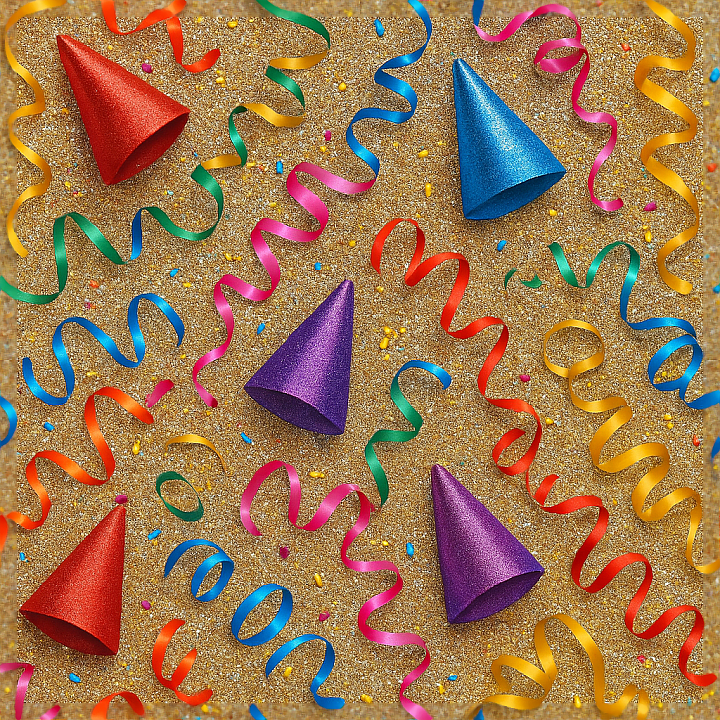
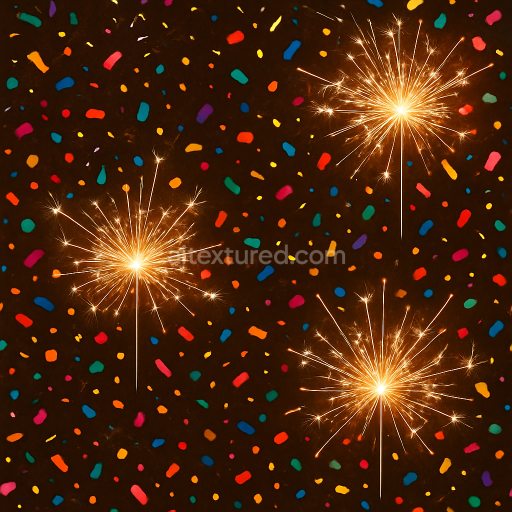
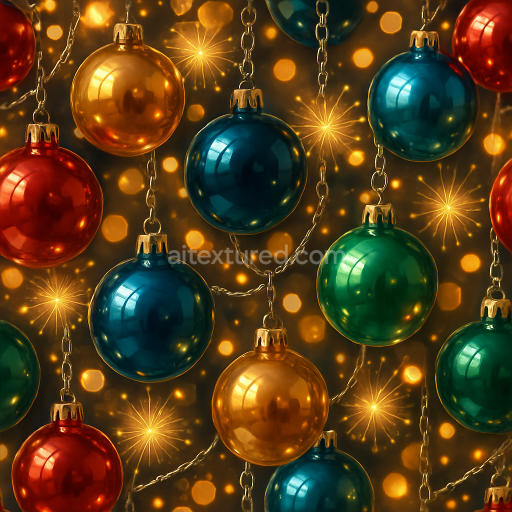
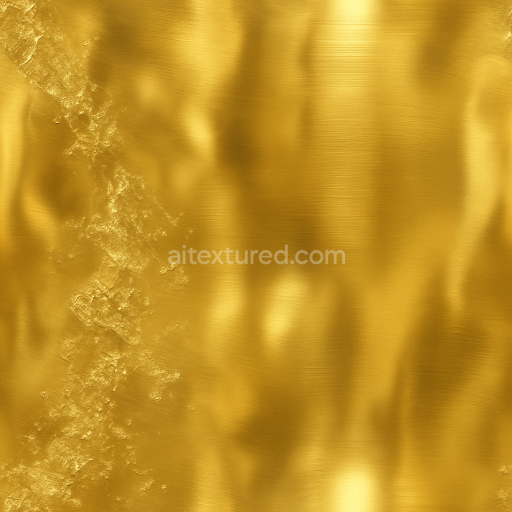
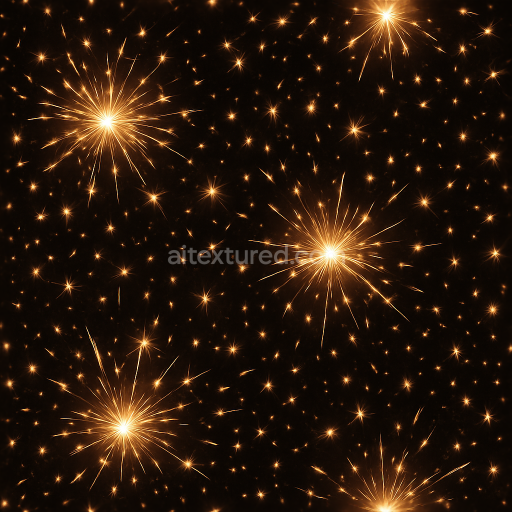
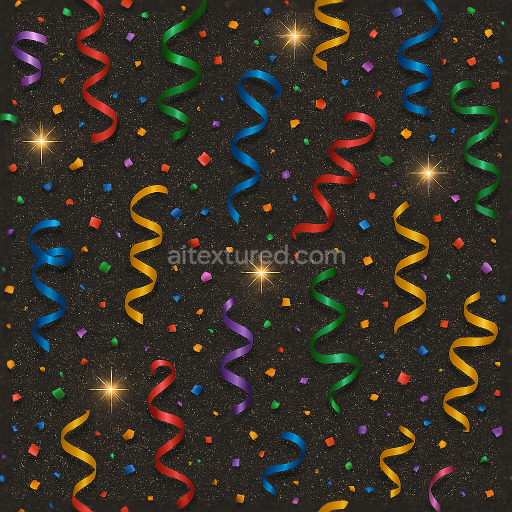
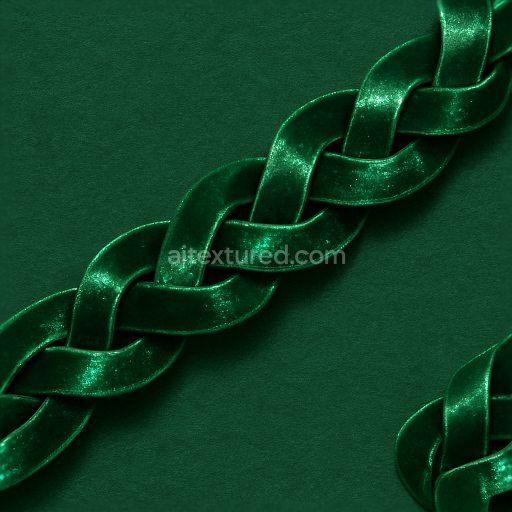
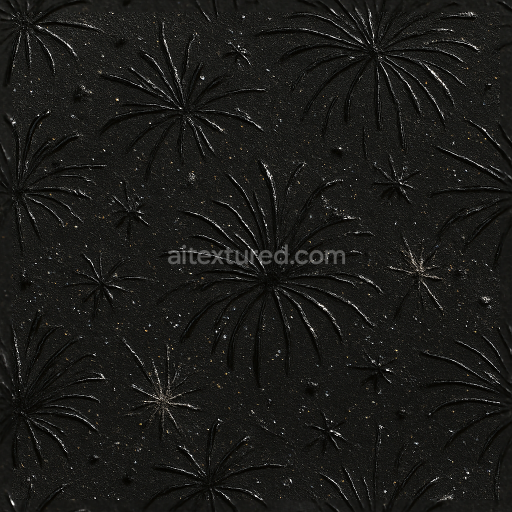
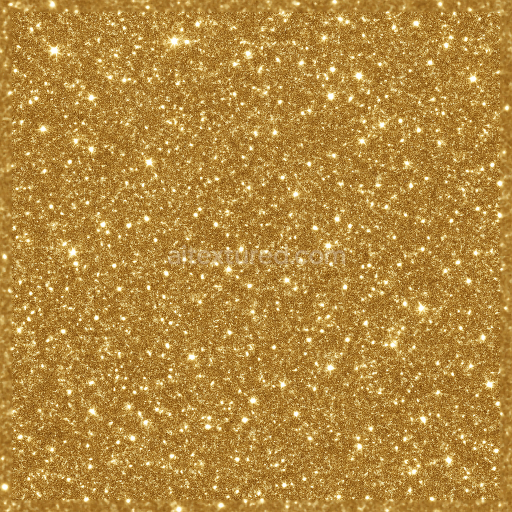
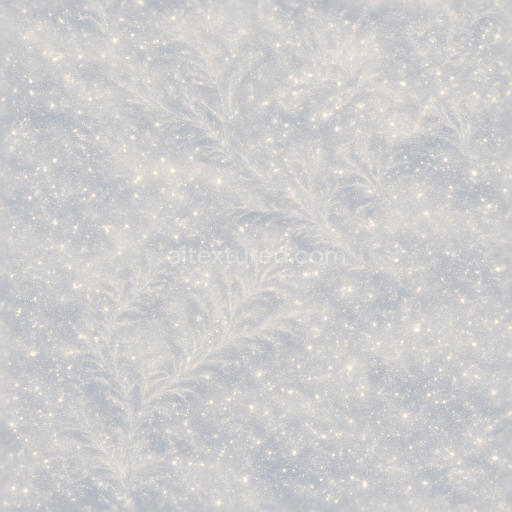
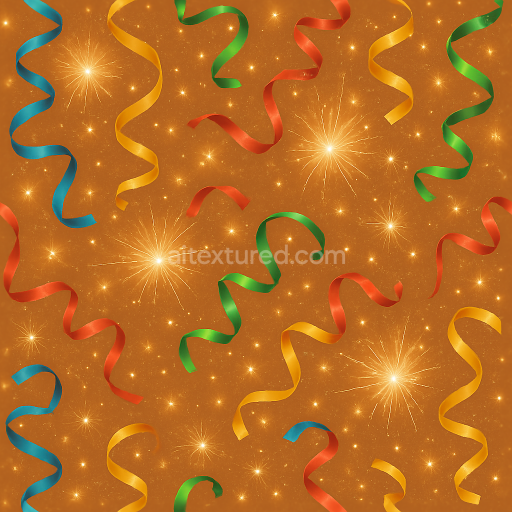
This seamless 3D texture, rendered at an impressive 8K resolution, showcases a detailed pattern of glittering party hats intertwined with curling festive ribbons, perfectly suited for New Year celebration scenes. The base materials consist primarily of a lightweight, semi-rigid paper substrate for the hats, combined with glossy synthetic ribbons. The paper substrate exhibits a fine grain with subtle fiber inclusions, providing a slightly textured surface that interacts naturally with light. The glitter particles are incorporated as reflective aggregates embedded within a clear adhesive binder, creating a sparkling effect that simulates tiny metallic flakes scattered across the surface. This composition results in a complex, multi-layered material where the paper’s matte finish contrasts with the high-gloss ribbons and the shimmering glitter, enhancing the depth and realism of the pattern.
From a geometric perspective, the texture features a repeating arrangement of conical party hats and flowing ribbons, forming an interlaced pattern that maintains seamless continuity when tiled. The hats themselves show gentle creases and folds, modeled through height and normal maps to convey subtle three-dimensional form without excessive distortion. The ribbons twist and curl with smooth curvature, their edges softly raised to catch highlights. The texture’s porosity is minimal, as the adhesive binder seals the paper fibers and encapsulates the glitter, resulting in a low-porosity surface that minimizes weathering effects. Surface finishes vary: the hats retain a lightly brushed paper texture, while the ribbons and glitter have polished, reflective finishes that contribute to the overall holiday glow.
In terms of PBR channel mapping, the BaseColor (Albedo) captures the vibrant hues of the party hats—rich reds, blues, and golds—and the multicolored ribbons, with pigments embedded in the paper and synthetic fibers. The Normal map defines the subtle folds of the hats and the raised edges of the ribbons, enhancing the perceived depth and curvature. Roughness values are finely tuned to differentiate materials: a higher roughness for the paper hats to reflect diffused light softly, contrasted with low roughness on the ribbons and glitter particles to create sharp specular highlights and sparkle effects. The Metallic channel is selectively used to simulate the reflective properties of the glitter flakes, giving them a metallic luster, while Ambient Occlusion adds shading to accentuate crevices and overlaps between hats and ribbons. The Height/Displacement map provides gentle relief for the creases and curled ribbons, adding dimensionality without excessive geometry.
This texture is fully optimized for use in Blender, Unreal Engine, and Unity, ensuring compatibility with physically based rendering workflows across these platforms. For practical application, it is recommended to carefully adjust the UV scale to maintain the balance between visible detail and pattern repetition, especially on larger surfaces. Additionally, fine-tuning the roughness channel can help achieve the desired sparkle intensity, while blending normal and height maps can enhance the subtle three-dimensionality of the hats and ribbons without creating harsh transitions. This approach enables artists to create immersive, festive environments with authentic holiday glow and celebration sparkles.
Import the texture maps into Blender with sRGB color space for albedo/base color and Non-Color for normal, roughness, metallic, AO, height, and ORM maps. Connect normal maps through a Normal Map node, then adjust UV scale with a Mapping node so the material repeats naturally on your model.
For the full step-by-step setup, see How to Use Seamless Textures in Blender. Browse related material examples in wood, concrete, and metal.
Yes. This texture is designed as a seamless tileable PBR material, so it can repeat across large surfaces without visible borders.
Use the download controls on this page: they expose the available PNG, WEBP or engine ZIP choices and supported resolutions for this asset.
Use the engine ZIP choices to package compatible source maps for Blender, Unreal Engine or Unity, then verify the imported material in the target application.
Commercial-use permission is not verified for this record. Confirm the original source and license before production use.
Generate maps from existing images, preview materials, convert channels, and package compatible inputs for Blender, Unity, and Unreal Engine.
Choose a verified workflow for generating maps, previewing tiling, converting channels, or starting from the texture catalog.
Derive Normal, Roughness, AO, Metallic, Height and optional ORM maps from one or more source images, then review the results.
Instant WebGL viewer: inspect materials on a sphere, plane, and cube. Check tiling and lighting in real time.
Re-packages maps per engine: Unreal (BaseColor + ORM), Unity (Mask/MetallicSmoothness), Blender (separate channels).
PNG ↔ JPG ↔ SVG: fast convert, SVG rasterize, embed/trace options, quality & background controls.