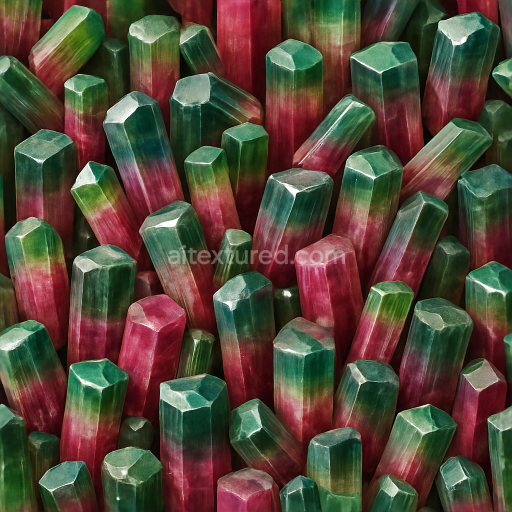
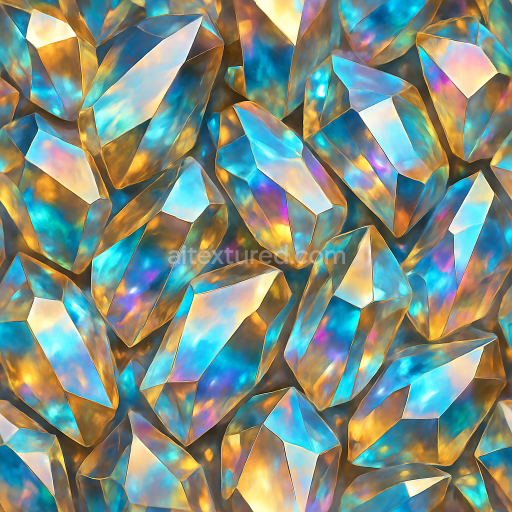
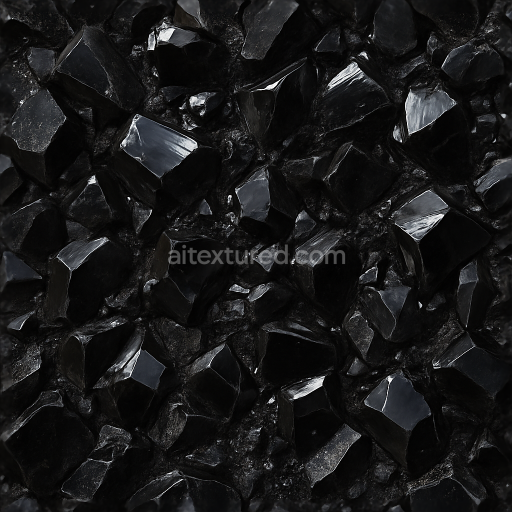
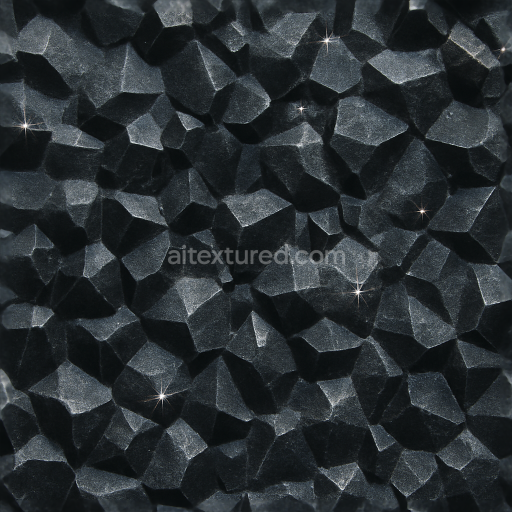
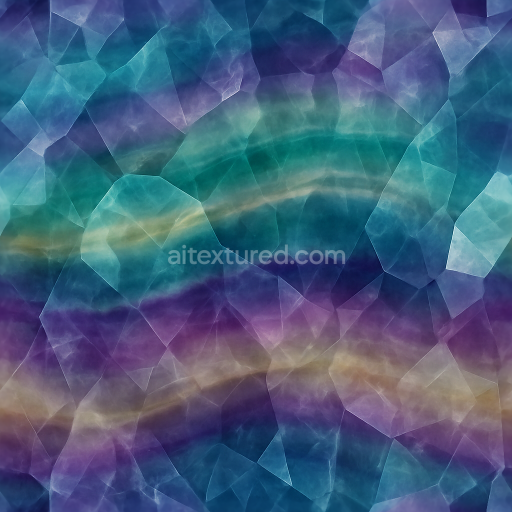
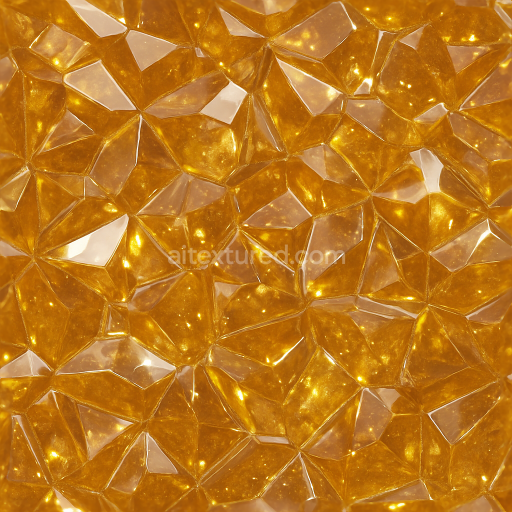
Tourmaline Clustered Crystals With Hexagonal Crystals And Natural Gloss
Seamless texture (tileable) · PNG, WEBP, PBR ZIP.
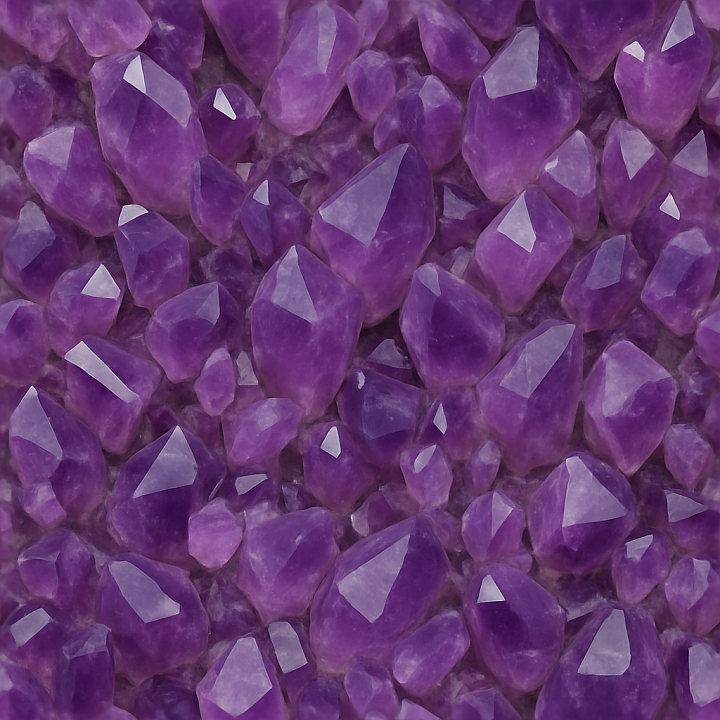
| ID | seamless-3d-texture-pbr-8k-amethyst-crystal-cluster-natural-crystal-photorealistic |
|---|---|
| Category | Crystals |
| Formats | PNG, WEBP, PBR ZIP |
| Size | 1k (1024x1024px), 2k (2048x2048px), 4k (4096x4096px), 8k (8192x8192px) |
| Tileable | Yes |
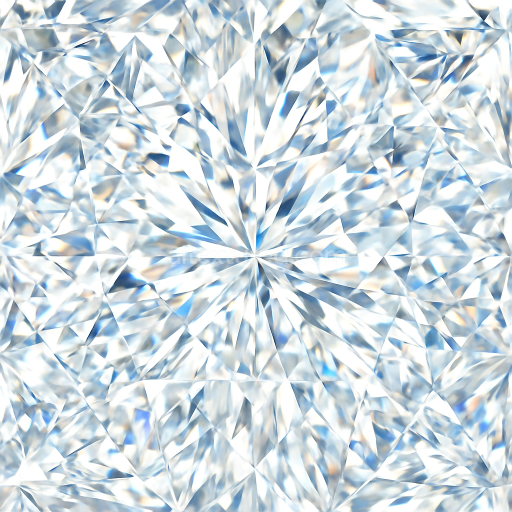
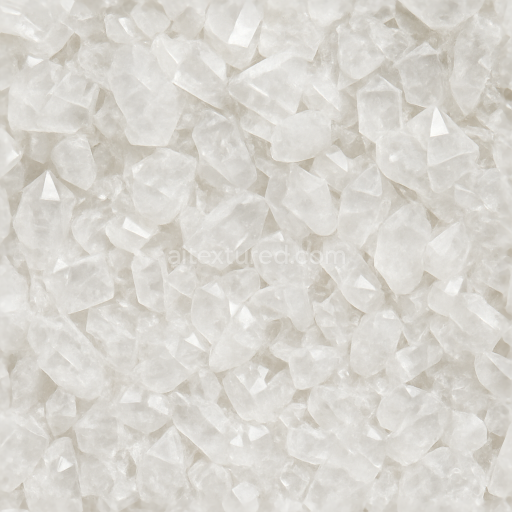
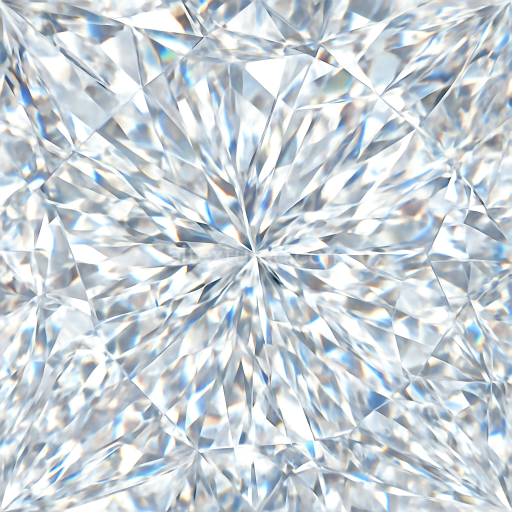
This seamless 3D texture captures the intricate structure of a natural amethyst crystal cluster, characterized by its distinctive geometric formations and rich violet hues. The material is primarily composed of quartz-based substrate with trace amounts of iron and other transition metals that give amethyst its signature purple coloration. The crystal surfaces exhibit sharp, angular facets arranged in a tightly packed cluster pattern, reflecting the natural growth habit of amethyst geodes. The texture emphasizes the complexity of the crystalline lattice, including subtle imperfections and inclusions that contribute to its photorealistic appearance.
The surface finish of the crystals is predominantly polished, with varying levels of translucency and specular reflections that simulate light interaction with the mineral’s smooth, glassy surfaces. The texture maps include a detailed BaseColor (Albedo) channel that replicates the nuanced purple gradients and occasional white or clear quartz areas. The Normal map enhances the perception of depth by accentuating the sharp edges and geometric ridges typical of crystal clusters, while the Height/Displacement map adds realistic surface relief suitable for parallax effects. Roughness values vary across the surface, from highly glossy crystal faces to slightly rougher, weathered edges, enhancing material authenticity without metallic reflections, as the crystals are non-metallic.
The Ambient Occlusion channel provides subtle shadowing in crevices between individual crystal points, enhancing volumetric depth in 3D renders. This texture is created at an 8K resolution, ensuring exceptional detail and sharpness even at close inspection, making it ideal for high-fidelity workflows in Blender, Unreal Engine, and Unity projects. Its seamless design allows for continuous tiling without visible repetition, making it suitable for large surfaces such as geological models, jewelry visualization, or environmental assets where natural crystal formations are required.
For optimal results, it is recommended to carefully adjust the UV scale to match the intended crystal size within your scene, ensuring the pattern maintains its natural proportions. Additionally, fine-tuning the roughness map can help balance reflectivity to simulate either freshly cut or naturally weathered crystal surfaces. Combining subtle parallax displacement with the normal map will enhance the three-dimensionality of the cluster without adding excessive geometry, providing a good balance between visual fidelity and performance.
Import the texture maps into Blender with sRGB color space for albedo/base color and Non-Color for normal, roughness, metallic, AO, height, and ORM maps. Connect normal maps through a Normal Map node, then adjust UV scale with a Mapping node so the material repeats naturally on your model.
For the full step-by-step setup, see How to Use Seamless Textures in Blender. Browse related material examples in wood, concrete, and metal.
Yes. This texture is designed as a seamless tileable PBR material, so it can repeat across large surfaces without visible borders.
Use the download controls on this page: they expose the available PNG, WEBP or engine ZIP choices and supported resolutions for this asset.
Use the engine ZIP choices to package compatible source maps for Blender, Unreal Engine or Unity, then verify the imported material in the target application.
Commercial-use permission is not verified for this record. Confirm the original source and license before production use.
Generate maps from existing images, preview materials, convert channels, and package compatible inputs for Blender, Unity, and Unreal Engine.
Choose a verified workflow for generating maps, previewing tiling, converting channels, or starting from the texture catalog.
Derive Normal, Roughness, AO, Metallic, Height and optional ORM maps from one or more source images, then review the results.
Instant WebGL viewer: inspect materials on a sphere, plane, and cube. Check tiling and lighting in real time.
Re-packages maps per engine: Unreal (BaseColor + ORM), Unity (Mask/MetallicSmoothness), Blender (separate channels).
PNG ↔ JPG ↔ SVG: fast convert, SVG rasterize, embed/trace options, quality & background controls.