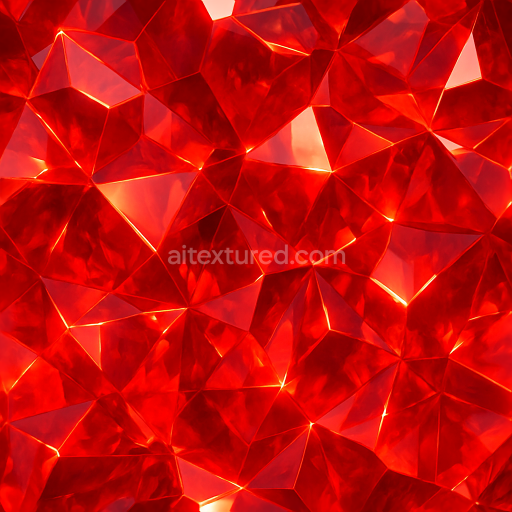
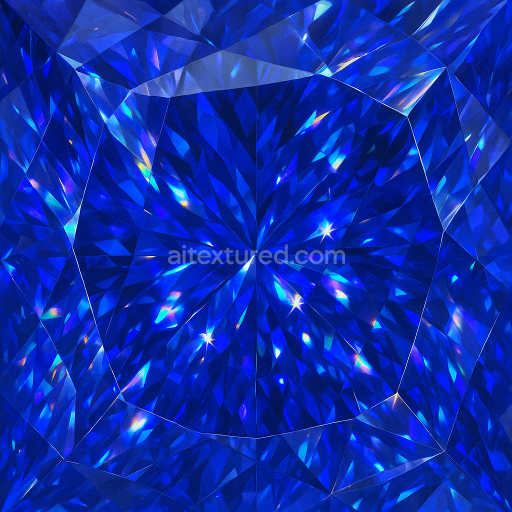
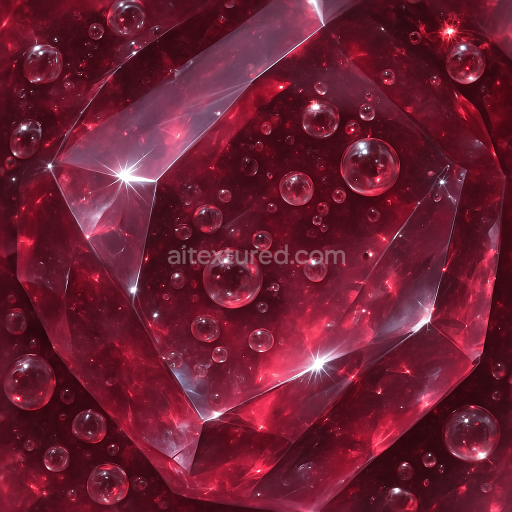
Ruby Crystalline Formation With Glowing Crystal Aura And Gemcut Facets Reflective Surface
Seamless texture (tileable) · PNG, WEBP, PBR ZIP.
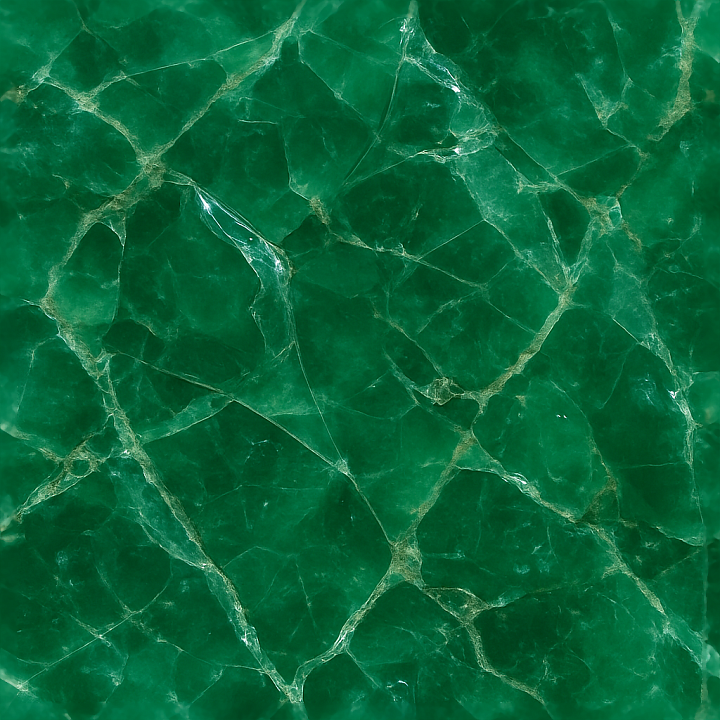
| ID | seamless-3d-texture-pbr-8k-emerald-raw-crystal-mineral-veins-with-crystal-inclusions-and-glossy-reflective-finish |
|---|---|
| Category | Crystals |
| Formats | PNG, WEBP, PBR ZIP |
| Size | 1k (1024x1024px), 2k (2048x2048px), 4k (4096x4096px), 8k (8192x8192px) |
| Tileable | Yes |
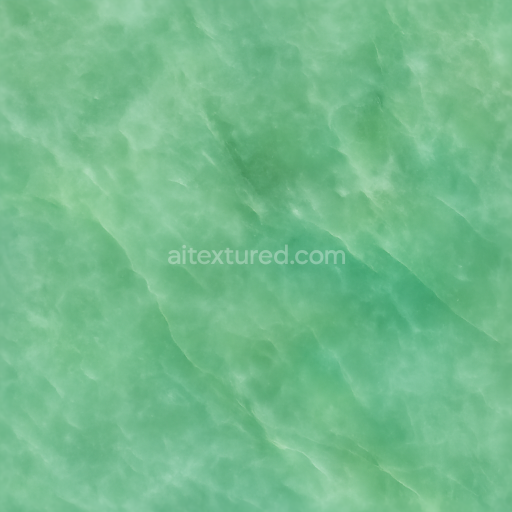
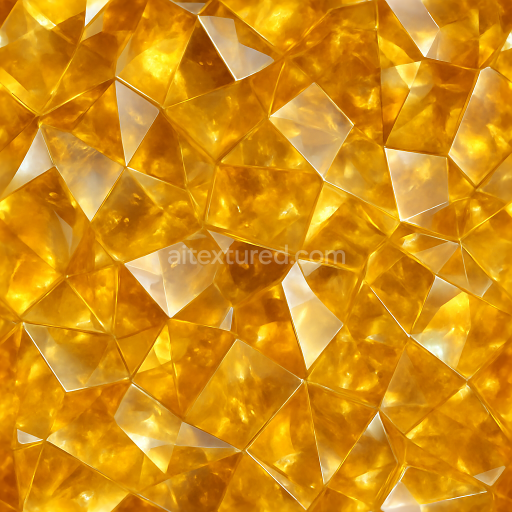
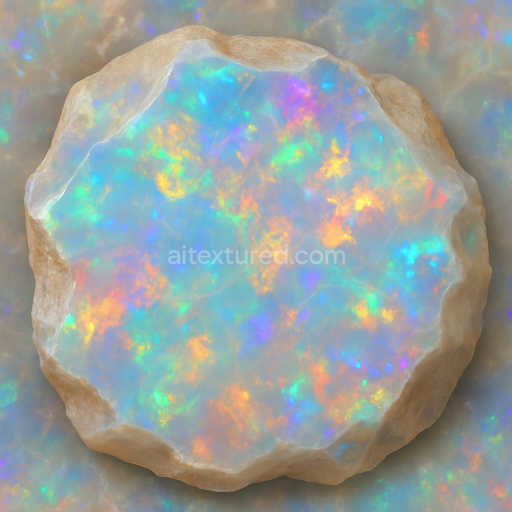
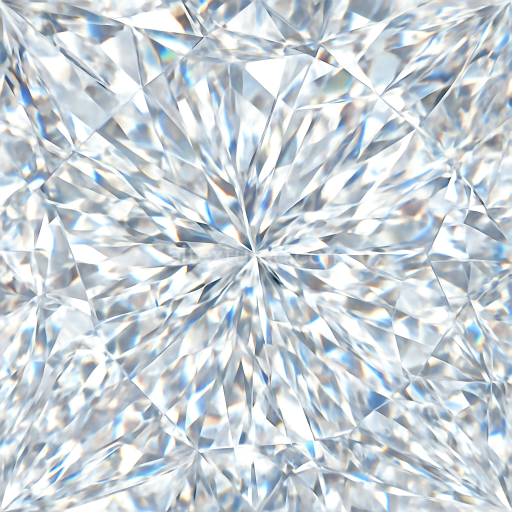
This seamless 3D texture features a high-resolution 8K portrayal of raw emerald crystal formations, intricately detailed with natural mineral veins and delicate crystal inclusions. The base material emulates a crystalline substrate composed primarily of beryl, exhibiting characteristic translucent green hues inherent to emeralds. The geometric form is irregular yet cohesive, showcasing jagged crystal facets and vein-like patterns that create a visually complex network across the surface. These veins simulate mineral impurities and inclusions embedded within the crystal matrix, providing a realistic representation of natural growth and internal structure.
The texture’s composition reflects a combination of dense crystalline grains and microscopic fissures, resulting in subtle porosity and natural weathering effects. The surface finish is glossy and highly reflective, reproducing the polished facets of raw emeralds with a smooth yet uneven sheen. This finish is essential for capturing light refraction and reflection, which enhances the three-dimensional appearance and depth of the material. Colorants are predominantly emerald green pigments with varying saturation to simulate inclusions and translucency, while lighter vein elements add contrast and complexity to the pattern.
Mapped to physically based rendering (PBR) channels, the BaseColor (Albedo) accurately conveys the vivid green tones and mineral vein details without baked lighting. The Normal map captures the intricate facet geometry and micro-surface irregularities, providing realistic shading and depth cues. Roughness is finely tuned to balance the glossy finish and subtle surface imperfections, enabling nuanced reflections without appearing overly polished. The Metallic channel remains neutral, as emerald is a non-metallic mineral, while Ambient Occlusion accentuates crevices and vein intersections to enhance spatial perception. Height/Displacement maps define the pronounced crystal edges and vein relief, perfect for parallax effects or tessellation in real-time engines.
Designed for seamless tiling, this texture integrates flawlessly into 3D workflows within Blender, Unreal Engine, and Unity, supporting detailed close-ups and expansive surface coverage alike. For optimal results, it is recommended to adjust the UV scale to match the desired crystal size and to fine-tune roughness values based on the lighting environment, ensuring the glossy finish responds naturally. When using height and normal maps together, blending them carefully can enhance the depth effect without causing mesh distortion, particularly important for game assets or architectural visualizations requiring photorealistic raw crystal surfaces.
Import the texture maps into Blender with sRGB color space for albedo/base color and Non-Color for normal, roughness, metallic, AO, height, and ORM maps. Connect normal maps through a Normal Map node, then adjust UV scale with a Mapping node so the material repeats naturally on your model.
For the full step-by-step setup, see How to Use Seamless Textures in Blender. Browse related material examples in wood, concrete, and metal.
Yes. This texture is designed as a seamless tileable PBR material, so it can repeat across large surfaces without visible borders.
Use the download controls on this page: they expose the available PNG, WEBP or engine ZIP choices and supported resolutions for this asset.
Use the engine ZIP choices to package compatible source maps for Blender, Unreal Engine or Unity, then verify the imported material in the target application.
Commercial-use permission is not verified for this record. Confirm the original source and license before production use.
Generate maps from existing images, preview materials, convert channels, and package compatible inputs for Blender, Unity, and Unreal Engine.
Choose a verified workflow for generating maps, previewing tiling, converting channels, or starting from the texture catalog.
Derive Normal, Roughness, AO, Metallic, Height and optional ORM maps from one or more source images, then review the results.
Instant WebGL viewer: inspect materials on a sphere, plane, and cube. Check tiling and lighting in real time.
Re-packages maps per engine: Unreal (BaseColor + ORM), Unity (Mask/MetallicSmoothness), Blender (separate channels).
PNG ↔ JPG ↔ SVG: fast convert, SVG rasterize, embed/trace options, quality & background controls.