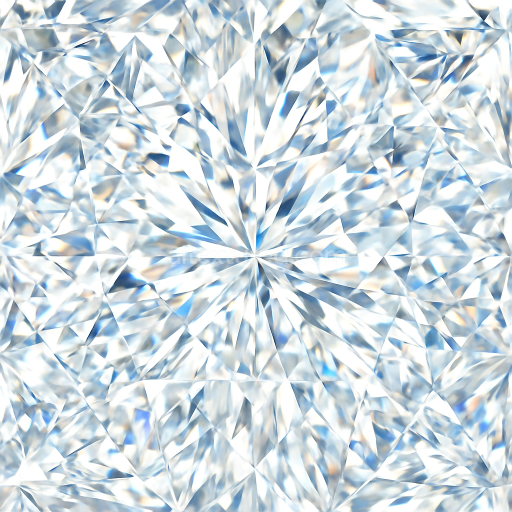
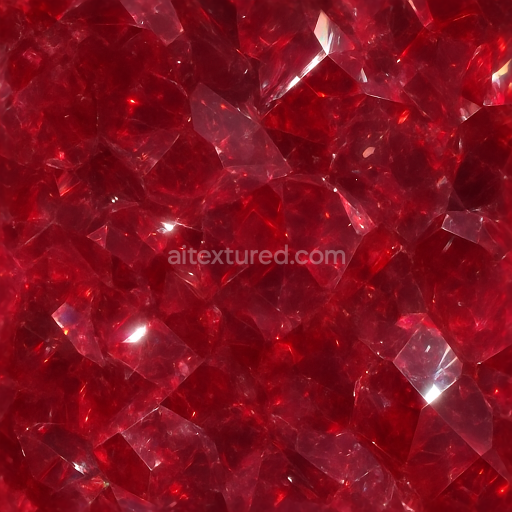
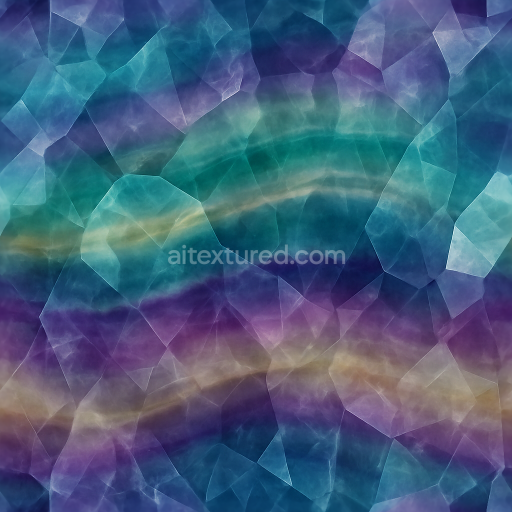
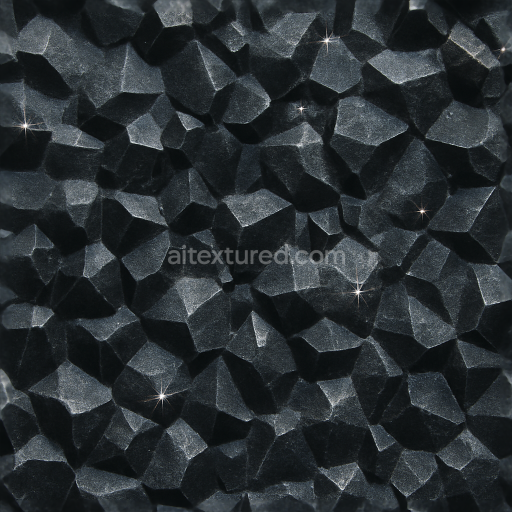
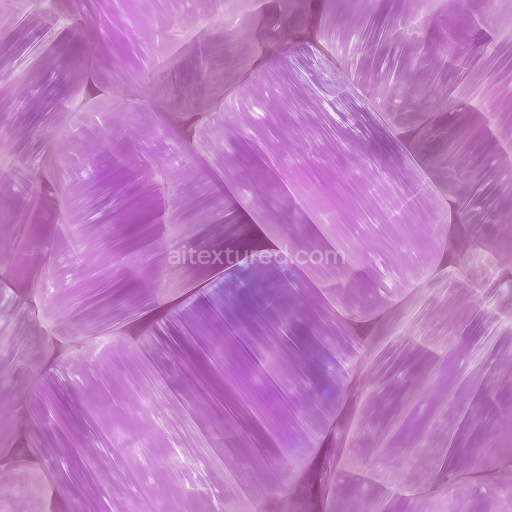
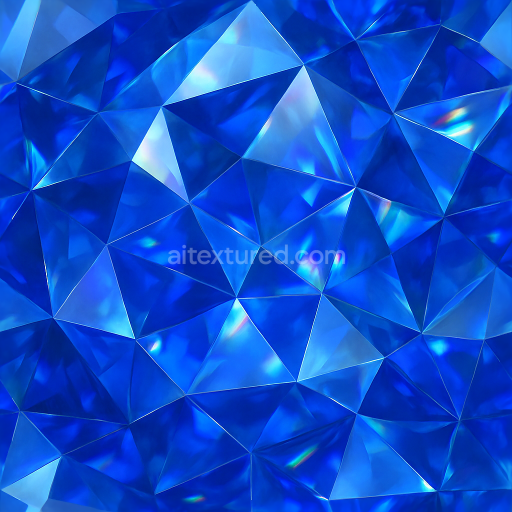
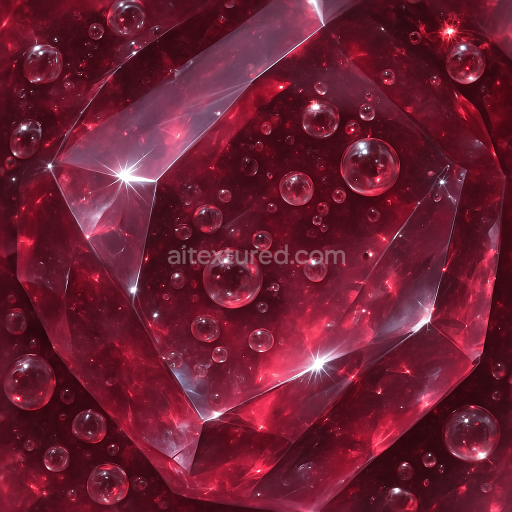
Diamond Faceted Gem With Gemstone Facets And Sparkle Highlights
Seamless texture (tileable) · PNG, WEBP, PBR ZIP.
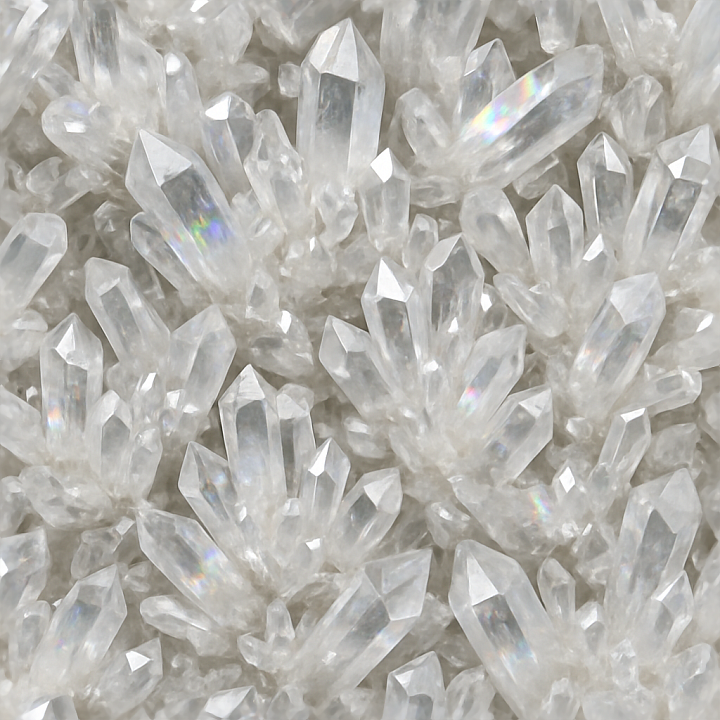
| ID | seamless-3d-texture-pbr-8k-quartz-crystal-cluster-with-prismatic-refraction-and-crystal-veins |
|---|---|
| Category | Crystals |
| Formats | PNG, WEBP, PBR ZIP |
| Size | 1k (1024x1024px), 2k (2048x2048px), 4k (4096x4096px), 8k (8192x8192px) |
| Tileable | Yes |
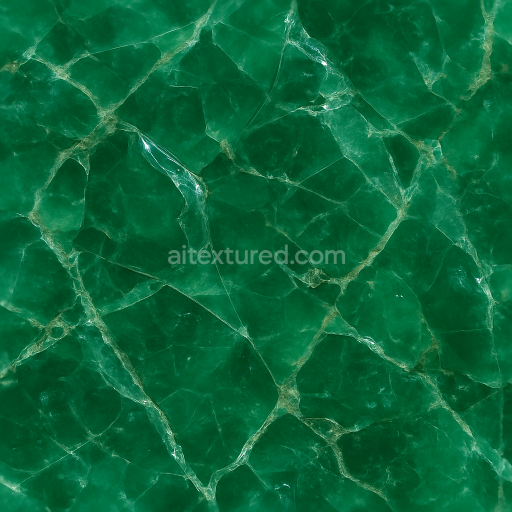
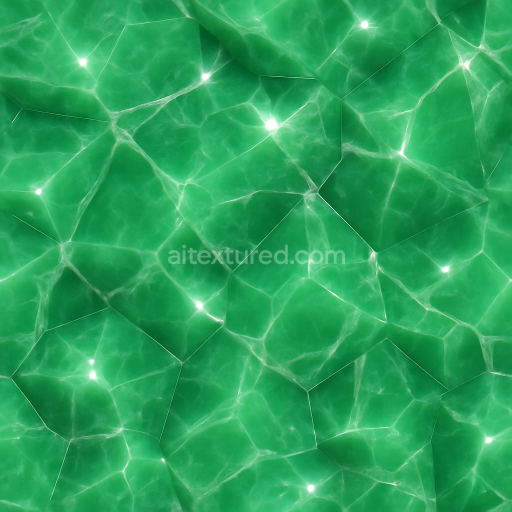
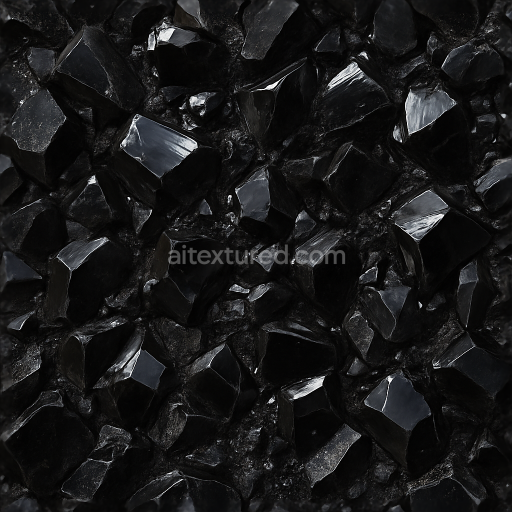
This seamless 3D texture represents a highly detailed quartz crystal cluster, designed with photorealism in mind and rendered at an impressive 8K resolution. The underlying material mimics natural quartz, a crystalline form of silicon dioxide, featuring a complex geometric pattern of interlocking prismatic crystals that form a dense cluster. Each crystal exhibits sharp, well-defined facets with subtle variations in size and orientation, creating a dynamic structure that captures the intricate veining typical of natural quartz formations. The texture’s base material reflects the semi-translucent nature of quartz, with a predominantly clear to milky white substrate interspersed with delicate crystal veins that suggest mineral impurities and growth lines within the cluster.
Compositionally, the texture simulates a solid crystalline substrate with minimal porosity, characteristic of well-formed quartz. The surface finish is highly polished, producing a lustrous and reflective appearance that enhances the prismatic refraction visible at crystal edges. This refraction is a key feature, realized through precise normal and height mapping, which together simulate light bending and internal dispersion effects. The crystal veins serve as natural inclusions, adding complexity and depth to the surface by breaking up uniformity with fine, vein-like aggregates. These veins influence the BaseColor (Albedo) channel by introducing subtle off-white and faintly colored pigments, while the Roughness map carefully balances glossy highlights with slightly diffused areas to avoid an overly mirror-like finish.
From a PBR workflow perspective, the texture’s BaseColor channel captures the quartz’s natural palette of translucent whites and pale grays, incorporating the veining detail with soft color gradients. The Normal map enhances the three-dimensionality of the crystal facets and veins, producing fine surface relief that catches light realistically. Roughness values are low but varied, enabling realistic reflections without uniform glossiness, while the Metallic channel remains at zero, as quartz is non-metallic. Ambient Occlusion subtly deepens crevices between crystals, emphasizing depth and shadow interplay. The Height or Displacement map provides the necessary data for parallax or tessellation effects, highlighting the pronounced edges and complex layering of the crystal cluster.
This texture is optimized for seamless tiling, allowing for continuous repetition without visible seams, which is ideal for covering large surfaces or creating detailed close-up renders of mineral formations. Its high resolution and PBR accuracy make it fully compatible with major 3D software and game engines such as Blender, Unreal Engine, and Unity, ensuring versatility across various projects. For practical usage, adjusting the UV scale to match the desired crystal size is recommended, and fine-tuning the roughness map can help balance between a more matte or highly reflective finish depending on lighting conditions. Additionally, blending height and normal maps thoughtfully can enhance the perception of depth without excessive geometry.
Import the texture maps into Blender with sRGB color space for albedo/base color and Non-Color for normal, roughness, metallic, AO, height, and ORM maps. Connect normal maps through a Normal Map node, then adjust UV scale with a Mapping node so the material repeats naturally on your model.
For the full step-by-step setup, see How to Use Seamless Textures in Blender. Browse related material examples in wood, concrete, and metal.
Yes. This texture is designed as a seamless tileable PBR material, so it can repeat across large surfaces without visible borders.
Use the download controls on this page: they expose the available PNG, WEBP or engine ZIP choices and supported resolutions for this asset.
Use the engine ZIP choices to package compatible source maps for Blender, Unreal Engine or Unity, then verify the imported material in the target application.
Commercial-use permission is not verified for this record. Confirm the original source and license before production use.
Generate maps from existing images, preview materials, convert channels, and package compatible inputs for Blender, Unity, and Unreal Engine.
Choose a verified workflow for generating maps, previewing tiling, converting channels, or starting from the texture catalog.
Derive Normal, Roughness, AO, Metallic, Height and optional ORM maps from one or more source images, then review the results.
Instant WebGL viewer: inspect materials on a sphere, plane, and cube. Check tiling and lighting in real time.
Re-packages maps per engine: Unreal (BaseColor + ORM), Unity (Mask/MetallicSmoothness), Blender (separate channels).
PNG ↔ JPG ↔ SVG: fast convert, SVG rasterize, embed/trace options, quality & background controls.