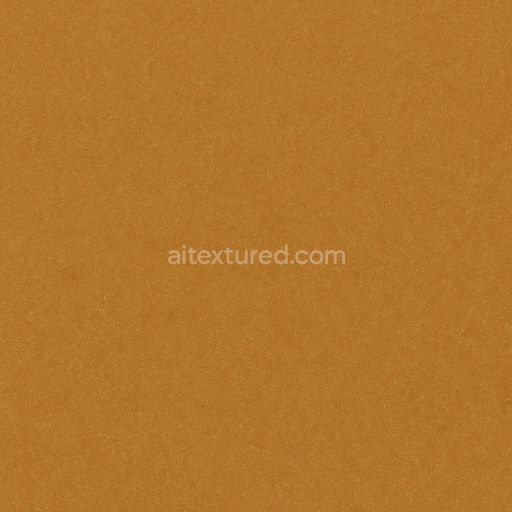
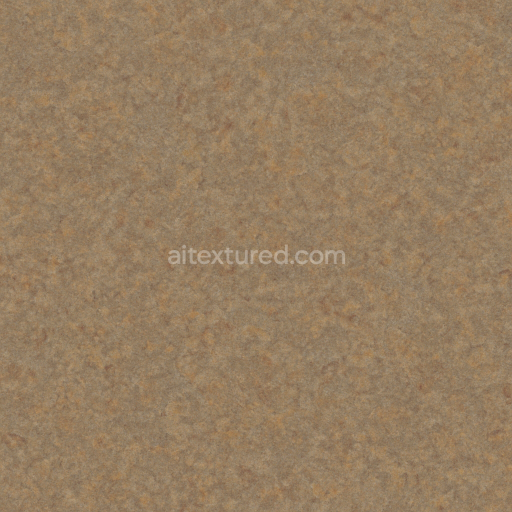
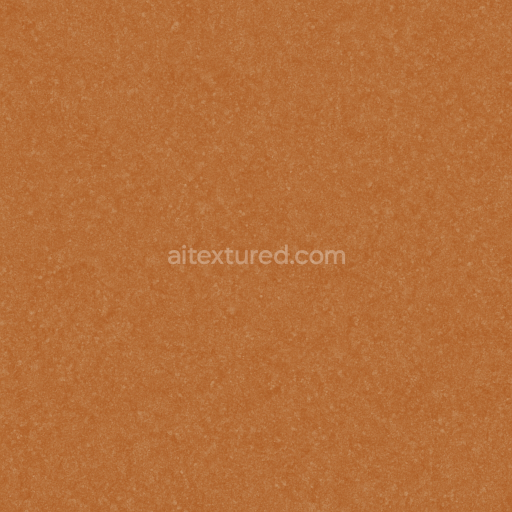
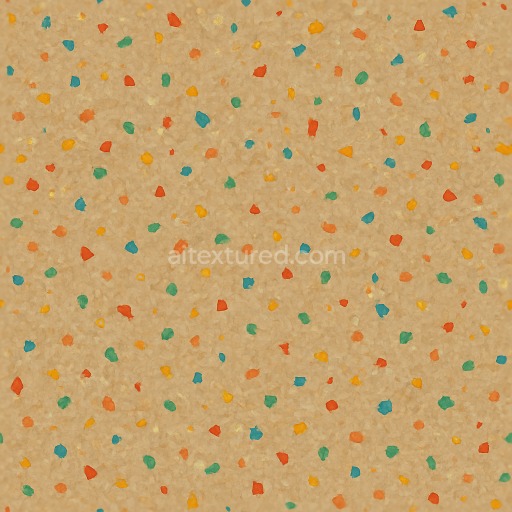
Linoleum Sheet With Waxed Surface And Warm Palette Solid Colors
Seamless texture (tileable) · PNG, WEBP, PBR ZIP. License: AITextured Free Commercial License (FCL) v1.1. Free personal and commercial use. Raw resale, standalone redistribution, mirroring/scraping, competing asset packs, and AI/ML training are not allowed without written permission. Attribution is not required, but appreciated..
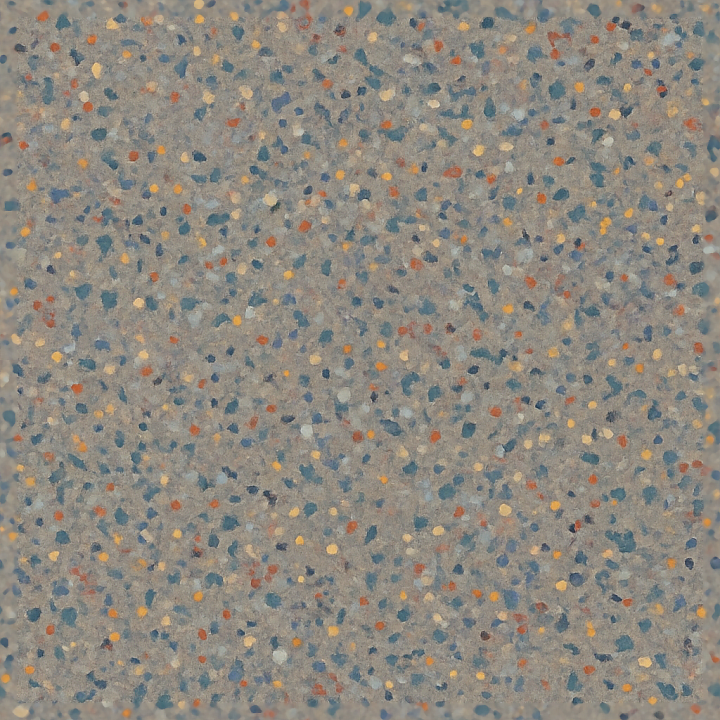
| ID | seamless-3d-texture-pbr-8k-flecked-linoleum-sheet-with-semi-gloss-and-color-flecks |
|---|---|
| Category | Linoleum |
| Formats | PNG, WEBP, PBR ZIP |
| Size | 1k (1024x1024px), 2k (2048x2048px), 4k (4096x4096px), 8k (8192x8192px) |
| Color | sRGB |
| Tileable | Yes |
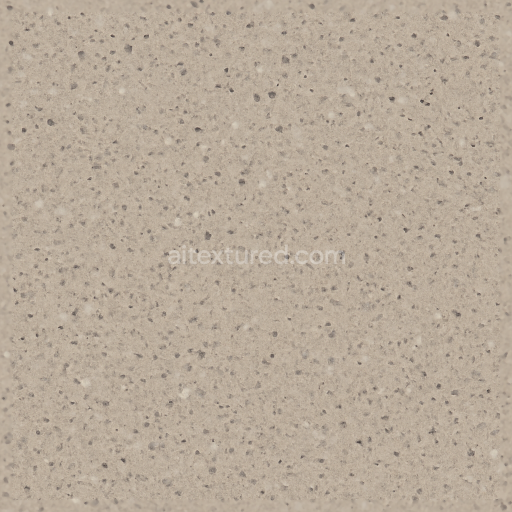
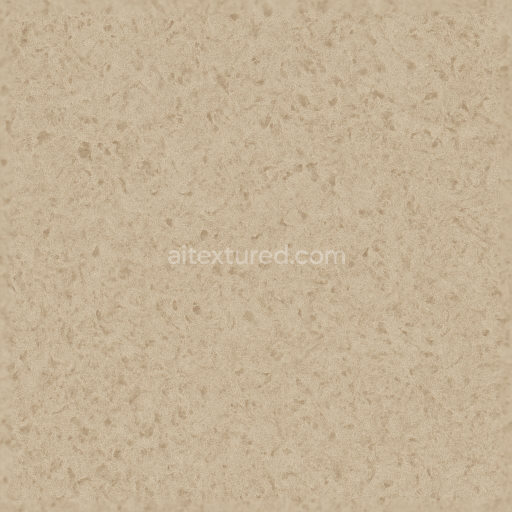
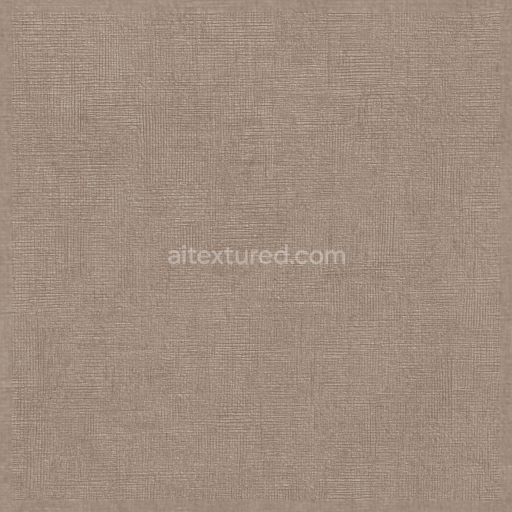
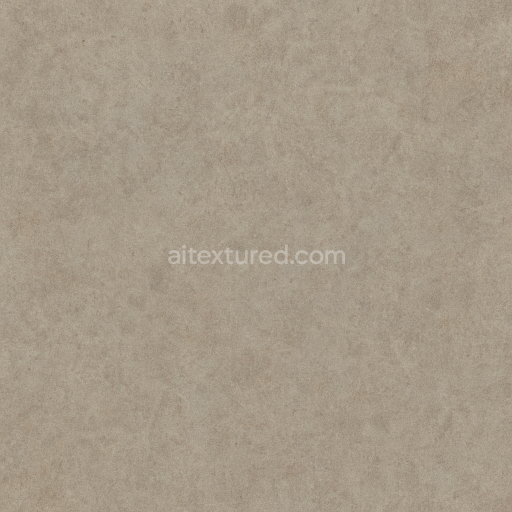
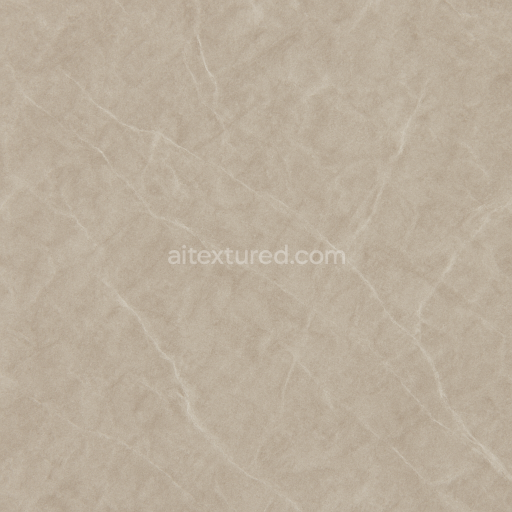
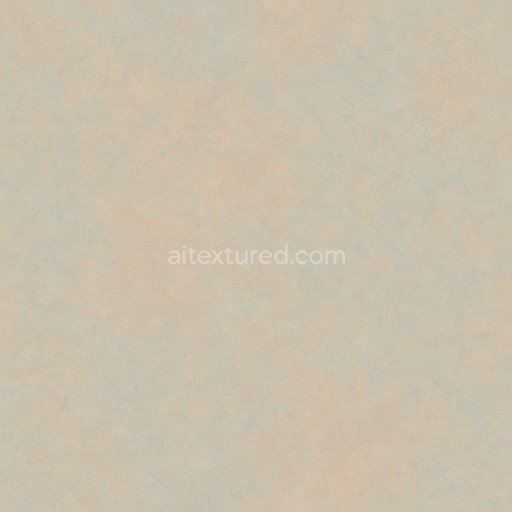
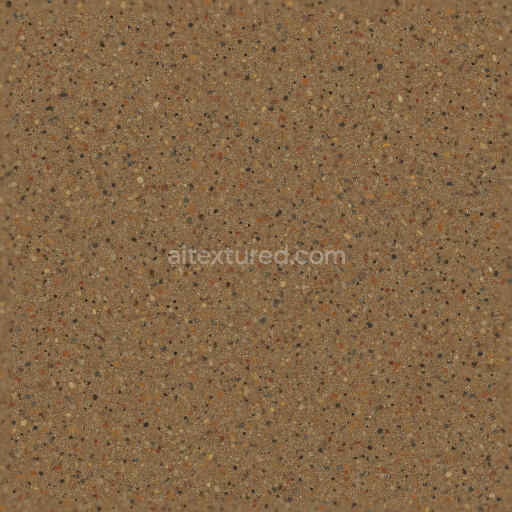
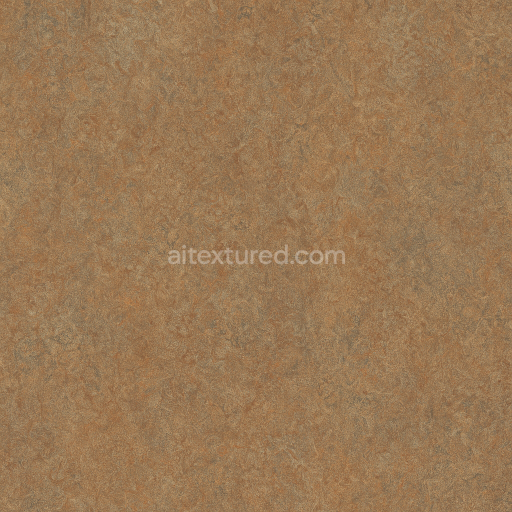
This seamless 3D texture represents a flecked linoleum sheet characterized by a dense, resilient composition commonly used in industrial flooring environments. The base material is primarily linoleum, a composite of natural linseed oil, cork dust, wood flour, and mineral fillers compressed onto a jute backing. This substrate results in a durable yet flexible sheet material, ideal for high-traffic areas requiring both strength and comfort underfoot. The flecked pattern arises from embedded multi-colored pigments and granules dispersed throughout the surface layer, creating a visually engaging texture with subtle color variation. These color flecks are finely distributed, contributing to a semi-gloss finish that reflects light softly while minimizing glare, enhancing the material’s depth and realism.
The geometric form of this texture is uniform and planar, mimicking a sheet layout with minimal irregularities, which maintains a continuous, repeatable surface ideal for seamless tiling. The surface exhibits low porosity, indicating limited moisture absorption and resistance to wear and staining, common attributes of linoleum flooring. The semi-gloss finish is achieved through a polished surface treatment that smooths the linoleum’s natural roughness, balancing reflectivity and diffuse scattering. Colorants used in this texture are a mix of organic and inorganic pigments, carefully blended to produce a rich spectrum of flecks from muted earth tones to vibrant hues, reinforcing the industrial yet lively aesthetic.
From a physically based rendering (PBR) perspective, the BaseColor (Albedo) map captures the multi-color flecks and base linoleum tone without embedded lighting information, ensuring accurate color fidelity under various lighting conditions. The Normal map enhances surface detail by simulating the subtle undulations and textural grain of the linoleum sheet, adding tactile realism. Roughness maps define the semi-gloss nature by varying between smoother, reflective areas and slightly matte flecks, while the Metallic channel remains at zero, reflecting the non-metallic composition of linoleum. Ambient Occlusion maps provide subtle shading in crevices and around flecks, enriching depth perception. Height or Displacement maps are finely tuned to recreate the minimal surface relief typical of linoleum sheets without exaggerated bumps or grooves.
This texture is rendered at an 8K resolution, ensuring exceptional clarity and detail suitable for close-up inspection in 3D environments. It is fully optimized for use in Blender, Unreal Engine, and Unity, facilitating smooth integration into diverse projects ranging from architectural visualization to game development. For practical use, it is recommended to adjust the UV scaling to maintain the natural grain size and fleck distribution, preventing the pattern from appearing either too repetitive or overly stretched. Additionally, tweaking roughness values in the shader can help adapt the semi-gloss finish to different lighting setups or stylistic preferences, while blending height and normal maps can enhance surface realism without compromising performance.
Import the texture maps into Blender with sRGB color space for albedo/base color and Non-Color for normal, roughness, metallic, AO, height, and ORM maps. Connect normal maps through a Normal Map node, then adjust UV scale with a Mapping node so the material repeats naturally on your model.
For the full step-by-step setup, see How to Use Seamless Textures in Blender. Browse related material examples in wood, concrete, and metal.
Yes. This texture is designed as a seamless tileable PBR material, so it can repeat across large surfaces without visible borders.
You can download PNG/WEBP versions and use 1K, 2K, 4K and 8K download options when available on the page.
Yes. The download options and engine-mapped ZIP workflow are designed for Blender, Unreal Engine, Unity Standard, URP and HDRP material pipelines.
Yes. The texture is available under the AITextured free commercial license. Review the license page for redistribution and AI-training restrictions.
Generate, preview, and export seamless PBR materials for Blender, Unity, and Unreal Engine—directly in your browser.
AI text-to-texture: type a prompt and get a seamless, tileable base image ready for PBR workflows (great starting point for materials).
Create a full PBR set (Normal, Roughness, AO, Metallic, etc.) from a single image. Seamless and tiling-friendly.
Instant WebGL viewer: inspect materials on a sphere, plane, and cube. Check tiling and lighting in real time.
Re-packages maps per engine: Unreal (BaseColor + ORM), Unity (Mask/MetallicSmoothness), Blender (separate channels).
PNG ↔ JPG ↔ SVG: fast convert, SVG rasterize, embed/trace options, quality & background controls.