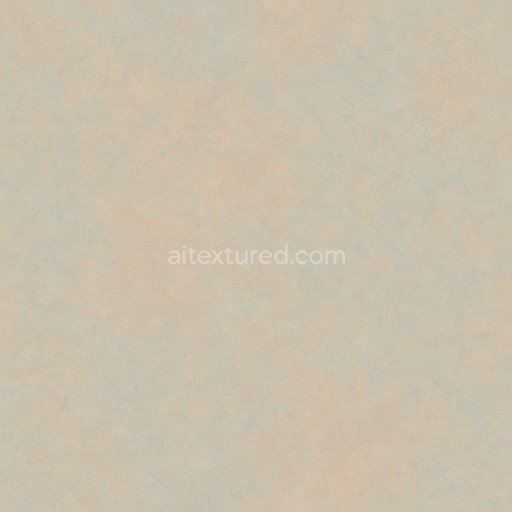
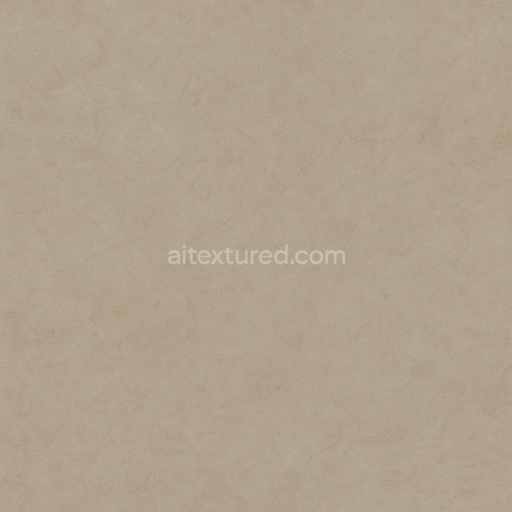
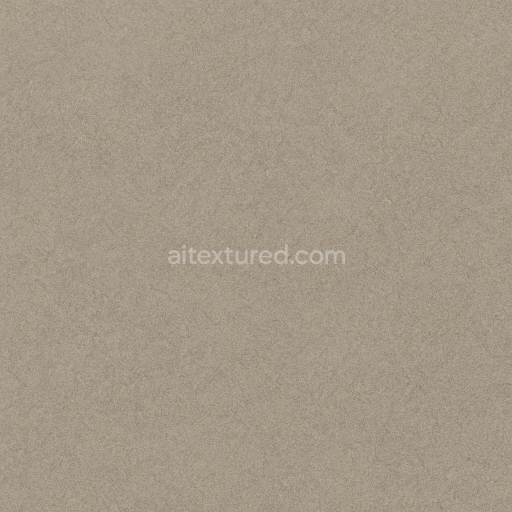
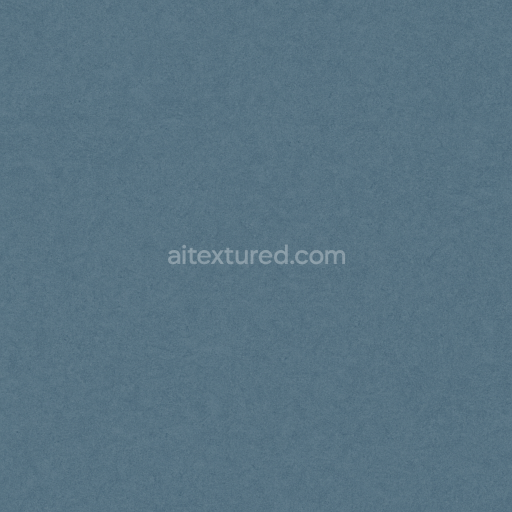
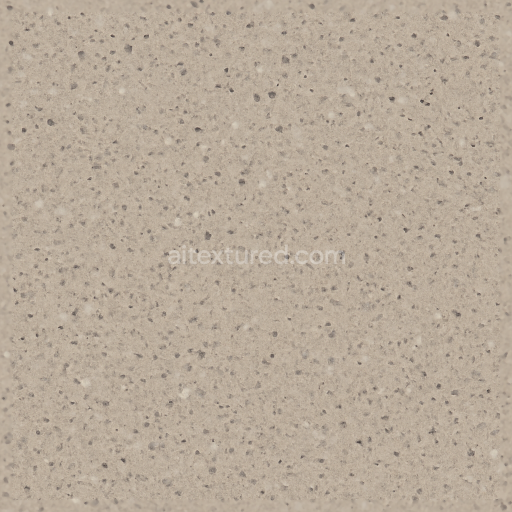
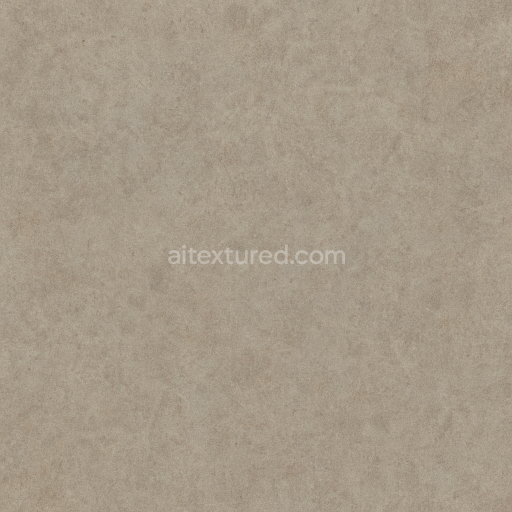
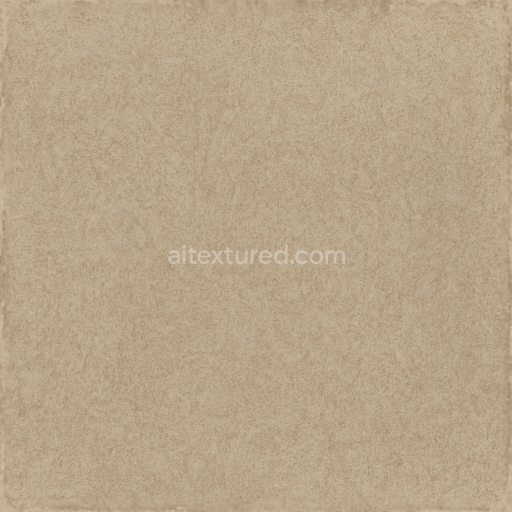
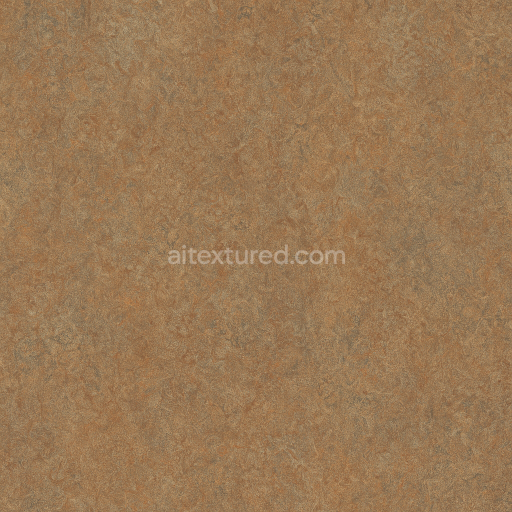
Cushioned Linoleum Sheet With Smooth Finish And Pastel Shades
Seamless texture (tileable) · PNG, WEBP, PBR ZIP. License: AITextured Free Commercial License (FCL) v1.1. Free personal and commercial use. Raw resale, standalone redistribution, mirroring/scraping, competing asset packs, and AI/ML training are not allowed without written permission. Attribution is not required, but appreciated..
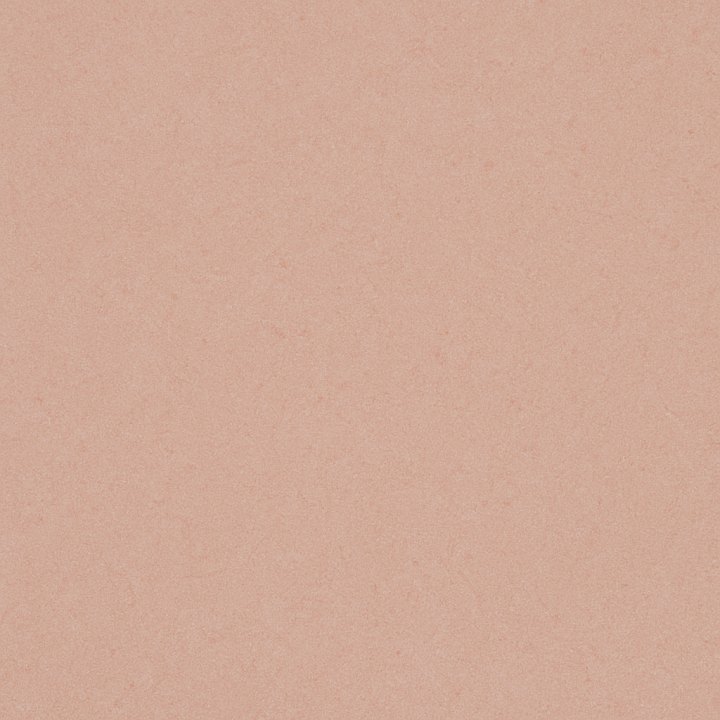
| ID | seamless-3d-texture-pbr-8k-linoleum-sheet-with-polished-surface-and-pastel-shades-solid-colors |
|---|---|
| Category | Linoleum |
| Formats | PNG, WEBP, PBR ZIP |
| Size | 1k (1024x1024px), 2k (2048x2048px), 4k (4096x4096px), 8k (8192x8192px) |
| Color | sRGB |
| Tileable | Yes |
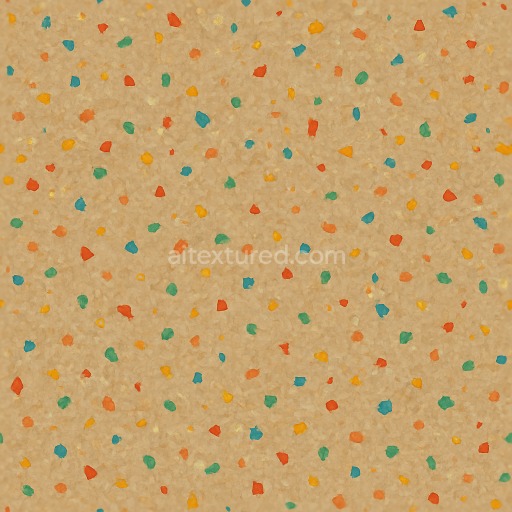
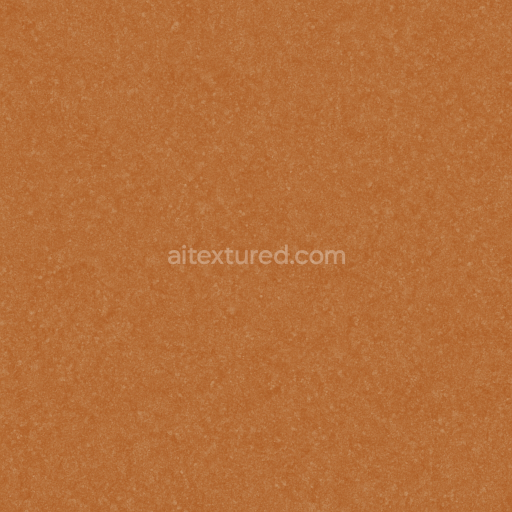
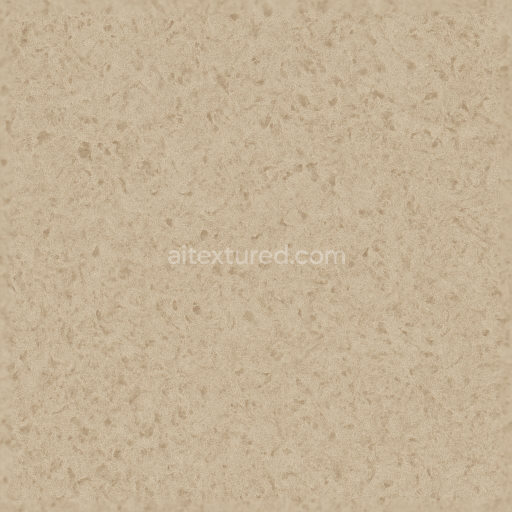
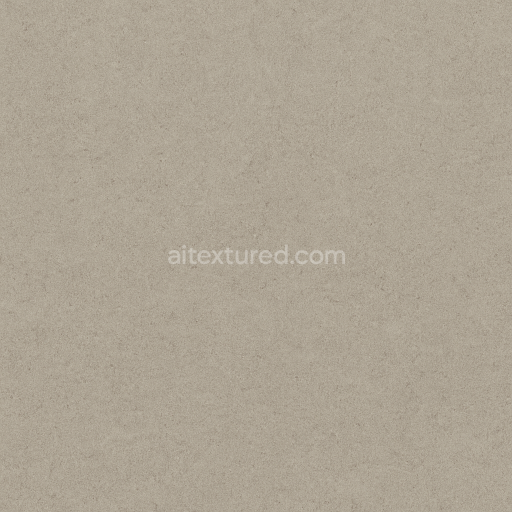
This seamless 3D texture represents a high-resolution 8K PBR linoleum sheet designed with a polished surface and rendered in soft pastel shades featuring solid, uniform colors. The material composition of linoleum typically consists of a natural substrate made from linseed oil, wood flour, cork dust, and mineral fillers, all bound together with a resilient adhesive that provides durability and flexibility. This texture captures the fine grain characteristic of linoleum, reflecting a subtle fibrous pattern embedded within the sheet, which contributes to the material’s tactile quality and visual depth without compromising the smoothness of the surface.
The geometric form of this texture is a continuous, unbroken sheet with a uniform texture that simulates the commercial-grade resilient flooring often used in interiors requiring both aesthetic appeal and functionality. The polished finish adds a slight sheen, which is accurately conveyed through the roughness map to balance reflections and diffuse lighting realistically. The base color (albedo) channel features solid pastel tones, carefully calibrated to maintain color consistency across the surface, while the normal map enhances the subtle fine grain and micro-variations that prevent the surface from appearing overly flat or artificial.
In terms of PBR channel mapping, the BaseColor channel provides the soft pastel hues applied uniformly across the texture. The Normal map introduces the delicate grain and minor surface undulations, creating a tactile impression of fine fibrous matter. The Roughness map controls the polished yet matte finish, ensuring the surface reflects light softly rather than harshly, while the Metallic channel remains neutral as linoleum is a non-metallic material. Ambient Occlusion adds natural shadowing within the grain details for depth, and the Height/Displacement map subtly emphasizes the micro-relief of the fine grain, enhancing realism in close-up views.
This texture is optimized for seamless tiling and is fully compatible with Blender, Unreal Engine, and Unity, making it suitable for a wide range of architectural visualizations, game environments, and product renderings. For practical application, it is recommended to carefully adjust the UV scale to avoid overly repetitive patterns and to fine-tune the roughness values depending on the level of glossiness desired. Additionally, blending the height map with the normal map can enhance the perception of depth without adding excessive geometry, which helps maintain performance while improving visual fidelity in real-time engines.
Import the texture maps into Blender with sRGB color space for albedo/base color and Non-Color for normal, roughness, metallic, AO, height, and ORM maps. Connect normal maps through a Normal Map node, then adjust UV scale with a Mapping node so the material repeats naturally on your model.
For the full step-by-step setup, see How to Use Seamless Textures in Blender. Browse related material examples in wood, concrete, and metal.
Yes. This texture is designed as a seamless tileable PBR material, so it can repeat across large surfaces without visible borders.
You can download PNG/WEBP versions and use 1K, 2K, 4K and 8K download options when available on the page.
Yes. The download options and engine-mapped ZIP workflow are designed for Blender, Unreal Engine, Unity Standard, URP and HDRP material pipelines.
Yes. The texture is available under the AITextured free commercial license. Review the license page for redistribution and AI-training restrictions.
Generate, preview, and export seamless PBR materials for Blender, Unity, and Unreal Engine—directly in your browser.
AI text-to-texture: type a prompt and get a seamless, tileable base image ready for PBR workflows (great starting point for materials).
Create a full PBR set (Normal, Roughness, AO, Metallic, etc.) from a single image. Seamless and tiling-friendly.
Instant WebGL viewer: inspect materials on a sphere, plane, and cube. Check tiling and lighting in real time.
Re-packages maps per engine: Unreal (BaseColor + ORM), Unity (Mask/MetallicSmoothness), Blender (separate channels).
PNG ↔ JPG ↔ SVG: fast convert, SVG rasterize, embed/trace options, quality & background controls.