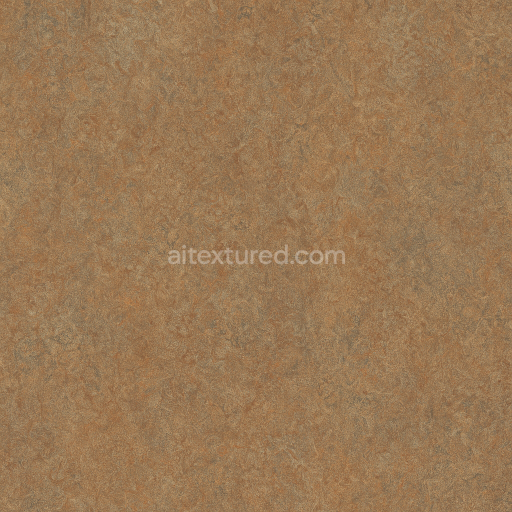
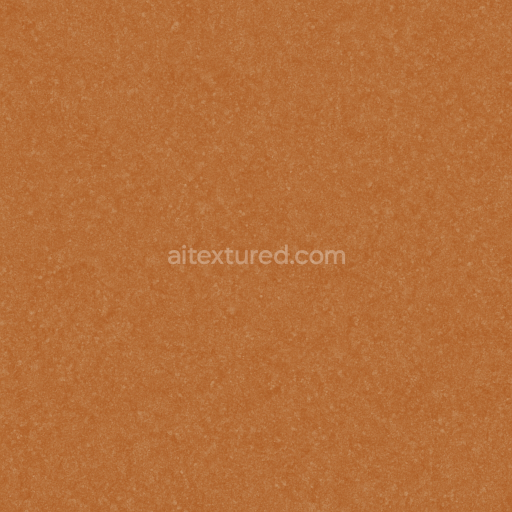
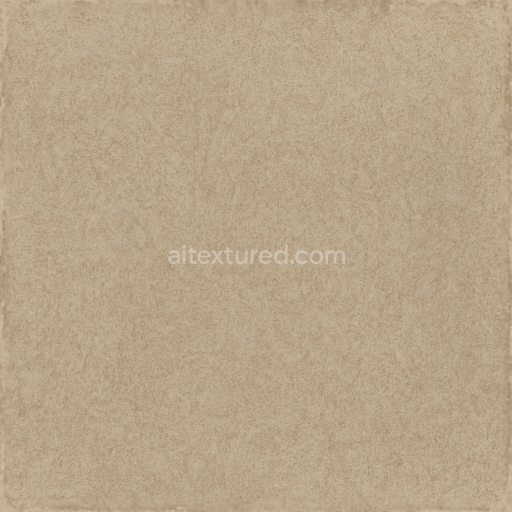
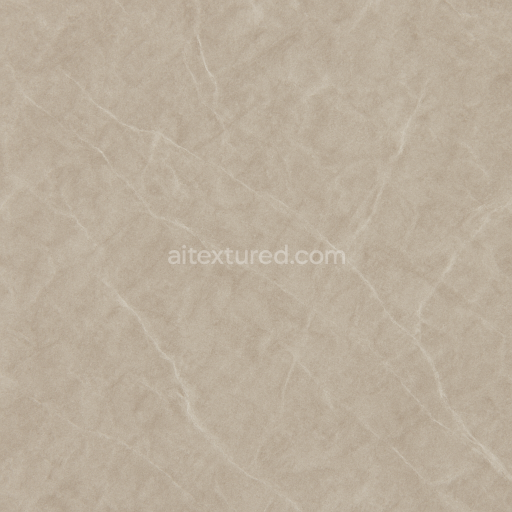
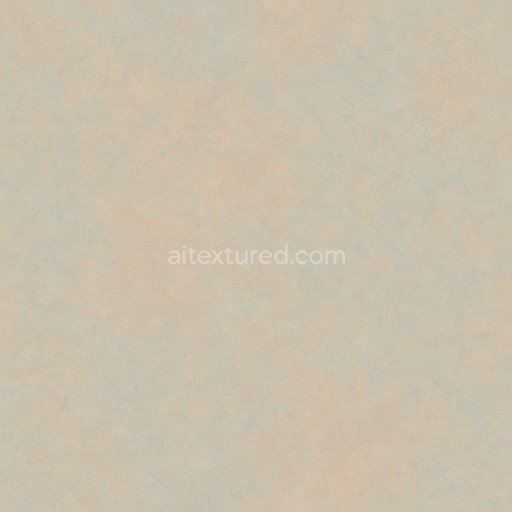
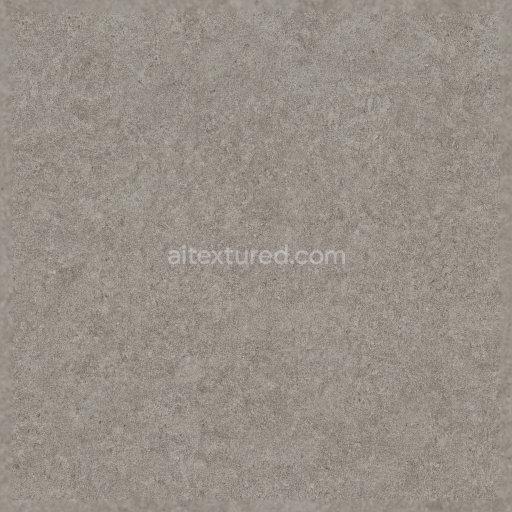
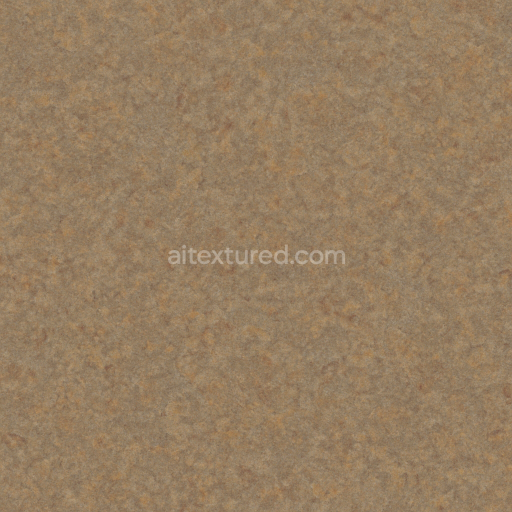
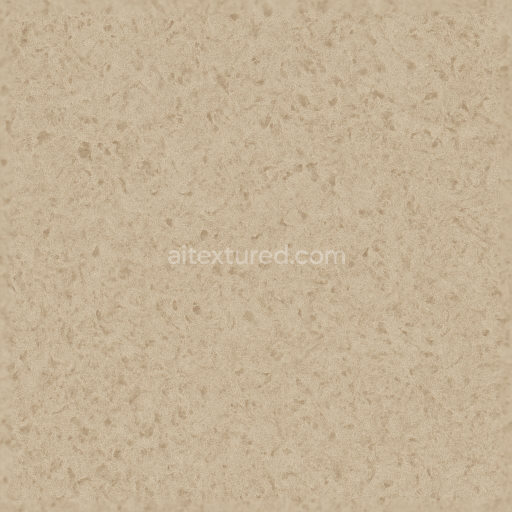
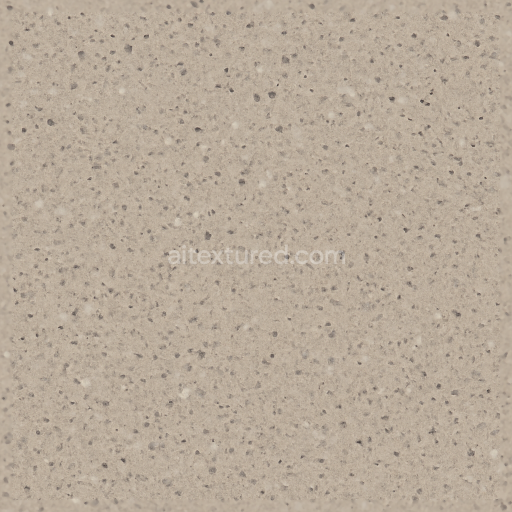
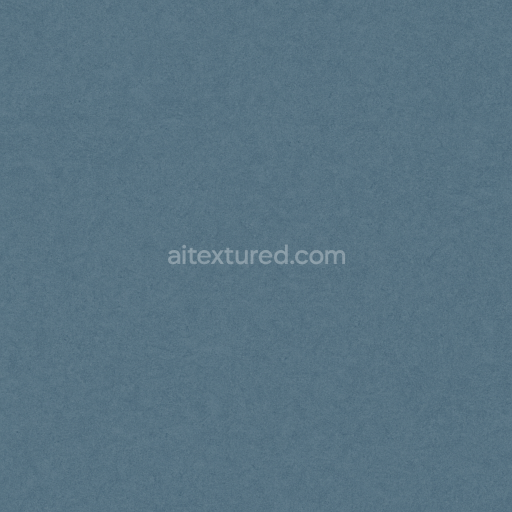
Linoleum Sheet With Scratched Surface And Semi Gloss Finish In Earth Tones
Seamless texture (tileable) · PNG, WEBP, PBR ZIP. License: AITextured Free Commercial License (FCL) v1.1. Free personal and commercial use. Raw resale, standalone redistribution, mirroring/scraping, competing asset packs, and AI/ML training are not allowed without written permission. Attribution is not required, but appreciated..
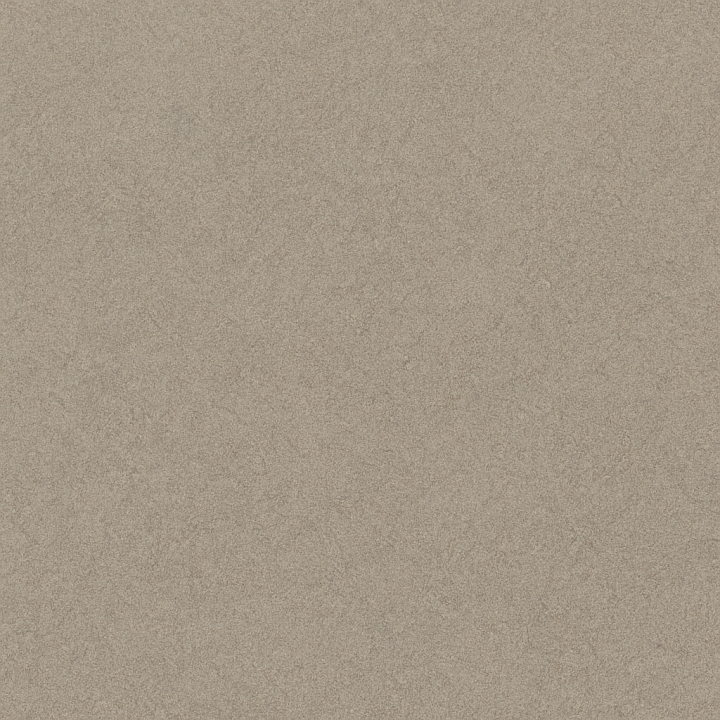
| ID | seamless-3d-texture-pbr-8k-linoleum-sheet-with-sound-absorbent-textured-surface-and-matte-finish |
|---|---|
| Category | Linoleum |
| Formats | PNG, WEBP, PBR ZIP |
| Size | 1k (1024x1024px), 2k (2048x2048px), 4k (4096x4096px), 8k (8192x8192px) |
| Color | sRGB |
| Tileable | Yes |
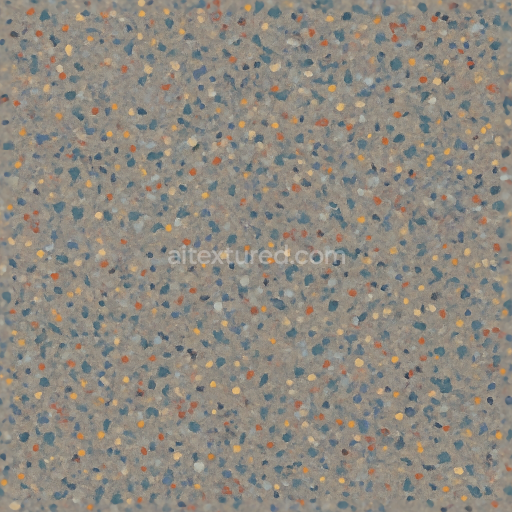
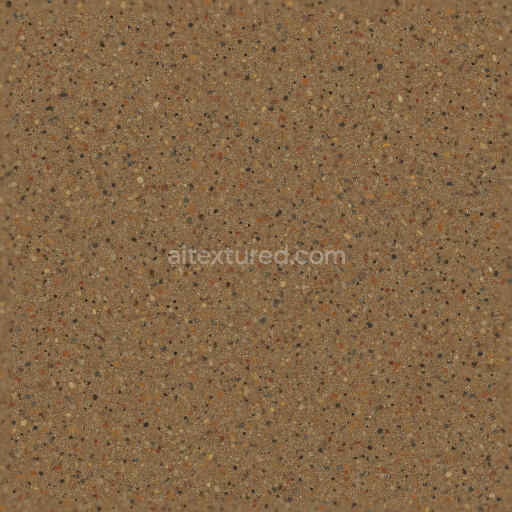
This seamless 3D texture represents a linoleum sheet designed specifically for resilient commercial flooring applications. The material is composed primarily of natural linseed oil combined with wood flour and cork dust as aggregates, bonded within a durable jute backing substrate. This combination results in a dense yet flexible sheet that provides excellent sound absorption and impact resilience. The surface exhibits a fine grain geometric pattern resembling tightly packed micro-granules, uniformly distributed across the sheet to create a subtle textured effect. The form maintains a consistent thickness and flat profile, ideal for smooth installation while contributing to its noise-reducing properties.
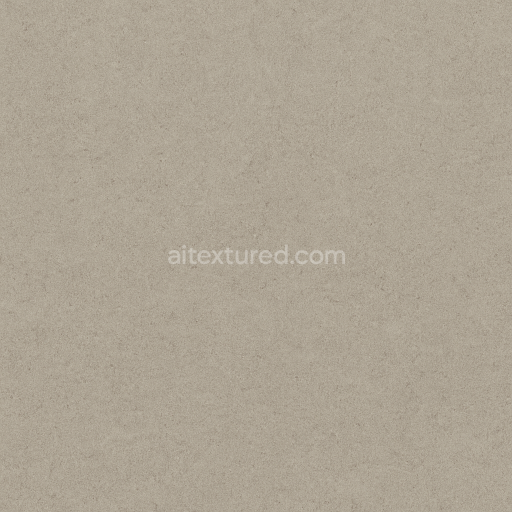
The texture's matte finish is achieved through a finely controlled surface treatment that minimizes reflectivity and glare. This finish showcases a neutral palette with muted earth tones, achieved by carefully blended natural pigments mixed into the base color layer. These pigments provide a soft, organic appearance that integrates well into various architectural environments. The linoleum’s porosity is low, contributing to its durability and ease of maintenance, while the fine grain texture enhances tactile grip and visual interest without overwhelming the design.
In terms of Physically Based Rendering (PBR) channels, the BaseColor (Albedo) map captures the nuanced neutral hues and subtle pigment variations. The Normal map defines the delicate fine grain texture and micro-reliefs that simulate the sound-absorbing surface structure. Roughness maps emphasize the matte finish by distributing reflectivity evenly with minimal specular highlights, while the Metallic channel remains near zero, reflecting the non-metallic organic composition. Ambient Occlusion maps enhance the perception of depth within the grain pattern, and Height/Displacement maps provide subtle surface undulations that increase realism under dynamic lighting.
This texture is rendered at an ultra-high 8K resolution, ensuring exceptional detail and clarity for close-up views and large-scale applications. It is fully optimized and compatible with Blender, Unreal Engine, and Unity, making it suitable for architectural visualization, game environments, and VR simulations. For best results during implementation, it is recommended to carefully adjust the UV scale to maintain the natural grain size relative to the scene context. Additionally, blending a slight height map with the normal map can enhance the subtle depth effects without creating unnatural surface distortions, while tuning roughness can help simulate varying wear levels or cleaning states.
Import the texture maps into Blender with sRGB color space for albedo/base color and Non-Color for normal, roughness, metallic, AO, height, and ORM maps. Connect normal maps through a Normal Map node, then adjust UV scale with a Mapping node so the material repeats naturally on your model.
For the full step-by-step setup, see How to Use Seamless Textures in Blender. Browse related material examples in wood, concrete, and metal.
Yes. This texture is designed as a seamless tileable PBR material, so it can repeat across large surfaces without visible borders.
You can download PNG/WEBP versions and use 1K, 2K, 4K and 8K download options when available on the page.
Yes. The download options and engine-mapped ZIP workflow are designed for Blender, Unreal Engine, Unity Standard, URP and HDRP material pipelines.
Yes. The texture is available under the AITextured free commercial license. Review the license page for redistribution and AI-training restrictions.
Generate, preview, and export seamless PBR materials for Blender, Unity, and Unreal Engine—directly in your browser.
AI text-to-texture: type a prompt and get a seamless, tileable base image ready for PBR workflows (great starting point for materials).
Create a full PBR set (Normal, Roughness, AO, Metallic, etc.) from a single image. Seamless and tiling-friendly.
Instant WebGL viewer: inspect materials on a sphere, plane, and cube. Check tiling and lighting in real time.
Re-packages maps per engine: Unreal (BaseColor + ORM), Unity (Mask/MetallicSmoothness), Blender (separate channels).
PNG ↔ JPG ↔ SVG: fast convert, SVG rasterize, embed/trace options, quality & background controls.