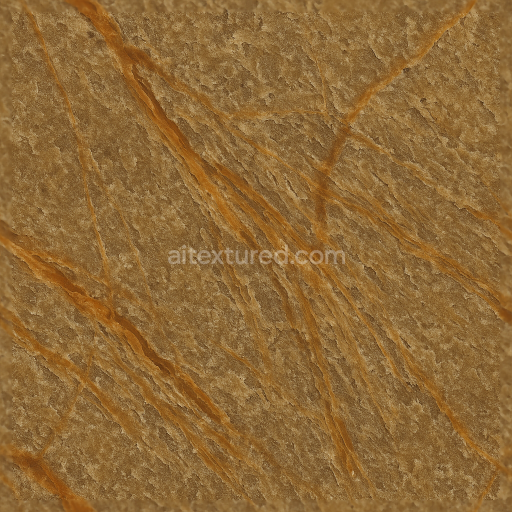
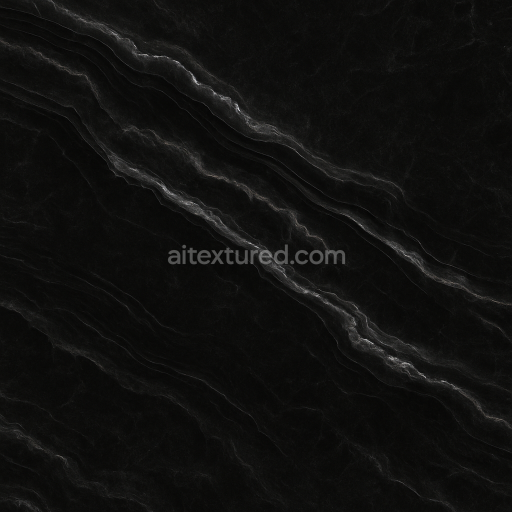
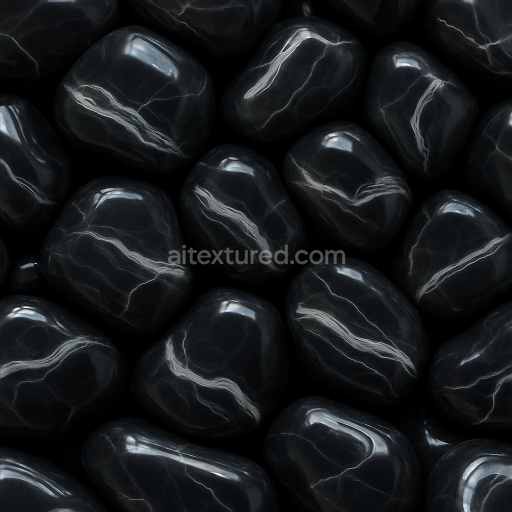
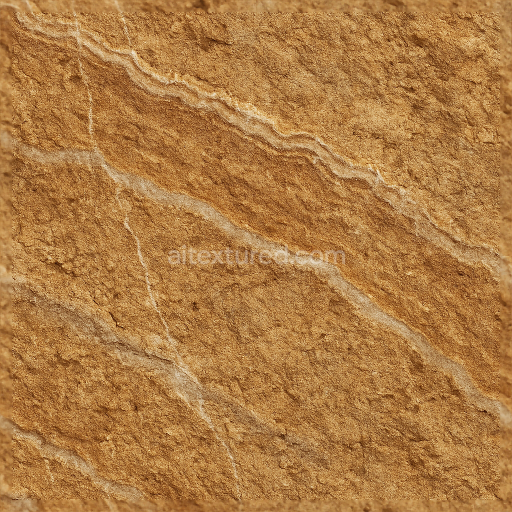
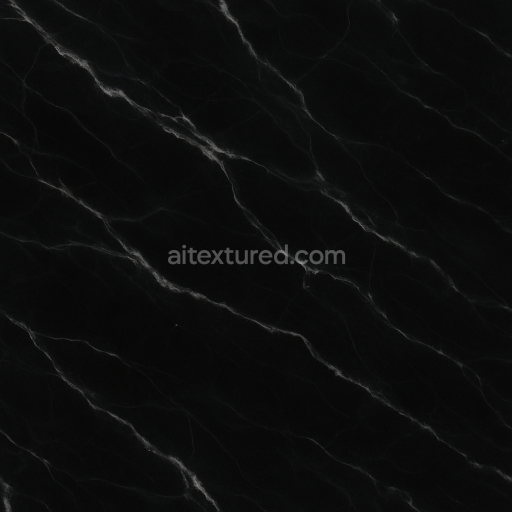
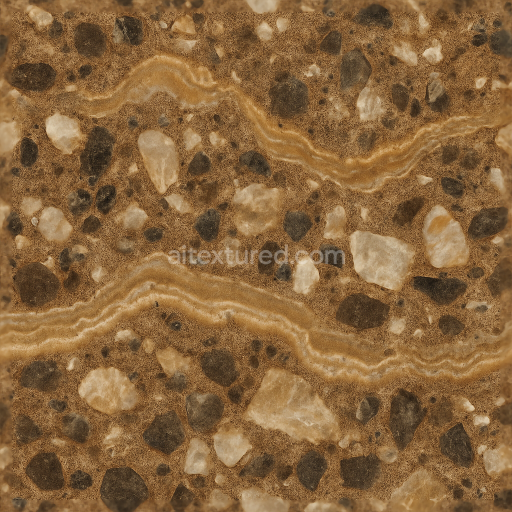
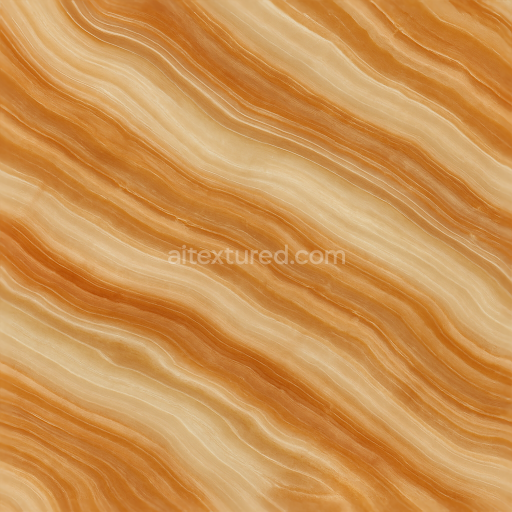
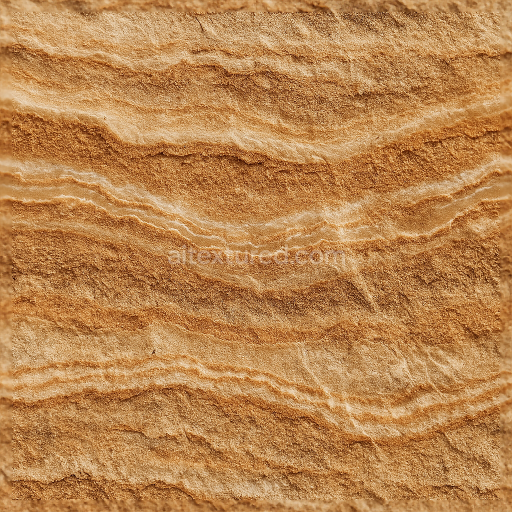
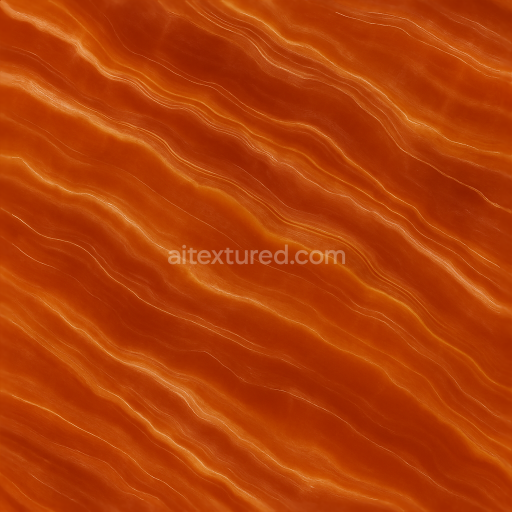
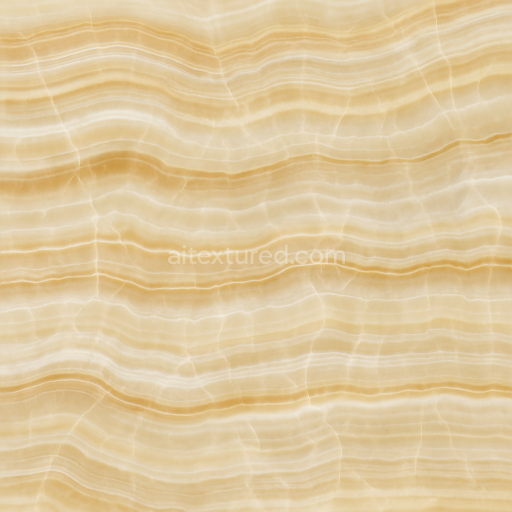
Onyx Fissures With Onyx Rough Surface And Natural Mineral Veins
Seamless texture (tileable) · PNG, WEBP, PBR ZIP.
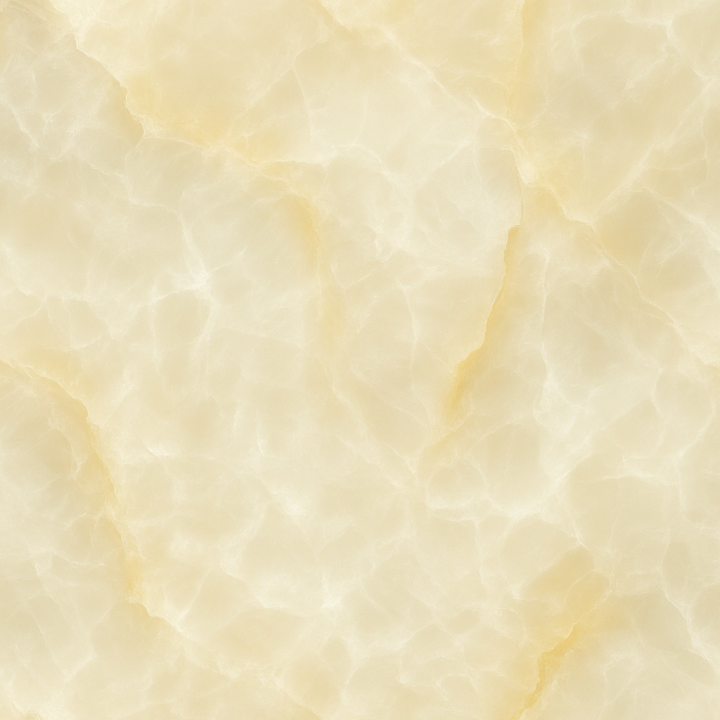
| ID | seamless-3d-texture-pbr-8k-translucent-onyx-with-onyx-glow-and-smooth-polished-finish |
|---|---|
| Category | Onyx |
| Formats | PNG, WEBP, PBR ZIP |
| Size | 1k (1024x1024px), 2k (2048x2048px), 4k (4096x4096px), 8k (8192x8192px) |
| Tileable | Yes |
This seamless 3D PBR texture showcases a high-resolution 8K depiction of translucent onyx, characterized by its smooth, polished finish and a subtle, intrinsic onyx glow. The material emulates the natural crystalline structure of onyx, capturing the intricate veined patterns and varying translucency that contribute to its distinctive depth and richness. The base substrate mimics the dense mineral matrix typical of onyx, with subtle embedded grain and layered banding that reflect natural mineral formation. This composite structure is rendered through precise base color (albedo) maps that reproduce the gradient of creamy whites, soft browns, and faint amber hues inherent to onyx, while the normal and height maps define the delicate undulations and veining depth, enhancing tactile realism without disrupting the polished surface.
The texture’s surface finish is meticulously modeled to represent a highly polished, reflective quality, simulating the natural shine and smoothness that onyx acquires through fine sanding and sealing processes. The roughness map is calibrated to maintain low roughness values, ensuring a glossy, almost glass-like reflectivity that interacts realistically with light sources, enabling the subtle onyx glow to emanate through the translucent layers. Ambient occlusion channels add depth to the veined recesses, accentuating the mineral’s complex internal geometry and reinforcing the perception of translucency and layered crystalline structure. The metallic channel remains minimal or at zero, consistent with onyx’s non-metallic nature, focusing instead on the interplay between translucency and reflectivity.
From a geometric perspective, the texture simulates a natural veined pattern rather than a repetitive tile or uniform structure, with seamless tiling carefully engineered to avoid noticeable repetition across large surfaces. This makes it ideal for architectural visualizations, interior design elements like countertops or wall claddings, and product visualizations requiring photorealistic mineral surfaces. The texture is fully compatible and optimized for major 3D engines such as Blender, Unreal Engine, and Unity, supporting physically based rendering workflows with all necessary maps included for immediate integration.
When applying this translucent onyx texture, it is recommended to adjust the UV scale to maintain natural vein proportions, avoiding excessive repetition or distortion that can break immersion. Slight roughness tuning can enhance realism under different lighting conditions, particularly if simulating wear or subtle surface imperfections. Additionally, blending height and normal maps with parallax techniques can further emphasize the depth of the veining and crystalline layers, enriching the overall tactile quality without compromising the polished finish.
Import the texture maps into Blender with sRGB color space for albedo/base color and Non-Color for normal, roughness, metallic, AO, height, and ORM maps. Connect normal maps through a Normal Map node, then adjust UV scale with a Mapping node so the material repeats naturally on your model.
For the full step-by-step setup, see How to Use Seamless Textures in Blender. Browse related material examples in wood, concrete, and metal.
Yes. This texture is designed as a seamless tileable PBR material, so it can repeat across large surfaces without visible borders.
Use the download controls on this page: they expose the available PNG, WEBP or engine ZIP choices and supported resolutions for this asset.
Use the engine ZIP choices to package compatible source maps for Blender, Unreal Engine or Unity, then verify the imported material in the target application.
Commercial-use permission is not verified for this record. Confirm the original source and license before production use.




Generate maps from existing images, preview materials, convert channels, and package compatible inputs for Blender, Unity, and Unreal Engine.
Choose a verified workflow for generating maps, previewing tiling, converting channels, or starting from the texture catalog.
Derive Normal, Roughness, AO, Metallic, Height and optional ORM maps from one or more source images, then review the results.
Instant WebGL viewer: inspect materials on a sphere, plane, and cube. Check tiling and lighting in real time.
Re-packages maps per engine: Unreal (BaseColor + ORM), Unity (Mask/MetallicSmoothness), Blender (separate channels).
PNG ↔ JPG ↔ SVG: fast convert, SVG rasterize, embed/trace options, quality & background controls.