
Seamless 8K PBR 3D Texture Of Glossy Glazed Ceramic Tile With Black And White Monochrome…
Seamless texture (tileable) · PNG, WEBP, PBR ZIP.
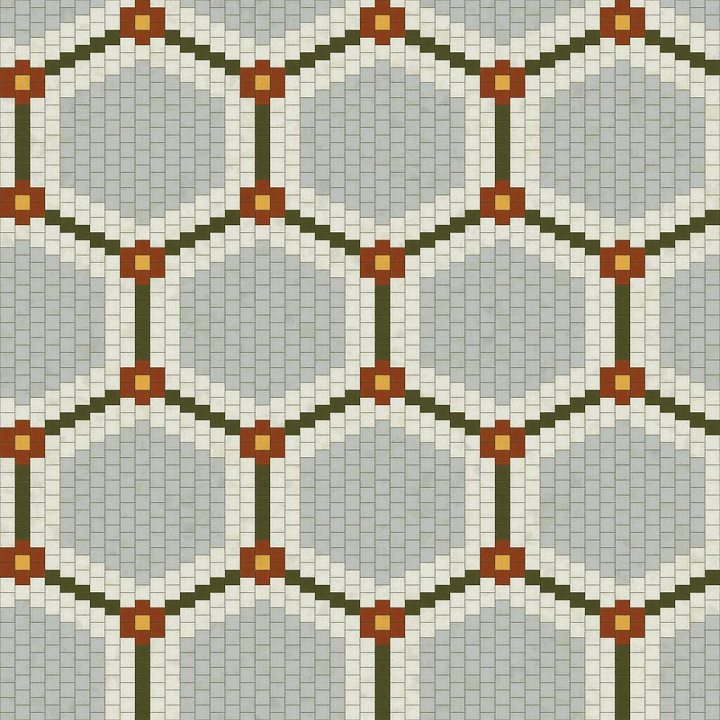
| ID | vintage-tile-texture-with-hexagonal-pattern-for-restaurants-free-pbr |
|---|---|
| Category | Tile |
| Formats | PNG, WEBP, PBR ZIP |
| Size | 1k (1024x1024px), 2k (2048x2048px), 4k (4096x4096px), 8k (8192x8192px) |
| Tileable | Yes |
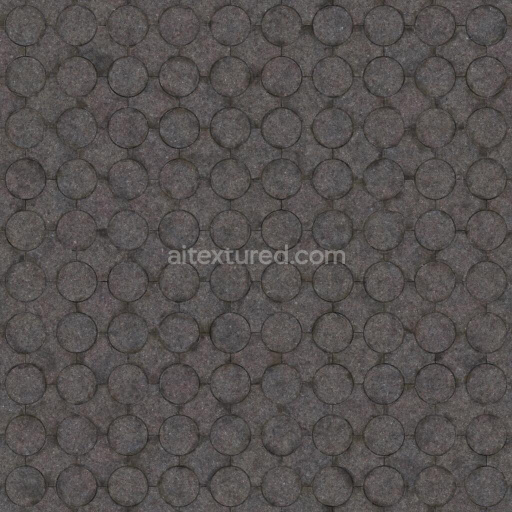
This vintage tile texture features a distinctive hexagonal pattern commonly found in classic restaurant flooring, offering an authentic and timeless aesthetic. The base substrate is ceramic, known for its durability and natural porosity, which allows subtle weathering effects such as minor cracks, chips, and surface dirt to accumulate over time. These imperfections are captured in high detail, revealing the age and character of each tile upon close examination. The binder is a traditional mineral-based grout that has slightly darkened with wear, contributing to the overall vintage feel. The surface finish exhibits a matte, slightly rough texture due to years of foot traffic and cleaning, with muted earth tones enhanced by natural oxide pigments and subtle mineral deposits that simulate genuine ceramic aging.
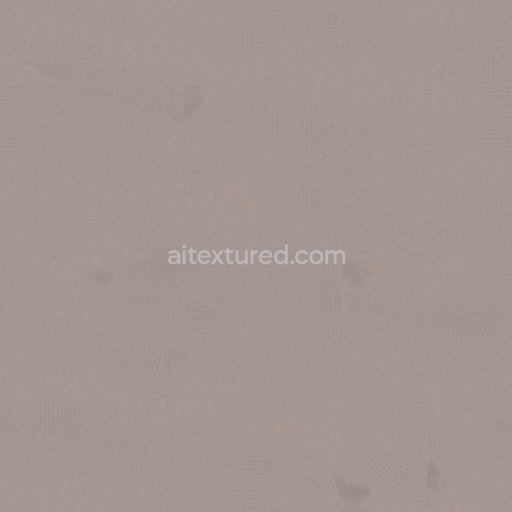
In the PBR workflow, this texture’s BaseColor (Albedo) channel displays the nuanced color variations and dirt deposits on the tiles, while the Normal map accentuates the fine cracks, grout lines, and surface irregularities. The Roughness map effectively conveys the worn matte finish, balancing smooth tile surfaces with rougher edges and dirt patches. There is minimal Metallic content, reflecting the ceramic nature of the material, and the Ambient Occlusion channel emphasizes the grout depth and accumulated grime in recesses. The Height/Displacement map enhances the subtle relief of the hexagonal pattern and surface damage, providing a realistic sense of depth and tactility. This texture is available in up to 8K resolution, ensuring crisp detail for close-up renders and is fully optimized for use in Blender, Unreal Engine, and Unity projects.
Besides its obvious suitability for restaurant floors, this vintage hexagonal tile texture also works excellently for home flooring applications, adding a nostalgic charm to kitchens, foyers, or bathrooms. For best results in 3D applications, it is advisable to adjust the UV scale to avoid repetitive patterns, and fine-tune the roughness values to match desired wear levels—reducing roughness slightly can simulate polished areas, while increasing it emphasizes dirt and weathering. Utilizing the height map with subtle parallax mapping can further enhance realism by giving depth to tile edges and grout lines without excessive geometry. This texture combines authentic material composition and advanced PBR detailing, making it a versatile and high-quality asset for architectural visualization and game environments alike.
Import the texture maps into Blender with sRGB color space for albedo/base color and Non-Color for normal, roughness, metallic, AO, height, and ORM maps. Connect normal maps through a Normal Map node, then adjust UV scale with a Mapping node so the material repeats naturally on your model.
For the full step-by-step setup, see How to Use Seamless Textures in Blender. Browse related material examples in wood, concrete, and metal.
Yes. This texture is designed as a seamless tileable PBR material, so it can repeat across large surfaces without visible borders.
Use the download controls on this page: they expose the available PNG, WEBP or engine ZIP choices and supported resolutions for this asset.
Use the engine ZIP choices to package compatible source maps for Blender, Unreal Engine or Unity, then verify the imported material in the target application.
Commercial-use permission is not verified for this record. Confirm the original source and license before production use.





Generate maps from existing images, preview materials, convert channels, and package compatible inputs for Blender, Unity, and Unreal Engine.
Choose a verified workflow for generating maps, previewing tiling, converting channels, or starting from the texture catalog.
Derive Normal, Roughness, AO, Metallic, Height and optional ORM maps from one or more source images, then review the results.
Instant WebGL viewer: inspect materials on a sphere, plane, and cube. Check tiling and lighting in real time.
Re-packages maps per engine: Unreal (BaseColor + ORM), Unity (Mask/MetallicSmoothness), Blender (separate channels).
PNG ↔ JPG ↔ SVG: fast convert, SVG rasterize, embed/trace options, quality & background controls.