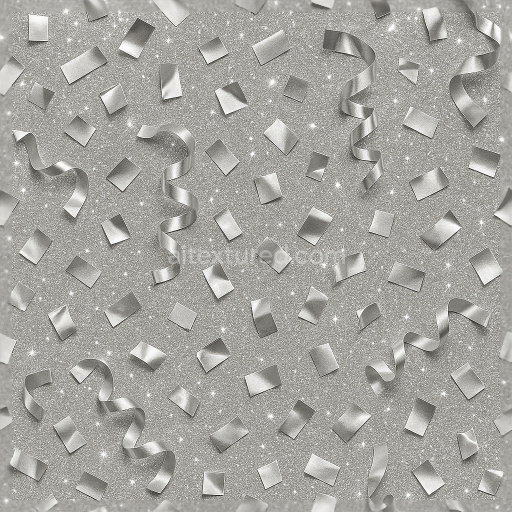
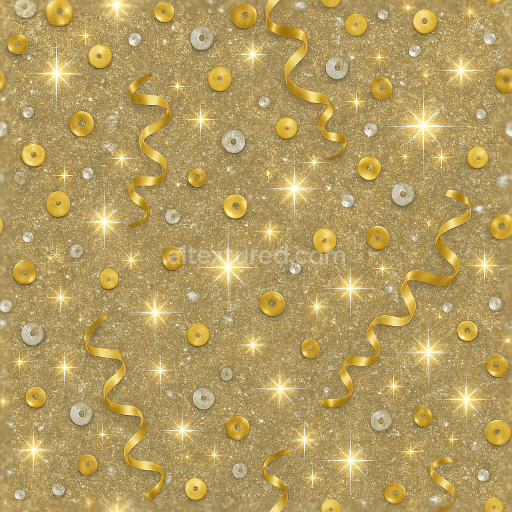
Silver Foil Metallic Confetti And Party Popper Sparkle Effect For New Year
Seamless texture (tileable) · PNG, WEBP, PBR ZIP.
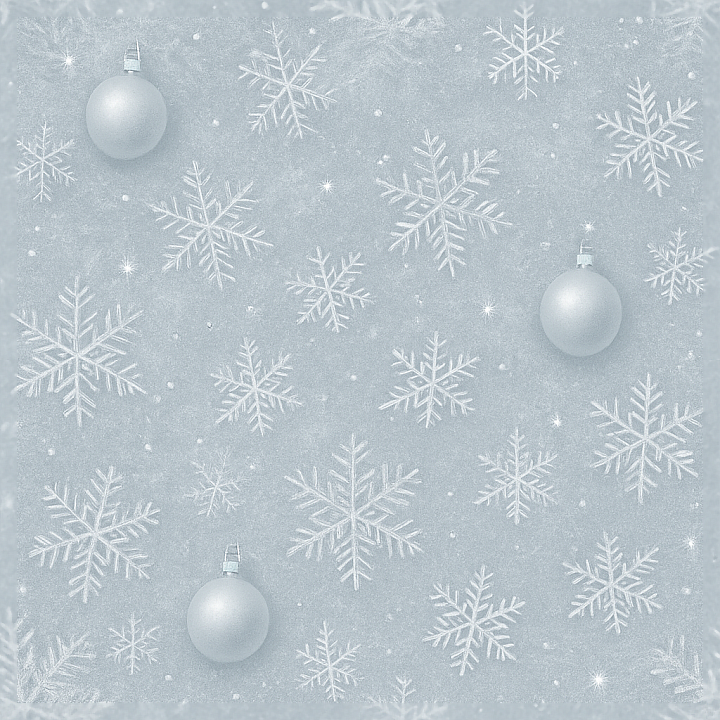
| ID | seamless-3d-texture-pbr-8k-frosted-glass-and-ice-crystals-winter-frost-for-new-year |
|---|---|
| Category | New Year |
| Formats | PNG, WEBP, PBR ZIP |
| Size | 1k (1024x1024px), 2k (2048x2048px), 4k (4096x4096px), 8k (8192x8192px) |
| Tileable | Yes |
This seamless 3D texture presents a high-fidelity depiction of frosted glass intertwined with intricate ice crystals, designed to evoke the serene beauty of winter frost and snowflakes. The base material simulates a translucent glass substrate, characterized by a slightly diffused surface that captures the essence of frost formed by minute ice crystals. These crystals appear as delicate geometric patterns—sharp, angular, and multifaceted—arranged in an organic yet repetitive lattice that mimics natural snowflake formations. The texture’s form combines smooth, polished glass areas with raised crystalline ridges, creating subtle depth and a tactile contrast between the slick glass and rough frost.
The material composition suggests a glass foundation bound with microscopic frost layers acting as a semi-porous coating. This frost layer is composed of fine ice aggregates and microfibers that scatter light, producing the characteristic sparkle dust and celebration glow effects. The surface finish balances a soft matte roughness on the frost with glossy highlights on exposed glass. Color-wise, the texture embraces a predominantly icy palette of pale blues and whites, enhanced by slight opalescent pigments that simulate light refraction through frozen water. These colorants are carefully integrated within the BaseColor (Albedo) channel to provide subtle translucency and the illusion of depth beneath the surface.
In terms of PBR mapping, the Normal map captures the intricate relief of ice crystal edges and frosted patterns, enhancing surface detail without harsh shadows. The Roughness channel varies across the texture, with lower values on the glass portions to simulate smooth reflections, and higher values on frosted areas for diffused scattering. The Metallic channel remains near zero, consistent with dielectric glass materials, while the Ambient Occlusion map accentuates crevices and overlaps between crystals, adding realism to shadowed regions. Height and Displacement maps provide fine control over the crystalline elevations, reinforcing the tactile sensation of frost buildup.
Rendered at an impressive 8K resolution, this texture ensures exceptional clarity and detail, making it well-suited for high-end visualizations in Blender, Unreal Engine, and Unity. Its seamless tiling capability supports expansive winter scenes without visible repetition, ideal for architectural visualization, product rendering, or holiday-themed environments. For optimal results, it is advisable to adjust the UV scale to maintain natural crystal proportions and to fine-tune the Roughness map to balance between sparkle and frost opacity. Additionally, blending the Height map with Normal details can enhance the three-dimensional effect of ice crystals under varying lighting conditions.
Import the texture maps into Blender with sRGB color space for albedo/base color and Non-Color for normal, roughness, metallic, AO, height, and ORM maps. Connect normal maps through a Normal Map node, then adjust UV scale with a Mapping node so the material repeats naturally on your model.
For the full step-by-step setup, see How to Use Seamless Textures in Blender. Browse related material examples in wood, concrete, and metal.
Yes. This texture is designed as a seamless tileable PBR material, so it can repeat across large surfaces without visible borders.
Use the download controls on this page: they expose the available PNG, WEBP or engine ZIP choices and supported resolutions for this asset.
Use the engine ZIP choices to package compatible source maps for Blender, Unreal Engine or Unity, then verify the imported material in the target application.
Commercial-use permission is not verified for this record. Confirm the original source and license before production use.
Generate maps from existing images, preview materials, convert channels, and package compatible inputs for Blender, Unity, and Unreal Engine.
Choose a verified workflow for generating maps, previewing tiling, converting channels, or starting from the texture catalog.
Derive Normal, Roughness, AO, Metallic, Height and optional ORM maps from one or more source images, then review the results.
Instant WebGL viewer: inspect materials on a sphere, plane, and cube. Check tiling and lighting in real time.
Re-packages maps per engine: Unreal (BaseColor + ORM), Unity (Mask/MetallicSmoothness), Blender (separate channels).
PNG ↔ JPG ↔ SVG: fast convert, SVG rasterize, embed/trace options, quality & background controls.