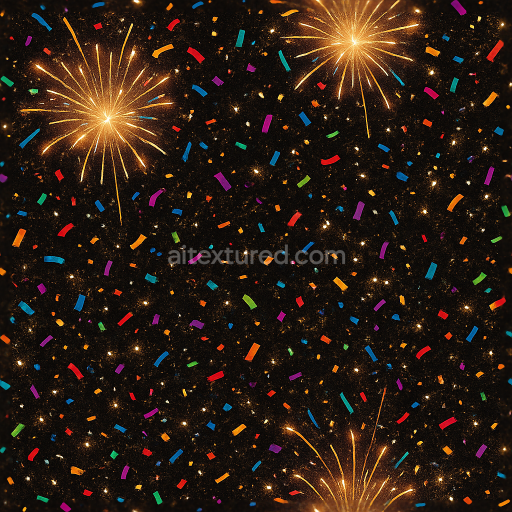
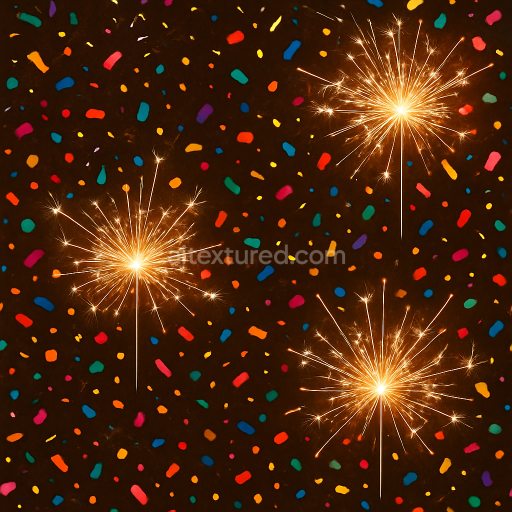
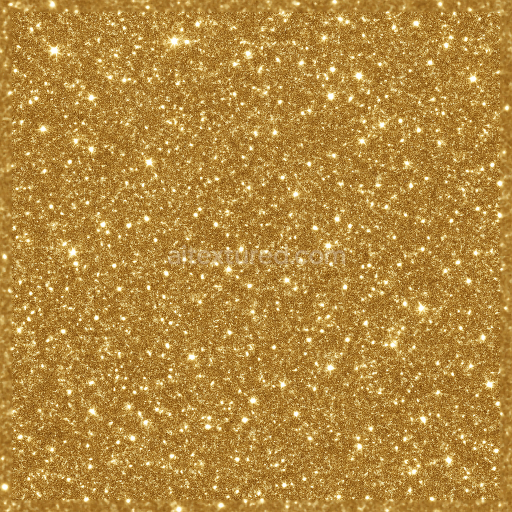
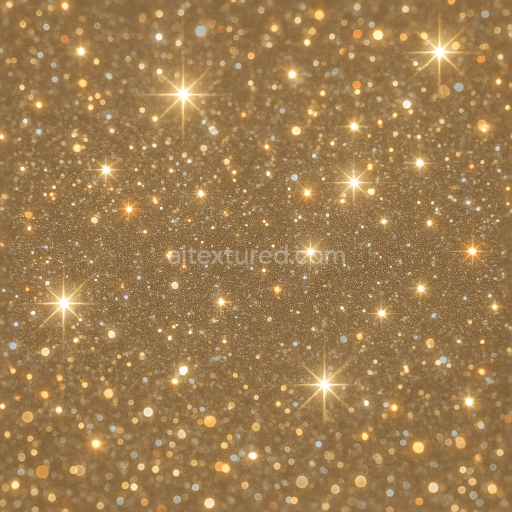
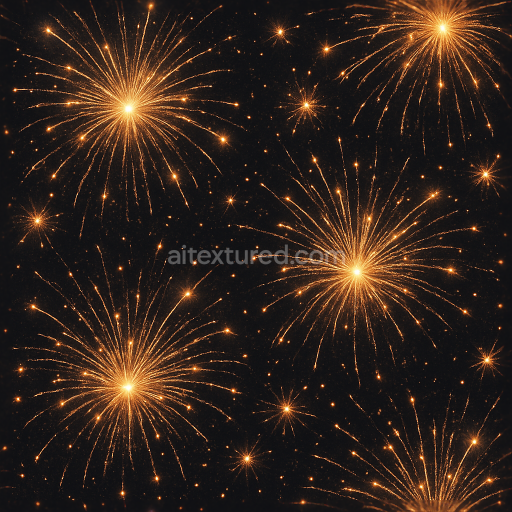
Sparkling Firecracker And Party Confetti With Light Burst For New Year
Seamless texture (tileable) · PNG, WEBP, PBR ZIP.
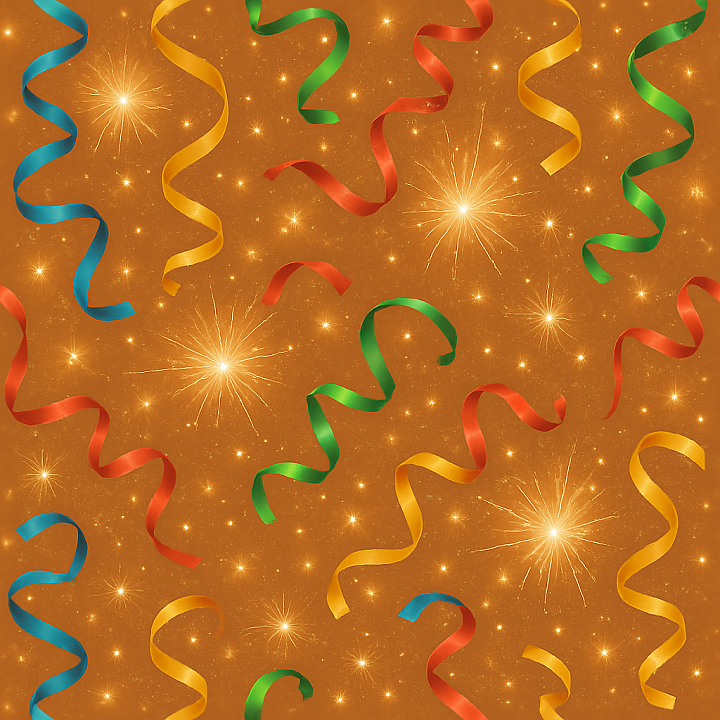
| ID | seamless-3d-texture-pbr-8k-sparkling-ribbons-and-party-popper-with-celebration-spark-for-new-year |
|---|---|
| Category | New Year |
| Formats | PNG, WEBP, PBR ZIP |
| Size | 1k (1024x1024px), 2k (2048x2048px), 4k (4096x4096px), 8k (8192x8192px) |
| Tileable | Yes |
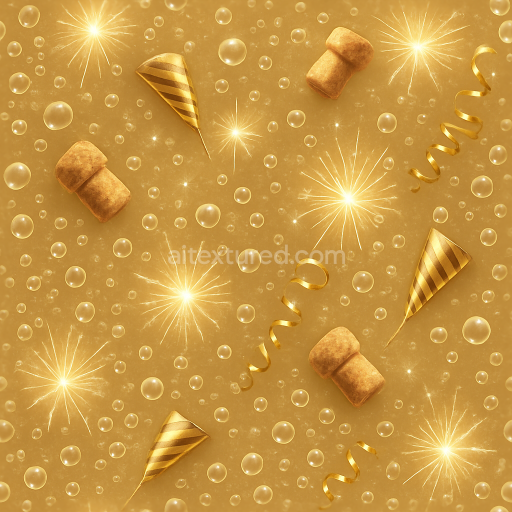
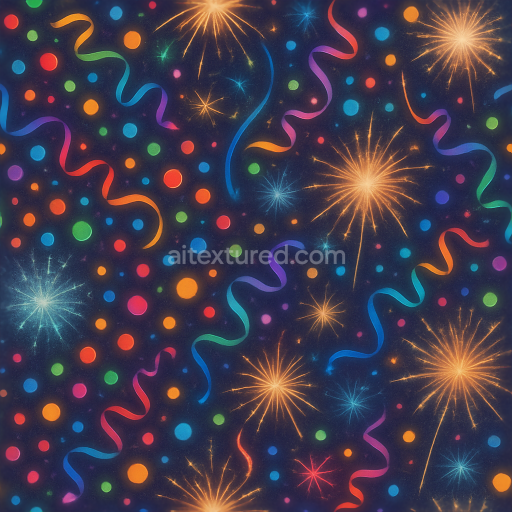
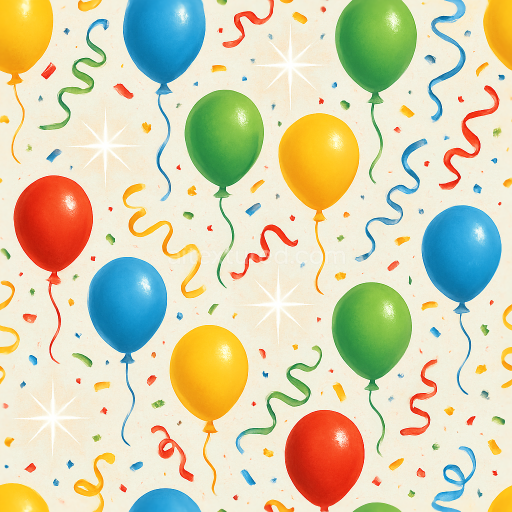
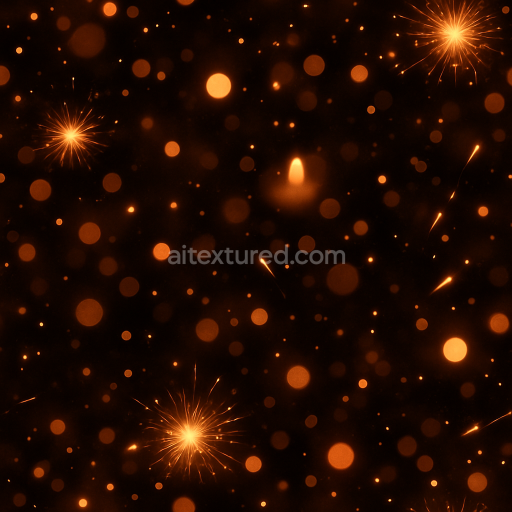
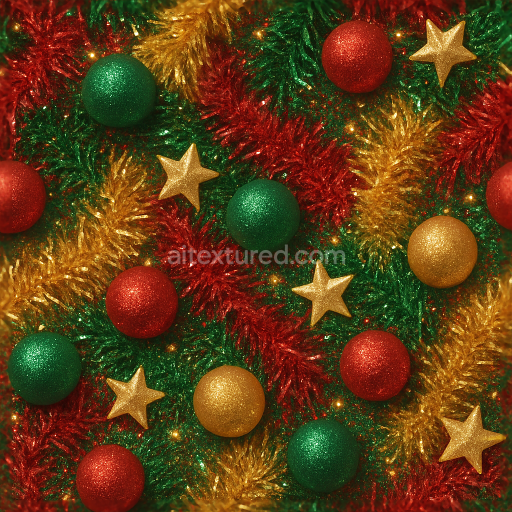
This seamless 3D texture presents an intricate composition of sparkling ribbons intertwined with vivid party popper elements and celebration sparks, all rendered in an impressive 8K resolution. The base material simulates lightweight, glossy synthetic fabrics—such as satin or polyester—commonly used for festive ribbons, combined with metallic foil and paper components typical of party poppers. These materials exhibit a fine balance of smooth, reflective surfaces alongside subtle fibrous textures, creating a dynamic interplay between sheen and tactile detail. The geometric form is characterized by flowing, curved ribbon shapes layered atop a slightly crumpled substrate, producing a lively pattern that mimics the natural folds and twists of real ribbons interspersed with angular party popper shards and sparkling dust particles.
The underlying substrate acts as a flexible, semi-transparent polymer film, enhanced with microfibers that contribute to the fabric’s durability and slight translucency. Adhesive binders hold the fibrous structure together, while embedded metallic flakes and glitter particles serve as the primary aggregates, adding complexity to the surface reflectivity. The texture’s porosity is minimal, reflecting the compact weave and tight bonding of fibers, yet small creases and crimps introduce micro-variations that catch light differently across the surface. The finish is predominantly polished with high gloss areas on the ribbon surfaces, contrasted by matte, slightly rougher finishes on the paper elements of the party poppers. Rich pigments ranging from deep reds and golds to iridescent blues and silvers are distributed unevenly, simulating the natural variation found in party decorations and enhancing the visual sparkle effect.
In terms of PBR mapping, the BaseColor (Albedo) channel captures the vivid hues and subtle color gradients inherent to the ribbons and popper paper, while the Normal map emphasizes the fine folds, creases, and particle relief to add depth and realism. Roughness maps differentiate between the highly reflective satin ribbons and the more diffuse party glitter, enabling nuanced light interaction. The Metallic channel highlights the foil flakes and party popper shards, contributing a convincing metal-like shine. Ambient Occlusion enhances the perception of depth in crevices and overlaps where ribbons twist or party poppers cluster. Height or Displacement maps reproduce the subtle elevation changes caused by ribbon curls and sparkling dust accumulation, delivering a tactile sense of volume and texture.
This texture is optimized for real-time rendering engines and digital content creation platforms such as Blender, Unreal Engine, and Unity, ensuring smooth integration and high fidelity visuals across diverse projects. When applying this material, it is advisable to carefully adjust the UV scale to maintain the ribbon’s natural proportions and prevent distortion. Additionally, fine-tuning the roughness parameter can help balance the glossy and matte areas to suit different lighting environments. For enhanced realism, blending the height map with normal details can simulate the delicate sparkle dust and celebration sparks more effectively, adding dynamic highlights that respond well to scene illumination.
Import the texture maps into Blender with sRGB color space for albedo/base color and Non-Color for normal, roughness, metallic, AO, height, and ORM maps. Connect normal maps through a Normal Map node, then adjust UV scale with a Mapping node so the material repeats naturally on your model.
For the full step-by-step setup, see How to Use Seamless Textures in Blender. Browse related material examples in wood, concrete, and metal.
Yes. This texture is designed as a seamless tileable PBR material, so it can repeat across large surfaces without visible borders.
Use the download controls on this page: they expose the available PNG, WEBP or engine ZIP choices and supported resolutions for this asset.
Use the engine ZIP choices to package compatible source maps for Blender, Unreal Engine or Unity, then verify the imported material in the target application.
Commercial-use permission is not verified for this record. Confirm the original source and license before production use.
Generate maps from existing images, preview materials, convert channels, and package compatible inputs for Blender, Unity, and Unreal Engine.
Choose a verified workflow for generating maps, previewing tiling, converting channels, or starting from the texture catalog.
Derive Normal, Roughness, AO, Metallic, Height and optional ORM maps from one or more source images, then review the results.
Instant WebGL viewer: inspect materials on a sphere, plane, and cube. Check tiling and lighting in real time.
Re-packages maps per engine: Unreal (BaseColor + ORM), Unity (Mask/MetallicSmoothness), Blender (separate channels).
PNG ↔ JPG ↔ SVG: fast convert, SVG rasterize, embed/trace options, quality & background controls.