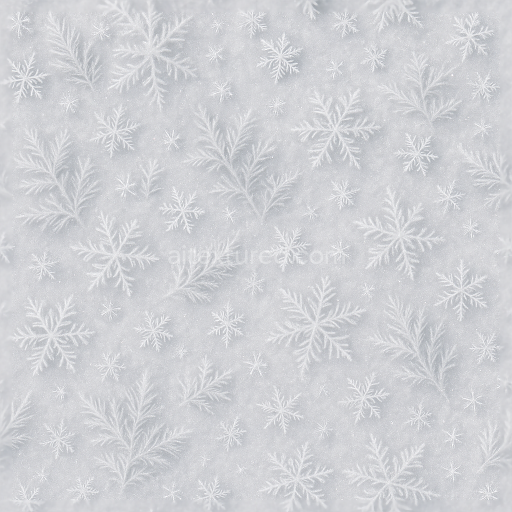
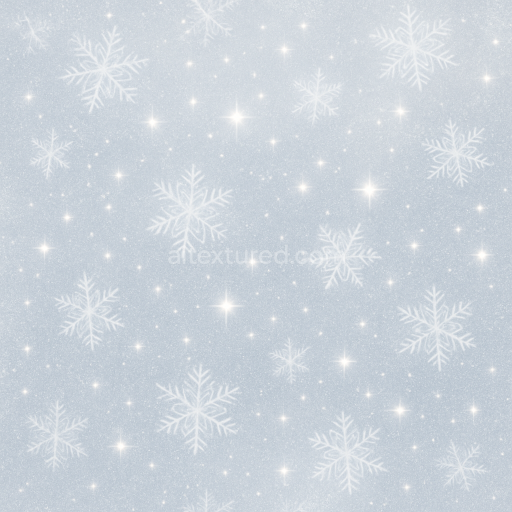
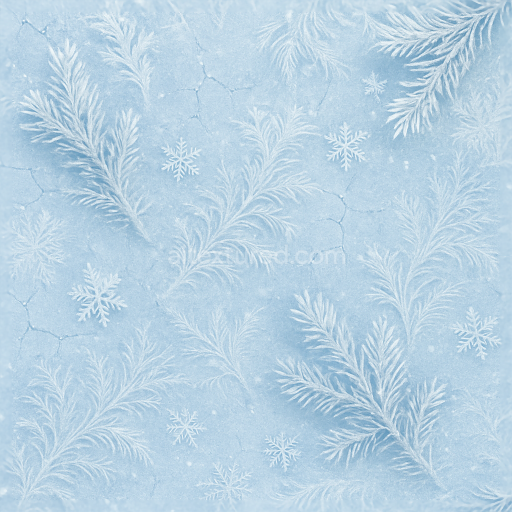
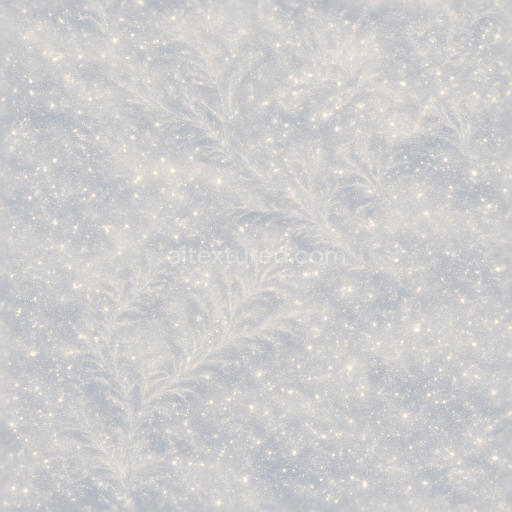
Sparkling Frost Snowflakes Delicate Icy White
Seamless texture (tileable) · PNG, WEBP, PBR ZIP.
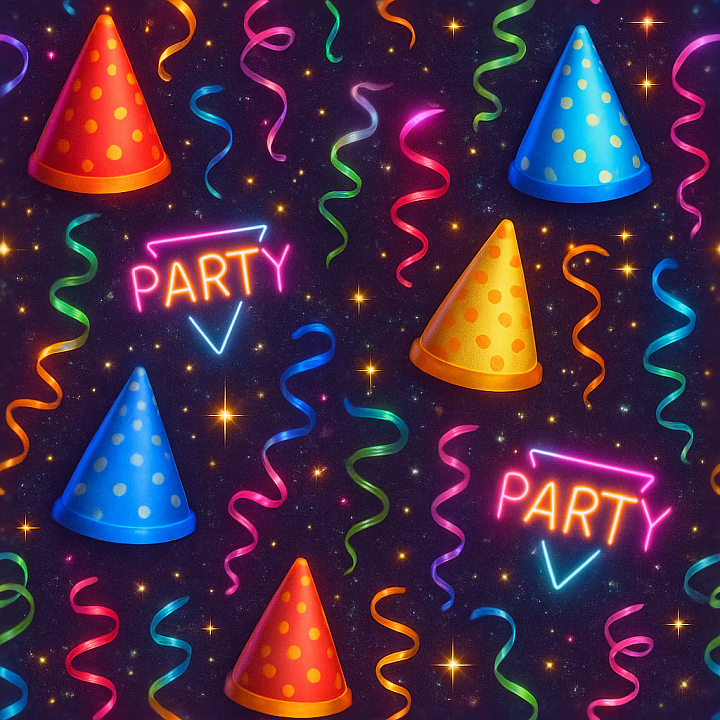
| ID | seamless-3d-texture-pbr-8k-party-hats-and-neon-signs-with-festive-ribbons-for-new-year-sparkle |
|---|---|
| Category | New Year |
| Formats | PNG, WEBP, PBR ZIP |
| Size | 1k (1024x1024px), 2k (2048x2048px), 4k (4096x4096px), 8k (8192x8192px) |
| Tileable | Yes |
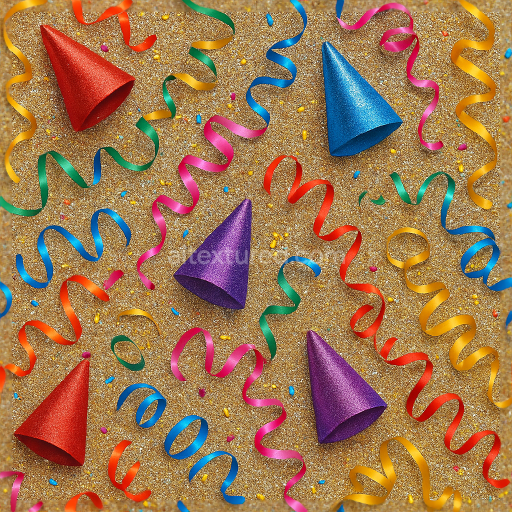
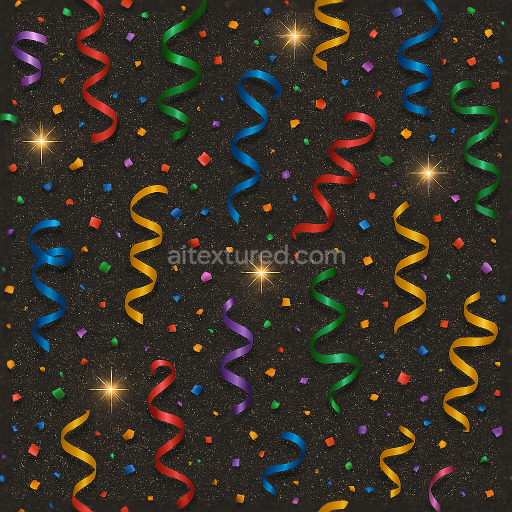
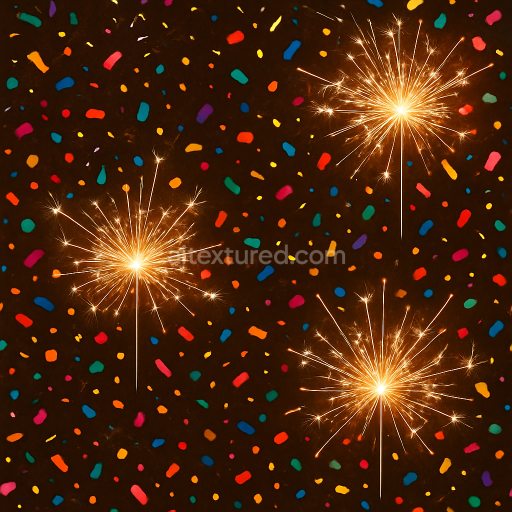
This seamless 3D texture in 8K resolution features an intricate arrangement of party hats, neon signs, and festive ribbons, forming a vibrant and dynamic celebration pattern ideal for New Year-themed projects. The base material simulates a composite of lightweight coated paper and flexible plastic, commonly used in real party decorations, providing a slightly glossy yet tactile surface. The party hats exhibit a subtle lamination effect with reflective pigments embedded in the substrate, creating a rich BaseColor channel with vivid reds, blues, and golds that capture the festive palette. The neon signs are represented through emissive color layers within the BaseColor map, enhanced by low Roughness values to mimic the smooth, glowing glass tubes, while metallic elements in the signs’ frames are defined by moderate Metallic channel values, contributing to realistic light reflections and sheen.
Geometrically, the texture pattern is composed of overlapping conical party hats, fluid ribbon curls, and stylized neon tubing arranged in a seamless, repetitive grid. This creates a complex laminated form where the ribbons weave through the hats and signs, adding depth and movement. The Normal map accentuates the fine folds and creases in the ribbons, the embossed ridges along the hats’ brims, and the subtle tubing contours of the neon signs, delivering convincing micro-surface detail and volumetric layering. Height and Displacement maps reinforce the three-dimensional feel by simulating the raised edges of ribbon curls and the recessed neon tubing channels, while Ambient Occlusion enhances shadowing in overlapping areas, emphasizing spatial relationships and surface depth.
The texture’s surface finish balances gloss and subtle roughness to simulate party glitter and sparkle dust effects. The Roughness channel varies across the texture: low values on the neon signs’ glass surfaces produce a sleek holiday glow, while the party hats and ribbons exhibit moderate roughness with sparkling microfacets to replicate particle-like glitter and celebration sparks. The sparkle effect is also supported by the inclusion of scattered high-intensity specular highlights within the Roughness and Metallic maps, which interact dynamically with lighting in real-time renderers. This nuanced approach to surface reflectance ensures the texture performs well under different lighting environments in Blender, Unreal Engine, and Unity, maintaining visual fidelity across platforms.
Designed for seamless tiling, this texture allows consistent repetition without visible seams, making it suitable for large-scale party decoration models, festive digital backgrounds, or environmental assets celebrating New Year events. When integrating this texture, it’s advisable to adjust UV scale carefully to prevent pattern repetition from becoming overly apparent on broad surfaces. Additionally, fine-tuning the Roughness channel can help balance the sparkle effect for specific lighting setups—lower roughness values amplify the holiday glow, while higher values soften the glitter intensity. For enhanced realism, blending the Normal and Height maps through parallax occlusion techniques can provide more pronounced three-dimensional effects on close-up views, especially on ribbons and neon tubing details.
Import the texture maps into Blender with sRGB color space for albedo/base color and Non-Color for normal, roughness, metallic, AO, height, and ORM maps. Connect normal maps through a Normal Map node, then adjust UV scale with a Mapping node so the material repeats naturally on your model.
For the full step-by-step setup, see How to Use Seamless Textures in Blender. Browse related material examples in wood, concrete, and metal.
Yes. This texture is designed as a seamless tileable PBR material, so it can repeat across large surfaces without visible borders.
Use the download controls on this page: they expose the available PNG, WEBP or engine ZIP choices and supported resolutions for this asset.
Use the engine ZIP choices to package compatible source maps for Blender, Unreal Engine or Unity, then verify the imported material in the target application.
Commercial-use permission is not verified for this record. Confirm the original source and license before production use.
Generate maps from existing images, preview materials, convert channels, and package compatible inputs for Blender, Unity, and Unreal Engine.
Choose a verified workflow for generating maps, previewing tiling, converting channels, or starting from the texture catalog.
Derive Normal, Roughness, AO, Metallic, Height and optional ORM maps from one or more source images, then review the results.
Instant WebGL viewer: inspect materials on a sphere, plane, and cube. Check tiling and lighting in real time.
Re-packages maps per engine: Unreal (BaseColor + ORM), Unity (Mask/MetallicSmoothness), Blender (separate channels).
PNG ↔ JPG ↔ SVG: fast convert, SVG rasterize, embed/trace options, quality & background controls.