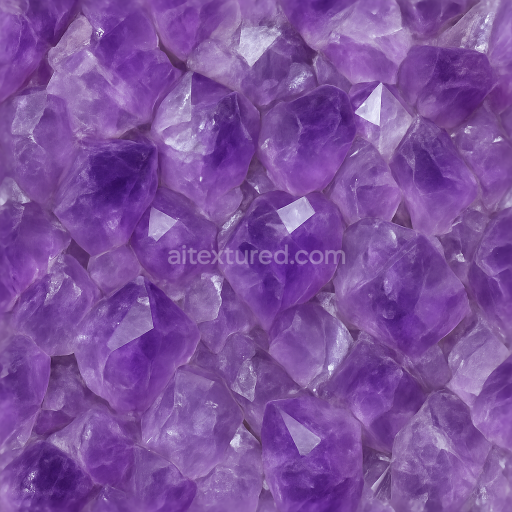
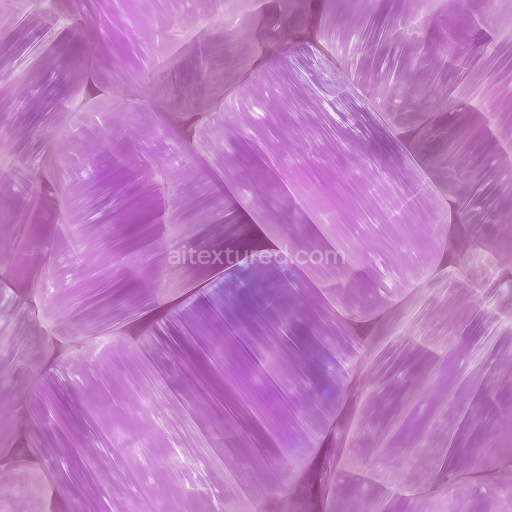
Amethyst Rough Crystal With Color Zoning And Vitreous Luster Effects
Seamless texture (tileable) · PNG, WEBP, PBR ZIP.
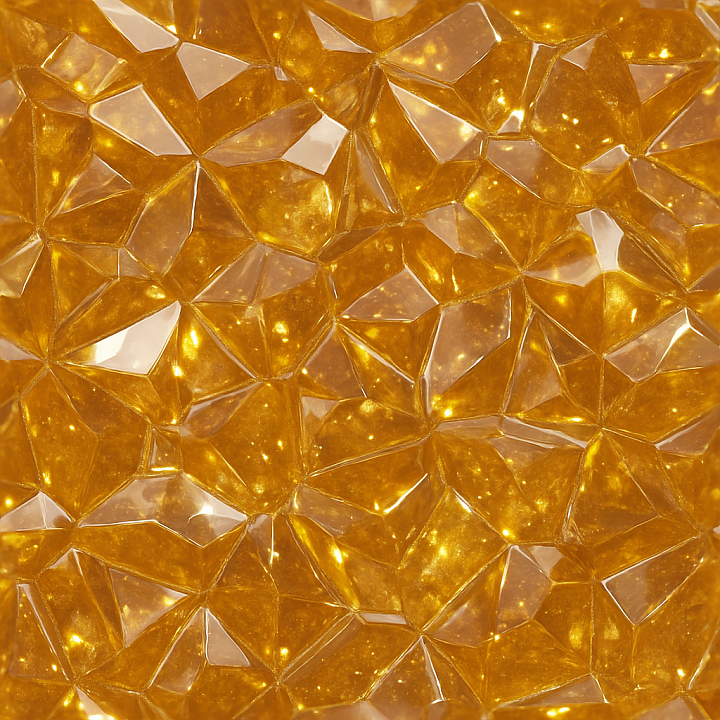
| ID | seamless-3d-texture-pbr-8k-amber-crystal-dust-with-glowing-crystal-aura-and-shiny-surface-reflective-finish |
|---|---|
| Category | Crystals |
| Formats | PNG, WEBP, PBR ZIP |
| Size | 1k (1024x1024px), 2k (2048x2048px), 4k (4096x4096px), 8k (8192x8192px) |
| Tileable | Yes |
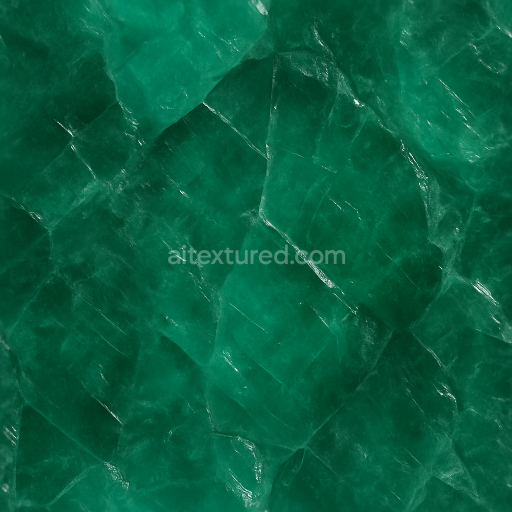
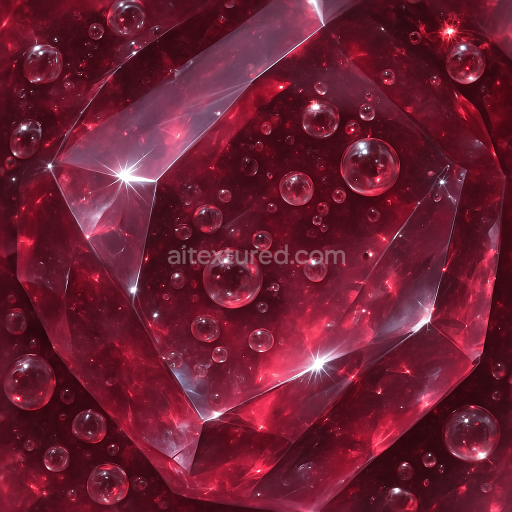
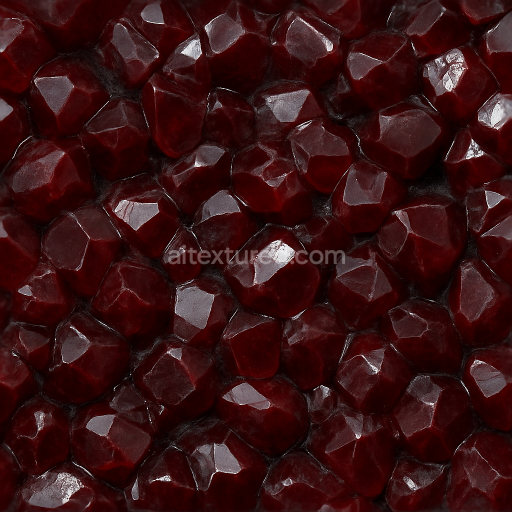
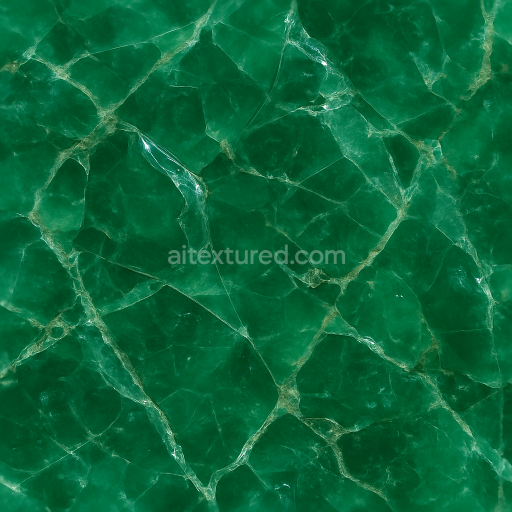
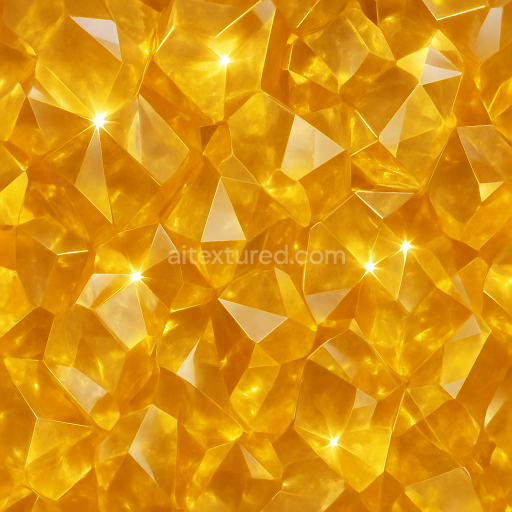
This seamless 3D PBR texture presents a highly detailed amber crystal dust surface rendered at an impressive 8K resolution, optimized for use in Blender, Unreal Engine, and Unity. The base material simulates natural amber, a fossilized resin known for its warm golden translucency and intricate internal structures. The texture’s form is characterized by fine crystalline dust particles densely packed across the surface, creating a complex veined pattern interspersed with delicate inclusions and subtle fractures. These elements combine to form a seamless, tiling crystal facade that mimics the multifaceted geometry of polished amber, incorporating tightly clustered polygonal facets and micro-roughness variations that contribute to its photorealistic appearance.
The substrate layer simulates a semi-translucent resinous body with embedded mineral grains acting as aggregates, imparting depth and internal scattering effects. Bindings between these grains reflect the natural adhesive quality of fossilized resin, modeled through carefully balanced roughness and glossiness values. Surface porosity is minimal, with a highly polished finish that emphasizes reflectivity and light dispersion across the crystalline facets. The glowing crystal aura effect is achieved via emissive map channels, subtly enhancing the warm amber hues and simulating light emission from within the depth of the material. Coloration is dominated by rich golden and honey tones, enhanced by varied albedo maps to replicate pigment inclusions and color zoning typical of authentic amber minerals.
The texture’s PBR channel configuration includes a detailed BaseColor (Albedo) map emphasizing amber’s translucent warmth, a Normal map capturing the micro-facets and dust grain relief, and a Roughness map finely tuned to balance the shiny reflective surface with areas of diffused light scatter. The Metallic map remains minimal to reflect the non-metallic nature of the resin, while the Ambient Occlusion map enhances crevices and cracks for added depth perception. Height and Displacement maps are carefully crafted to provide subtle relief effects, enabling enhanced parallax and depth when applied with appropriate shader settings, particularly useful for close-up renders or interactive environments.
For practical application, it is recommended to adjust the UV scale to maintain a natural grain size relative to the 3D model, avoiding overly stretched or compressed crystal facets. Additionally, tuning the roughness parameter can help achieve a balance between the glossy surface highlights and the soft glow of the internal crystal dust, ensuring versatile use across different lighting conditions. Combining the height and normal maps with parallax occlusion mapping can further enhance the tactile realism of the amber surface, making it especially suitable for detailed gemstone models, decorative objects, or organic mineral simulations requiring high-fidelity material representation.
Import the texture maps into Blender with sRGB color space for albedo/base color and Non-Color for normal, roughness, metallic, AO, height, and ORM maps. Connect normal maps through a Normal Map node, then adjust UV scale with a Mapping node so the material repeats naturally on your model.
For the full step-by-step setup, see How to Use Seamless Textures in Blender. Browse related material examples in wood, concrete, and metal.
Yes. This texture is designed as a seamless tileable PBR material, so it can repeat across large surfaces without visible borders.
Use the download controls on this page: they expose the available PNG, WEBP or engine ZIP choices and supported resolutions for this asset.
Use the engine ZIP choices to package compatible source maps for Blender, Unreal Engine or Unity, then verify the imported material in the target application.
Commercial-use permission is not verified for this record. Confirm the original source and license before production use.
Generate maps from existing images, preview materials, convert channels, and package compatible inputs for Blender, Unity, and Unreal Engine.
Choose a verified workflow for generating maps, previewing tiling, converting channels, or starting from the texture catalog.
Derive Normal, Roughness, AO, Metallic, Height and optional ORM maps from one or more source images, then review the results.
Instant WebGL viewer: inspect materials on a sphere, plane, and cube. Check tiling and lighting in real time.
Re-packages maps per engine: Unreal (BaseColor + ORM), Unity (Mask/MetallicSmoothness), Blender (separate channels).
PNG ↔ JPG ↔ SVG: fast convert, SVG rasterize, embed/trace options, quality & background controls.