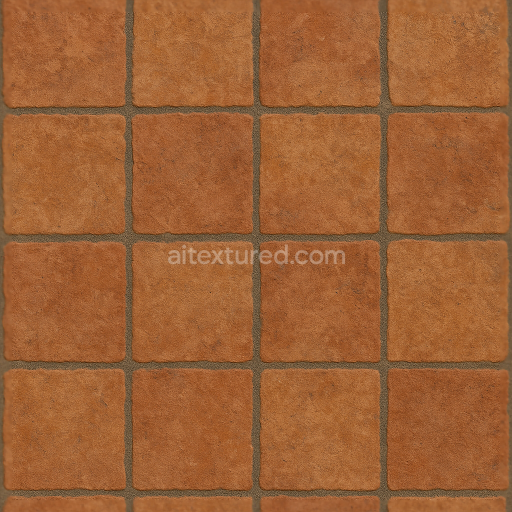
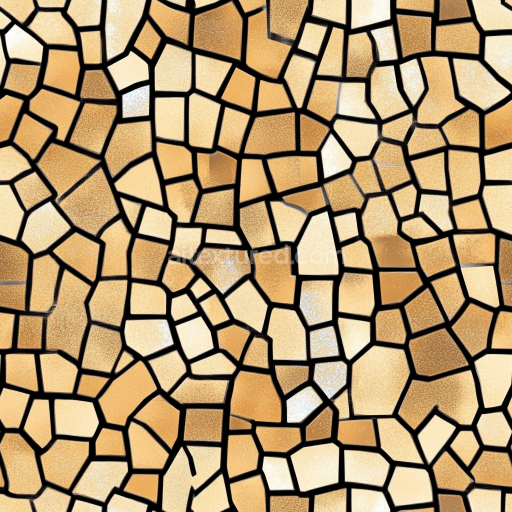
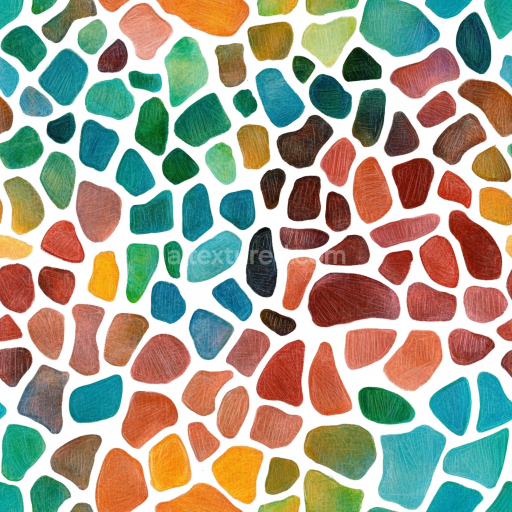
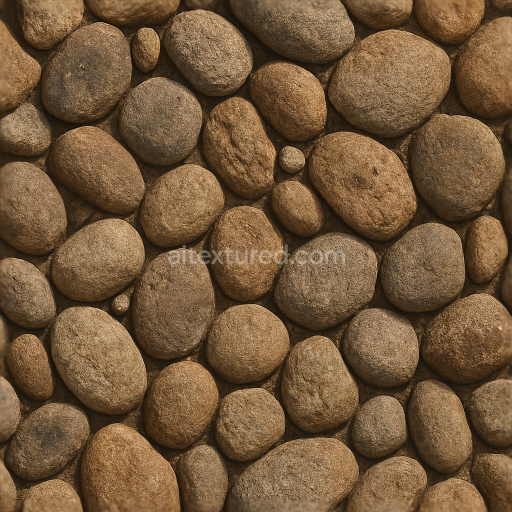
Terracotta Tiles Mosaic With Rustic Tiles And Earth Tones
Seamless texture (tileable) · PNG, WEBP, PBR ZIP.
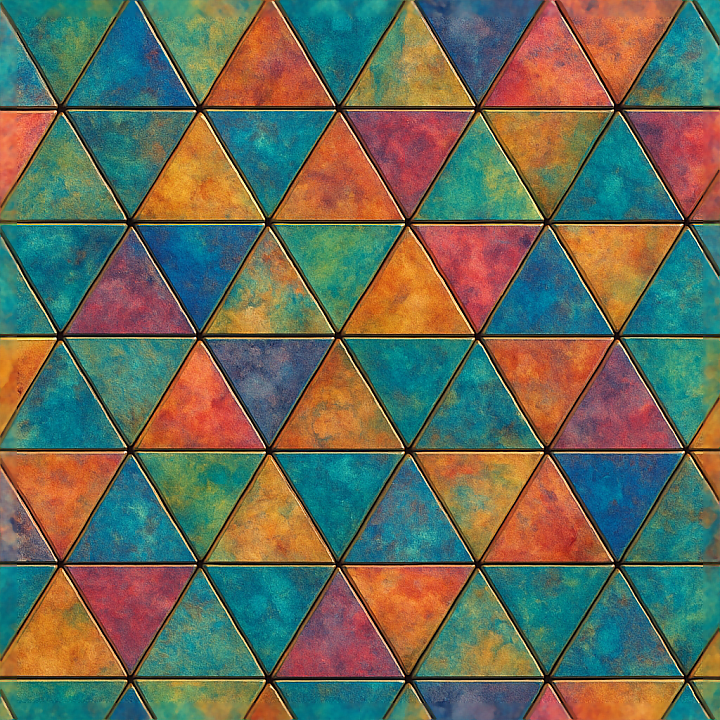
| ID | seamless-3d-texture-pbr-8k-triangular-tiles-mosaic-with-blended-colors-and-intricate-details-for-variety |
|---|---|
| Category | Mosaic |
| Formats | PNG, WEBP, PBR ZIP |
| Size | 1k (1024x1024px), 2k (2048x2048px), 4k (4096x4096px), 8k (8192x8192px) |
| Tileable | Yes |
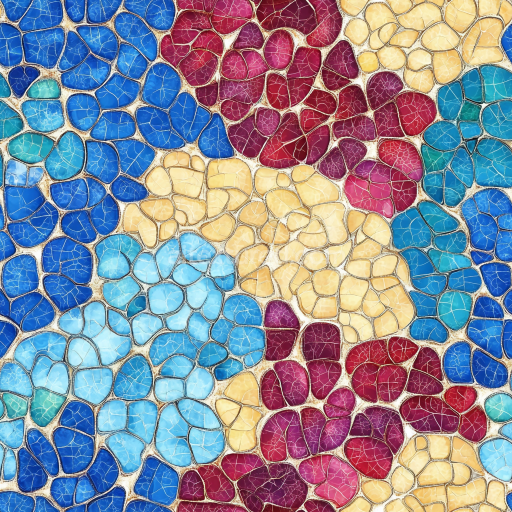
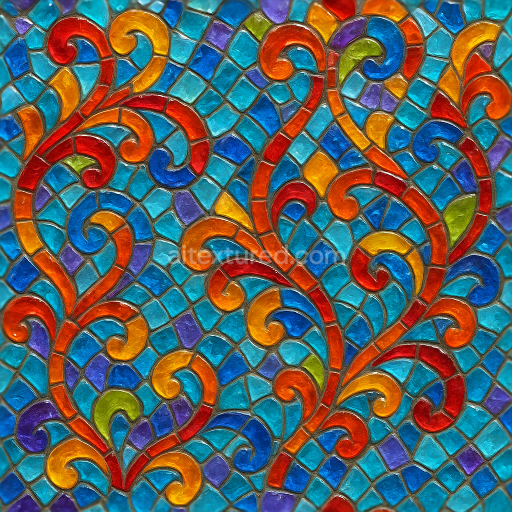
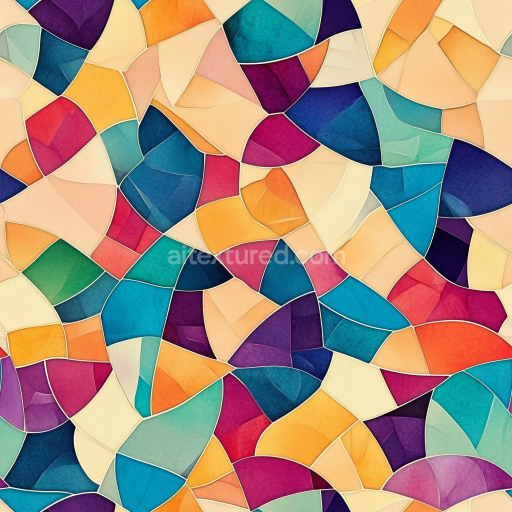
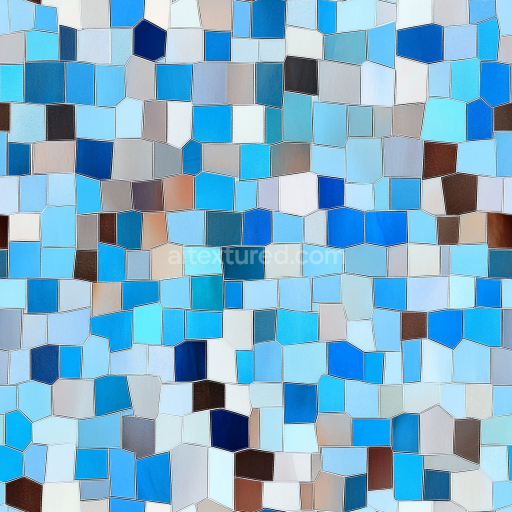
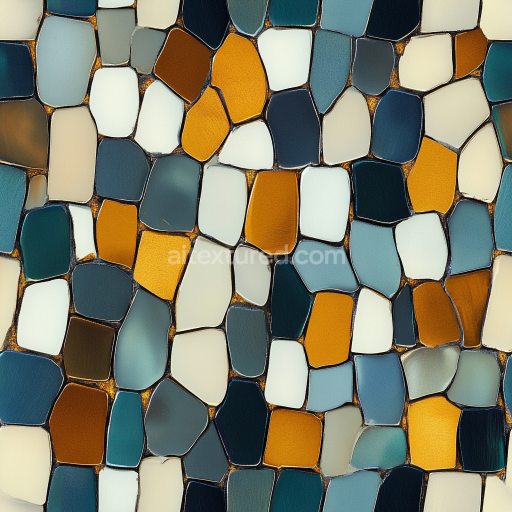
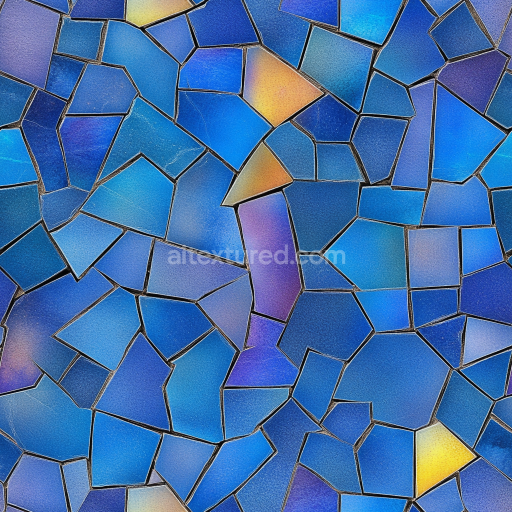
This seamless 3D PBR texture showcases a meticulously crafted mosaic composed of triangular tiles arranged in a precise geometric pattern. Each tile features softly blended colors that transition subtly across the surface, enhancing the intricate visual complexity and creating a dynamic sense of depth. The base material resembles high-quality ceramic or porcelain, characterized by a smooth, slightly glossy finish that reflects light naturally while retaining fine surface imperfections. The tiles rest upon a thin grout substrate that is minimally porous, with clean, sharp grout lines that visually separate each tile without distracting from the overall colorful composition.
The texture’s composition suggests a ceramic tile manufacturing process where the substrate is a dense, fired clay body, combined with mineral binders and finely milled aggregates to ensure durability and subtle texture variation. Pigments are carefully integrated into the glaze layer, producing the blended color effect seen on each triangular tile. The surface finish is polished with a slight satin sheen that balances reflectivity and matte qualities, emphasizing the tactile nature of the tiles while allowing intricate details such as micro-surface roughness and tiny glaze variations to be visible. Weathering effects are minimal, maintaining a fresh, pristine appearance ideal for modern architectural or digital environments.
In terms of PBR workflow, the BaseColor (Albedo) map captures the vibrant, blended hues of the tiles without baked-in lighting, preserving color fidelity. The Normal map encodes fine surface details like the subtle bevels along the tile edges and the slight dimensional offsets between tiles and grout. Roughness data is finely tuned to simulate the polished ceramic’s semi-gloss surface, producing realistic light diffusion and specular highlights. The Metallic channel remains neutral, as the material is non-metallic, while the Ambient Occlusion map enhances shadowing around tile edges and grout lines to reinforce depth perception. Height or Displacement maps enable precise surface variation for use in advanced rendering engines, allowing for realistic parallax and tactile surface relief.
Rendered in an ultra-high 8K resolution, this texture provides exceptional detail for close-up renders and large-scale visualizations. It is fully optimized for use in Blender, Unreal Engine, and Unity, ensuring straightforward integration into diverse 3D workflows. For practical application, it is recommended to adjust UV scaling carefully to maintain the integrity of the triangular pattern without distortion. Additionally, fine-tuning the roughness channel can help match the material’s reflectivity to specific lighting scenarios, while blending height and normal maps can enhance the perception of depth without heavy geometry.
Import the texture maps into Blender with sRGB color space for albedo/base color and Non-Color for normal, roughness, metallic, AO, height, and ORM maps. Connect normal maps through a Normal Map node, then adjust UV scale with a Mapping node so the material repeats naturally on your model.
For the full step-by-step setup, see How to Use Seamless Textures in Blender. Browse related material examples in wood, concrete, and metal.
Yes. This texture is designed as a seamless tileable PBR material, so it can repeat across large surfaces without visible borders.
Use the download controls on this page: they expose the available PNG, WEBP or engine ZIP choices and supported resolutions for this asset.
Use the engine ZIP choices to package compatible source maps for Blender, Unreal Engine or Unity, then verify the imported material in the target application.
Commercial-use permission is not verified for this record. Confirm the original source and license before production use.
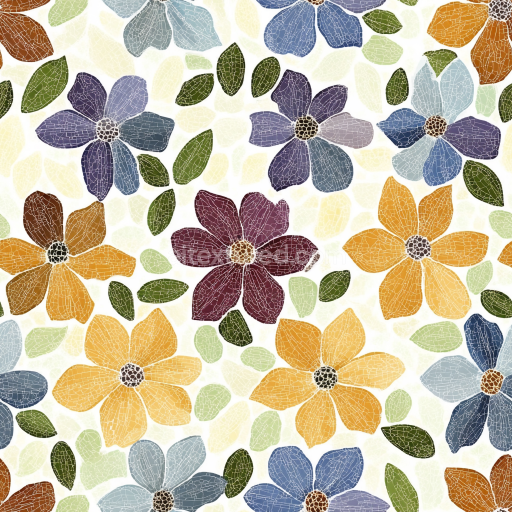
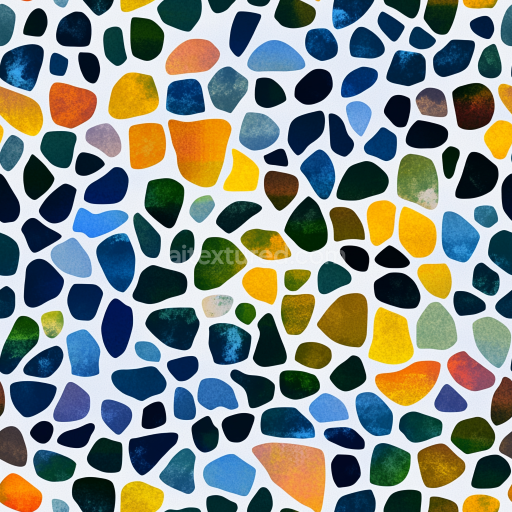
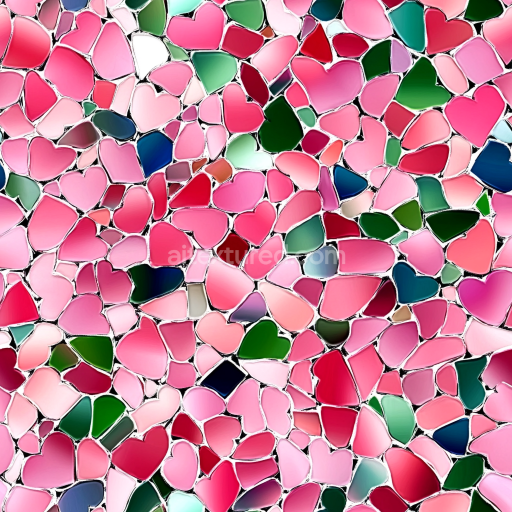
Generate maps from existing images, preview materials, convert channels, and package compatible inputs for Blender, Unity, and Unreal Engine.
Choose a verified workflow for generating maps, previewing tiling, converting channels, or starting from the texture catalog.
Derive Normal, Roughness, AO, Metallic, Height and optional ORM maps from one or more source images, then review the results.
Instant WebGL viewer: inspect materials on a sphere, plane, and cube. Check tiling and lighting in real time.
Re-packages maps per engine: Unreal (BaseColor + ORM), Unity (Mask/MetallicSmoothness), Blender (separate channels).
PNG ↔ JPG ↔ SVG: fast convert, SVG rasterize, embed/trace options, quality & background controls.