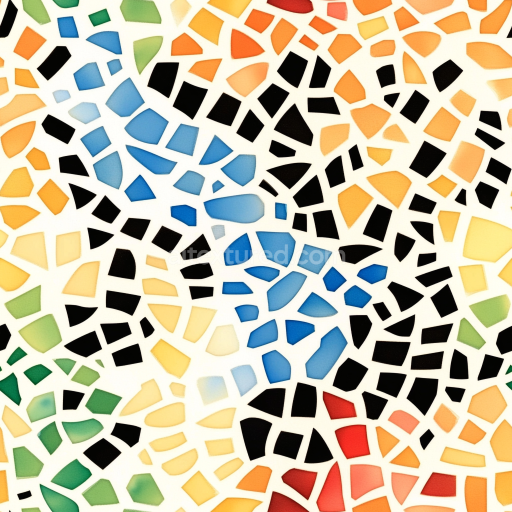
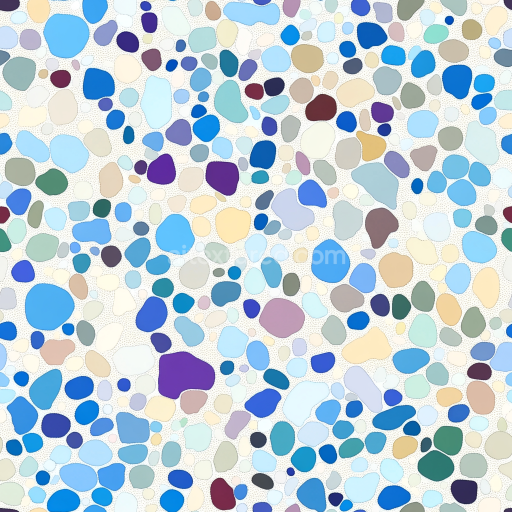
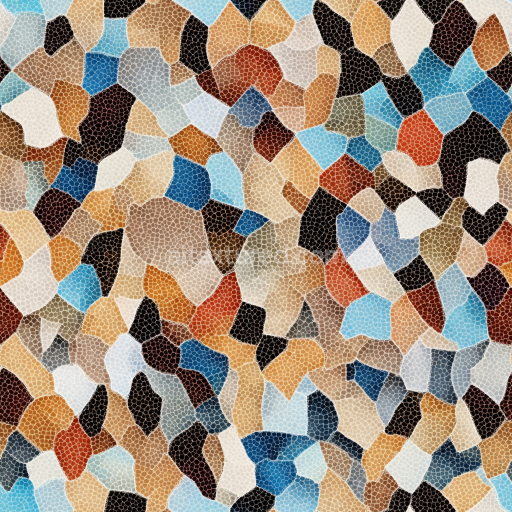
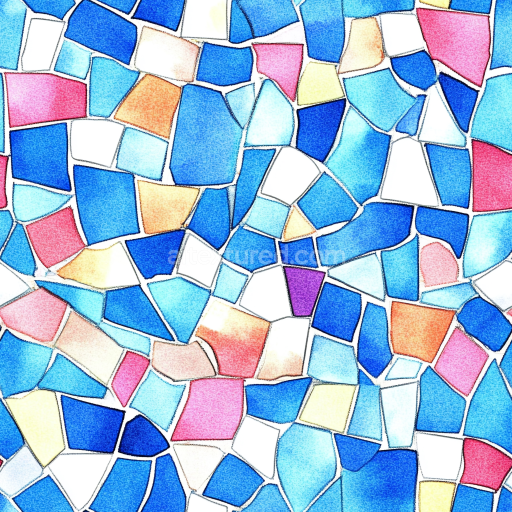
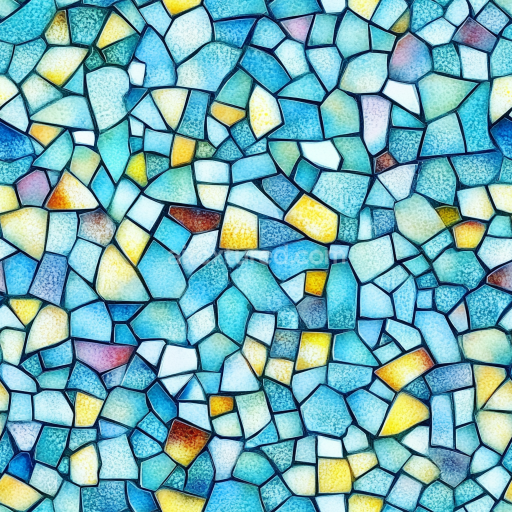
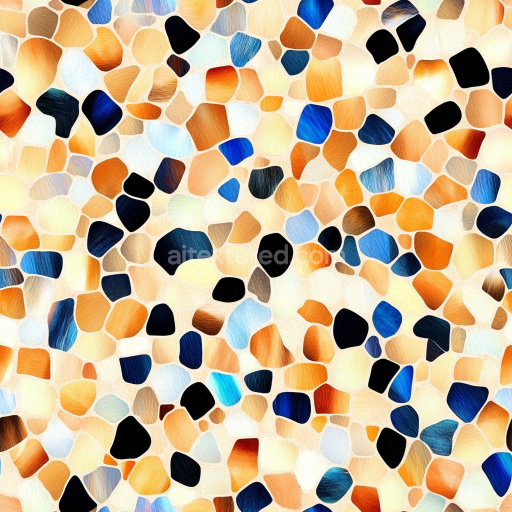
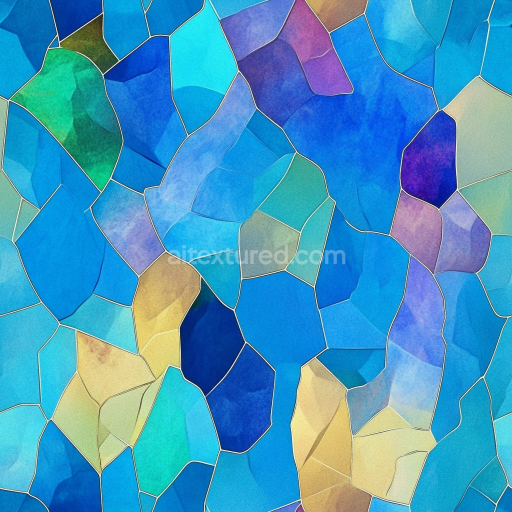
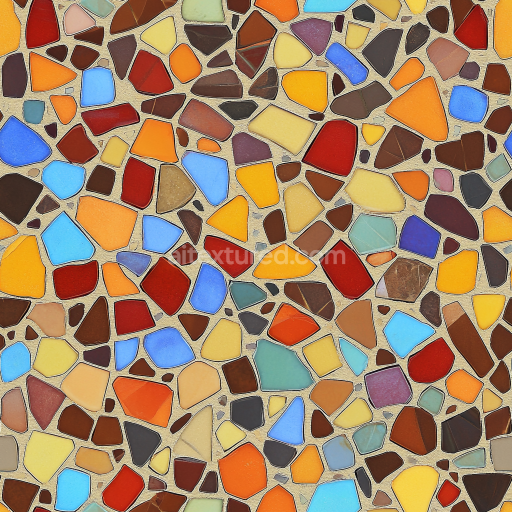
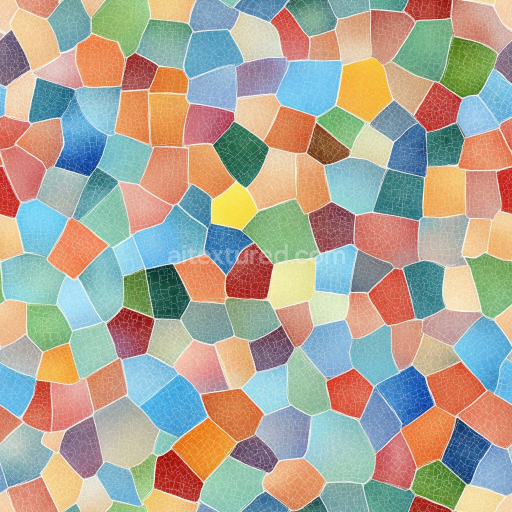
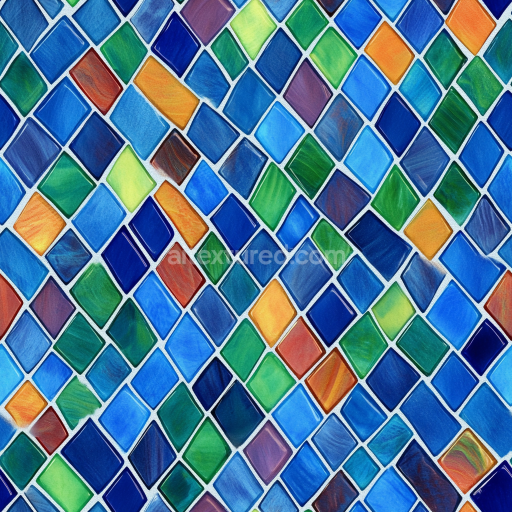
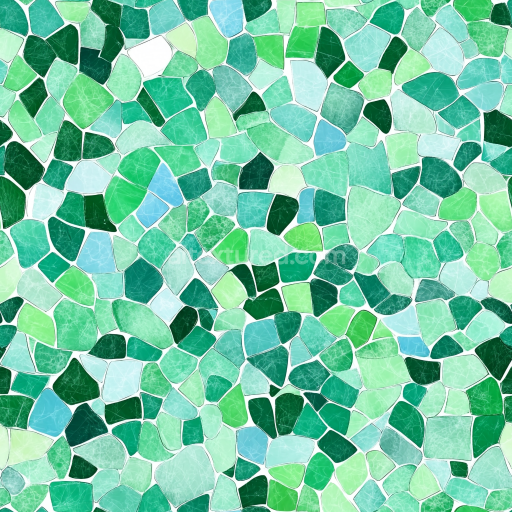
Mosaic PBR Texture of Colorful Ceramic Tiles with Irregular Geometric Chips
Seamless texture (tileable) · PNG, WEBP, PBR ZIP.
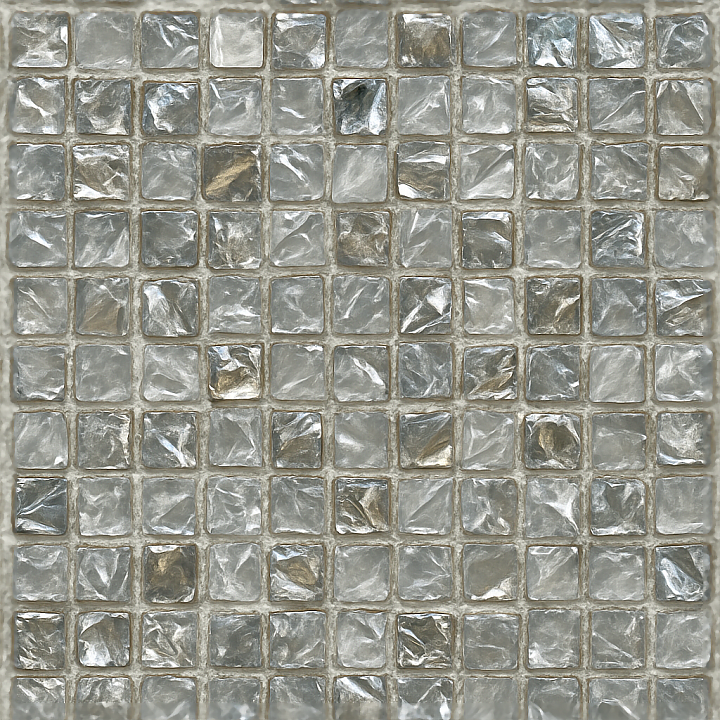
| ID | seamless-3d-texture-pbr-8k-glass-tesserae-mosaic-with-metallic-accents-and-reflective-shards |
|---|---|
| Category | Mosaic |
| Formats | PNG, WEBP, PBR ZIP |
| Size | 1k (1024x1024px), 2k (2048x2048px), 4k (4096x4096px), 8k (8192x8192px) |
| Tileable | Yes |
This seamless 3D texture presents a finely detailed mosaic composed primarily of small-scale glass tesserae arranged in an intricate, geometric grid pattern. Each tessera exhibits a polished, glossy finish that emphasizes its translucent nature and depth. Interspersed among the glass tiles are metallic accents and highly reflective shards, adding contrast and complexity to the composition. The base substrate simulates a durable mortar or tile grout with subtle surface relief, providing authentic separation between tiles and enhancing the overall surface topology. The grout features a matte, slightly roughened finish to realistically absorb ambient light and contrast the reflective tesserae.
From a materials perspective, the glass tesserae are modeled with a high index of refraction and carefully calibrated transparency, capturing the interplay of light within the shards. The metallic details simulate oxidized and polished metals with varied roughness, contributing specular highlights and reflective nuances. The adhesive binder underlying the mosaic is implied through the grout’s texture and subtle ambient occlusion, simulating natural porosity and minor weathering effects without compromising the seamless pattern continuity. Subtle height variation across the tesserae and grout elements creates tangible surface relief, enhancing the 3D tactile impression.
The texture is mapped meticulously across all essential PBR channels to maximize photorealism. The BaseColor (Albedo) channel captures the vivid color depth of the glass and the muted tones of the grout and metals, preserving natural reflections under neutral lighting. The Normal and Height maps define the fine relief of each tessera’s beveled edges and the grout’s recessed boundaries, supporting convincing parallax and displacement effects. The Roughness map balances glossy glass surfaces against the softer matte grout and variable metallic sheens, while the Metallic channel isolates reflective shards and accents. Ambient Occlusion enhances shadowing in crevices and tile joints, grounding the composition visually.
Rendered at an 8K resolution, this texture is optimized for seamless tiling and is fully compatible with Blender, Unreal Engine, and Unity workflows, ensuring high fidelity across digital art, architectural visualization, and real-time environments. For practical use, adjusting the UV scale can control the perceived tile size, while fine-tuning roughness values allows the user to shift between a more polished or weathered mosaic appearance. Combining height and normal maps judiciously can enhance the perception of depth without excessive computational cost, making this texture versatile for both close-up renders and large surface applications.
Import the texture maps into Blender with sRGB color space for albedo/base color and Non-Color for normal, roughness, metallic, AO, height, and ORM maps. Connect normal maps through a Normal Map node, then adjust UV scale with a Mapping node so the material repeats naturally on your model.
For the full step-by-step setup, see How to Use Seamless Textures in Blender. Browse related material examples in wood, concrete, and metal.
Yes. This texture is designed as a seamless tileable PBR material, so it can repeat across large surfaces without visible borders.
Use the download controls on this page: they expose the available PNG, WEBP or engine ZIP choices and supported resolutions for this asset.
Use the engine ZIP choices to package compatible source maps for Blender, Unreal Engine or Unity, then verify the imported material in the target application.
Commercial-use permission is not verified for this record. Confirm the original source and license before production use.
Generate maps from existing images, preview materials, convert channels, and package compatible inputs for Blender, Unity, and Unreal Engine.
Choose a verified workflow for generating maps, previewing tiling, converting channels, or starting from the texture catalog.
Derive Normal, Roughness, AO, Metallic, Height and optional ORM maps from one or more source images, then review the results.
Instant WebGL viewer: inspect materials on a sphere, plane, and cube. Check tiling and lighting in real time.
Re-packages maps per engine: Unreal (BaseColor + ORM), Unity (Mask/MetallicSmoothness), Blender (separate channels).
PNG ↔ JPG ↔ SVG: fast convert, SVG rasterize, embed/trace options, quality & background controls.