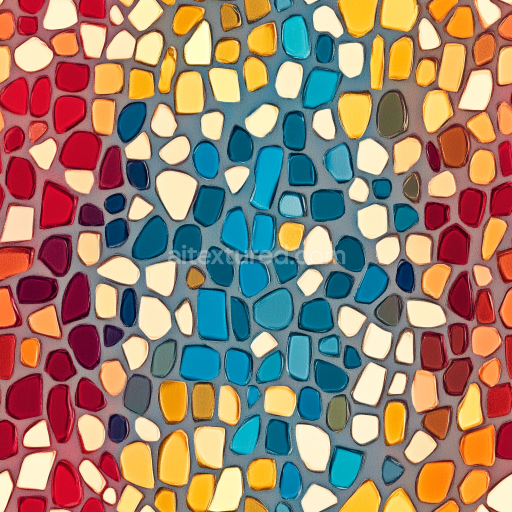
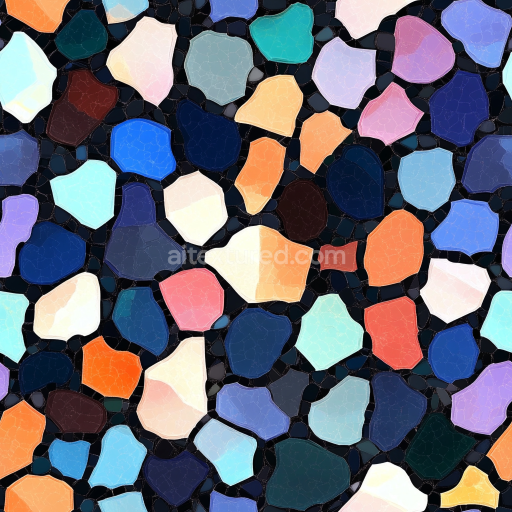
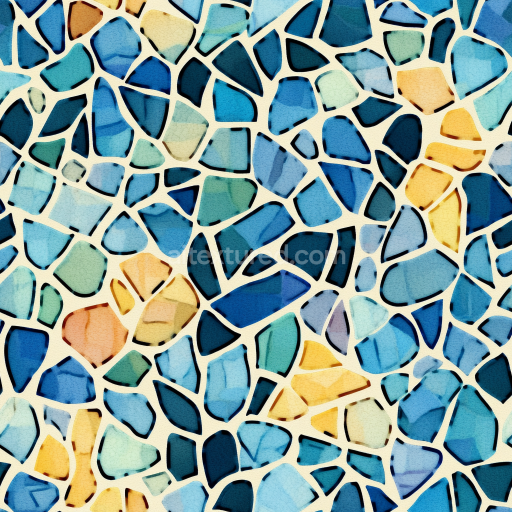
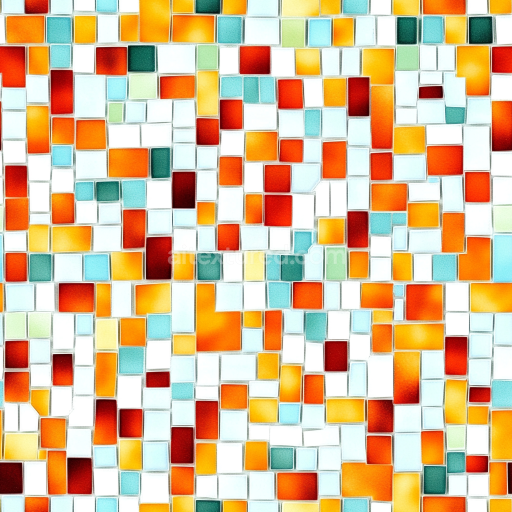
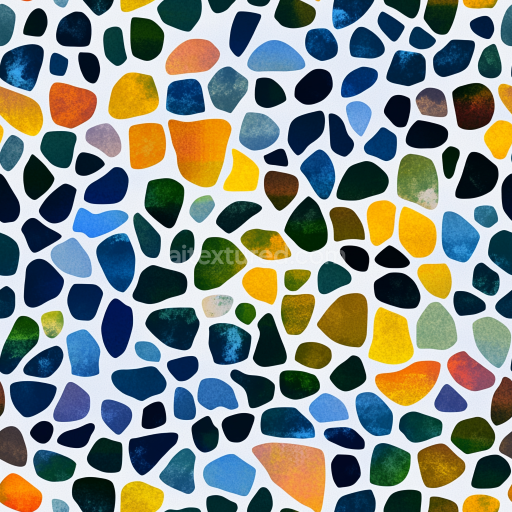
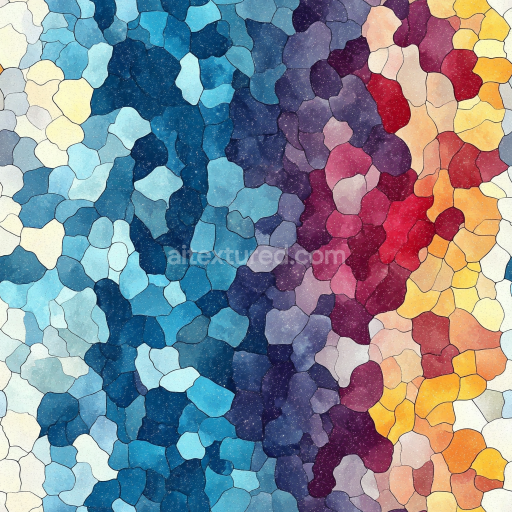
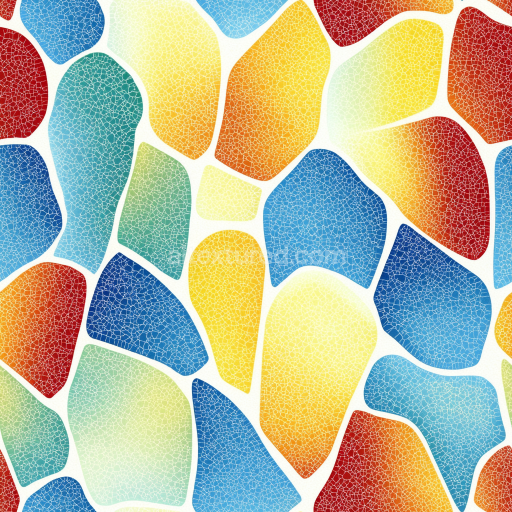
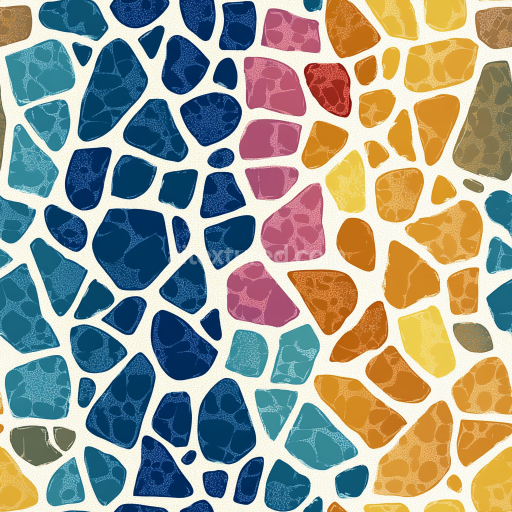
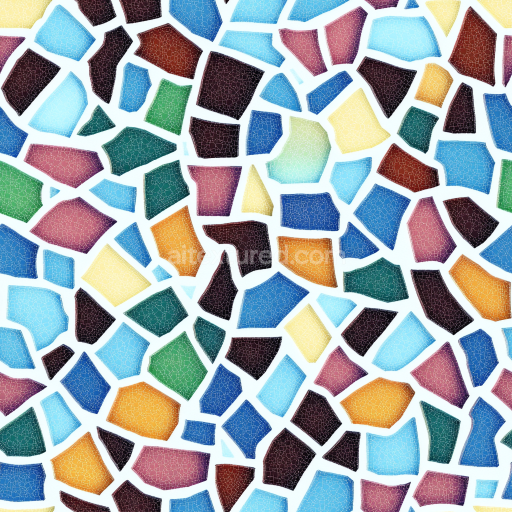
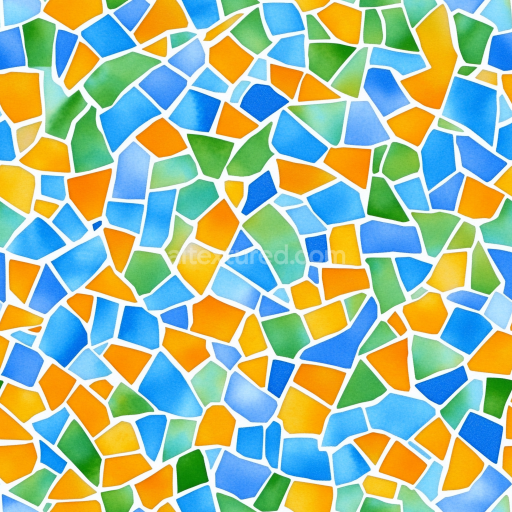
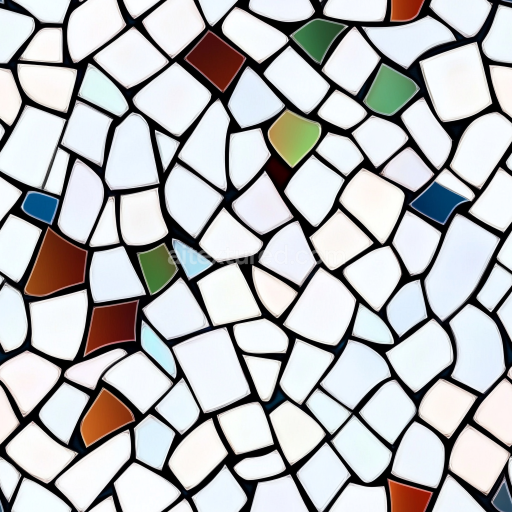
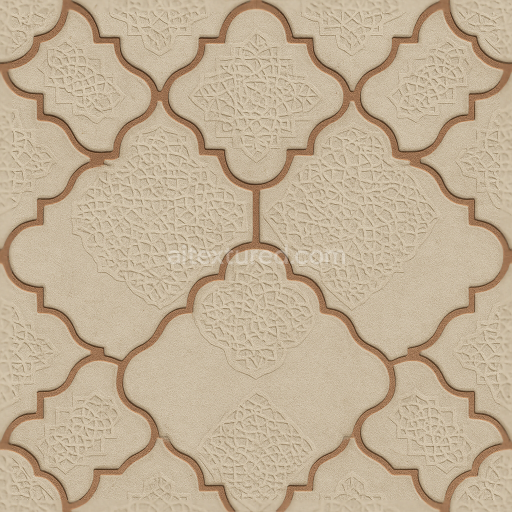
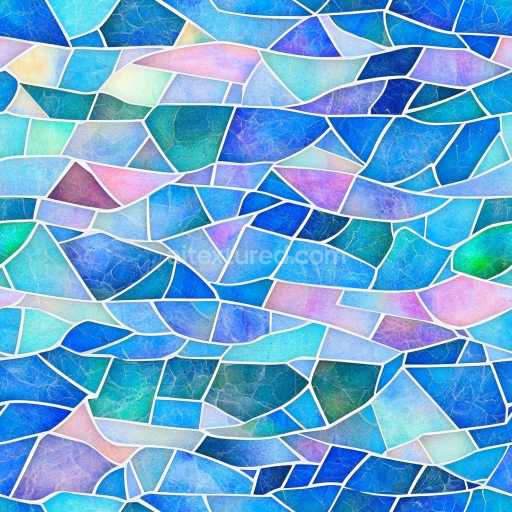
Mosaic PBR Texture Featuring Colorful Irregular Ceramic Tiles
Seamless texture (tileable) · PNG, WEBP, PBR ZIP.
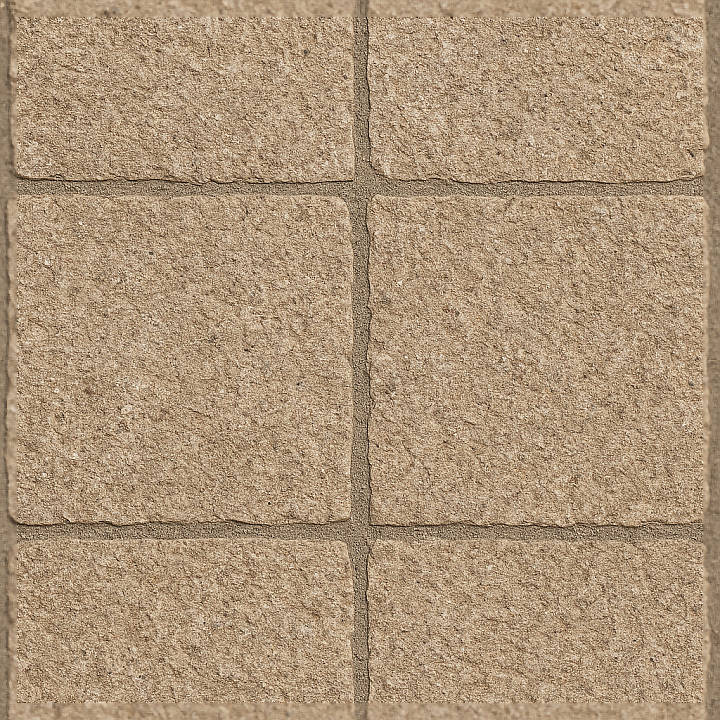
| ID | seamless-3d-texture-pbr-8k-stone-tiles-mosaic-with-rough-finish-and-natural-stone-elements |
|---|---|
| Category | Mosaic |
| Formats | PNG, WEBP, PBR ZIP |
| Size | 1k (1024x1024px), 2k (2048x2048px), 4k (4096x4096px), 8k (8192x8192px) |
| Tileable | Yes |
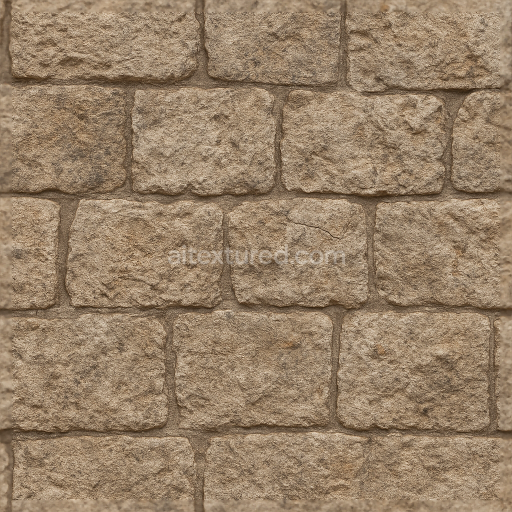
This seamless 3D texture showcases a meticulously crafted mosaic of natural stone tiles, each exhibiting a rough finish that highlights the raw, unpolished quality of the material. The tiles are arranged in a geometric grid pattern, reminiscent of traditional stone mosaics, with slight variations in size and shape to emphasize authenticity. The base material is composed of natural sedimentary stone, featuring a grainy, porous surface indicative of weathered outdoor stonework. The substrate reflects typical mineral inclusions and subtle veining, while the grout filling the spaces between tiles exhibits a textured, slightly recessed profile, simulating aged cement or lime-based mortar that binds the mosaic together.
From a material science perspective, the stone tiles’ composition includes a mixture of silicate minerals and fine aggregates, combined with natural binders that give the surface a tactile roughness. The rough finish is achieved through a combination of natural weathering and mechanical abrasion, which is accurately represented in the roughness map of the PBR set. This ensures realistic light scattering and diffuse reflection, avoiding overly smooth or artificial highlights. The texture’s BaseColor channel captures the earthy tones of the natural stone, ranging from muted grays and tans to subtle ochres, enhanced by mineral pigmentation and slight discolorations typical of outdoor exposure.
The PBR workflow is comprehensively mapped with high fidelity to simulate real-world surface interactions: the Normal map conveys the intricate grain and chipped edges of the stone tiles, creating depth and detail at micro and macro levels; the Roughness map emphasizes the unpolished, matte finish of the stone and the slightly coarser texture of the grout; the Metallic channel remains minimal or zero to reflect the non-metallic nature of the stone; Ambient Occlusion enhances the shadowing within tile joints and surface imperfections, adding realism in ambient lighting; Height/Displacement maps provide subtle relief for enhanced parallax effects, allowing the surface to react dynamically under different viewing angles and lighting conditions.
Rendered at an 8K resolution, this texture enables exceptional detail suitable for close-up architectural visualization, game environments, or high-end 3D modeling in software like Blender, Unreal Engine, and Unity. Its seamless design allows for effortless tiling over large surfaces without visible seams or pattern repetition. For optimal results, it is recommended to adjust the UV scale to match real-world tile dimensions and to fine-tune the roughness parameter depending on the lighting conditions of the scene. Blending Height and Normal maps can further enhance the perceived depth, especially in interactive or real-time applications where parallax occlusion mapping is supported.
Import the texture maps into Blender with sRGB color space for albedo/base color and Non-Color for normal, roughness, metallic, AO, height, and ORM maps. Connect normal maps through a Normal Map node, then adjust UV scale with a Mapping node so the material repeats naturally on your model.
For the full step-by-step setup, see How to Use Seamless Textures in Blender. Browse related material examples in wood, concrete, and metal.
Yes. This texture is designed as a seamless tileable PBR material, so it can repeat across large surfaces without visible borders.
Use the download controls on this page: they expose the available PNG, WEBP or engine ZIP choices and supported resolutions for this asset.
Use the engine ZIP choices to package compatible source maps for Blender, Unreal Engine or Unity, then verify the imported material in the target application.
Commercial-use permission is not verified for this record. Confirm the original source and license before production use.
Generate maps from existing images, preview materials, convert channels, and package compatible inputs for Blender, Unity, and Unreal Engine.
Choose a verified workflow for generating maps, previewing tiling, converting channels, or starting from the texture catalog.
Derive Normal, Roughness, AO, Metallic, Height and optional ORM maps from one or more source images, then review the results.
Instant WebGL viewer: inspect materials on a sphere, plane, and cube. Check tiling and lighting in real time.
Re-packages maps per engine: Unreal (BaseColor + ORM), Unity (Mask/MetallicSmoothness), Blender (separate channels).
PNG ↔ JPG ↔ SVG: fast convert, SVG rasterize, embed/trace options, quality & background controls.